Bespoke pipeline
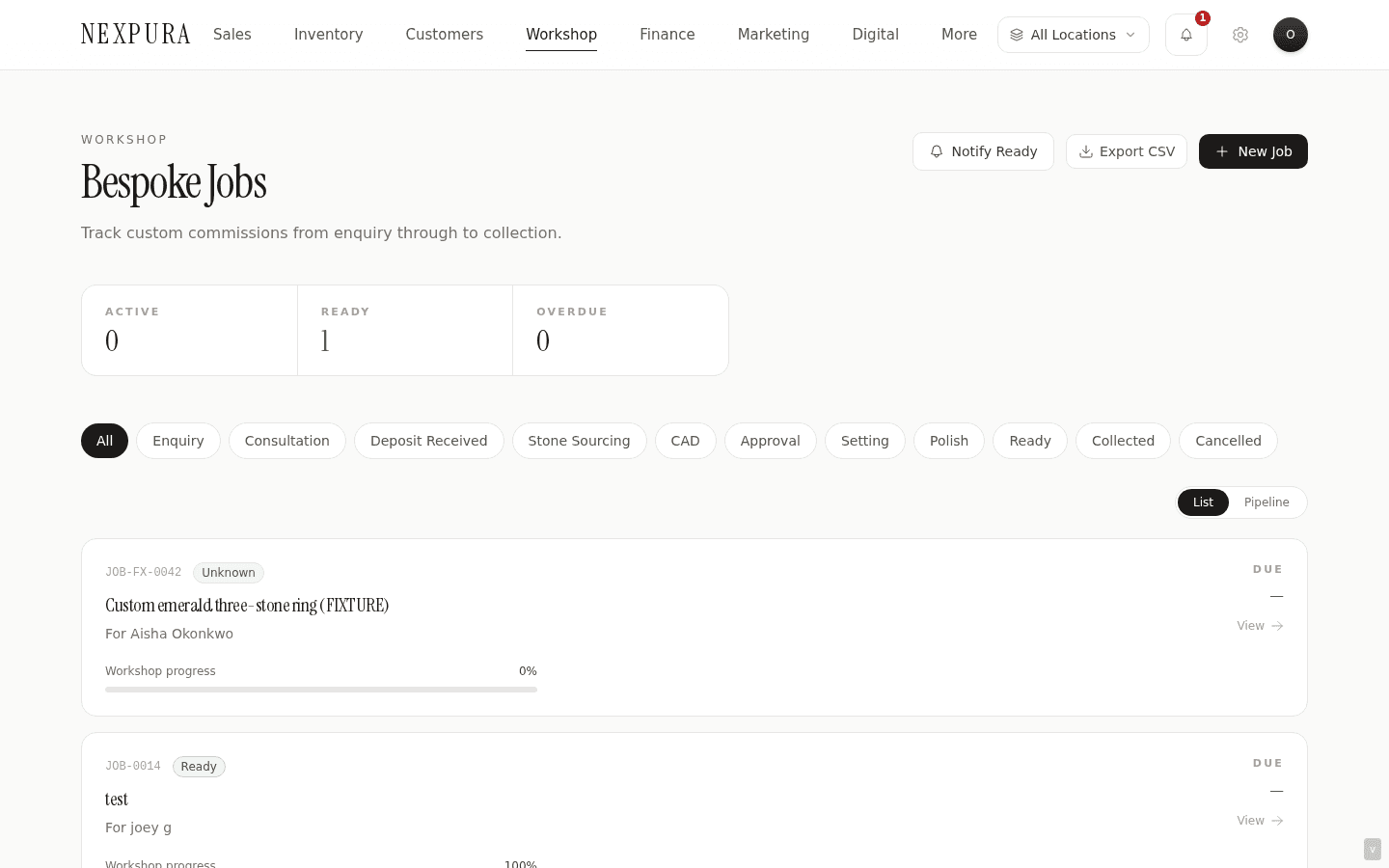
The ten-stage custom-work workflow — enquiry through collected — with deposit tracking, drag-to-advance kanban, photo updates per stage, and the same auto-notification on ready (channel-configurable) that the repair pipeline runs.
Quick reference
- Bespoke jobs live at /bespoke (list, pipeline, kanban). Detail at /bespoke/[id]; edit form at /bespoke/[id]/edit. Create through the Bespoke tab at /intake, which is the one creation form; the older
/bespoke/newroute redirects there. - Ten stages, in order: Enquiry → Consultation → Deposit received → Stone sourcing → CAD → Approval → Setting → Polish → Ready → Collected. Plus side-states Cancelled and On hold.
- Stage transitions are enforced at the database level via a CHECK constraint on the bespoke_jobs.stage column — only the known stage vocabulary is allowed. Every advance writes a row to bespoke_job_stages with actor, timestamp, and notes.
- Moving to ready fires the same auto-notification path as repairs — a customer-ready message goes out automatically (channel-configurable).
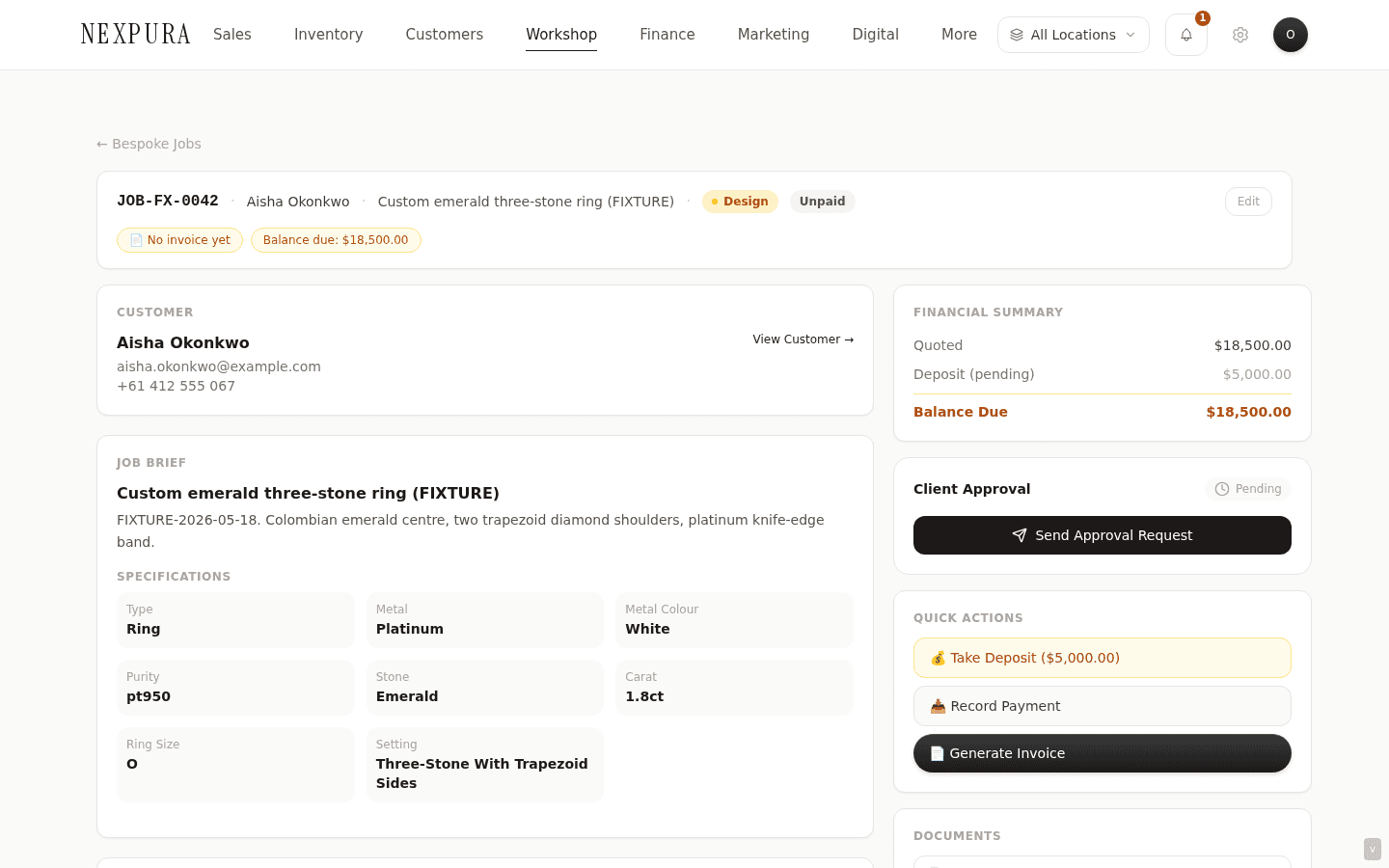
- Deposit, quoted price, and final price track separately on each job — the kanban shows them on the card, the detail page's financial panel reconciles them with the balance owing.
- Photo updates attach per-stage — see Photo attachments on workshop jobs. CAD images, setting-in-progress, finished-piece shots all attach to the same job timeline.
The ten-stage walkthrough
1. Enquiry (stage: enquiry)
The customer has reached out about a custom piece. Could have walked in, called, emailed, or filled in the web enquiry form on your storefront (see Web enquiries). Either way, a bespoke row gets created with the title, the jewellery type, the description, and any reference images already attached.
Required: a title and a customer. Everything else can be filled in over the next stages as the design firms up.
2. Consultation (stage: consultation)
You've sat with the customer (in person, over the phone, on a video call) and walked through the brief in detail. Budget, metal, stones, deadlines, special requests captured on the job record. Add notes via the detail page's comment surface so the next person who looks at this job knows the conversation that happened.
3. Deposit received (stage: deposit_received)
The customer has paid the deposit and the project is real — bench time will be committed to it. Record the deposit amount on the financial panel; advancing the stage to deposit_received signals the team can start spending on materials. Most stores set the deposit at a percentage of the quoted price (often 50%), but the field is freeform so unusual splits work too.
4. Stone sourcing (stage: stone_sourcing)
Stones are being procured — calling vendors, requesting memo parcels, choosing a centre stone. Use the comment stream on the detail page to record stone candidates and link to certificates; attach photos of memo stones as they come in so the customer can review remotely.
If your store works memo through memo & consignment, link the memo record from the bespoke job's notes — that way when the piece is finished and stones get reconciled, the memo trail is one click away from the bespoke record.
5. CAD (stage: cad)
A CAD rendering exists — either in-house or via a CAD partner. Attach the renders to the job (PNG, JPG, or PDF export from your CAD tool). The job timeline now holds the visual the customer is going to be asked to approve.
6. Approval (stage: approval)
The customer is reviewing. Email a copy of the renders from the detail page (or send through whatever channel works for this customer), wait for sign-off, and advance the stage once they've confirmed.
Customer changes their mind on a detail at this point? Roll the stage back to cad with a note in the history explaining the revision — the timeline records the iteration honestly rather than papering over the rework.
7. Setting (stage: setting)
Stones are being set. Bench progress shots attach to the job timeline at this stage — the photo stream becomes both a working tool (the next bench shift sees where you left off) and a customer-facing artefact (the finished-piece story includes the “here's how it was made” frames).
8. Polish (stage: polish)
Final polish, rhodium plating if applicable, any finishing touches. Last bench stage before the piece is ready for the customer.
9. Ready (stage: ready) — auto-notification fires
Piece is finished, in the ready tray, customer can come and collect. Moving to ready runs the same automatic notification on stage change as the repair pipeline (channel-configurable) and exposes the job on the public tracking page at /track for the customer to look up by reference number.
Stage-history row appends with the actor and timestamp, the customer-ready message goes out on whichever channel the tenant has configured. Final price is captured on the financial panel here if it changed between approval and completion (overage on materials, etc).
10. Collected (stage: collected)
Customer has walked out with the finished piece. Take the final payment if any balance is owing, hand over, mark collected. The job drops off active counts on the workshop hub; the full record remains in /bespoke with the “Show archived” toggle on.
A bespoke piece is exactly the kind of meaningful item that benefits from a provenance record going forward — theIssue passport shortcut on the completed-state detail page jumps straight into the verify-passport flow.
Common questions
Why are the ten stages locked rather than freeform?
The lock serves two purposes that aren't obvious from outside. First, the stages are a state machine the cross-tenant reports lean on — average time-from-deposit-to-ready, CAD-iteration counts, ready-shelf-age — and those numbers only mean anything if every tenant's “Polish” refers to the same point in the workflow. Second, the customer-facing communications pivot on stage names: the public tracking page at /track and the auto-notification on stage change both render consistent language regardless of which jeweller the customer is working with. Custom stage names per tenant would fragment both the reporting layer and the customer experience. The fixed vocabulary is what makes both honest.
Can I skip stages on a simpler job that doesn't need CAD or stone sourcing?
Yes — the stage advance dropdown lets you jump forward to any later stage. A simple wedding-band commission that doesn't involve stones or CAD can run from enquiry → deposit_received → polish → ready without ever touching stone_sourcing or cad. The skipped stages don't appear in the job's stage history (only stages actually entered get recorded), so the timeline stays clean.
Why isn't the deposit just a payment recorded against an invoice?
It can be — the bespoke job's deposit field is the workshop-side surface, useful for the bench to see “we've been paid enough to start work” at a glance. The financial reconciliation (which invoices, which payments, which refunds) lives under the customer's record and surfaces in the finance hub. Two layers, one number — the deposit field on the job is the workshop-readable surface of the underlying accounting record.
How does the bespoke pipeline interact with my Google Calendar?
Bespoke jobs with a due-date set show up on /workshop/calendar alongside repairs. If your tenant has Google Calendar connected (see Google Calendar integration), the events sync into your connected calendar — so a bench tech can see the bespoke pipeline alongside their personal schedule without flipping between apps. The sync is read-only from Google's side; changes to the due-date happen in Nexpura and propagate out.
Can two staff edit the same bespoke job at the same time?
They can both load the detail page and both submit changes — there's no row-lock UI. Last write wins for the freeform fields (description, notes, prices), which is fine for the rare collision. Stage transitions and photo attachments are atomic per-record, so two staff dragging cards on the kanban at the same time both succeed but only one transition lands per stage advance — the other comes back as a quiet no-op rather than firing the customer-ready notification twice.
The kanban shows progress percentages on each card — where do those come from?
Each stage has a fixed progress weighting (Enquiry 5%, Consultation 15%, Deposit received 25%, Stone sourcing 40%, CAD 55%, Approval 65%, Setting 80%, Polish 92%, Ready/Collected 100%, Cancelled 0%). They're a visual aid only — they don't track elapsed time, they don't weight by the customer's budget, and they don't feed any report. Think of them as a progress bar for “how far along is this job roughly”, not a precise number.
Troubleshooting
“Invalid bespoke stage” error when advancing
Symptom:the stage advance dropdown returns “Invalid bespoke stage” for an option you can see in the list. Cause: usually a stale page — the form was rendered before a deploy changed the stage vocabulary and the action layer rejects the now-unknown value. Fix: hard-refresh the bespoke detail page (Cmd/Ctrl-Shift-R) to pull the current stage list and retry. The valid stage set is the ten listed above plus cancelled and on_hold.
Customer-ready notification didn't go out on a bespoke job
Symptom: moved the job to ready but the customer says they haven't received anything. Cause: same three causes as the repair pipeline — missing/wrong contact details, channel not configured at /settings/notifications, or filtered into a spam folder on the customer's side. Fix:verify the customer record has a deliverable address for the configured channel; check the channel is connected; re-send manually from the job's detail page if the first attempt didn't land.
CAD images uploaded but not appearing on the customer tracking page
Symptom:attached three CAD renders to a bespoke job, but the customer's tracking page at /track doesn't show them. Cause: attachments are private by default — only attachments explicitly flagged customer-visible surface on /track (internal photos like cost-of-materials shots stay private). Fix:on the detail page's photo strip, toggle the customer-visibility flag on the renders you want the customer to see. The change is live on the next page-load of the customer's tracking page.
Kanban shows two cards for the same bespoke job
Symptom: the same bespoke job appears in two columns at once on the kanban. Cause: optimistic UI lag — a drag-and-drop landed, the destination column rendered the moved card, and the source column hasn't fully refreshed yet (rare; usually on a slow network). Fix: refresh the kanban — only one of the two will return, the underlying stage value is correct. If both still appear after a refresh, the row genuinely has two entries somewhere upstream — open the detail page from either card to check the stage history and flag for support.