Repair pipeline
The seven-stage repair workflow — book-in through completed — with an automatic notification on stage change (channel-configurable) when a piece is marked ready, and the held-7-days filter for ready-shelf rows that haven't been picked up.
Quick reference
- Repairs live at /repairs (list view, pipeline view, kanban). Detail page at /repairs/[id]; edit form at /repairs/[id]/edit. Take-in goes through /intake, which is the one creation form. The older
/repairs/newroute redirects there and stays safe for bookmarks. /repairs/[id]/edit is where an existing repair is changed. - Seven workflow stages: Booked-In → Assessed → Quoted → Approved → In Progress → Ready → Completed. Two side-states: Cancelled and On hold.
- Moving a repair to Ready fires an automatic customer notification (channel-configurable) and exposes the repair on the public tracking page at /track for the customer to look up.
- Every stage change appends a row to repair_stages with the actor, timestamp, and optional notes — an append-only history per repair.
- The kanban view is drag-to-advance: drop a card into the next column and the stage transitions with one click. The list view advances stage via the per-row stage badge.
- The Held > 7 days filter on the workshop queue surfaces ready-shelf repairs that haven't been picked up in a week — the pickup-chase queue.
The seven-stage walkthrough
1. Book-in (stage: intake, label: “Booked-In”)
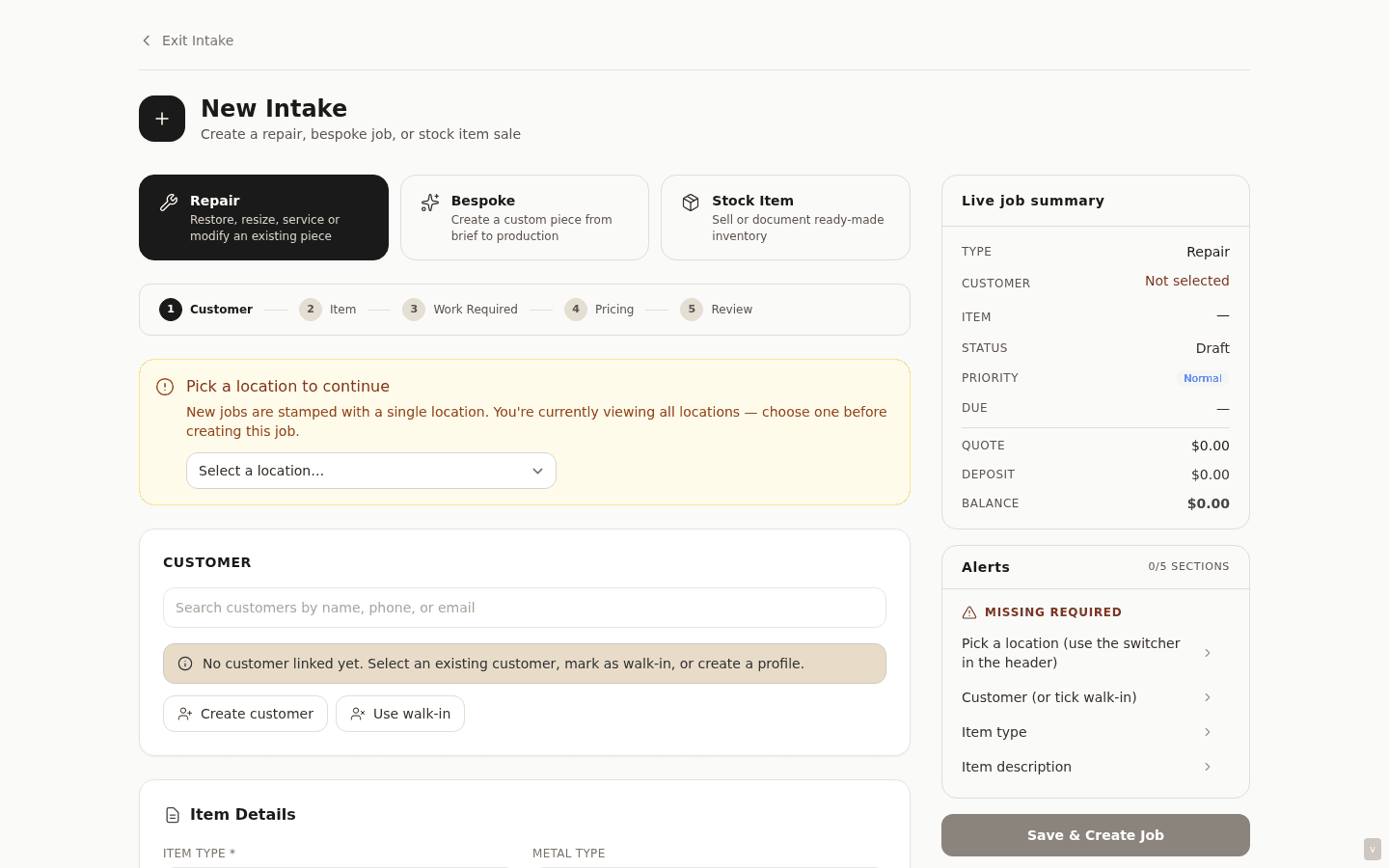
The customer arrives with the piece. Staff create the repair record from the back-of-counter /intake surface, which is shared with bespoke and stock sales and is now the only human creation form — it carries every field the older desk-side form had. It writes a row with stage = intake and the next ticket number.
Required at book-in: item type, item description, and a customer attached (walk-in is allowed but discouraged for repairs — the customer needs to be reachable when the piece is ready). Optional but recommended: due date, deposit amount, intake photos, condition notes.
2. Assessed (stage: assessed)
The bench has the piece in hand, has examined it, and knows what the work involves. Advance the stage from the detail page's stage stepper, the list-view stage badge, or by dragging the card on the kanban. Add notes if the assessment turned up anything different from what the take-in slip said — those notes append to the repair stage history.
Assessed is the “we've looked at it and we know what's involved” state. The work hasn't started, the customer hasn't been quoted yet; the bench has a plan.
3. Quoted (stage: quoted)
A price has been set. The detail page's financial panel surfaces the Quoted price field; setting it and advancing the stage to quoted both signal that the customer is now waiting to hear what the work costs.
Email-the-quote-out runs from the same page — the Send quote action sends a quote email to the attached customer's email address with the work description, the price, and an approval link (the same mechanism described in the Quotes docs page).
4. Approved (stage: approved)
Customer said yes. Advance the stage manually after a phone/email/in-person approval, or — if you sent the quote email — the customer clicking the approval link in their email flips the stage automatically and notifies the bench.
Approved is the green-light state: bench can start the work, no further customer confirmation needed. Deposits taken at book-in continue to apply; balance owing becomes the difference between the quoted price and the deposit.
5. In progress (stage: in_progress)
Bench has started the work. Advance the stage when the piece comes off the shelf and onto the bench so the rest of the team can see “this one is being worked on right now” — useful when multiple bench staff share a queue and you don't want two hands picking up the same job.
The job-progress photo stream (see Photo attachments on workshop jobs) gets most of its uploads at this stage — before / mid / after shots that document the work for the customer file.
6. Ready (stage: ready) — auto-notification fires
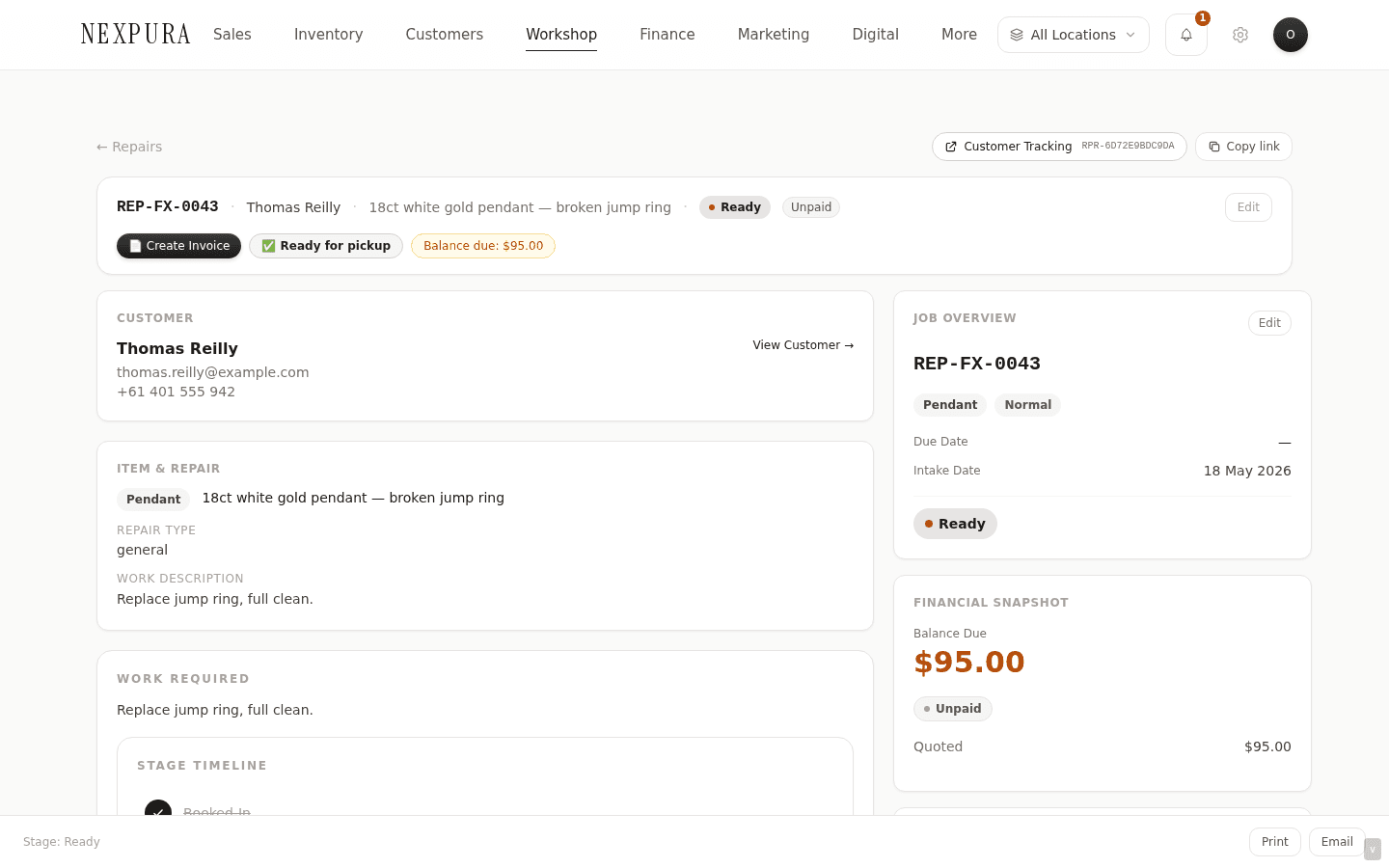
The work is done, the piece is in the ready-pickup tray. Moving the stage to ready does three things automatically:
- Appends a stage-history row with the actor and timestamp.
- Updates the customer-facing tracking page at /track (the customer types in their reference number or phone number and sees the current stage) so the customer can self-serve the status check.
- Fires the automatic customer notification on stage change (channel-configurable) — the message tells the customer their repair is ready and where to come pick it up. Channel is configured per tenant; the notification fires regardless of which channel is wired.
Other event-type automation toggles exist in the UI but not all execution loops are shipped today — Nexpura is honest about partial coverage there. The repair-ready notification on stage change is the one that fires reliably across the board.
7. Completed (stage: completed)
Customer collected. Take the final payment if there's a balance owing, hand over the piece, mark the stage completed. The piece drops out of the active counts on the workshop hub and out of the kanban's active columns. The full record stays accessible from the repair list with the “Show archived” toggle on, and from the customer's record.
If the repaired piece is a meaningful enough item to want a provenance record going forward, the completed-state detail page exposes an Issue passport shortcut into the verify-passport flow — see Issue a passport.
The held-7-days filter
A piece that's been at ready for more than seven days is a piece the customer hasn't come back for. Open /workshop/board?status=ready-for-pickup&filter=held-7-plus to see them in one list, then work down it with a phone call or a follow-up message. The number is a direct read on how cluttered your ready shelf is and how patient your recent customers have been with you.
Common questions
Why is ready the stage that fires the customer notification, not completed?
Stages are a state machine for the bench's view of the world. Ready means “the work is done, the piece is on the pickup tray” — the earliest moment the customer can usefully come in. Completed means “the customer has walked out with it” — too late to be telling them anything. Firing the notification at ready gives the customer the maximum lead time on coming back to collect, which is exactly what closes the pickup chase that hurts most repair shops. The same logic maps onto bespoke jobs and runs the same way.
Can I skip stages? Can I go backwards?
You can skip — there's no “you must go through assessed before quoted” enforcement in the action layer. The kanban offers the natural-order next stage as a single-click drop, but the per-row dropdown lets you jump to any stage. Going backwards works too — useful when something turned up mid-progress that needs a re-quote, or when the customer changed their mind after approval and the work needs reassessing. Every transition (forward or back) appends to the stage history with notes, so the audit trail stays honest about what happened.
What's the difference between Cancelled and On hold?
Cancelled is terminal — the repair is over, the piece is going back to the customer untouched (or the customer never returned to approve). It comes off the active counts and the kanban; deposits, if taken, need a manual refund through the refund flow. On hold is non-terminal — work is paused (waiting for a part, customer hasn't returned a decision, holiday) and the repair stays on the board with a clear “not actively being worked” flag. Use on-hold when you intend to resume; cancel when you don't.
What does the customer see at the public tracking page?
The customer types their reference number (or phone number) into /track and sees the current stage, the most recent status note, and an estimated ready-by date if a due date was set. They don't see internal prices, internal notes, or other customers' repairs — just their own piece's progress. The page renders the customer-friendly stage labels (“In progress” not in_progress) so it reads like the experience a customer expects, not a system dashboard. See Repair tracking — customer view.
What stops the same repair from being progressed by two staff members at once?
Stage transitions are guarded by edit_repairs RBAC and the database's CHECK constraint on the repairs.stage column — only the valid set of values is allowed, and the stage-history insert runs in the same transaction so a concurrent write either lands cleanly or fails cleanly. In practice two staff hitting “advance to Ready” at the same time results in one of them winning, the stage moves once, the history records one transition, and the second hit returns a quiet “already at this stage” rather than firing the notification twice.
Can I customise the seven stages?
Not today — the stages are a fixed vocabulary across all tenants. That's deliberate: the cross-tenant reports (average repair turnaround, ready-shelf age, stage-transition velocity) only work if every tenant's “Quoted” means the same thing. If your store uses a different name for one of these states internally, the labels can be remapped cosmetically in the future; the underlying stage vocabulary stays standard.
Troubleshooting
Customer says they never got the ready-for-pickup notification
Symptom: the repair is at ready in your system but the customer is on the phone asking if their piece is done. Cause:three possibilities. The customer's contact details on the customer record may be missing or wrong (an empty email/phone, the channel can't deliver). The notification channel may not be configured for this tenant yet — check /settings/notifications. Or the customer received it in a spam folder / filtered-messages tray. Fix:verify the contact details on the customer's record; re-send manually from the repair detail page if the first attempt didn't land; and confirm /settings/notifications shows the channel as connected.
Stage stuck at intake with no way to advance
Symptom:you open a repair, the stage stepper shows “Booked-In”, and clicking the next-stage button does nothing. Cause: your account lacks the edit_repairs permission — the page hides the stage controls (rather than showing them disabled) when you don't have rights to transition. Fix: ask an owner to grant edit_repairs via /settings/team, or to advance the stage on your behalf if the permission split is intentional.
Repair appears overdue but I just set a due date
Symptom: a repair shows the oxblood overdue badge despite a recent due-date change. Cause:the workshop hub's KPI tiles cache counts for five minutes; the repairs list itself uses fresher data but both compare the due date against the tenant timezone's today. Fix: hard-refresh after the cache window or open the queue at /workshop/board for the live read. If the date itself is right and the flag still feels wrong, check /settings for your tenant timezone — a Sydney store with the timezone left at UTC will see flags fire about ten hours early.
Drag-to-advance on the kanban isn't working
Symptom: you drag a repair card from one column to another and it snaps back instead of advancing. Cause: usually one of two things — the destination column is cancelled or on_hold (side-state transitions go through the dropdown, not drag), or the browser blocked the optimistic update because the row shifted location-scope mid-drag. Fix: use the per-card stage dropdown to move into the side-state columns; for the location-scope race, refresh the kanban and retry — the column membership will be correct on the next render.