Photo attachments on workshop jobs
How photos attach to repairs and bespoke jobs, what's captured automatically on upload, what isn't, customer-visibility flags, and how attachments surface on the public tracking page at /track.
Quick reference
- Photos attach to repairs, bespoke jobs, sales, quotes, and invoices via the same job_attachments backbone. Upload UI lives on each record's detail page (e.g. /repairs/[id], /bespoke/[id]).
- Each attachment carries: file_url, file_name, optional caption, the parent job's tenant_id + job_type + job_id, and an automatic created_at timestamp.
- Upload is tenant-scoped from the parent job's tenant — a staff member can't accidentally (or deliberately) attach files to another tenant's record. The route resolves tenant from the job row, not from anything in the request body.
- Customer-visibility is per-attachment. Photos attached to a repair surface on the customer's tracking page at /track only if explicitly flagged customer-visible — internal shots (cost-of-materials, bench-state-mid-work) stay private by default.
- Bespoke and repair attachments also flow into the customer-facing approval flow (when you send a CAD render or quote-with-photo for approval, those attachments are what the customer sees on the approval link).
- Rate-limited at the upload route — repeated rapid uploads from the same user surface a friendly “too many requests” rather than overwhelming the storage backend.
How attachments flow through a job
1. At intake / book-in
The first attachment opportunity is at intake. On the back-of-counter /intake surface, the repair and bespoke tabs both expose a photo upload control inside the form — drag or pick a file, it attaches to the about-to-be-created job and persists with the record once saved.
On the repair edit form, photos attach the same way. The intake-time attachment is the “before” reference — the piece as it walked in, captured before the bench touched it.
2. Mid-progress (bench-state shots)
As work progresses, the repair or bespoke detail page exposes an inline upload control under the photos panel. Drop a file in, add a caption (“centre stone seated, claw-tipping next”), the attachment lands on the job timeline.
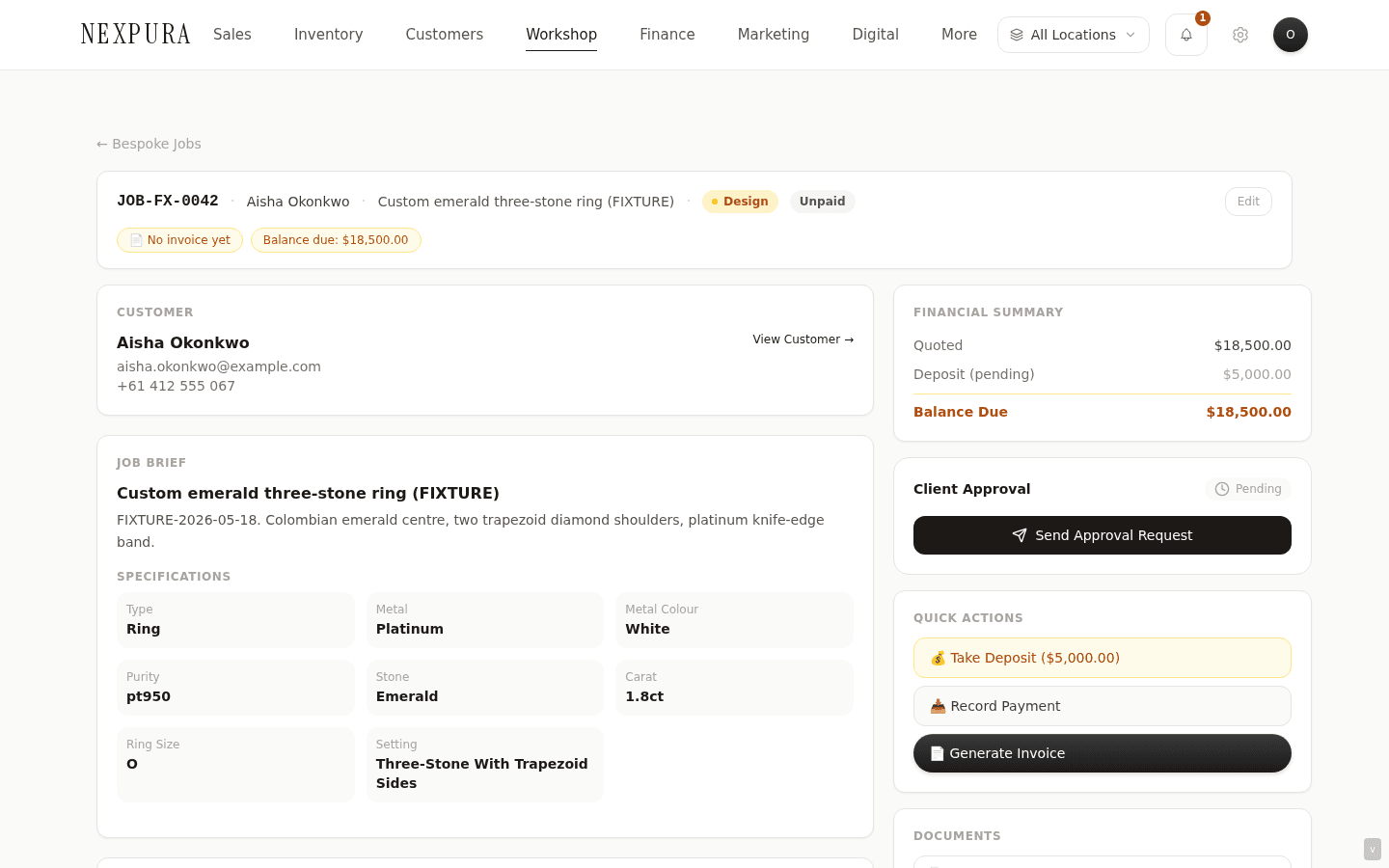
Bespoke pieces accumulate the most attachments — CAD renders, memo-stone candidates, setting-progress shots, polish-in-progress, finished-piece beauty shots. The job timeline becomes the visual story of the commission.
3. At completion / handoff (“after” shots)
The pickup-side attachment is the matched pair to the intake shot — the same piece, freshly finished, side by side with the “before” in the timeline. Useful for the customer record going forward and for the team's own portfolio (with the customer's permission).
4. What gets auto-captured on upload
On upload, the row records:
- The file — uploaded to storage, the URL written into the attachment row.
- The original file name— preserved so downloads land with a meaningful name on the customer's machine.
- The caption — whatever the uploader typed (or empty if they skipped it).
- The tenant + job link— resolved from the parent job's tenant_id (never from anything in the upload request body, for security).
- The created_at timestamp — set by the database on insert.
What doesn't get captured today: the staff member who uploaded. The attachment row has no user_id or created_by column — uploads land with their tenant and their job, but the audit trail of which staff member did the upload isn't recorded per-attachment. The job's overall edit history (see the comment stream and stage history) carries the activity record for the job as a whole; we'll add per-attachment uploader stamping when the next storage-side schema bump happens. Until then, treat attachments as tenant-attributable but not staff-attributable.
5. Customer-visibility on /track
Customer-side, the tracking page renders the attachments flagged customer-visible — typically the intake/finished/CAD-render shots. Internal photos (cost shots, bench-state-mid-work, anything you don't want the customer to see yet) stay private by default; toggle the customer-visible flag on the attachment row to expose.
Bench staff often capture far more attachments than the customer will see — that's by design. The tracking page is the customer story, not the bench audit log. Keep the internal photos for internal use and expose the curated set.
Common questions
What file types are supported?
JPG, PNG, HEIC (from iPhone), WebP, and PDF (useful for grading certificates, memo paperwork, vendor invoices that need to attach to a job). Files upload through a rate-limited route — the per-user rate limit protects the storage backend from accidental bulk uploads; a normal photo-by-photo workflow won't hit it.
Why isn't the uploader staff member captured per attachment?
The original job_attachments schema was modelled on the parent-job tenant + type + id, with the assumption that the job's overall edit log carried the actor-trail. As stores have grown, the per-attachment uploader is something a few tenants have asked for — typically to settle “who attached this CAD render” in a multi-bench setting. The schema add is a column-level migration; we'll bundle it with the next attachment-side schema change. For now, the comment stream on the parent job is the closest authoritative record of who did what when — uploads usually correlate with a comment or stage change from the same person at the same time.
Can the customer download the photos from the tracking page?
Yes — customer-visible attachments render on /track as thumbnails with click-through to the full image. The customer can save the image from their browser. Internal photos don't reach the customer view at all, so there's no risk of an internal shot leaking out by accident — the visibility flag is the gate.
Why are attachments tenant-scoped from the parent job rather than the upload request?
Security. An earlier version of the upload route read the tenant from the request body — an authed user could submit a foreign tenant ID and attach a file to another tenant's repair. The current route resolves tenant from the parent job row only, then verifies the caller's tenant matches. The body's tenant ID is ignored. This closes off the cross-tenant attachment vector and keeps the audit trail honest about what's yours and what isn't.
Can I delete an attachment after it's uploaded?
Yes — the per-attachment delete control on the detail page's photo strip removes the row from job_attachments and surfaces a confirmation so accidental clicks don't lose work. The underlying file in storage is also cleaned up on delete. Once deleted, the attachment is gone from the job timeline and from the customer's tracking view; we don't soft-delete attachments today, so treat the action as final.
Do attachments count against my plan's storage limit?
They feed into your tenant's overall storage footprint, yes. Most stores running a normal repair + bespoke flow with two or three photos per job sit comfortably under the plan limits. If you do heavy photographic appraisals or shoot every bespoke piece in detail, keep an eye on the storage indicator at /settings/billing — the line shows used vs available across all tenant-level uploads.
Troubleshooting
Upload fails silently with no error
Symptom: drop a file on the upload control, the spinner runs for a moment, no attachment appears. Cause: usually one of three — file too large for the upload limit, wrong file type (e.g. a video file rather than an image or PDF), or the per-user rate limit triggered from a previous burst. Fix:check the file under 10MB and a supported type; if you just uploaded several files in a row, wait a minute and retry — the rate limit window is short. Browser dev-tools network tab will show the upload route's actual response (429 = rate-limited, 400 = bad type, 413 = too big).
Customer says they can't see attached photos on their tracking page
Symptom: you attached photos to a repair, the customer logged into /track and sees the stage but no images. Cause: attachments default to internal-only. The customer-visible flag has to be toggled on for each attachment you want to expose. Fix:on the repair detail page, find the attachments you want the customer to see and toggle the visibility flag. Customer reloads their tracking page and the photos appear. If the visibility flag is already on and the customer still doesn't see them, ask them to refresh — the tracking page caches briefly.
Attachment uploaded to the wrong job
Symptom: a photo meant for repair #R-0123 ended up attached to repair #R-0124. Cause: two browser tabs open at the same time and you uploaded to the wrong tab. Fix: delete the attachment from the wrong repair (the delete is clean — removes the row + cleans up the file), then re-upload to the right one. No timestamp gymnastics required; the new upload gets a fresh created_at for the correct job.
HEIC images from a customer's iPhone won't render
Symptom:a customer sent through their own piece-on-day-one shot from their iPhone (HEIC format) and the file uploads fine but the thumbnail doesn't render in some browsers. Cause: HEIC rendering is supported in Safari and modern Chrome but not universally; older browsers fall back to a filename-only display. Fix: for maximum compatibility, ask the customer to share as JPG (their iPhone settings under Camera → Formats → Most Compatible), or download the HEIC and re-upload the JPG conversion. The file does upload regardless; this is a render-time issue, not a storage issue.