Google Calendar integration
OAuth connection to your Google Calendar. Appointments booked through Nexpura appear as timed events; repair due dates appear as all-day events. Updates from Nexpura reflect in the calendar; the disconnect path revokes Nexpura's access cleanly.
Quick reference
- Connection happens from /integrations/google-calendar — a dedicated configuration surface with the connect button, the sync controls, and the disconnect action.
- OAuth 2.0 flow with Google. Click Connect Google Calendar, sign in to the Google account you want Nexpura paired with, approve the calendar scopes, and the callback writes the integration row with the access token and refresh token sealed in the encrypted config.
- Two event types push to the calendar:
- Appointments — customer appointments booked through /appointments appear as timed calendar events. Title, customer name, start / end times.
- Repair due dates — repairs with a due date surface as all-day events on the due date.
- Sync is manual today — the Sync Now button on the integration card walks new and changed appointments / repairs since the last sync and writes them to the calendar. Sync updates persist back to Nexpura's integration row via the last_sync_at timestamp.
- Disconnect from the same surface. The disconnect path calls Google's OAuth revocation endpoint so the access is removed on Google's side too — not just locally.
- Connect / disconnect / sync require the integration manager permission, same as the other integrations.
Connecting Google Calendar
1. Open the integration page
Go to /integrations/google-calendar. The status card on the page shows Not Connected initially, with a single Connect Google Calendar action.
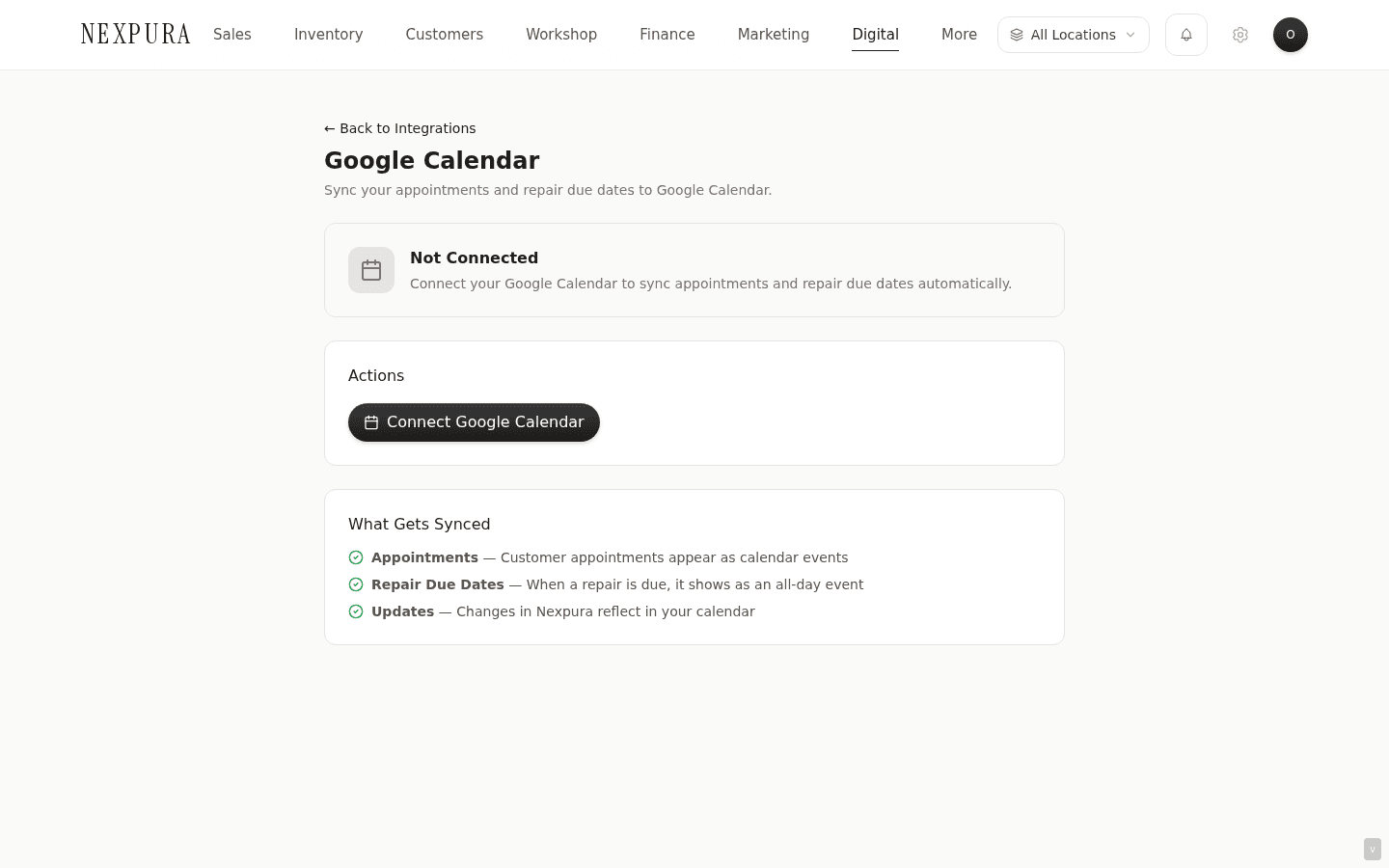
2. Authorise on Google
Click Connect Google Calendar. You're redirected to Google's OAuth consent screen. Sign in to the Google account you want paired with Nexpura (if you have multiple accounts, pick carefully — the one you choose is the one the calendar lives in), then approve the scopes Nexpura is requesting (read and write access to your calendar events).
Click Continue. Google redirects back to Nexpura's callback at /api/integrations/google-calendar/callback with the auth code. The callback verifies the signed state parameter, exchanges the auth code for tokens, fetches the calendar metadata (calendar email and ID for the primary calendar), and writes the integrations row.
3. Confirm the connection
You land back on the same page with the status card now showing Connected, the synced-to email address, and the timestamp of the most recent sync (if any; freshly-connected calendars show no sync until the first Sync Now).
A What Gets Synced card lower on the page enumerates the two event types and how updates flow. The actions card carries the Sync Now and Disconnect buttons.
Syncing to the calendar
1. Click Sync Now
The Sync Now button on the actions card runs the sync immediately. The button replaces its icon with a spinner; the disconnect button disables. On success, a green confirmation appears with the counts: “Synced 12 appointments and 8 repair due dates”.
The sync walks Nexpura appointments and repairs with a due date and writes / updates Google Calendar events for each one. Events are keyed by a Nexpura-owned event ID so repeat syncs update existing events rather than creating duplicates — a rescheduled appointment moves the time on the existing calendar event; a cancelled appointment deletes the event.
2. Open Google Calendar
Open your Google Calendar in another tab. The synced events appear inline with whatever else is on your calendar:
- Appointments appear as timed events on the agreed start / end times. The event title carries the customer name and the appointment subject; the description carries notes from the booking.
- Repair due dates appear as all-day events on the due date — useful for the morning glance that says “ three repairs need to be picked up today.”
Edits to events made directly in Google Calendar don't propagate back to Nexpura — the sync is one-way Nexpura → Calendar. The intent is that Nexpura owns the appointment / repair record; the calendar is the surface for visibility. Re-time a calendar event back in /appointments to keep both in agreement.
Screenshot pending
A connected calendar with synced events — timed appointments for the day and all-day repair due-date events visible on the same surface.
3. The token refresh runs invisibly
Google's access tokens expire after an hour. The sync path checks the cached token before calling Google; if it's expired or close to expiry, the refresh token swaps in a fresh one and the operation continues. The new tokens are written back to the encrypted config.
Token-related errors only surface when the refresh token itself has been revoked — usually because someone removed Nexpura's access in the Google account's security settings. The fix is to reconnect; the OAuth flow re-issues a fresh refresh token.
Disconnecting
1. Click Disconnect on the actions card
The Disconnect button on the actions card surfaces a confirm prompt — “Disconnect Google Calendar? Future appointments won't sync.” The prompt is intentional: disconnecting is reversible (reconnect re-establishes the link) but the previously-synced events stay where they are in your calendar. Disconnecting doesn't delete the events; it stops new ones from being created or updated.
Click confirm. The disconnect path:
- Calls Google's OAuth revocation endpoint to invalidate the access and refresh tokens on Google's side (so you can also see Nexpura removed from your account's connected-apps list).
- Clears the encrypted config on the Nexpura side.
- Flips the integration row status to disconnected.
Page reloads automatically; the status card flips back to Not Connected with the Connect button available again.
Common questions
Which calendar does Nexpura sync into?
The primary calendar of the Google account you authorised. Most Google Workspace and personal Gmail accounts have a calendar called “Your name” or the email address — that's the one. The calendar email shown on the integration card is the definitive answer for your specific connection.
Today there's no setting to choose a different named calendar within the same Google account — the sync is tied to the primary. The workaround for keeping Nexpura events visually separate (a coloured category in your calendar) is Google Calendar's colour-coding by event source, which is set in the calendar UI on Google's side.
Why is the sync one-way?
Nexpura's appointment and repair records carry data the calendar event can't fully represent (customer link, repair stage, intake notes, charges). The system of record is Nexpura; the calendar is the visibility surface. Two-way sync would have to answer “what happens when the calendar event moves but the underlying appointment data didn't change accordingly?” — and the safer default is the one-way push.
Edit appointments in Nexpura, glance at the calendar for the at-a-glance view. The next sync reflects changes Nexpura-side into the calendar; reverse- direction edits are intentionally outside the loop.
Can multiple staff each connect their own Google Calendar?
The integration is tenant-level — one connected Google Calendar per Nexpura tenant. That calendar becomes the shared visibility surface for whoever has read access to it.
The pattern most stores use: connect a shared Google account (a calendar email like bookings@yourshop.com or a Google Workspace shared calendar), then share it with each staff member who needs to see appointments and due dates. Each staff member has the calendar visible in their own Google Calendar UI without needing their own integration.
What happens to synced events if I disconnect?
Existing events stay in the calendar. Disconnecting stops new events from being pushed and stops updates / deletes from propagating, but it doesn't reach back and remove what's already there.
If you want a clean slate after disconnecting, delete the previously-synced events manually in Google Calendar (search for events with the Nexpura event prefix in the title). Most stores don't bother — the existing events stay as a historical record and the new connection picks up from the current state forward.
Troubleshooting
I authorised on Google but landed back on an error page
Symptom: the OAuth flow returned to Nexpura with an error rather than a connected confirmation. Cause:most often, the consent screen was abandoned (back button, tab closed) or the scopes were declined. Less often, the callback verification failed (state mismatch — the session that started the flow isn't the session that completed it). Fix:click Connect Google Calendar again, complete the consent screen including approving the calendar scopes, and don't open the flow across multiple browser sessions or windows. The state-binding requires the flow to start and finish in the same session.
Sync ran but events didn't appear in my calendar
Symptom:the Sync Now button reported success (positive counts) but the events aren't visible in Google Calendar. Cause:two candidates. (1) The events were synced into a different Google account than the one you're viewing — the connect step bound to whichever account was active in the consent screen. (2) Google Calendar's calendar list has the primary calendar toggled off in your view. Fix:check the calendar email shown on the Nexpura integration card — that's the account the events are in. Open Google Calendar signed into that account. If you're in the right account, check the calendar list on the left and make sure the primary calendar (usually named after your email or your full name) is ticked.
Sync returns “Token expired”
Symptom: Sync Now returns a token-expired error. Cause:the refresh token has been revoked on the Google side — usually because someone removed Nexpura from the account's connected-apps list, or the account was inactive for an extended period and Google expired the grant. Fix:click Disconnect on the Nexpura side (it'll succeed locally even though the revoke call returns an already-revoked response), then go through the connect flow again with the same account.
A repair's due date changed in Nexpura but the calendar event didn't move
Symptom: you changed a repair due date in /workshop but the corresponding all-day event in the calendar is still on the old date. Cause:the sync is manual — the change has been saved on the Nexpura side but hasn't been pushed yet. Fix:click Sync Now on the integration card. The sync walks changed appointments and repairs since the last sync and updates the calendar events for each one, including the moved due date. If the event still doesn't move after the sync, contact us with the repair ID and the expected new date — we can reconcile from the audit log.
I want to connect a different Google account
Symptom: the integration is connected to one Google account and you want it pointed at a different one. Cause: N/A — this is expected; the disconnect / reconnect path handles it. Fix:click Disconnect on the integration card and confirm. Sign out of the currently-connected Google account in your browser (or use a private / incognito window for the next step), then click Connect Google Calendar again and sign in to the new account. The new account's primary calendar becomes the sync target from the next Sync Now onwards.