Repair tracking — what your customer sees
The public /track page customers visit to check repair or bespoke status, view attached photos, and message the workshop. Framed from the customer's perspective — here's what your customer experiences after you've booked their ticket in and the workflow surfaces back to them.
Quick reference
- The customer-facing tracking surface lives at /track (lookup entry) and /track/[trackingId] (the order page itself). Both routes are public — the customer never signs in.
- Tracking IDs are formatted RPR-XXXXXXXX for repairs and BSP-XXXXXXXX for bespoke jobs. The format (prefix plus eight to twelve hex characters) is the same for both — the prefix tells the lookup which table to search.
- The customer receives their tracking ID in the ready-for-pickup notification (channel-configurable per tenant) and on the take-in slip you can print at intake. Either entry point lands them on the same /track page.
- The order page renders: a status pill on the progress stepper, the item description and an estimated completion date if you set one, attached photos that you marked public, a two-way message thread with the workshop, and for bespoke design-review stage, an approve / request changes card.
- The customer never sees other customers' orders, internal pricing, or internal notes. They see their piece's public-facing progress, the photos you chose to share, and the messages the two of you have exchanged on this thread.
What your customer walks through
1. How the customer gets the tracking ID
When you create the repair or bespoke job at intake, the system stamps a tracking ID on the row — RPR-A1B2C3D4 for a repair, BSP-A1B2C3D4 for a bespoke. That ID surfaces back to the customer in two places:
- The take-in slip you print at intake. The slip lists the tracking ID alongside the item description and the deposit amount; most stores hand it to the customer as they walk out.
- The ready-for-pickup notification. When you advance the workshop stage to ready, the system fires a channel-configurable notification to the customer's saved contact (see Repair pipeline for how the trigger works). The notification message contains the tracking ID and an inline link to the order page.
Customers who lose the take-in slip and don't have the notification handy can also be re-sent the tracking ID by you from the repair or bespoke detail page — they don't need to come back into the shop.
2. The customer-portal landing page
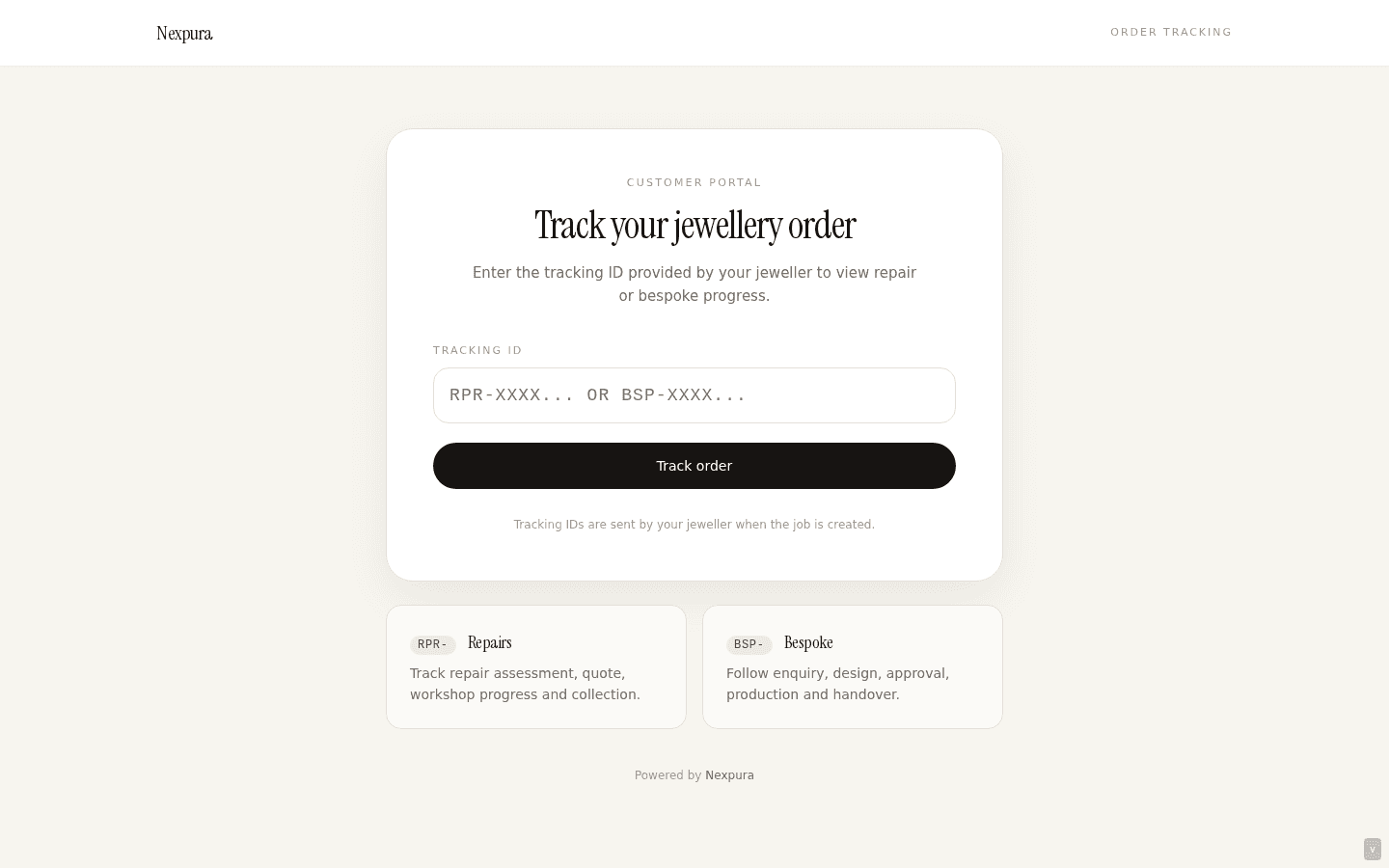
Customers arrive at /track — a single-card portal page on the marketing surface (taupe + ivory palette, Nexpura wordmark in the header, no shop-floor chrome). The card shows a single labelled input — “Tracking ID” — with a placeholder showing the expected format (RPR-XXXX… or BSP-XXXX…), a submit button, and two info tiles below the form briefly explaining what the two prefixes mean (Repairs vs Bespoke).
The page's only interaction is type-the-ID, submit. On submit, the page validates the prefix is RPR- or BSP-, normalises to uppercase, and navigates to /track/[trackingId] which is where the order itself renders.
3. The order page itself
The order page at /track/[trackingId] is composed of a small set of cards stacked top-to-bottom. The customer scrolls down this stack:
- Tracking header. Your business name and logo, the tracking ID, and the customer's piece in one strip — the brand surface for the page. The business name is sourced from your tenant profile; an unset business name shows the fallback “Your jeweller” so the page never reads like a placeholder.
- Order summary card. Item type and description, the date the job was booked in, and the estimated completion date if you set one. This is the customer's “is this really my piece” check before they read further.
- Progress tracker. The current stage pill against the full stage sequence. The labels are customer-friendly (“In progress”, “Ready for pickup”) — not the internal machine codes. The current stage is highlighted; past stages are checked; future stages are dimmed.
- Next-step card. A short note telling the customer what they should expect next — “Your jeweller is finishing your piece. We'll message you when it's ready to collect” — and a shortcut button that scrolls them to the message composer.
- Bespoke decision card — bespoke jobs only, only on the design_review stage. Renders an Approve / Request changes pair so the customer can confirm the design from the tracking page directly. Hidden on every other stage and on all repair jobs.
- Attachments card. Photos and files you marked public render here. The order-attachments bucket is private; the page signs each URL server-side for the customer, so the photos load directly but can't be deep-linked outside the tracking page. Photos you didn't mark public stay invisible to the customer.
- Activity timeline. Every stage transition with its timestamp and the optional notes you added during the transition. The customer sees the history of their piece moving through the shop — what happened when, in their order.
- Message card. A two-way thread. Messages the customer sends here land in your jeweller-side messaging surface; messages you send from the repair or bespoke detail page surface in this thread. The composer is open by default and stays in focus on the page.
Screenshot pending
/track/[trackingId] order page — header card with jeweller logo + tracking ID, order summary card showing item + booked-in date, progress tracker stepper with 'In progress' active, next-step card with message-the-workshop shortcut, attachments grid with two photos, activity timeline, message thread composer at the bottom.
4. Messaging the workshop
The message card is the customer's direct line to you on this piece specifically. They type a message, hit send, and it lands as an inbound on your jeweller-side messaging thread attached to the repair or bespoke record. Your reply, sent from the detail page, surfaces back on the customer's tracking page on their next visit (or the next time the page polls).
The thread is scoped strictly to this order — the customer can't use the tracking page to reach a different job, and you can't cross-thread messages between unrelated repairs. One piece, one thread, one place to look. The next-step card's shortcut button deep-focuses the composer so the customer doesn't have to scroll looking for it.
5. Tracking-link revocation
If a tracking link is shared outside the customer or you want to retire it (rare — usually for a dispute), the jeweller-side detail page exposes a tracking_revoked_at kill-switch. Once set, the public page returns the same not-found card as an invalid ID does — branded, no information leakage about whether the order ever existed. Bring it back by clearing the revocation flag on the detail page.
Common questions
Why is the tracking page public — wouldn't a login be more secure?
Two design choices threaded together. Customers hate creating accounts to check the status of a piece they just dropped off — adding a login step kills the “check it from your phone in the car park” convenience the page is built to deliver. And the tracking ID itself is the access token: RPR-XXXXXXXX where the X's are hex (4 billion of them on the legacy 8-char form, way more on the current 12-char form) makes random guessing impractical. Per-IP rate limiting on the lookup endpoint prevents enumeration at scale, and the revocation kill-switch lets you retire a leaked link if it ever comes up. The login-less design isn't lazy — it's the trade-off that keeps the surface usable for the customer.
Can the customer see the price on the tracking page?
No. The tracking page renders only the public-facing fields — item description, stage, attached public photos, message thread. Internal prices, deposit amounts, balance owing, internal notes, and other private fields stay on your jeweller-side surfaces and never load into the public page. If you want the customer to know the quoted price, send it through the quote-email flow (covered on the Quotes docs page) — that's a separate channel with an explicit approval action, which is the right shape for “here's the cost, please confirm”.
What does the customer see for the different stage names?
The internal stage codes (intake, assessed, quoted, etc.) are mapped to customer-friendly labels in the progress tracker. Repairs go through Booked in, Assessed, Quoted, Approved, In progress, Ready for pickup, Completed. Bespoke jobs have a longer ten-stage sequence covering enquiry, design, design review, approval, production, ready, and collected. The customer sees the named labels (“Ready for pickup”) with their pill highlighted; they don't see the underlying codes.
Which photos surface on the tracking page?
Only photos you uploaded against the order with is_public = true render in the customer attachments card. The default at upload is to mark workshop documentation photos private (the bench photos that are useful for the shop's internal record but not for the customer); you mark a photo public when you specifically want the customer to see it — a before / mid / after shot of the work, an in-progress photo to reassure the customer, the finished piece. See Photo attachments on workshop jobs for the upload-and-visibility flow.
Can the customer use the tracking page from a phone?
Yes — the page is built mobile-first (single column on narrow screens, touch-sized inputs, the message composer expands to fit the keyboard). Most customers tap the link in their ready-for-pickup notification and land on the page from their phone directly; the experience is designed for that path.
How fresh is the data the customer sees?
Order data revalidates every 30 seconds — when you advance a stage or change a field on the jeweller side, the customer sees the new state within half a minute on their next page load. Messages are fetched fresh on every visit (not cached) so a new reply from you shows up immediately when the customer comes back. Practically: the customer refreshes the page after a notification and sees the updated state, every time.
Troubleshooting
Customer says the tracking ID returns “Order not found”
Symptom: the customer typed the tracking ID into /track and got the branded not-found card. Cause: three possibilities. The ID was mistyped (most common —O vs 0, I vs 1, the take-in slip got smudged). The repair or bespoke was soft-deleted on your side and the row no longer resolves. The tracking link was revoked via tracking_revoked_at on the detail page. Fix:open the repair or bespoke from your jeweller-side list, verify the tracking ID matches what the customer typed, and re-send the link from the detail page if it's a typo. If the row is soft-deleted, restore it from the admin tools. If revocation was accidental, clear the flag on the detail page.
Customer says they can't see a photo you uploaded
Symptom:you attached a photo to a repair and the customer says the tracking page doesn't show it. Cause: the upload was marked private (not public). The tracking-page attachments card filters to is_public = true only — private uploads are visible only to you. Fix:open the attachment from your jeweller-side surface and flip the visibility to public. The customer's next page load (within the 30-second revalidation window) picks up the change.
Customer's message hasn't arrived in your inbox
Symptom:the customer says they sent a message from the tracking page; you don't see it on the repair's jeweller-side message thread. Cause: usually a refresh-timing issue — your detail page cached the thread before the message landed. Less commonly, the customer was rate-limited by the per-IP cap on the lookup endpoint and the request didn't complete. Fix:reload the detail page; the message should appear in the thread. If it still doesn't, ask the customer to retry the send from the tracking page — the rate-limit window is short and the next attempt usually goes through. The customer never sees the rate-limit page directly; the lookup returns not-found in that state by design.
Tracking page shows “Your jeweller” instead of your business name
Symptom:the header on the order page reads “Your jeweller” rather than your shop name. Cause: your tenant profile has an empty business_name field — the page falls back to the relationship phrase rather than reading like a placeholder. Fix: open /settings and set the business name on your profile. The tracking page picks it up on the next revalidation cycle (no redeploy needed).
Related
- Repair pipeline — the jeweller-side workflow that surfaces back to the customer
- Bespoke pipeline — the design-review stage that drives the customer approve / request-changes card
- Photo attachments — marking photos public so they surface on the tracking page
- Verify Passport — what your customer sees on the provenance lookup
- Receiving web enquiries — the other customer-facing entry point