Inventory overview
How Nexpura models your stock — items, serialized pieces, stock numbers, the inventory table — and the concepts the rest of this section builds on.
Quick reference
- Every piece lives as a row in the
inventorytable, scoped to your tenant and pinned to one location. - The list view lives at /inventory; each piece has a detail page at
/inventory/<id>. - SKU is the model identifier (you set it, or Nexpura auto-generates it). Stock number is the per-piece identifier —
S1,S2, and so on for owned stock;C1,C2for consignment. - Quantity changes flow through the
stock_movementsledger, never through a direct edit of the row. Every adjustment, sale, transfer, and shipment receipt writes a movement row. - Archived items are soft-deleted (
deleted_atstamped) — they vanish from the list view but the historical row is preserved, and the detail URL renders a read-only interstitial.
The shape of the data model
1. An item is a row, not a hierarchy
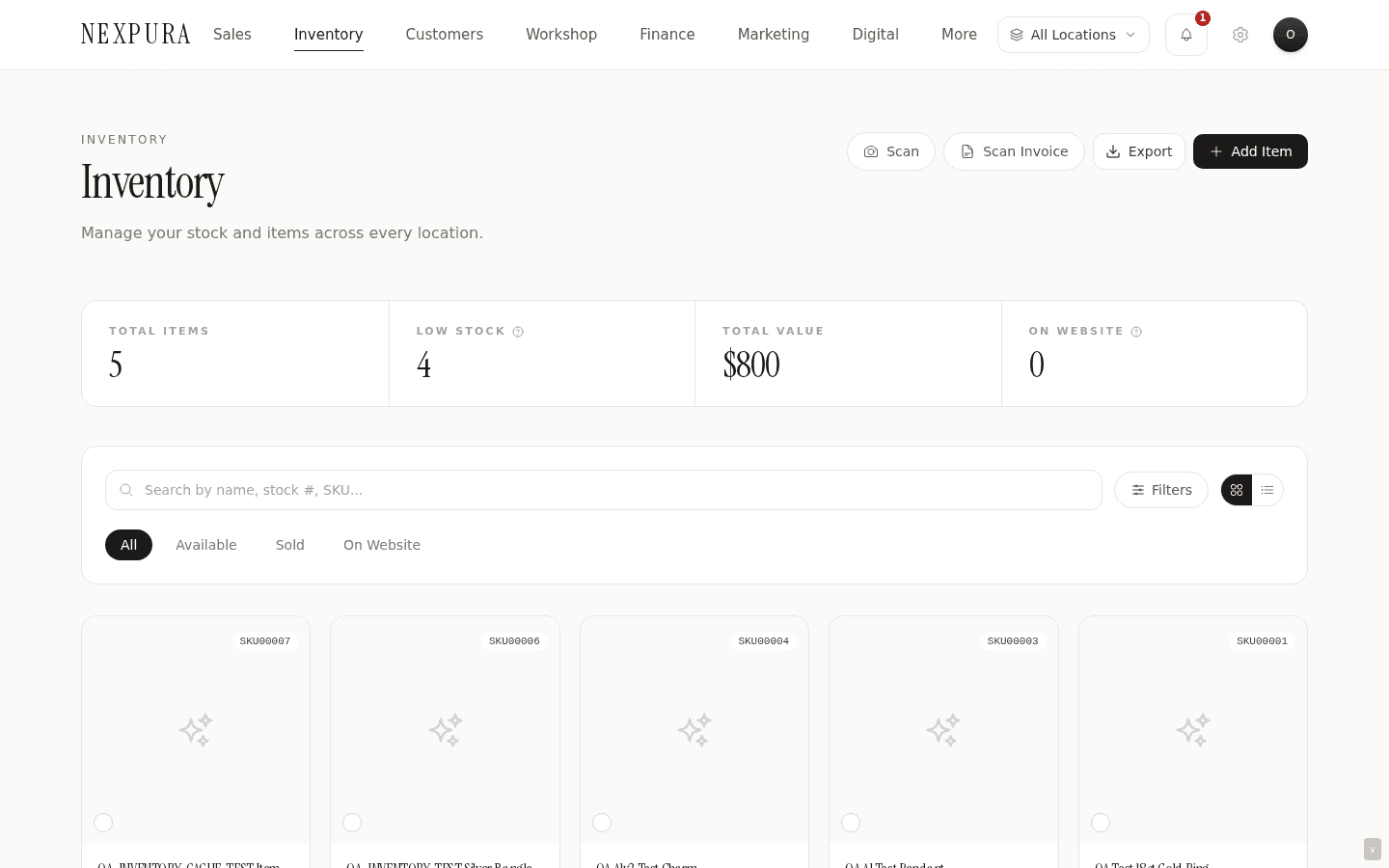
Nexpura's inventory model is intentionally flat. A gold-band ring, a loose diamond, a packet of jump rings, a packaged box of stock cards — each is one row in the inventory table. There's no parent-child product hierarchy; if you sell a ring in three lengths or four sizes, each length is its own row with its own SKU and its own quantity.
That decision keeps the data model honest about what your stock actually is — a list of distinct pieces (or distinct packs of pieces) sitting in a location, each with a real-world cost and a real-world price. The cost of the flat model is that you maintain rows by hand for each length or size variant; the benefit is that quantity counts, valuations, and sale paths all read cleanly off a single row.
2. Item types
Each item is one of five types: Finished Piece (a ring, a necklace — the piece you sell), Loose Stone (a gem you may set into a custom commission), Finding (clasps, jump rings, ear hooks — the small parts you build with), Raw Material (a length of gold wire, a sheet of silver), and Packaging (boxes, bags, cards). The type drives which fields show up on the form — packaging doesn't need a stone type, raw materials don't need ring sizes — and which views the item appears in.
For most stores the bulk of the catalog is Finished Piece. The other types matter when you start doing workshop commissions or want to track consumables separately.
3. SKU vs stock number
Two identifiers, two jobs. SKU is the model code — what makes this piece recognisable in your own catalogue. You set it yourself (e.g. RING-18CT-SOL-0.50CT), or if you leave it blank Nexpura generates one via the next_sku database function. Two pieces of the same model share the same SKU.
Stock number is the per-piece identifier — S1, S2, S3 for owned stock, C1, C2 for consignment. The stock number is what goes on the price tag and what your insurance schedule references. It's allocated monotonically per tenant.
Stock numbers are assigned automatically when you create stock via the receive shipment flow (the invoice scanner). If you create an item directly from /inventory/new the form doesn't auto-allocate one — that's by design, since you may already have a stock number written on the existing piece you're cataloguing. Set it in the field if you have one, leave it blank if you don't.
4. Quantity, low-stock threshold, and the movement ledger
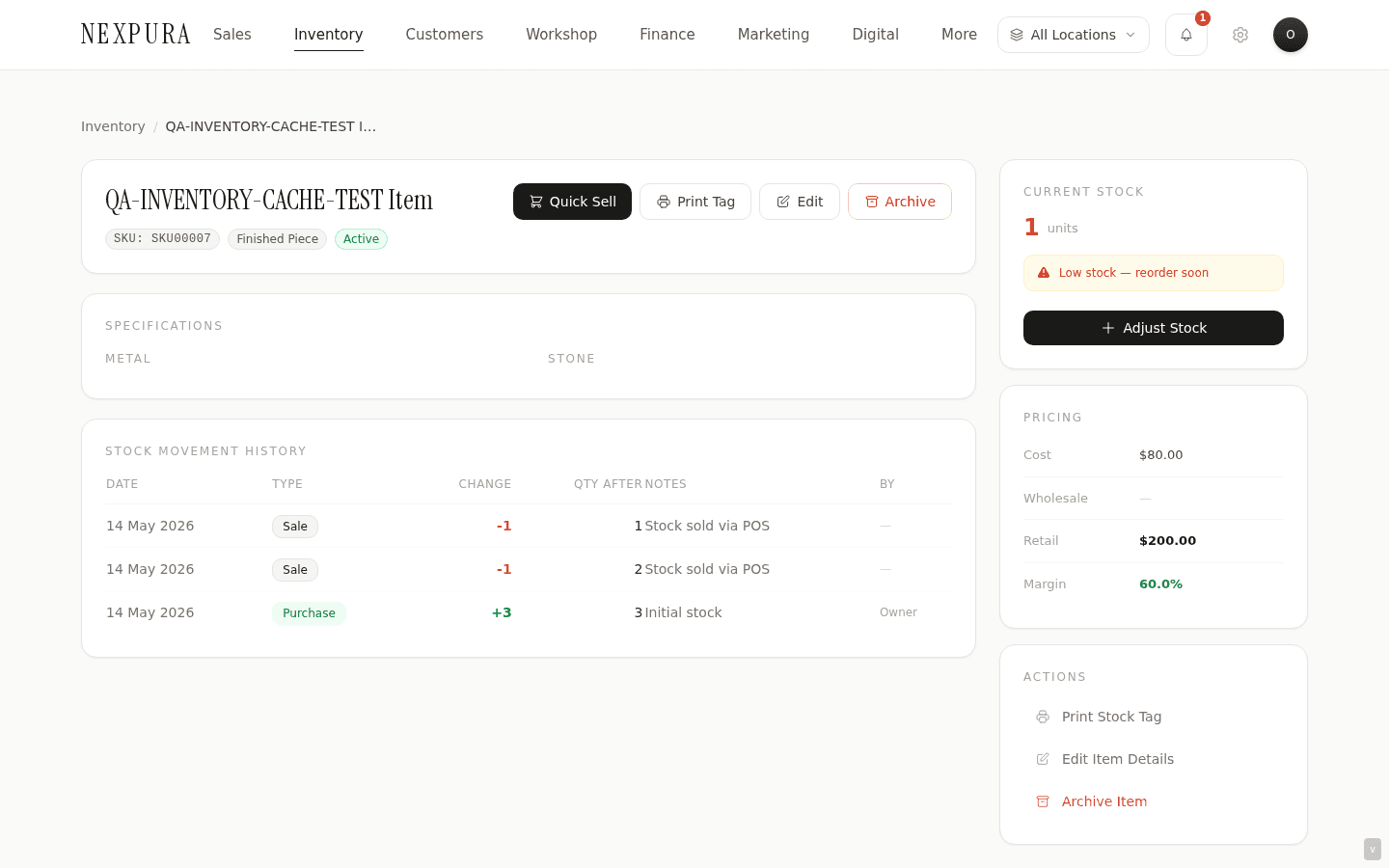
Each item has a current quantity and a low-stock threshold (default 1). When quantity drops to or below the threshold, the item shows in the “Low stock” KPI on the dashboard and the inventory list gets a coloured pill.
Quantity is never edited directly. Every change — a sale, an adjustment, a transfer-in, a stocktake — writes a row to stock_movements, and a database trigger updates the inventory row's quantity to match. The benefit: a complete audit trail of every change, with who did it, when, and why. The cost: nothing.
See Adjusting stock and viewing history for the operator-facing flow.
5. The consignment flag
Pieces taken in on consignment from a vendor or a colleague aren't really yours until they sell, so the financial treatment differs. The is_consignment flag on the item marks it as consignment stock, switches the stock-number prefix to C, and surfaces extra fields on the form: consignor name and contact, start and end dates of the consignment window, and the commission percentage you owe back on a sale.
Consignment-from-vendor is documented at /docs/memo-and-consignment/receiving-on-memo. For the item-level mechanics, the flag and fields live on the standard /inventory/new form.
6. Locations and multi-store stock
Every item belongs to exactly one location at any moment. If you have multiple stores, the same model SKU can have a separate inventory row at each location — the boutique row has quantity 3, the workshop row has quantity 1. A transfer between locations decrements the source row and creates (or bumps) a destination row for that SKU. See Transferring inventory between locations.
If you only have one location, none of this matters in practice — every item just lives at your one store.
7. Gem-certificate and grading fields
For pieces with a stone, the form carries fields for Certificate number, Grading lab (GIA, IGI, AGS, in-house, etc.), Grade, and a Report URL where you can paste a link to the lab's online verification page. None of these are required, but if your store sells certified diamonds or coloured stones at price points where the certificate is load-bearing, filling them in is what makes the piece's provenance traceable from the tag through to the sale.
8. Archive vs delete
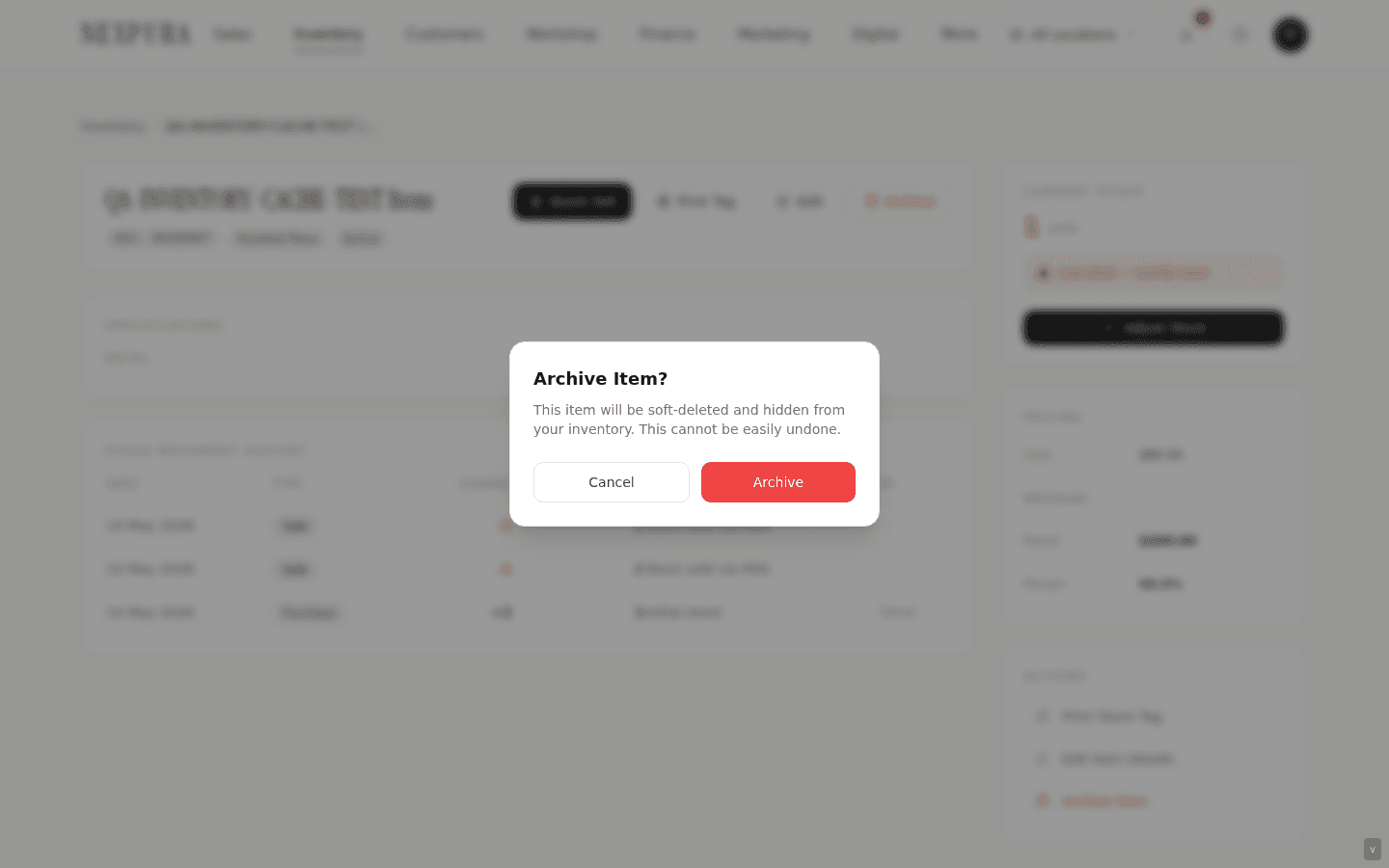
There's no hard delete from the inventory UI. The Archive button on the detail page does a soft delete — it stamps deleted_at on the row, hides the item from the list view, the POS, and reports, but keeps the row in the database so historical sales and audit logs still resolve.
Visiting an archived item's detail URL shows a read-only interstitial with the archive date and a back link. There's no self-serve restore today — if you archived a piece by mistake, contact us and we'll clear the deleted_at stamp.
Common questions
Is there a product/variant hierarchy like Shopify?
No. Each variant — a chain in three lengths, a ring in four sizes — is its own inventory row with its own SKU and its own quantity. The flat model trades a small amount of catalog-entry overhead for clean per-piece accounting, which matters more when your average sale price is in the thousands.
Can two items share the same SKU?
Yes — and this is the multi-location story. The same model SKU can have one row at each location, with its own quantity at each. Transfers move quantity between the rows; reports aggregate across them when you ask for total stock-on-hand by SKU.
How is the stock number assigned?
By the get_next_stock_number database function — monotonically per tenant, with prefix S for owned stock and C for consignment. It's automatic in the receive-shipment flow; on the bare /inventory/new form it's a manual field — leave it blank if you don't need one, or type the number that's already written on the physical tag.
What happens to inventory when a sale runs?
The POS writes a sale row to stock_movements with a negative quantity_change; the trigger drops the inventory row's quantity by that amount (and refuses to go below zero). If the piece is the last one and you have a connected Shopify or WooCommerce store, the sync also marks it sold on your storefront. Sales are covered in /docs/sales-and-pos/processing-sale.
Can I bulk-import existing stock?
Yes — via CSV import in onboarding (see Importing your existing data) or, for an established store, through the data import page in Settings. Both paths use the same column schema; the onboarding version adds the Migration Hub helpers for cleaning up rough CSV exports from other systems.
Troubleshooting
An item shows quantity 0 but the piece is in the cabinet
Symptom: stock count and reality disagree. Cause: either a sale ran without a customer return being processed, the item was transferred out without being received back, or a stocktake correction landed wrong. Fix: open the item detail page, scroll to Stock Movement History — every change is recorded with reason and operator. Find the offending row, then either reverse it with an adjustment (reason: “Stocktake / count correction”) or contact the operator who made the change. The history view at /inventory/<id>/history shows the full edit log alongside the movement ledger.
I can't see an item another team member just added
Symptom:a colleague tells you they added a piece but it's not in your list. Cause:most often you're scoped to a different location than the one the item was created at. Staff with restricted location access only see items at their allowed locations. Fix:switch the location pill in the header from “All Locations” (or your current location) to the one where the item was created. If you're a manager or owner and the item still doesn't appear, the inventory list caches per-tenant — try a hard reload (Cmd/Ctrl-Shift-R) and it'll refresh.
Margin shows red on an item I priced correctly
Symptom: the margin percentage on the right sidebar of the detail page is in red. Cause:the computed margin is under 25% — Nexpura colours margins green at 50%+, amber at 25-50%, red below 25%. It's a guide-rail, not a gate. Fix: if the price and cost are both correct and the margin is genuinely tight (a common situation on bullion or low-markup repair pieces), the red is just signal — ignore it. If the cost is wrong (e.g. you entered cost in dollars when the field expects cents, or vice versa), click Edit and correct it.
An item I archived shouldn't have been
Symptom: the item is gone from the list view; visiting its detail URL shows the read-only archived interstitial. Cause: the Archive button was clicked. Owners and managers can archive; staff cannot. Fix:there's no self-serve restore today (queued as work for after the current audit closes). In the meantime, contact us with the item's name or SKU and we'll clear the deleted_at stamp — the row was never destroyed, just hidden.