Receiving a piece on memo
Intake workflow at /memo/new — capturing the supplier, the agreed value and commission, the return-window date, and posting the piece into the Consignment In tab so it never gets mixed into owned-inventory valuation.
Quick reference
- Intake form lives at /memo/new?type=consignment for consignment-in. The same form at /memo/new?type=memo handles memo-out; the contact field flips from supplier to customer.
- Required fields: item name and retail value. Everything else — supplier, commission, due-back date, notes — is optional but worth filling.
- Reference number is auto-allocated on save:
CON-0001, thenCON-0002, and so on. You don't type it; you read it off the saved row. - Pieces received on memo do not write to
stock_movementsor inflate owned-inventory valuation. They sit in their own ledger, separate from owned stock. - This flow is distinct from batch-receive, which is for pieces you've bought outright on a supplier invoice. Receiving on memo is the not-yet-yours version.
Walkthrough
1. Get to the intake form
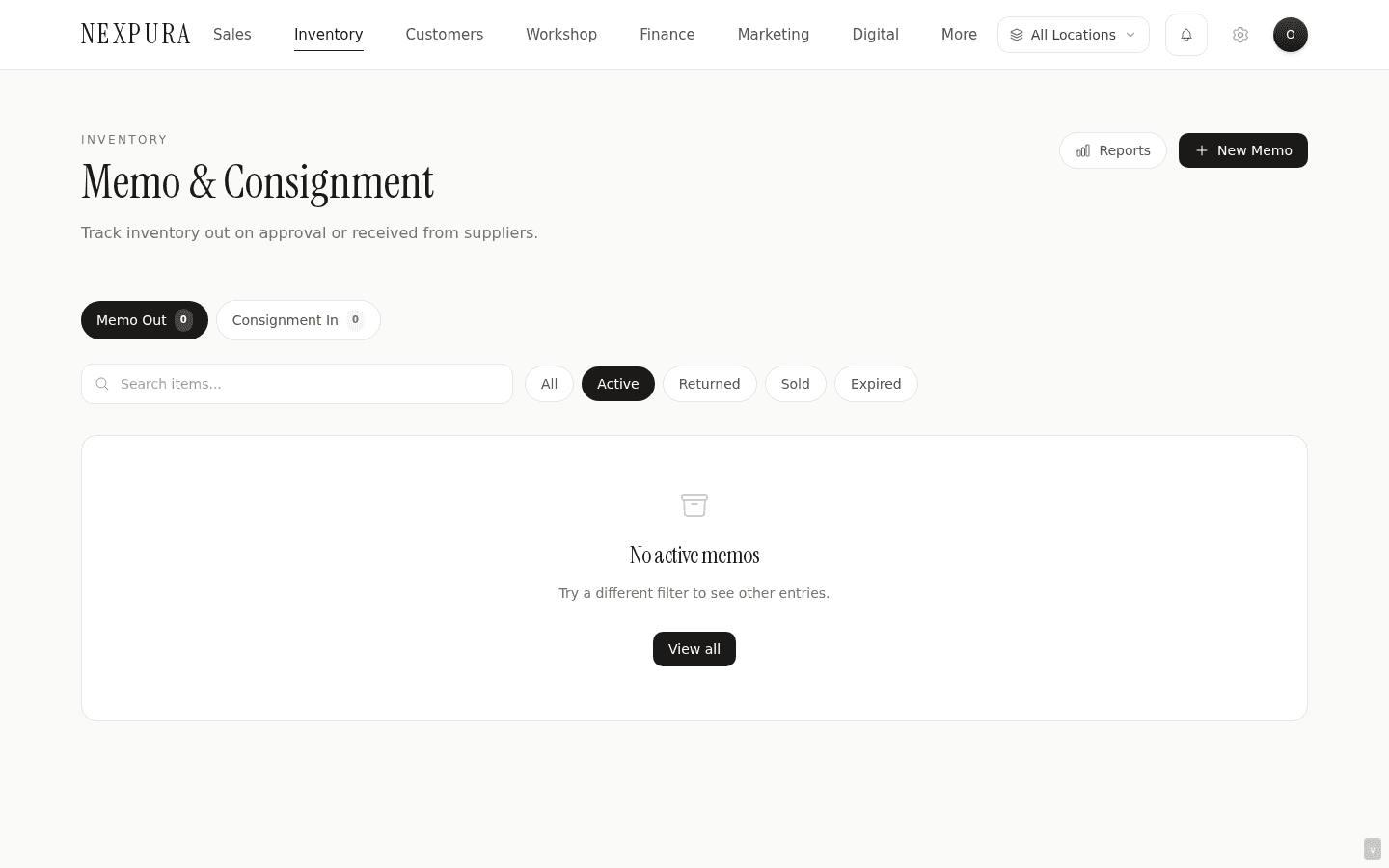
From /memo, click the Consignment In tab at the top to switch context. Then click New Consignment top-right. You land on /memo/new?type=consignment — the same form module rendered with the consignment-in tab context, so the contact dropdown shows suppliers rather than customers.
If you got here from the Memo Out tab instead, the form's contact dropdown will show customers and the URL will be /memo/new?type=memo. The rest of this walkthrough is about consignment-in (supplier sending you a piece); the memo-out flow is symmetric, just with a customer in place of the supplier.
2. Item name
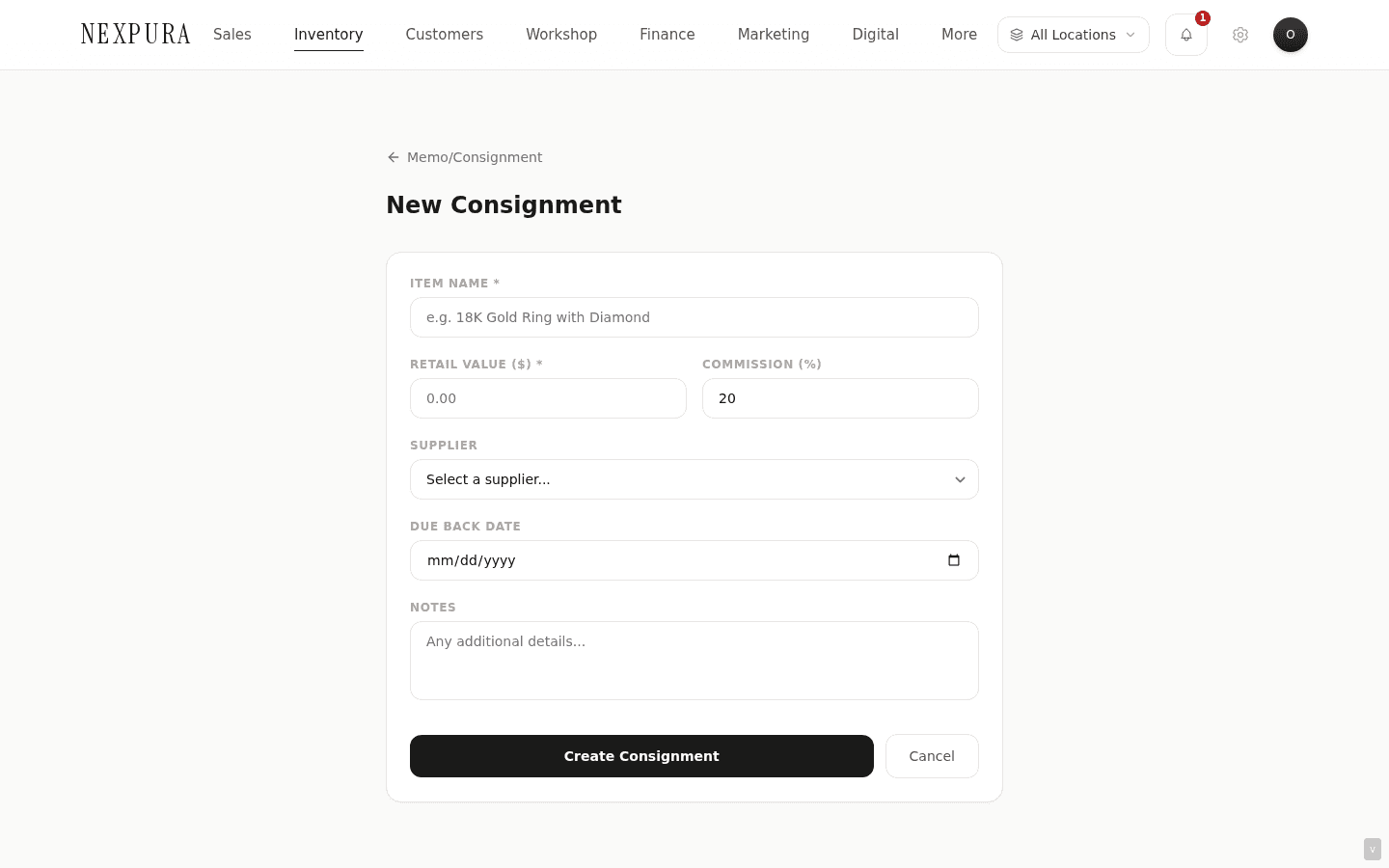
The Item Name field is required. Put what the piece is — “18K gold diamond eternity band, 0.5ct” — in enough detail that someone reading the memo list in three months still knows which piece this row points to. The placeholder gives a sample format; you don't have to match it.
There's no separate SKU field on the form. If the supplier sent the piece with their own reference number (e.g. Stuller's stock code), put it in the item name or the notes field.
3. Retail value and commission
Retail Value ($) is required. This is the price you're intending to sell the piece at — the number that goes on the price tag. It feeds the Active Value summary tile in the Reports panel and is the basis for the commission calculation if the piece sells.
Commission (%) defaults to 20. This is the percentage you owe back to the supplier on a sale. If your arrangement is different — some suppliers want 30%, some 15%, occasional consignors split 50/50 — set it now. The number lives on the row and is used at sale time to compute what's owed.
Both fields accept decimals. Commission is capped at 100%.
4. Supplier
The Supplier dropdown lists every supplier on your tenant, alphabetised. Pick the consignor. If they're not on the list, open /suppliers in a new tab, create the supplier record, then come back and re-pick.
The supplier link is structured — the row stores supplier_id, not just a name string. This is what makes the “how much do I owe Stuller right now” query work; reports can group memo rows by supplier without text-matching on the name field.
The supplier field is optional. You can save a consignment-in row without a supplier linked — useful if a friend dropped off a piece informally and you want to track it before deciding whether to create a supplier record. Fill the supplier in later if the arrangement gets formal.
5. Due-back date
The Due Back Date field is a date picker — set it to the date by which you need to either return the piece or commit to buying it. Most supplier memo arrangements run on a fixed window (30, 60, 90 days from intake); the supplier's packing slip usually states it.
The field is optional. Leave it blank if the arrangement is open-ended (some long-term consignment-in relationships have no window — the piece sits until it sells or you decide to send it back). A blank due-back never triggers an overdue flag, by definition.
When set, the date is compared against the tenant's time-zone calendar day on every list-page render. See the overview for how the overdue check works.
6. Notes
The Notes field is free text — anything that won't fit in the structured fields above. Common content: supplier's reference number, packing-slip date, any condition observations on intake, special pickup-or-return arrangements, the name of the sales rep who sent the piece.
Notes are searchable from the /memo list search bar, so any quoted text from the supplier's paperwork that you paste here becomes findable later.
7. Save
Click Create Consignment at the bottom. The form submits. On success you're returned to /memo with the new row at the top of the list (rows order by created date, newest first), and the reference number CON-#### allocated.
The save also writes an activity-log entry and an audit-log entry — “created consignment, MEMO number CON-0042, item 18K gold band” — captured under the operator who clicked Save. That trail is what makes the row defensible at month-close when someone asks “when did this piece arrive?”.
8. The new row in the list
The saved row shows on the Consignment In tab with: the auto-allocated reference number, an active status badge, the supplier name, the due-back date (with the clock icon coloured stone-grey for not-yet-overdue), and the retail value on the right.
Clicking the row opens a slide-over panel from the right with the full detail: value and commission tiles, contact and due-back-date strip, notes block, and the Return / Mark as Sold action buttons at the bottom. The exit-from-active actions live there; see Returning a memo piece — or buying it.
9. What doesn't happen on save (and why)
Saving a consignment-in row does not create an inventory row, does not write to stock_movements, and does not contribute to owned-inventory valuation. The piece is recorded in the memo ledger only. That's the whole point of the separate table — the piece isn't yours yet, so it shouldn't show up as your stock in any report that reads off owned inventory.
The piece does become visible on the storefront subdomain or your connected Shopify / WooCommerce store only after the conversion to owned inventory happens — which today is a manual workaround documented in Returning a memo piece — or buying it. If you want a consignment-in piece visible to walk-ins on the floor today, put a physical tag on it; the system tracks it, but doesn't put it in your sellable-online catalogue until conversion.
Common questions
The supplier sent five pieces. Do I create five rows or one?
Five rows, one per piece. The memo model is one row per physical piece, the same as serialized inventory — each piece has its own reference number, its own status, its own return-window date. A single row representing five pieces would mean “return two and keep three” can't be modelled cleanly. Five rows lets you track each piece through its own lifecycle.
The form doesn't batch — you create rows one at a time. For a large supplier drop, this is a slower intake than the owned-stock batch-receive flow; batch-memo intake is on the backlog.
The supplier sent five pieces but the packing slip lists four. What do I do?
Count what physically arrived, not what the slip says. Create one memo row per piece you actually received, in the values you can verify (item description, agreed retail if the supplier annotated each piece, or your store's intended retail otherwise). Put a note on each row, or on one of them, flagging the slip discrepancy.
Then call the supplier rep. The five-vs-four difference is usually a slip error rather than a missing piece — but it's their record that drives the eventual invoice, so the conversation has to happen at intake, not at month-close. The memo rows you've created are the evidence for that conversation.
Why isn't there a separate SKU field?
Because the piece isn't in owned inventory yet — and SKU is an owned-inventory concept (the model code on a row in the inventory table). A memo row carries the supplier's reference if you put it in the item name or notes, and gets its ownCON-#### reference for the memo ledger. When the piece converts to owned inventory, that's when an inventory row gets created with its own SKU.
Keeping the two namespaces separate (supplier-reference on memo, your-SKU on owned inventory) means there's no ambiguity about which piece a tag refers to — the tag on a memo piece is the CON-####, not a non-existent SKU.
The form only has a few fields. The memo row supports more (metal, stone, weight, wholesale value). Why aren't those on the form?
The intake form deliberately covers the load-bearing fields — what it is, what it's worth, who it's from, when it's due back — and leaves the descriptive fields out of the minimum viable intake. The reasoning: the friction of memo intake is what causes pieces to skip getting recorded at all, and the binder-and-paper-slip failure mode this section exists to prevent. A long form would push more intake into the binder; a short form keeps it in the system.
The descriptive fields exist on the row schema and can be populated from the database directly today, or via the edit-row API. A richer intake form with optional descriptive fields collapsed by default is on the backlog. If your store needs metal and stone captured at memo intake (e.g. for insurance), put them in the notes field for now — the row search will find them.
What permission do I need to receive on memo?
Creating a memo row requires being authenticated; there isn't a separate create_memo gate today. The expectation is that intake is a routine staff action — the gate sits on the status transitions (returning, marking sold) and on deletion, where the financial impact is real.
If your store wants to restrict who can post into the memo ledger (e.g. front-of-house only, not the workshop tech), that's on the backlog for the team-roles surface. For now, training discipline carries it.
Troubleshooting
The supplier dropdown is empty
Symptom: theSupplier field on the intake form shows only “Select a supplier...” with no other options. Cause: no supplier records exist on this tenant yet. The dropdown reads off the suppliers table scoped to your tenant. Fix: open /suppliers in a new tab, create the supplier with at least a name, save, then come back and re-pick from the dropdown. The page doesn't need a refresh; the dropdown re-queries on each render.
I submitted and got “Save failed. Please try again.”
Symptom: the form shows a red error block instead of returning you to the list view. Cause:something went wrong on the server-side action. The error message under the red block is the database's own response; common reasons: a required column missing (an unusual schema-out-of-sync state), or a foreign-key violation if the supplier you picked was deleted between dropdown render and form submit. Fix:re-read the error text — if it names a column or a constraint, that's the diagnostic. If it's opaque, try once more (transient network or row-lock contention sometimes resolves on retry). If it keeps failing, contact us with the exact error text — the action captures the underlying exception in our error tracking with the tenant ID, so we can usually pin it down.
The form lets me save without a supplier — is that intended?
Symptom: you clicked Save without picking a supplier and the row was created anyway with the supplier column blank. Cause: the supplier field is intentionally optional — see the field section above for the reasoning. Fix: if you want the supplier set on this row, open it from the list and edit it directly. (A bulk-fill-supplier action is not yet built; the per-row edit is the path for now.) Going forward, picking the supplier at intake remains the encouraged path — the data is more useful when the link is captured at creation.
I created the row on the wrong tab (memo-out instead of consignment-in)
Symptom: the piece you received from a supplier is showing on the Memo Out tab instead of Consignment In, because you clicked the wrong tab before New. Cause: the form reads memo_type from the URL query param (?type=memo or ?type=consignment), which is set by which tab you came from. Fix:there's no flip-the-type action in the UI today. Contact us with the reference number and we'll update the row's type directly. Going forward, double-check the tab before clicking New; the form heading reads “New Memo” vs “New Consignment” as the visible confirmation.
Related
- Memo & consignment overview — the data model and the four-state status lifecycle that this intake feeds into
- Returning a memo piece — or buying it — the exit-from-active walkthroughs
- Receiving a supplier shipment — the owned-stock batch-receive flow, distinct from this not-yet-yours intake
- Inventory overview — the owned-stock data model that memo rows sit alongside, never inside