Serialized one-of-a-kind vs variant items
When to flag a piece as serialized — an engagement ring or a custom commission — versus model it as a variant SKU like a gold chain in three lengths.
Quick reference
- Serialized one-of-a-kind — quantity 1, every piece has its own stock number, certificate fields filled, the piece is treated as a single auditable asset. Use for engagement rings, custom commissions, named-stone pieces, anything with a certificate.
- Variant SKU — one inventory row per length/size/finish, quantity >1 if you stock multiples of the same variant. Use for chains in standard lengths, ear hooks in bulk, plain bands in a range of sizes.
- The system itself doesn't have a hard “serialized” flag. The distinction is operational — how you set the form fields and how you intend to count the piece. Stock number, the certificate block, and the Track quantity toggle are the knobs you turn.
- Sale and decrement behaviour is the same for both — a movement row writes to
stock_movementsand the quantity drops by one. The difference is what the remaining row looks like (0 for serialized, >0 for variant).
The two patterns, walked through
1. The mental model
Nexpura doesn't make you choose between two product types up front. There's one inventory table; what changes is how you fill it. The choice you're making is “is this one piece I'll never sell another of, or one of many pieces of the same model I'll keep stocking?”
Get that right and the downstream behaviours — the price tag, the POS, your e-commerce sync, your insurance schedule — all land in the right place.
2. Serialized one-of-a-kind
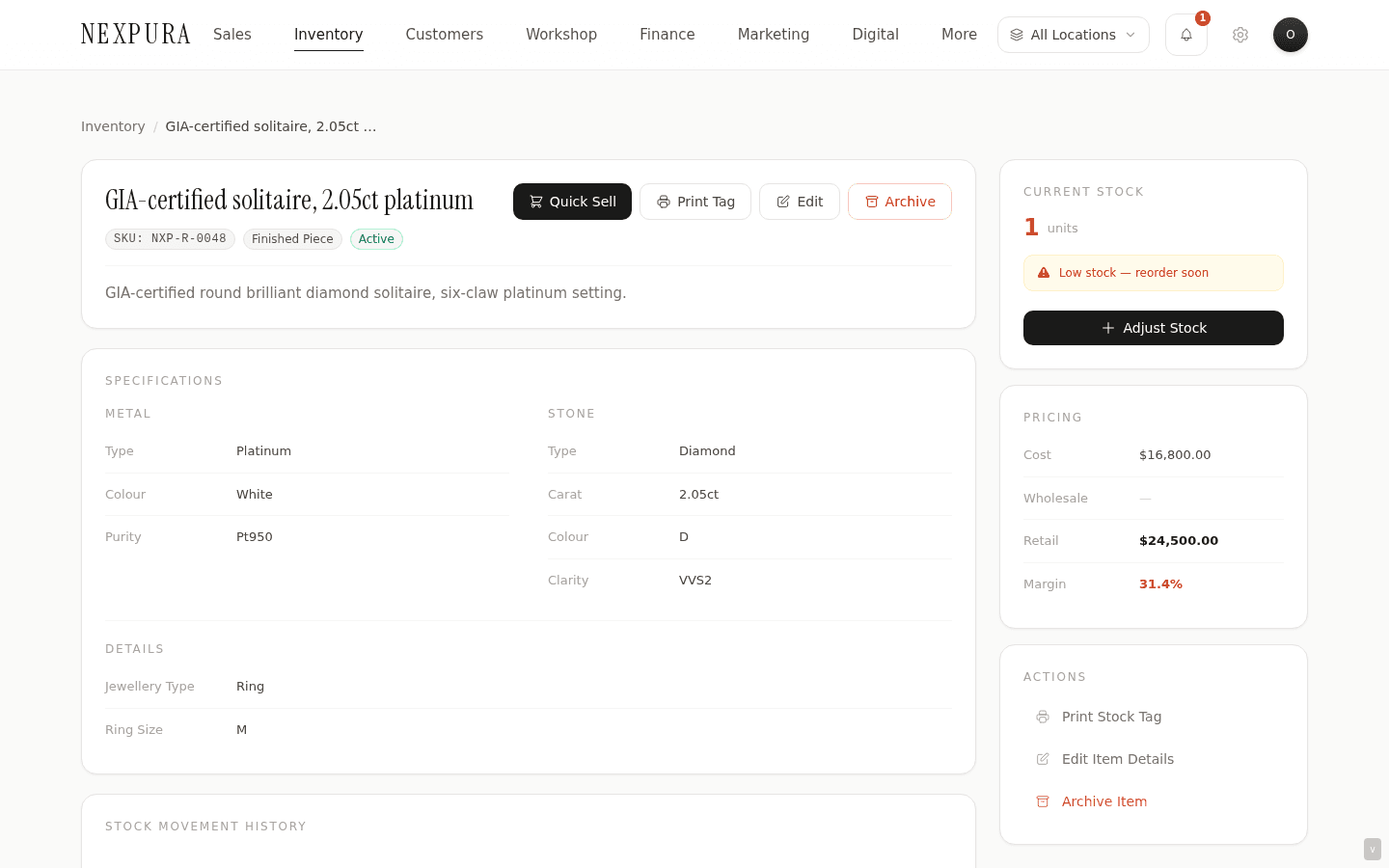
The classic case is an engagement ring. A unique stone, a custom setting, a piece that's photographed individually, certificated individually, and will never recur. Set the item up like this:
- Initial quantity =
1. - Stock number — set it yourself to the number on the physical tag, or leave blank if you don't use stock numbers on individual pieces.
- Certificate number, Grading lab, Grade, Report URL — filled in. This is what makes the piece traceable from tag to sale to (later) digital passport.
- Track quantity — on. Counts to 1, drops to 0 on sale, stays at 0 because there's no “restocking” this piece.
- Photos — primary photo is the actual piece, ideally on the actual customer's hand if it's a finished commission.
When the piece sells, the inventory row goes to quantity 0 and status flips to Sold. The row stays in the database (so historical sales reports resolve), but the storefront drops the listing automatically. If you reissue the same piece — re-mount the stone, refurbish — start a new inventory row with a new stock number; don't reuse the old one.
3. Variant SKU
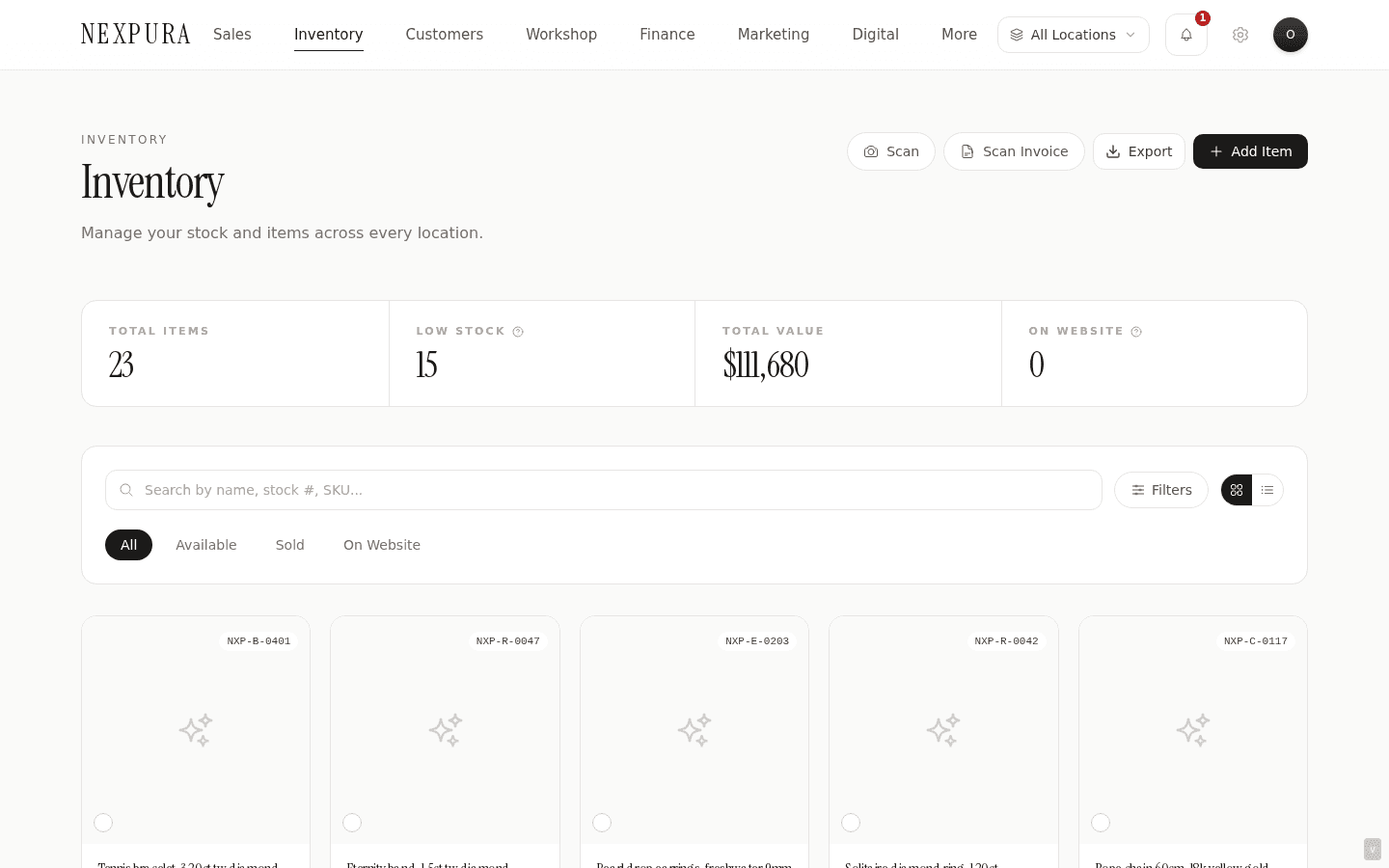
The classic case is a plain 18ct gold rope chain — sold in 18", 20", and 24", three lengths each held in stock at a quantity of four. Three pieces of stock, three SKUs, three rows. Each row is set up like this:
- Initial quantity = however many you stock of that length (e.g.
4). - Low-stock threshold — set to the trigger point you want for reorder. Default 1 means “warn me when I'm down to the last one.” Set it to 2 or 3 if you want earlier warning.
- SKU — the model code that encodes the length, e.g.
CHAIN-18CT-ROPE-18. The three rows differ only in the length suffix. - Stock number — blank, or assigned per-pack if you number pack-lots.
- Certificate number — blank. There's no per-piece cert.
- Track quantity — on. Drops by one on each sale; the row persists at the new quantity.
- Photos — shared across the three rows. Upload once on the first row and copy the URL to the others, or attach the same image set to each row.
When you sell one 18" rope chain, theCHAIN-18CT-ROPE-18 row drops from 4 to 3. The 20" and 24" rows are untouched. When you receive more 18" chains from the supplier, the receive flow finds the existing row by SKU and bumps the quantity — it does not create a new row.
4. What sale and decrement do
The POS doesn't care which pattern the piece uses. A sale writes a movement row with negative quantity_change and the trigger drops the inventory row by that amount.
- On a serialized piece: 1 → 0. Status flips to Sold; storefront delists; the row stays for audit.
- On a variant: N → N-1. Status remains Active as long as quantity > 0; if N-1 falls at or below the low-stock threshold the dashboard KPI lights up and the inventory list shows the warning pill.
There's no special “decrement serialized” code path; the trigger's GREATEST(current + change, 0) floor handles both.
5. Repair workflow implications
When a customer brings in a previously-sold piece for repair, the workshop intake (covered in /docs/workshop/intake-workspace) can attach to an existing inventory row — useful for serialized pieces where you can reach for the original certificate and photos to compare against the piece on the bench. For variants the link is less load-bearing; usually you create a fresh repair record with a description of the piece.
When you accept a piece for repair, no inventory movement runs (the piece isn't your stock — it's the customer's). The repair record carries the photos and the description in its own table. If the repair becomes a re-mount that consumes one of your own stones, the workshop deducts the stone from inventory at fitting time via a normal stock adjustment.
6. Storefront and e-commerce sync
A piece is eligible to appear on your storefront when Listed on website is on (toggled from the inventory list or the detail page) and there's at least one photo.
- Serialized pieces appear as “one available” — the listing should be enquiry-led, not direct-add-to-cart, since checkout happens through your connected Shopify or WooCommerce store rather than the Nexpura storefront.
- Variants appear with an availability indicator (in stock, low stock, sold out) based on the row's quantity. If you list three lengths of a chain you'll have three storefront listings — or, if your storefront supports variant grouping at the e-commerce layer (Shopify product variants), three rows mapping to one product with three variants.
The Shopify/Woo sync is documented at /docs/integrations-and-data/shopify (later batch). Worth flagging here: the sync treats one Nexpura inventory row as one e-commerce variant. There's no built-in variant grouper that maps three Nexpura rows to one parent product; you do that on the Shopify side using their variant feature, with the Nexpura SKUs as the option codes.
Common questions
What about pieces that fall between the two?
Plenty do — a small batch of locally-made bespoke pieces, say, where each is photographed individually but the design recurs. Treat each one as serialized (its own row, quantity 1, its own photo) unless the maker actually produces interchangeable units. The cost is a few extra rows to maintain; the benefit is honest per-piece tracking.
Should I turn off Track quantity for serialized pieces?
Usually no. Even with quantity 1, the standard tracking flow gives you a clean “1 → 0 on sale” transition and a stock-movement audit row. Turn Track quantity off only for non-physical items — services like ring-resizing, watch-battery-replacement, repair labour — where there's nothing to count.
How do I model sizes (e.g. ring sizes)?
Two patterns work. The simpler is to treat each size as its own row (one SKU per size, one quantity per size). The alternative — common for plain bands you stock in a wide size range — is one row with quantity equal to the total band count, and the Ring size field set to the size of the largest pack-piece. Most stores find the first pattern cleaner since it lets the POS show available sizes accurately.
What about pieces I make in-house in batches of N?
Treat the batch as a variant SKU with quantity N. Each piece in the batch is identical from the customer's perspective, so they don't need individual stock numbers or certificates. If you photograph each piece individually (because the maker's output varies enough to matter) and want to track each separately, fall back to the serialized pattern — N rows, quantity 1 each.
Can I convert a serialized piece into a variant later (or vice versa)?
You don't convert the row; you adjust the way you use it. A serialized row with quantity 1 can have stock adjusted up to N if the piece turns out to be reproducible — just adjust stock with reason “Other” and a note explaining. Going the other direction (variant → serialized) usually means archiving the variant row and creating new serialized rows; the certificate fields on the original row weren't meaningful for the variant, so backfilling them into one piece and orphaning the rest doesn't map cleanly.
Where does the digital passport fit?
Passports are serialized only — they encode provenance for a specific piece, so they only make sense on quantity-1 items with a stock number. See /docs/verify-passport/issue-passport (later batch) for the issuance flow. The certificate fields you fill on the inventory form are what the passport reads from — no double-entry.
Troubleshooting
Serialized piece sold but still shows on storefront
Symptom: a unique engagement ring sold yesterday; today a customer enquires about it from your storefront. Cause:the storefront sync runs on a schedule (every 5 minutes for Shopify, every 10 minutes for Woo); there's a window where the inventory row is at quantity 0 but the storefront listing hasn't been refreshed yet. Fix: wait the sync window out, or trigger a manual sync from /settings/integrations to force the delisting now.
Variant decremented but the wrong size went down
Symptom:sold a 20" chain at the counter; the 18" SKU dropped instead. Cause: the POS line picked up the wrong SKU at scan or selection time, usually because the cashier picked the first row in the autocomplete rather than the size match. Fix:reverse with an adjustment (add 1 to the 18" row, reason “Stocktake / count correction”), then re-decrement the 20" row with reason “Other” and a note linking the original sale ID. If this happens often, your team probably needs the SKU convention reinforced — make sure each variant SKU encodes the differentiating attribute clearly (the length suffix, the size suffix, the finish suffix).
Tag prints the same details for two different sizes
Symptom: two different variants of the same model produce identical-looking tags. Cause:the tag template shows name, SKU, price — if those are similar across variants and the size/length isn't encoded in the name field, the tag reads the same. Fix:name the rows differently (“18ct Gold Rope Chain — 18in”) or configure your tag template at /settings/printing to include the SKU prominently — the SKU's length suffix will distinguish them.