Adjusting stock and viewing history
The adjustment workflow, the stock_movements ledger, low-stock thresholds, and the per-item history view.
Quick reference
- Adjust an item's stock from
/inventory/<id>/adjust— link is the Adjust Stock button on the detail page. - Every change writes a row to
stock_movements; a database trigger updates the inventory row's quantity. No direct edits. - Reason is mandatory — one of Stocktake / count correction, Damage, Theft / loss, Supplier under-shipped, Supplier over-shipped, Customer return, or Other. Other requires a note.
- View the full ledger on the item detail page (Stock Movement History panel) or the per-item edit log at
/inventory/<id>/history. - Manual adjustments are blocked while a stocktake is in progress — the stocktake's own counting flow does the writes instead, so the count can't race against side-effects.
- Stock cannot go below 0. The database trigger floors at zero; the form blocks the submit one step earlier with a friendly error.
Walkthrough
1. Open the adjust form
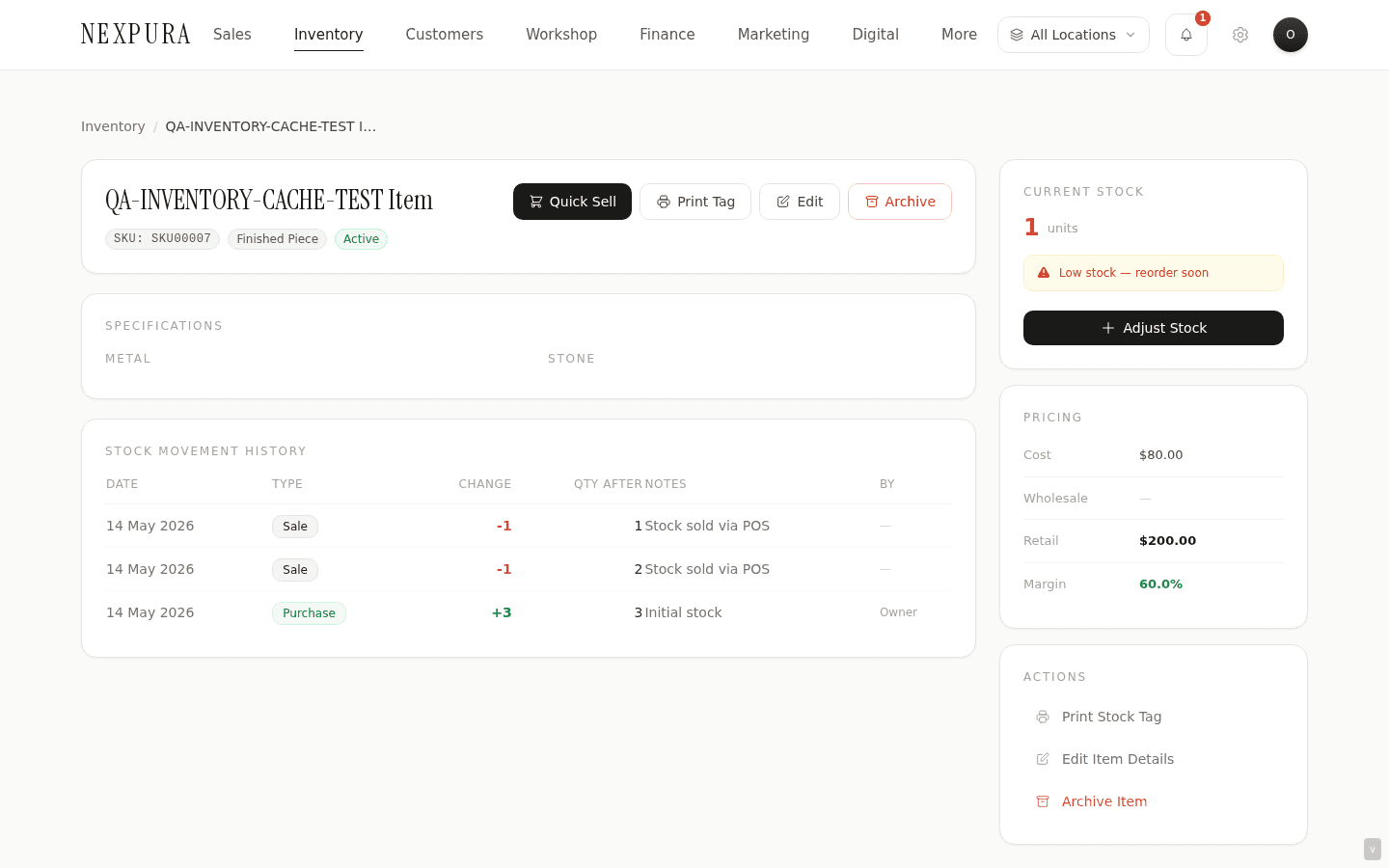
From the item detail page at /inventory/<id>, the right-hand sidebar shows Current Stock with an Adjust Stock primary button below it. Click it and you land at /inventory/<id>/adjust — a focused single-purpose form with the item name and current quantity at the top.
2. Pick movement type
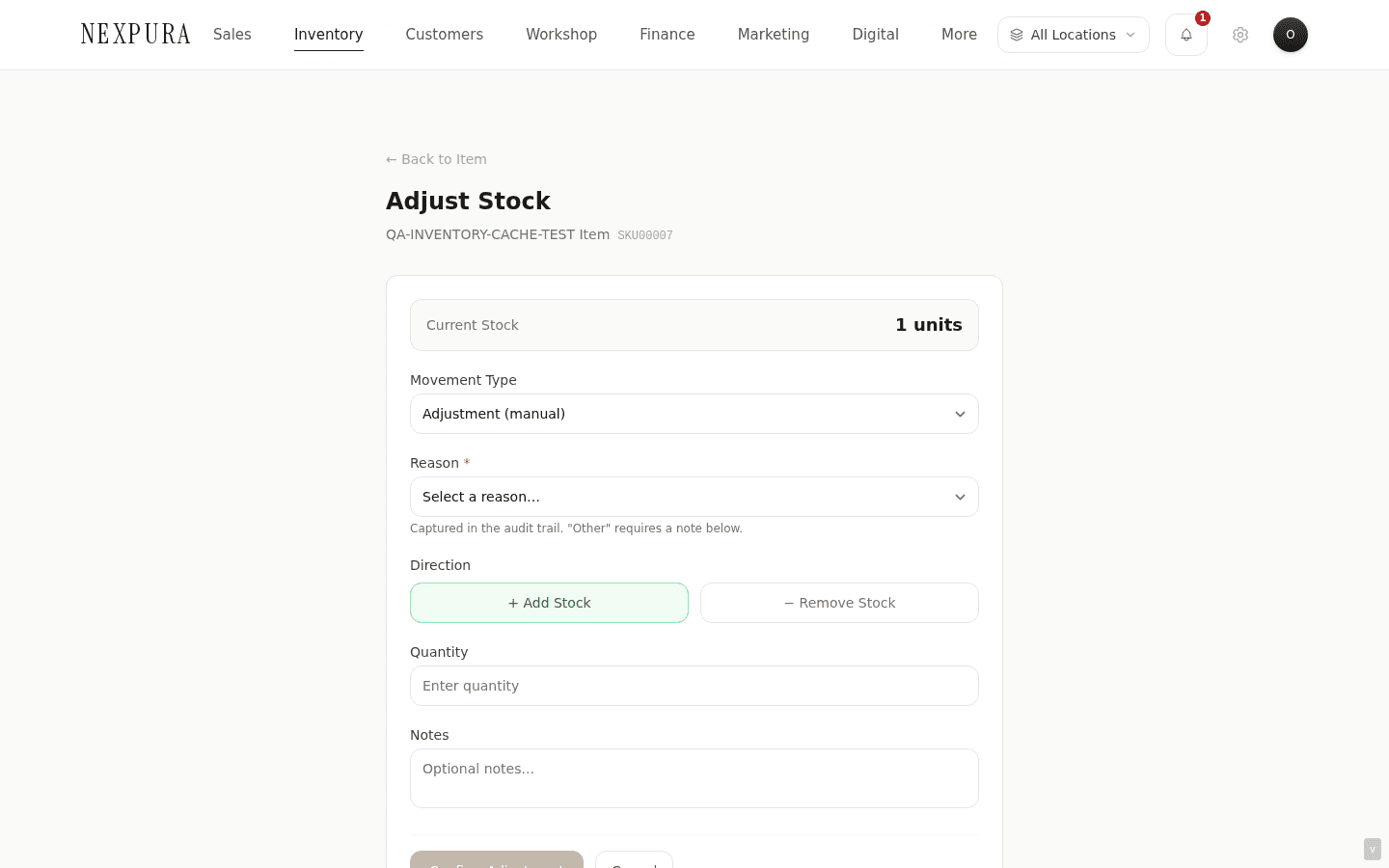
Five options in the dropdown: Purchase (stock in), Adjustment (manual), Customer Return, Damage / Loss, and Transfer. The type is what categorises the movement in reports — pick the one that best describes the change.
Most ad-hoc edits use Adjustment (manual). Use Purchase only for stock that arrived outside the batch-receive flow (you usually want batch receive instead). Use Transfer for between-location moves done manually rather than through the transfers UI.
3. Pick a reason
Required. The reasons map to the operational why:
- Stocktake / count correction — you counted and reality didn't match the system; bringing the system into line with the count.
- Damage — a piece was damaged in-store (drop, scratch, polishing accident) and is no longer sellable.
- Theft / loss — a piece is missing and a theft/loss report is open. Usually owners/managers only.
- Supplier under-shipped — invoice said 10, received 8. (Receive-flow corrections usually happen at receive time, but if you discovered the shortfall later this is the reason.)
- Supplier over-shipped — invoice said 10, received 12.
- Customer return — a piece sold but came back. The POS refund flow does this automatically; use this reason only for returns processed outside POS.
- Other — anything else. Requires a note explaining.
The reason is prefixed into the saved note so the audit trail captures it cleanly. The full label (e.g. [Stocktake / count correction] Found one in safe drawer) is what shows up in the movement ledger.
4. Direction and quantity
Two pill buttons: + Add Stock and − Remove Stock. Pick the direction, then type the quantity. As you type, the preview panel below shows the new stock level — “Current 4 → 7” on an add, “Current 4 → 1” on a remove. If the math would push the quantity below 0, the preview turns red and the submit blocks with “Stock cannot go below 0.”
5. Notes (and why they matter)
Optional unless you picked reason Other — in that case the form requires a note explaining what “other” means. For every other reason the note adds colour to the audit trail (“Polishing accident — pendant cracked”, “Found pack of 5 in upstairs safe”).
The note is what your future self (or your accountant) reads when they're trying to understand why the stock count moved. Worth two extra sentences now to save two extra hours later.
6. Confirm and review
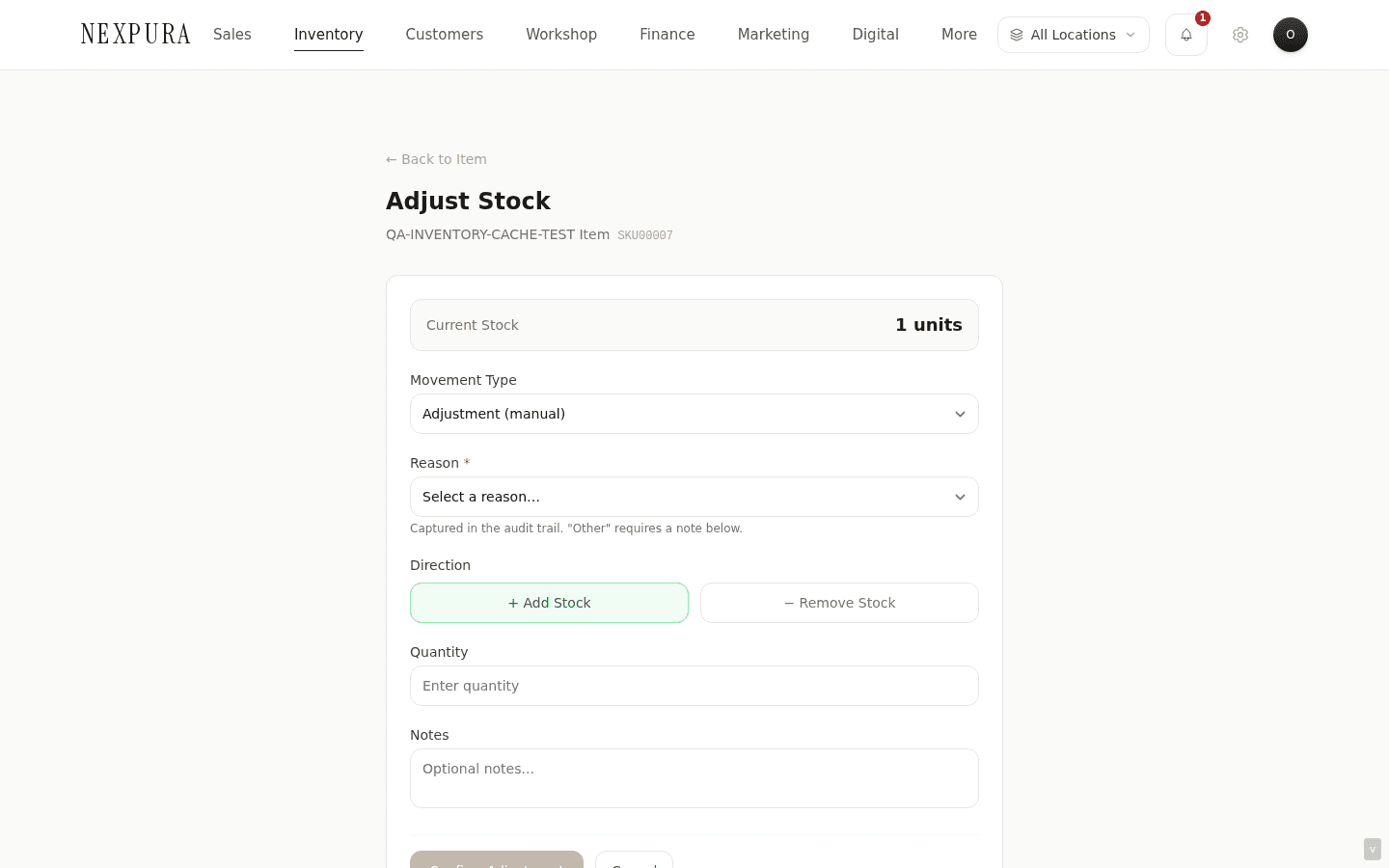
Click Confirm Adjustment. The action calls adjustStock server-side, which: writes the movement row, lets the trigger update the inventory row, re-reads the post-trigger quantity, and writes an audit-log entry capturing the before/after. On success you bounce back to the item detail page; the new movement appears at the top of the Stock Movement History table.
From the detail page, the history table shows: date, type (Purchase / Adjustment / Customer Return / Damage / Transfer / Sale), change (green for additions, red for removals), quantity after, the note, and who did it. The fifty most recent rows show inline; older history is in the dedicated page.
Screenshot pending
The Stock Movement History panel on the item detail page after a successful adjustment. The new row is at the top with its reason and operator.
7. The full edit history
For a complete audit trail (every field change, not just quantity movements), open /inventory/<id>/history. This view reads from audit_logs and shows: every create, update, archive, and stock adjustment as a timestamped row, with the before and after values diffed inline. Most recent first; the page shows up to 200 entries.
The history view is read-only — you can't undo from it. But it's the source of truth when you're trying to reconstruct what happened to a piece over time, and the data is the same one your accountant will read off your reports.
Common questions
Can I undo an adjustment?
Not as a one-click undo. Instead, run a reverse adjustment — if you accidentally removed 3 with reason “Stocktake”, add 3 back with reason “Stocktake / count correction” and a note pointing at the prior movement ID. Both rows stay in the ledger; the audit trail is honest about what happened.
Why is “Stock cannot go below 0” coming up?
You're trying to remove more units than the item has. The floor is hard — both the form and the database trigger refuse negative stock. If the piece is genuinely missing and you need the count to reflect zero, set the quantity to zero by removing exactly the current quantity. If the system thinks you have fewer than you actually have, you need an Add Stock adjustment first, then the remove.
Where do sales appear in the history?
In the same Stock Movement History table — sales write a sale movement type row when the POS closes a transaction. The note on a sale row references the sale ID, so you can trace from the movement back to the customer transaction.
Adjustments during a stocktake — why blocked?
A stocktake is a structured count of your stock. While it's in progress, the system blocks ad-hoc adjustments so the counting team and the day-to-day team can't race against each other — that would invalidate the count. The stocktake's own completion flow applies any variance as movement rows tagged stocktake type; ad-hoc adjustments resume the moment the stocktake closes or cancels.
Who can adjust stock?
Users with the edit_inventory permission. By default that's owners and managers. Grant it to specific staff at /settings/team if your shop floor team needs it for routine corrections.
Does an adjustment trigger a tag reprint?
No — adjustments only change quantity, not the tag fields. If you also changed the price or the description, those edits go through Edit on the detail page, and you can reprint the tag from Print Tag whenever you need. See Printing inventory tags.
Troubleshooting
Adjustment saved but the quantity didn't change
Symptom: the form redirected back to the detail page, but the Current Stock number is the same as before. Cause:the most common reason is that the page is reading from a stale cache. The cache invalidates on the next nav, but if you didn't actually navigate (you went back via the browser's back button) the snapshot is still the pre-adjustment one. Fix:hard-reload the detail page (Cmd/Ctrl-Shift-R). If the Stock Movement History table shows the new row but the Current Stock number is still wrong, that's a data drift between the row and the ledger — contact us with the item ID and we'll investigate.
“A stocktake is in progress” error
Symptom:submit fails with “A stocktake is in progress — finish or cancel it before making manual adjustments.” Cause:someone on your team opened a stocktake and hasn't closed it. The block is deliberate — the count and your ad-hoc adjustment would race. Fix: ask the team member to finish or cancel the stocktake (in the stocktake UI, covered in a future docs batch). Manual adjustments re-enable the moment the stocktake closes.
Reason dropdown blank, submit blocked
Symptom:the form won't submit and the reason field shows the red asterisk. Cause: reason is a required field — the audit trail needs to know why the adjustment happened. Fix: pick the reason that best fits, or pick Other and write a note explaining. The note becomes a permanent part of the movement record.
Item shows in Low Stock when it shouldn't be
Symptom: quantity is 5, but the item shows the low-stock pill and appears in the dashboard Low Stock KPI. Cause:the low-stock threshold is set higher than 5 (default is 1, but you may have set it higher in the form). Low-stock means “quantity at or below threshold,” not “quantity at or below 1.” Fix: open the item, click Edit, and adjust the low-stock threshold to a number that matches your reorder discipline.