Quotes
Create a customer quote with line items and an expiry date, email the quote, and convert an accepted quote into one of four downstream documents — an invoice, a sale, a repair job, or a bespoke job. Quote total is a pre-tax offer; tax is applied at conversion so the downstream document carries the correct tax figures. Terminal statuses (converted, rejected, voided) lock further transitions.
Quick reference
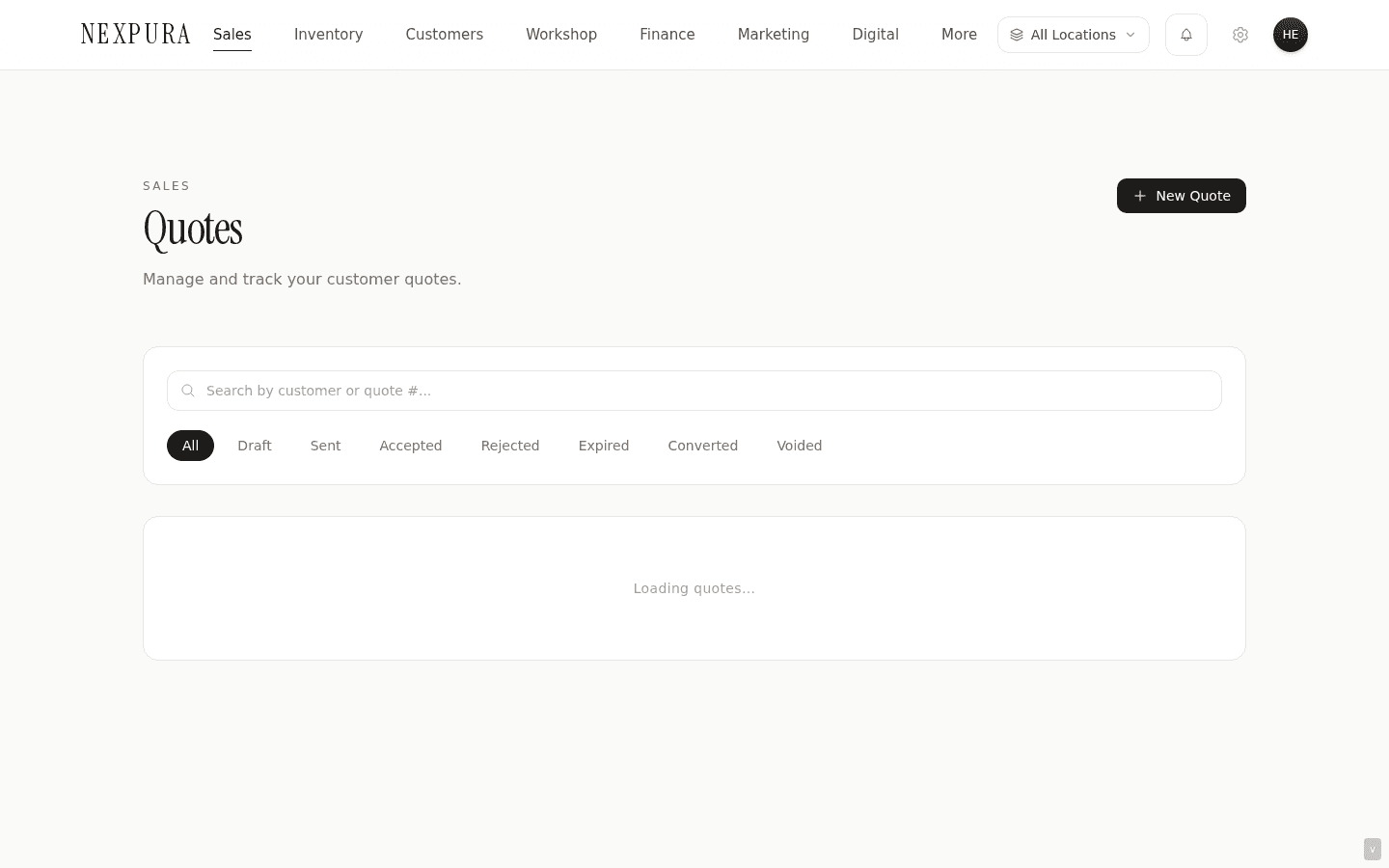
- Quote list lives at /quotes with status chips (All, Draft, Sent, Accepted, Rejected, Expired, Converted, Voided). Each quote detail page is at
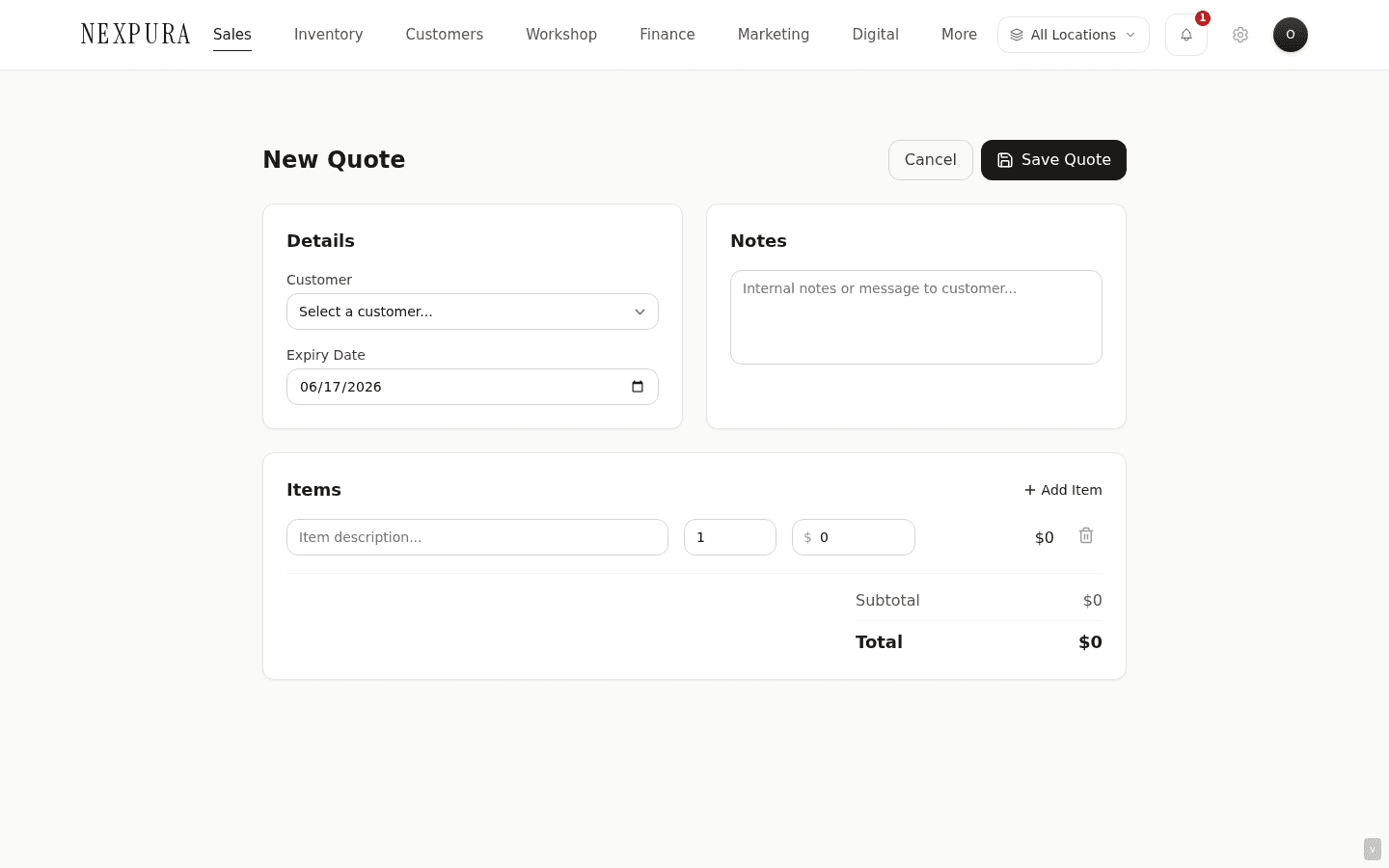
/quotes/<id>. - Create a quote from /quotes/new — pick a customer, add line items (description, quantity, unit price), set an expiry date (defaults to today + 30 days), add notes. The total is the sum of quantity × unit_price across line items.
- Quote total is the pre-tax offer. Tax is applied at the conversion step — the resulting invoice, sale, repair, or bespoke job carries the tenant's tax-name, tax-rate, and tax-inclusive flag from /settings/business-profile.
- Permission: creating, editing, voiding, rejecting, or converting a quote requires the
create_invoicespermission (same bucket as invoice creation and refunds — quotes are the entry point to invoices). - Four convert-to destinations: Convert to Invoice (creates a draft invoice on /invoices, tax applied), Convert to Sale (creates a draft sale on /sales with status “quote” that the operator finalises payment for at the register), Convert to Repair (creates an intake-stage repair on /repairs with the quote total as the quoted_price), Convert to Bespoke (creates an enquiry-stage bespoke job with the same).
- Status flow: draft → sent (after the email quote action) → terminal state. Terminal states (converted, rejected, cancelled which displays as Voided) lock further transitions — no second conversion, no un-rejection from the UI. expired is computed (expires_at < today AND status is not in a terminal state); it isn't written back to the database, just rendered in the list and on the chip filter.
Walkthrough
1. Open the new quote form
Go to /quotes and click New Quote, or jump directly to /quotes/new. The form is split into Details (customer + expiry), Notes (free-text for the customer or internal use), and Items.
2. Pick a customer and add line items
The Customer dropdown lists every customer record on your tenant. The selected customer's full name and email are copied onto the quote at conversion time; the customer_id link itself is also carried through so the resulting invoice or sale shows up on the customer's history page at /customers.
Add as many line items as the offer needs. Each row is a free-text description, a quantity (positive integer), and a unit price (decimal). The total updates live as you type. Vouchers, gift cards, and other store-credit instruments are not quoted from this surface — they're issued from the vouchers surface directly.
3. Set the expiry date
The expiry date defaults to today + 30 days. Adjust if the offer needs a shorter or longer window. The expiry date is rendered on the quote email the customer receives, and on the quote detail page they see if they click through. After the expiry date passes, the quote shows as Expired in the list and the status chip flips — but the quote isn't auto-voided or auto-rejected. Convert-to actions still work on an expired quote unless someone has explicitly voided or rejected it (the right move when an offer lapses is almost always to re-quote at current prices).
4. Save the draft
Click Save Quote. The server recomputes the total from the line items (the client-side total is display-only and isn't trusted), assigns the next QUO- sequence number from /settings/numbering if your tenant has the quote-numbering counter set, and persists the row as a draft. You land back on the list with the new quote at the top.
5. Email the quote to the customer
Open the quote detail page at /quotes/<id> and click Email Quote. The email is sent to the customer's saved email address with a PDF attachment showing the line items, total, expiry date, and the tenant's business profile (name, address, contact). The quote status flips to sent on successful delivery; on failure the quote stays as a draft and the failure surfaces in the toast.
6. Convert when the customer accepts
When the customer accepts, pick the conversion target that matches the work:
- Convert to Invoice — creates a draft invoice on /invoices with the line items copied over, the tenant tax applied, and a reference back to the quote. Use when the customer is being billed to pay on account (not at the till).
- Convert to Sale — creates a sale row on /sales with status “quote”. The operator picks this up at the register, hits the payment modal, and the sale becomes a normal completed POS transaction. Use when the customer is paying in person at the counter.
- Convert to Repair — creates an intake-stage repair on /repairs with the quote total as the quoted_price and the line items concatenated into the work_description. The auto-invoice that the repair pipeline creates at completion will reference back to this quote. Use when the customer accepts a repair estimate.
- Convert to Bespoke — creates an enquiry-stage bespoke job on /bespoke with the quote total as the quoted_price. Same shape as the repair conversion but pointed at the bespoke pipeline. Use when the customer accepts a bespoke commission estimate.
On a successful convert, the quote status flips to converted — terminal. A second click does nothing: the convert-to buttons hide on a terminal quote, and the server actions reject the attempt with “Quote is converted — cannot convert.”
7. Reject or void if the customer declines
Reject records that the customer declined the offer; Void records that the quote was cancelled internally (wrong customer, wrong items, superseded by a fresh quote). Both transitions are terminal — the same status-lock that prevents double conversions prevents re-opening a rejected or voided quote from the UI. If a rejected quote needs to be re-quoted, create a new one and reference the old QUO- number in the notes.
Common questions
Why does the quote total exclude tax when the eventual invoice or sale includes it?
Two reasons that point the same direction. First, a quote is a pre-trade offer and historically jewellers present line-item prices as the negotiable figure — tax is the legal addition, not part of the bargaining surface. Showing tax on the quote often invites a customer to ask for the tax to be discounted off, which the law doesn't allow. Second, tax inclusiveness is a tenant setting that can change (a tenant moving between tax-inclusive and tax-exclusive presentation, or a tax-rate update like a GST change). Persisting the pre-tax line totals on the quote and applying the current tax rule at conversion time means a quote sent six weeks ago and accepted today is converted under today's tax rule, not the rule that was effective at quote time. Cleaner accounting, fewer recalc requests at sale-completion.
If your store presents quotes with tax included by custom, add a note in the Notes field like “Prices shown are pre-tax; tax of X% will be added at invoice.” The email template doesn't hide the distinction — the customer sees both line totals and the running total clearly.
Why four convert destinations instead of one “Accept” button that figures out what comes next?
The four destinations are genuinely different downstream documents that live in different parts of the system. An invoice is a billing document — the customer will be paying on account, possibly with a due date and a payment link. A sale is a POS transaction — the customer is at the counter paying now. A repair is a workshop job — the piece is being taken in, status will progress through stages, the auto-invoice fires at completion. A bespoke job is the same pipeline-stage shape but for commission work. Each downstream document has its own audit trail, its own permissions, its own KPIs on the Finance hub and the dashboard.
An auto-pick would either be wrong half the time or would force the operator to confirm the destination anyway. Four explicit destinations also means the wrong-click case is recoverable — the convert-to action is one of four, not a guess-and-correct. A misroute is rare because the natural workflow distinction (paying now vs. billed later vs. piece in for repair vs. piece being made) is the same distinction the operator was already making before the convert.
Can I send the same quote to two different customers?
Not directly — a quote is bound to one customer at creation. The natural shape is to duplicate the line items into a fresh quote against the second customer. Open the original quote, copy the line items by hand, create a new quote at /quotes/new with the second customer selected. The total recomputes from the items; expiry date can stay the same or shift. If you find yourself doing this often for the same set of items, a templated set of line items is the next-step feature; we don't ship a quote-template library today.
The quote-to-invoice conversion failed halfway and I see no invoice. What state is the quote in?
Convert-to-Invoice is the only one of the four conversions that does the full insert in a compensating-rollback shape. The shape:
- Insert invoice row.
- Insert invoice line items.
- Update quote status to converted.
If step 2 fails, the just-inserted invoice is deleted automatically — the quote stays in its previous status (draft or sent), and you can retry. If step 3 fails (rare), the invoice is committed with the line items but the quote didn't flip; convert-to-Invoice would happily run a second time and create a duplicate invoice from the same quote. The fix in this case is to void or reject the quote manually to lock it, then continue working from the invoice.
The other three conversions (sale, repair, bespoke) use a return-error shape — if line-items insert fails the sale row is left half-built and the action returns the error to the toast. Walk backward from the resulting /sales or /repairs or /bespoke list to confirm what landed and what didn't before re-running.
Why does Voided show as “cancelled” in the database but the UI calls it Voided?
Legacy naming. The status column stores cancelled; the UI label is Voided because that's the term jewellers use for a quote pulled off the table. The two are interchangeable here — the chip filter for Voided maps to status = ‘cancelled’ on the server. If you query the database directly for any reason (CSV export, advisor inspection), match on cancelled not voided.
Troubleshooting
Convert button is greyed out
Symptom: the convert-to action you want is disabled on the quote detail page. Cause: the quote is in a terminal status — converted, rejected, or voided. The convert buttons hide entirely on terminal quotes, and the server actions reject the attempt too. Fix: if the quote is already converted, find the downstream document (the convert toast carried the link to it) on /invoices, /sales, /repairs, or /bespoke and continue work there. If the quote was wrongly rejected or voided, create a fresh quote against the same customer and convert that.
Convert-to-Invoice succeeded but the resulting invoice total is higher than the quote total
Symptom: the invoice landed but the headline figure is bigger than what was on the quote. Cause: expected. The quote total is pre-tax; the invoice applies the tenant's tax rate from /settings/business-profile. On a 10% GST tenant, a $1,000 quote becomes a $1,100 invoice (or $1,000 invoice if your tenant is configured as tax-inclusive, with $90.91 of that being the GST component). See the Quote-tax common question above for the reason. Fix:none — the invoice is correct. If the customer pushes back on the tax addition, explain at the point of quote rather than after invoice — the email-the-quote template doesn't bury the pre-tax disclosure but jewellers' experience varies on whether customers read it carefully.
Quote shows as Expired but I want to revive it
Symptom: the expiry date has passed; the chip says Expired in red. Cause:the expires_at column is less than today and the quote isn't yet in a terminal status. Expired isn't a database status — it's a computed chip. The quote is still convertible. Fix:two options. If the customer's prices haven't changed, just convert directly — the system accepts the action and the expired chip doesn't prevent it. If the prices may need re-quoting, click the quote, copy the line items, create a new quote against the same customer with the current prices, and reject the old quote so the audit trail is honest about what was offered when.
“You don't have permission to create quotes” on save
Symptom: the save action on /quotes/new fails with the permission-denied toast. Cause: the create_invoices permission gates create / edit / convert / void / reject on quotes — quotes are the entry point to invoices and the gate uses the same financial bucket. Salesperson, workshop, and accountant roles don't have this permission by default. Fix: ask an owner or manager to elevate your role or to toggle create_invoices on for your role at /settings/team. See team and roles for the matrix of which permissions ship enabled for each role.
Email Quote action returns success but the customer didn't receive the email
Symptom: the action toast says the email was sent; the customer reports no email. Cause: two common ones. The customer's email address on file may have a typo (open the customer detail page, verify the address). Or the email landed in spam — Nexpura sends from a Resend domain and some customer mail providers route initial outreach to the spam folder until the customer marks it not-spam. Fix: ask the customer to check spam; if confirmed missed, fix the email address on the customer record and resend. The quote stays in sent status — emailing again is safe, the customer just gets two copies (a re-send, not a duplicate quote).
Related
- Invoices — the most common quote conversion destination; the resulting invoice carries the line items + tax + reference to the originating quote
- Processing a sale — Convert to Sale lands a quote-status sale on /sales that the operator finalises at the register
- Repair pipeline — Convert to Repair lands an intake-stage repair with the quote total as the quoted_price
- Bespoke pipeline — Convert to Bespoke lands an enquiry-stage bespoke job with the quote total as the quoted_price
- Business profile — where the tax-name, tax-rate, and tax-inclusive flag that apply at conversion time are configured