Processing a refund
Pick a sale, choose what to refund, pass the manager-PIN check on older sales, and watch inventory + payments unwind.
Quick reference
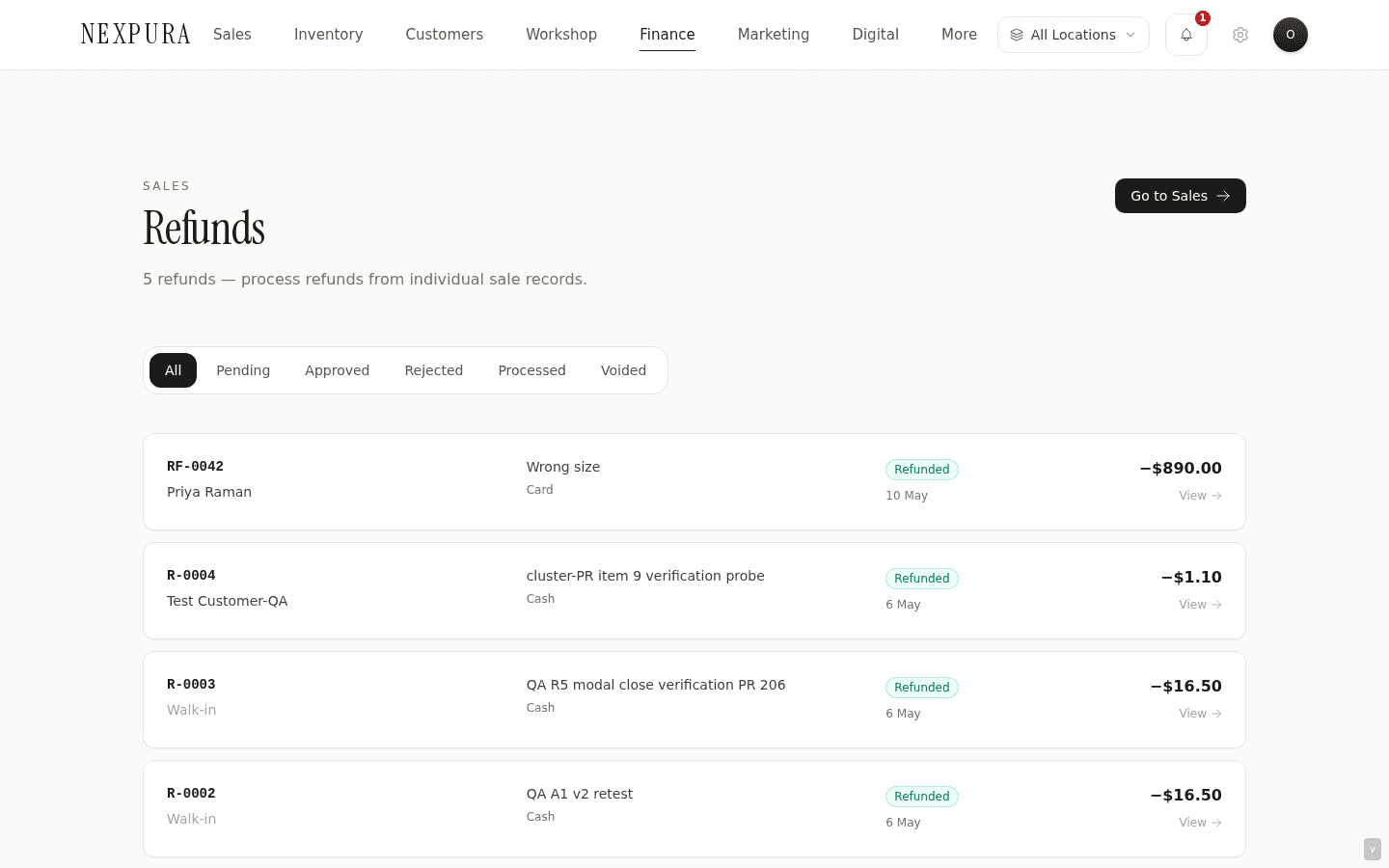
- Refunds live at /refunds as a status-filtered list (Pending, Approved, Rejected, Processed, Voided). Each refund detail page is at
/refunds/<id>. - Two entry points: open a sale at /sales and click Process refund, or use the Refund button on the POS top bar to look up the original sale by receipt number.
- Refunds are money-moving — the action requires the
process_salespermission (Process Sales & Refunds). Default staff role has it; tenants who want manager-only refunds can change that in /settings/permissions. - Sales older than 30 days require a manager PIN. The modal prompts for the PIN automatically; if the staff member doesn't have a PIN set, they're routed to set one first in settings.
- On completion: a refund row is written, inventory is restocked for any line marked Restock, payment reverses (store credit goes back to balance; cash and card are recorded as “refund issued via original method”), the parent sale flips to Refunded only if the full amount was refunded — partial refunds leave the sale active.
- A processed refund can be voided. The void reverses the restock and the store-credit issued, then flips the refund to Voided. Use sparingly — it's an audit event, not a free undo.
Walkthrough
1. Find the original sale
Two paths. From the sale: open /sales, find the row by sale number or customer name, click into the detail page. From the POS: click the Refund button at the top of the product grid — a modal opens with a receipt-number search. Type or paste the receipt number, click Find.
The POS refund modal is a one-pager — find sale, select items, process — useful for over-the-counter quick refunds against a recent sale. The sale-detail refund modal is the same underlying flow with a slightly fuller surface (item-by-item quantity controls, notes, refund-method picker per item). Both lead to the same refund row.
Screenshot pending
POS Refund modal — receipt-number search at the top, found sale displayed below with sale number, customer name, total, payment method, and a list of line items each with a quantity stepper to pick how many to refund.
2. Pick what to refund
The sale's line items render with a per-line quantity control — default 0 (nothing selected). For a full refund, set each line to its full sold quantity (the POS modal pre-fills these). For a partial refund — customer keeps two earrings, returns one — set the line quantity to 1.
The running refund total recomputes as you adjust quantities. The server-side bound check guarantees the refund total can't exceed the original sale's remaining refundable amount (sale subtotal minus already-refunded), so even a misclick or an aggressive intervening browser can't over-refund.
3. Pick the refund method
Three options in the selector:
- Original payment method — the refund is recorded as having been returned through whatever payment method the original sale used (card → card refund, cash → cash returned, voucher → voucher reactivated). For card, you may also need to issue the actual refund through your payment terminal — Nexpura records the result; the physical money movement is on the terminal side unless Stripe is connected and configured for refunds.
- Store credit — the refund amount is added to the customer's store-credit balance instead of returning cash. Customer must be on file; the modal errors out if the original sale was a walk-in with no customer attached.
- Cash — refund issued as cash from the till, regardless of how the customer originally paid. Useful when a customer paid card but wants cash back, or when the original payment method isn't available (e.g. a voucher that's expired).
4. Pick a reason and add notes
The reason selector has five options: Customer changed mind, Defective / damaged item, Wrong item received, Quality issue, Other. Pick the closest match. Notes is a free-text field — useful for “chip on the inside band, jeweller confirmed manufacturing defect” or “customer returning earring set bought as gift; receipt brought in by recipient”. Reason + notes show on the refund detail page and the audit log.
5. The manager-PIN check on older sales
Click Process refund. If the original sale was created less than 30 days ago, the refund runs immediately. If the sale is older than 30 days, the action returns a “manager PIN required” error and a PIN modal opens.
One of two modes. Verify — you already have a PIN set: type the four-digit PIN, click confirm, the refund re-runs with the verified PIN. Set — you don't have a PIN on file yet: the modal walks you through setting one (PIN + Confirm PIN), then proceeds with the refund. PINs live on the team-member record and are checked against the calling user's own PIN — staff verify their own, not someone else's.
If you cancel the PIN modal, the refund modal stays open with a hint: “Refund cancelled — manager PIN is required to refund a sale older than 30 days.” Nothing is committed.
Screenshot pending
Manager PIN verify modal — single input, four-digit PIN, Confirm + Cancel buttons. Shown above the refund modal which stays partially visible behind a dimmed overlay.
6. Refund processes — what runs server-side
On commit, the server runs the whole motion atomically (via the process_refund_v2 RPC on tenants with the new money-correctness flag; the legacy path is functionally equivalent):
- Refund row written — with a next-sequential refund number (RF-0042, RF-0043, …), the reason, the method, the refund total, and a link back to the original sale.
- Refund items inserted — one row per refunded line with the quantity, unit price, and a Restock flag (defaults true for any line with an inventory ID; false for service / labour lines that don't map to stock).
- Stock restocked — for every restocked line, a
stock_movementsrow is inserted with type return and positive quantity. The DB trigger applies the movement to inventory.quantity. The piece is back on the floor. - Payment reversed — for store credit, the customer's balance is incremented atomically (with a history row in
customer_store_credit_historytagged with the refund ID). For cash and original-method, the refund row records the disposition; the physical money movement happens off-system. - Parent sale flipped (only if fully refunded) — if the refund + any prior refunds against this sale add up to the full sale subtotal, the original sale's status flips to refunded and shows as such on the sales list. Partial refunds leave the sale on its prior status and let further partial refunds run against the remaining value.
7. Print or download the refund receipt
On the refund detail page, the top-right action stack has Download which opens the refund PDF in a new tab — formatted like a tax invoice with a negative total and the refund-method line. Print or email to the customer as needed; the receipt is generated on demand, so any later change (e.g. void) is reflected the next time it's opened.
8. Voiding a refund (if needed)
Sometimes a refund is issued in error. From the refund detail page, click Void refund and confirm the modal warning. The void reverses the side effects: compensating stock movements deduct the restocked inventory back; store credit issued is decremented from the customer's balance; the parent sale flips back from refunded to its prior state (paid or completed) unless another active refund still applies to it. The refund row itself stays — flipped to voided — so the audit trail shows what was issued and then reversed.
Void is gated by the create_invoices permission — a manager's by default, stricter than issuing the refund. A voided refund is a terminal state — no further actions, no re-activate.
Common questions
Why does refunding an older sale require a manager PIN?
Refunds are the highest-fraud-risk action at a POS — a staff member with access to the till could ring up a real sale, hand the goods to a friend, then immediately refund the sale to cash to make the till balance. The 30-day PIN gate splits the risk into two regimes. Sales inside 30 days run on default permissions (so legitimate “the customer just walked back in” refunds are friction-free); sales beyond 30 days — where the original transaction is harder for the manager to remember and the fraud window is longer — require an explicit manager-PIN authentication that's logged in the audit trail. The PIN itself is per-user (not a shared store PIN) so the audit shows who authorised the refund, not just that a PIN was used.
Why does the refund total recompute server-side when I already typed quantities and prices?
The server treats client-supplied unit prices and line totals as untrusted input — they're recomputed from the original sale's prices. Without this, a crafted request could pass { quantity: 1, unit_price: 9999, line_total: 9999 } for an item that originally sold at $10 and walk away with a $9,989 store credit. The server reads the real line price from sale_items and uses that. If the recomputed total exceeds the remaining refundable on the original sale, the request is rejected outright with a clear error.
What happens if I refund a sale where the customer used a voucher?
The refund is issued by whichever method you pick (often store credit) for the full or partial amount. The originally-redeemed voucher is not automatically reactivated — once a voucher is debited, it stays debited; the customer receives the value back via the chosen refund method instead. If you specifically want the voucher rebalance reactivated, void the original sale's voucher redemption manually (open the voucher, run a manual top-up via redemption with a negative amount — for now this is a back-office motion; the in-flow rebalance hasn't shipped yet) or just issue the refund as store credit which functions identically for the customer.
What's the difference between a partial refund and a full refund?
Mechanically: a partial refund refunds some line items (or some quantity from a line) rather than the whole sale. Behaviourally: the parent sale only flips to refunded status when the cumulative refund total equals the sale's subtotal. A partial refund leaves the sale on its prior status (paid / completed) and the system lets you issue further partial refunds against the remaining refundable value. Each partial refund is its own RF-xxxx record, linked back to the parent sale; the sale detail page shows the running list.
Does the refund show on the customer's history?
Yes. The customer detail page at /customers/<id> has a sales + refunds timeline; refunds show with their RF number, the original sale linked, and the refund method. Store-credit refunds also have a row in the customer's store-credit history tab with the refund ID — so a customer asking “where did this $200 credit come from” can be traced back in two clicks.
Troubleshooting
“You don't have permission to process refunds”
Symptom: clicking Process refund errors with a permission message. Cause:your role's process_sales permission has been turned off — tenants who want manager-only refunds disable this for the staff role. Fix: ask an owner/manager to broaden your permission at /settings/permissions, or have a manager process the refund. Owners always have this permission.
“Refund exceeds remaining refundable amount”
Symptom: the refund commit errors with this message. Cause:the cart total plus any already-processed refunds against this sale add up to more than the original sale's subtotal. Most commonly: a prior partial refund already ran and you're trying to refund items that have already been returned, OR a stale browser tab is showing cached line prices that don't match the sale. Fix:hard-refresh the sale detail page (Cmd/Ctrl-Shift-R), then re-open the refund modal. The page will show prior refunds in the sale's history strip and the line items now reflect the remaining refundable quantities.
Manager PIN modal keeps rejecting a correct PIN
Symptom:you type the PIN you set, the modal errors with “Manager PIN incorrect.” Cause: a few candidates — caps lock, the password manager autofilling a different value, or genuinely a forgotten PIN. Fix: click cancel on the PIN modal, jump to /settings → Manager PIN, reset the PIN (the reset path requires your account password), then return to the refund and re-try. If you set the PIN on a different device with a different keyboard layout, that's the usual culprit — re-set on the device you're using.
Refund processed but inventory didn't restock
Symptom: the refund detail page shows the refunded items but the originating inventory rows still show the same decremented quantity. Cause: usually a caching/refresh issue on the inventory page rather than a real failure — the inventory detail page caches per tenant. Fix:hard-reload the inventory page (Cmd/Ctrl-Shift-R). If the quantity is still wrong after a reload, open the item's stock-movement history — there should be a return movement matching the refund. If the movement exists but inventory.quantity doesn't reflect it, that's a real data inconsistency — contact us with the refund number and the inventory ID. The alternative cause is that the refund line was marked non-restock (an item type without a stock row, e.g. a service charge) — open the refund detail; the items table's Restocked column will show ✗ for those lines and that's expected.
Need to refund a sale that doesn't exist in the system
Symptom:a customer brings in goods for return; the original sale isn't in Nexpura (e.g. a pre-migration sale, or one done while the system was down). Cause:every refund currently requires an originating sale ID — the orphan-refund flow isn't shipped yet. Fix: for one-off cases, create a manual sale at /sales/new backdated to the original sale date with the same items and price, mark it as paid by the original method, then refund against that. The audit trail records both the manual sale and the refund. For frequent cases, contact us — the orphan-refund surface is on the backlog.