Invoices
Draft invoices that upgrade to the canonical INV- sequence on send, record full or partial payments against an invoice, track outstanding versus overdue. Automated overdue email reminders fire on a four-step sequence at days 1, 7, 14, and 30 past due via the daily cron — opt the tenant out at the settings level if your follow-up workflow lives elsewhere.
Quick reference
- Invoice list lives at /invoices with status chips (All, Draft, Sent, Partial, Paid, Overdue, Voided), a search box (invoice number or customer name), three KPI cells (Total Outstanding, Overdue, Paid This Month), and the table. The deeplink /invoices?status=overdue switches the page to a focused Overdue dashboard with five KPI cells (Total Overdue, Number Overdue, Avg Days Overdue, Highest Overdue, Paid This Month).
- Create a new invoice from /invoices/new — pick a customer, set invoice date and due date, add line items (description, quantity, unit price, optional discount %), and either Save as Draft or Save and Send. Tax is applied per the tenant's configured tax-name, tax-rate, and tax-inclusive flag from /settings/business-profile.
- Permission: creating, editing, voiding, marking-sent, and recording payments all require the
create_invoicespermission. Salesperson, workshop, and accountant roles don't have it by default — owners and managers do. - Draft invoices use a placeholder
DRAFT-XXXXXXXXnumber; when you mark a draft as sent the placeholder upgrades to the canonicalINV-####sequence from /settings/numbering and the email goes out. The customer never sees DRAFT-anything on their received invoice. - Payments are recorded against the invoice via the payment modal on the invoice detail page. Each payment is an immutable row in the payments table; the invoice's amount_paid is recomputed from the sum of all payments after each insert. Status auto-flips: amount_paid = 0 → unpaid, 0 < amount_paid < total → partial, amount_paid ≥ total → paid. amount_due is a database- computed column (total − amount_paid).
- Overdue email reminders fire automatically. The daily cron at
/api/cron/overdue-invoicesruns at 08:00 UTC and sends a four-step reminder sequence to every unpaid or partial invoice with a due date past — mild at day 1, medium at day 7, high at day 14, final at day 30. Each step fires once and the timestamp is recorded on the invoice so a second cron run doesn't re-send. Tenant-level opt-out via overdue_reminders_enabled on the tenants row — surfaced in the business profile area. - Auto-generated Stripe payment link: when the invoice is created as non-draft (i.e. saved directly as Sent), a Stripe payment link is generated and persisted on the invoice. The Email Invoice template embeds the link so the customer can pay by card from the email; a stripe-link failure is non-fatal — invoice ships without the link, surfaces to Sentry.
- Edit is allowed only on drafts. Once an invoice is sent, edits are disallowed (the action returns “Only draft invoices can be edited”). To correct a sent invoice, void it and issue a replacement — the void status preserves the audit trail and prevents the original from being mistaken for live.
Walkthrough
1. Open the new invoice form
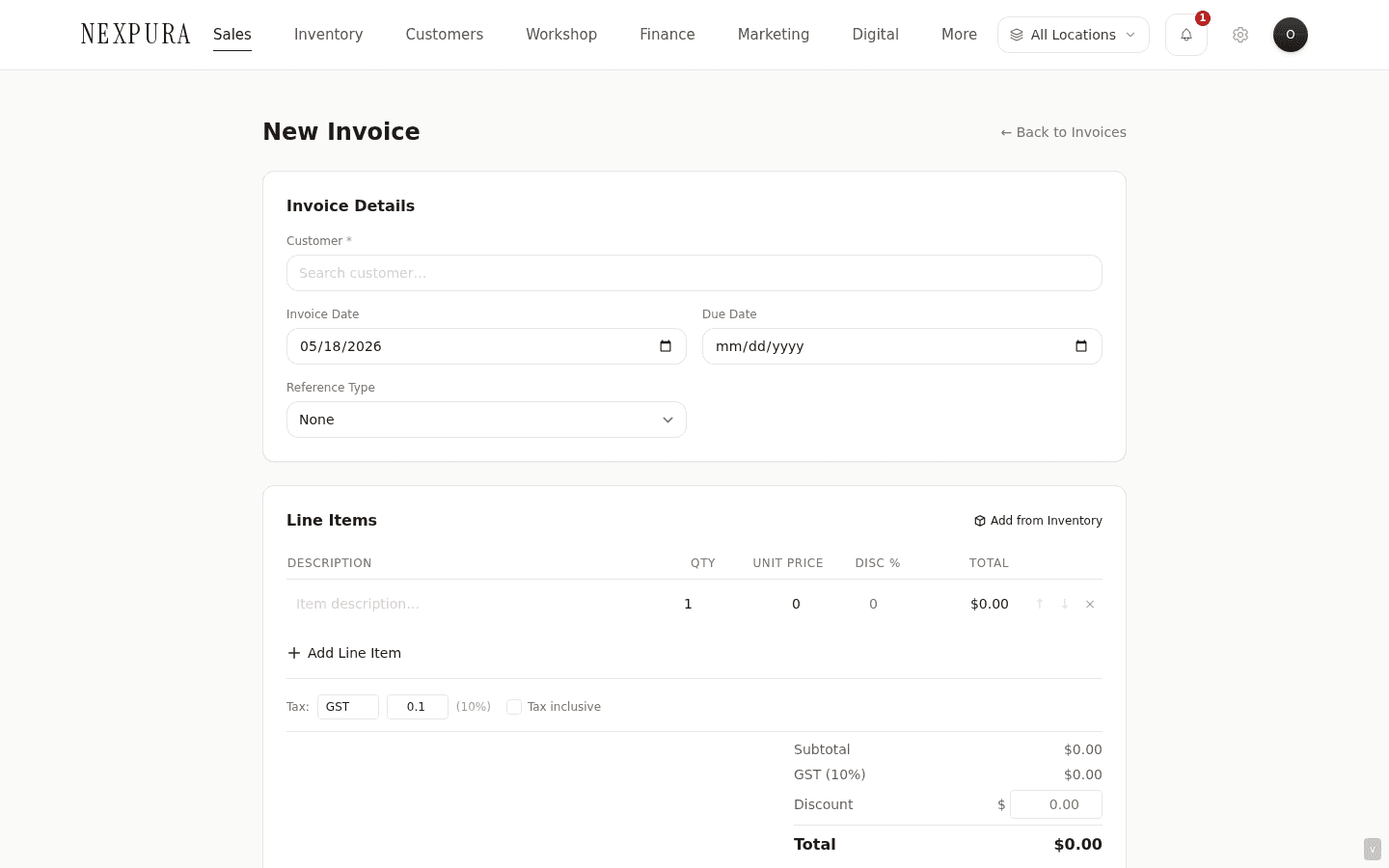
Go to /invoices and click New Invoice, or jump directly to /invoices/new. The form has Customer + Dates at the top, Line Items below, a Notes and Footer Text panel, and the layout picker (Classic, Modern, Minimal) for the PDF render.
2. Add line items
Each line item is description + quantity + unit price + optional discount percentage. The line total is quantity × unit_price × (1 − discount/100). The subtotal sums the line totals; tax is applied per the tenant config (added on top for tax-exclusive tenants, extracted from the line totals for tax-inclusive tenants).
Server-authoritative totals — the client-displayed subtotal / tax / total are recomputed on the server from the line items before persistence. A tampered client-side total has no effect on what's saved.
3. Save as draft or save and send
Save Draft persists the invoice with a DRAFT-XXXXXXXX placeholder number and status draft; you can edit, change line items, or delete it. Drafts don't carry a Stripe payment link.
Save and Send skips the draft state — the invoice is created directly with status unpaid, the next INV- sequence number is assigned, a Stripe payment link is generated, and the email goes out to the customer. The invoice detail page renders the canonical state.
4. Mark a draft as sent later
On the invoice detail page for a draft, click Mark as Sent. The DRAFT-XXXXXXXX placeholder upgrades to the next INV- sequence number, status flips to unpaid, the email goes out, and the toast confirms with the customer's email address. From here the invoice is on the clock — the due date is what the overdue cron compares against.
5. Record a payment
Open the invoice detail page and click Record Payment. The modal asks for amount, payment method (cash, card, transfer, cheque, other), payment date, optional reference (a deposit slip number, a transfer reference), and optional notes. On submit:
- An immutable row is inserted into payments.
- The invoice's amount_paid is recomputed from the sum of all payments against this invoice (race-safe — survives two simultaneous submissions).
- Status auto-flips: unpaid → partial if amount_paid is non-zero but less than total, partial → paid if amount_paid catches up to total.
- paid_at is stamped on the transition to fully paid (used by the Paid This Month KPI).
The payment-submit action is idempotent — submitting the same payment twice (network blip, accidental double-click) returns the duplicate-detected error on the second attempt instead of recording it twice. The fingerprint is amount + method + date, so a legitimate second payment of the same amount on the same day with the same method needs to be recorded under a different date (or you can add a 1-cent variance and offset with a future payment).
6. The automated overdue reminder sequence
When an invoice's due date passes without full payment, the daily cron at /api/cron/overdue-invoices (08:00 UTC) sweeps every unpaid and partial invoice and sends the next-due reminder email. Four steps:
- Day 1 past due — mild urgency. Subject: “Invoice #INV-#### is now due.”
- Day 7 past due — medium urgency. Subject: “Reminder: Invoice #INV-#### is overdue.”
- Day 14 past due — high urgency. Subject: “Second reminder: Invoice #INV-#### is overdue.”
- Day 30 past due — final urgency. Subject: “Final notice: Invoice #INV-#### — action required.”
Each step fires once per invoice. The send-time is recorded in the overdue_reminder_sent_at JSON column on the invoice, keyed by day number — a re-run of the cron the next day skips steps already marked. The customer's marketing consent field isn't consulted for these — overdue reminders are transactional, not marketing, and ship via Resend on the tenant's configured sender identity.
Tenant-level opt-out via the overdue_reminders_enabled flag on the tenants row. Tenants that prefer to follow up by phone, in person, or via their existing accounting tool can disable the reminder sweep entirely. When disabled, the cron skips that tenant's invoices without recording any steps.
7. Use the Overdue deeplink for follow-up
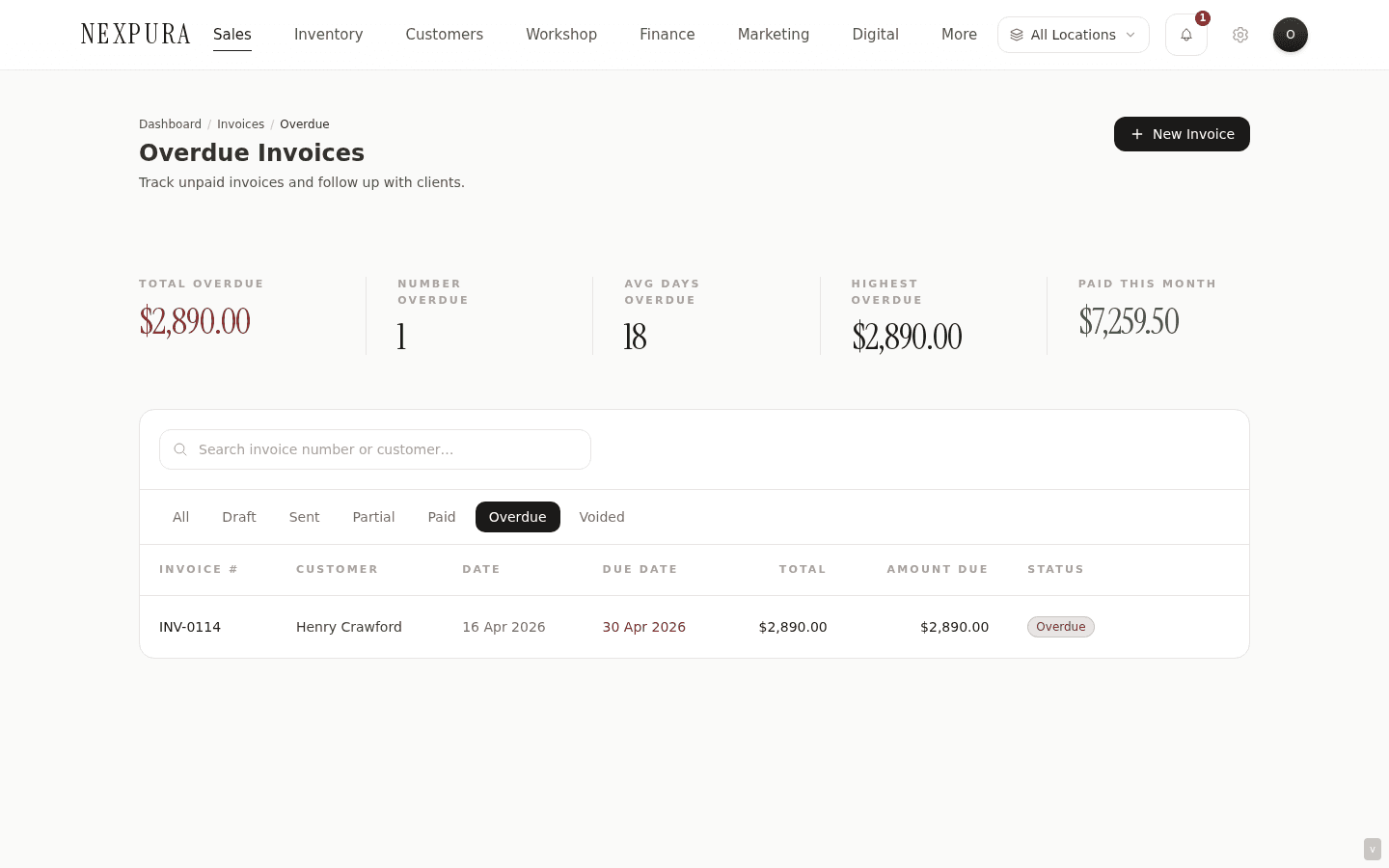
The deeplink /invoices?status=overdue renders the page as a focused Overdue dashboard. The KPI strip switches to five cells — Total Overdue (sum), Number Overdue (count), Avg Days Overdue (mean across the visible slice), Highest Overdue (max single invoice), Paid This Month. The list is pre-filtered to overdue, sorted oldest-due-date first.
8. Void an invoice that shouldn't have shipped
On the invoice detail page click Void Invoice. The status flips to voided, the row is preserved (never deleted), the audit trail records the void with timestamp + actor, and the invoice drops out of the Outstanding and Overdue KPIs immediately. Paid invoices can't be voided — refund through /sales or /refunds instead. Voided is terminal; re-instating means issuing a fresh invoice with the same line items.
Common questions
Why is overdue a four-step sequence instead of one configurable lead time?
Two non-obvious goals served at once. First, the four steps carry different tones — mild at day 1 is informational (“just a heads-up the due date has passed”), medium at day 7 is a reminder, high at day 14 is a second reminder with clearer escalation language, and final at day 30 names the action required. Collapsing into one toggle-with-lead-time would force one email body to span all four tones — too soft for day 30 or too alarming for day 1. Second, day-1 / day-7 / day-14 / day-30 is a sequence customers across hundreds of jewellers have internalised — the late-payment workflow on the customer side roughly tracks the same beats. Keeping the cadence stable means the customer experience is predictable and operators don't have to pick a custom cadence per invoice.
If your store needs a different cadence (a stricter 30-60-90 commercial-invoice rhythm, or a softer-than-default approach with a phone-call cadence layered in), the tenant-level opt-out is the cleanest answer — disable the auto-reminders and run your follow-ups by hand or via your accounting tool.
Why does the draft invoice show DRAFT-XXXXXXXX instead of an INV- number?
Two reasons that point the same direction. First, the INV- sequence is canonical — every sent invoice gets a consecutive number from a single counter on the tenants row. If drafts pre-allocated INV- numbers, abandoned drafts would leave gaps in the sequence (auditors flag gaps; jewellers worry that someone deleted an invoice). Reserving DRAFT-XXXXXXXX for the in-progress state means the INV- sequence is gap-free in practice — every issued INV- corresponds to an invoice that was actually sent. Second, the DRAFT prefix signals to the operator that this isn't live yet — a quick-glance distinction between “saved halfway through” and “sent to the customer.”
The upgrade happens atomically at mark-sent — the same server action that flips status to unpaid assigns the next INV- number and dispatches the email. The customer never sees the DRAFT placeholder on their received invoice.
Why can't I edit a sent invoice?
Because the customer has already received it. An invoice once sent is a record of what was communicated — editing it changes that record without the customer's knowledge. The right shape for “I need to fix this” is to void the original and issue a corrected replacement. The void preserves the audit trail (“here's what we sent first, here's what we sent instead”) and the corrected invoice carries a fresh INV- number. The customer sees the explicit substitution rather than a silent rewrite.
Drafts are different — they haven't been communicated, so editing is safe and the canonical workflow.
The Stripe payment link is missing from a sent invoice. What went wrong?
The Stripe link generation is non-fatal — if the Stripe call fails (rate limit, network blip, the tenant's Stripe account not yet connected), the invoice ships without the link and the failure is logged to Sentry. The customer can still pay by other methods documented in the email (bank transfer to the configured BSB + account, or in-person at the store). The missing-link failure is the only Stripe path that's expected occasionally; we don't consider it a hard error.
If a tenant's invoices consistently ship without payment links, the diagnosis is almost always the Stripe account connection at /settings/billing — verify the Stripe Connect handshake is complete. See billing and subscription for the Stripe-side setup walkthrough.
Why is amount_due a computed column rather than writable?
Because it's a derived figure — total minus amount_paid — and the only safe way to keep it consistent with the underlying columns is to derive it on every update. If amount_due were writable, a payment that updated amount_paid but forgot to update amount_due would leave the invoice listing the wrong outstanding figure on the /invoices KPIs. Database-side computation eliminates that class of bug — every read of amount_due is guaranteed to match the latest total and amount_paid.
On the application side this means callers set total and amount_paid only;amount_due is read-only. The action files carry the comment explicitly so contributors don't try to set it manually.
Troubleshooting
Customer reports they never received the overdue reminder I expected
Symptom: an invoice is past due by more than a day, the customer wasn't opted out, and they say no email arrived. Cause: one of three. Tenant-level opt-out is on (check overdue_reminders_enabled on the tenants row). The customer email on file is stale or has a typo. The customer's mail provider routed to spam. Fix: verify the customer email on the customer detail page, ask the customer to check spam. If the tenant opt-out is set unintentionally, flip it back on at /settings/business-profile; the next daily cron picks the invoice up. For a one-off manual reminder, the operator can currently re-email via the invoice detail page's Email Invoice action — that path is the same template the cron uses.
Recording a payment returns “Duplicate detected”
Symptom: the Record Payment modal saves once, then a second submit with the same amount + method + date returns the duplicate error. Cause: expected. The idempotency fingerprint is amount + payment_method + payment_date — a second submit within that fingerprint is treated as the same payment being submitted twice. Fix: if the customer actually paid the same amount twice on the same day, record the second payment under a slightly different date (the next day) or amount (vary by one cent and correct in a future payment). The idempotency guard exists to prevent network-blip double-submissions silently double-counting; the cost is the rare case of a legitimate duplicate needing a small workaround.
Invoice shows status “paid” on the detail page but “partial” on the list
Symptom: the two surfaces disagree on the status badge. Cause: the /invoices list query is cached (revalidate every hour by default) and a payment-recording revalidates a smaller subset than the list page caches. Walking back to /invoices via the browser back button can show the cached payload until the cache TTL elapses. Fix: hard-refresh /invoices (Cmd+Shift+R) — the recordPayment action explicitly revalidates the /invoices path and the cache tag, so the next fresh load picks up the new status. If the discrepancy persists past a refresh, the detail page is the canonical source; the list will correct on the next cache miss.
Cannot record a payment on a voided invoice
Symptom: the Record Payment action returns “Cannot record payment on voided invoice.” Cause: expected. A voided invoice is a closed, non-collectible record — accepting payment against it would muddle the audit trail (was this paid before void? After? Why is a voided invoice carrying a payment?). Fix: if the customer actually paid, issue a fresh invoice with the same line items and record the payment against the new invoice. The original void stays as the audit record of what the customer originally received.
The Avg Days Overdue figure on /invoices?status=overdue looks wrong
Symptom: the Avg Days Overdue cell shows a smaller number than the operator's mental model of how old the overdue invoices are. Cause: the figure is computed across the visible page slice (default 200 invoices per page), not across the full overdue set. For tenants with more than 200 overdue invoices, only the first page's slice is averaged — older overdue invoices on subsequent pages aren't included. Fix: the headline Total Overdue figure uses the unfiltered sum across all matching rows and is the authoritative aggregate. The Avg Days Overdue cell is best used as a quick read on the current page; pagination through older overdue invoices shows the long tail.
Related
- Quotes — the most common upstream path to an invoice; quote-to-invoice carries the line items + applies tenant tax at the conversion step
- Finance hub and reports — where outstanding and overdue invoices feed the KPI strip and the top-5 overdue / upcoming due panels
- Customer detail and history — per-customer invoice and payment history surfaces on the customer's timeline
- Processing a sale — POS sales create a linked invoice record automatically; the /financials net-revenue calculation deduplicates sale-linked invoices to avoid double counting
- Vouchers and gift cards — vouchers are issued from the /vouchers surface (or from the POS payment modal); the invoicing surface doesn't issue vouchers directly
- Business profile — where the tax-name, tax-rate, tax-inclusive flag, banking details, and overdue-reminder opt-out are configured