Business profile
The tenant-wide identity that prints on every invoice, receipt, and customer-facing page — business name, type, contact details, address, invoice accent colour — alongside the tax and currency configuration (currency, timezone, tax name and rate, inclusive-vs-exclusive pricing) and the document-number sequences that govern how invoices, sales, repairs, bespoke jobs, and quotes are numbered.
Quick reference
- Business profile lives at /settings/business-profile (a dedicated route) plus the Business Profile tab on the legacy combined surface at /settings. Both surfaces write to the same tenants row.
- Page-layer gate: owner and manager only. Staff and technician land at /dashboard instead. Defence-in-depth is in the server action — direct POSTs from a staff session are also rejected.
- Four configuration surfaces under settings, all owner / manager gated: Business Profile (identity + address + logo + invoice accent), Tax & Currency (currency / timezone / tax-name / tax-rate / inclusive flag), Banking (BSB and account number, encrypted at rest), and Numbering at /settings/numbering (the document-sequence counters for INV-, SALE-, REP-, JOB-, QUO-).
- Currency change before you've traded is clean — the new currency code starts being used on the next sale, invoice, and customer-facing surface immediately. Currency change AFTER you've traded carries one operational caveat — see walkthrough step 3 and the common question below for the honest details.
- Numbering sequences are advisory counters held on the tenants row, not gap-free strictly-increasing ledger numbers. The Save action on each row sets the next document's number to prefix + (saved value + 1); subsequent documents increment from there. If the prefix is INV- and you save 5, the next invoice issued is INV-0006.
Walkthrough
1. Open the business profile
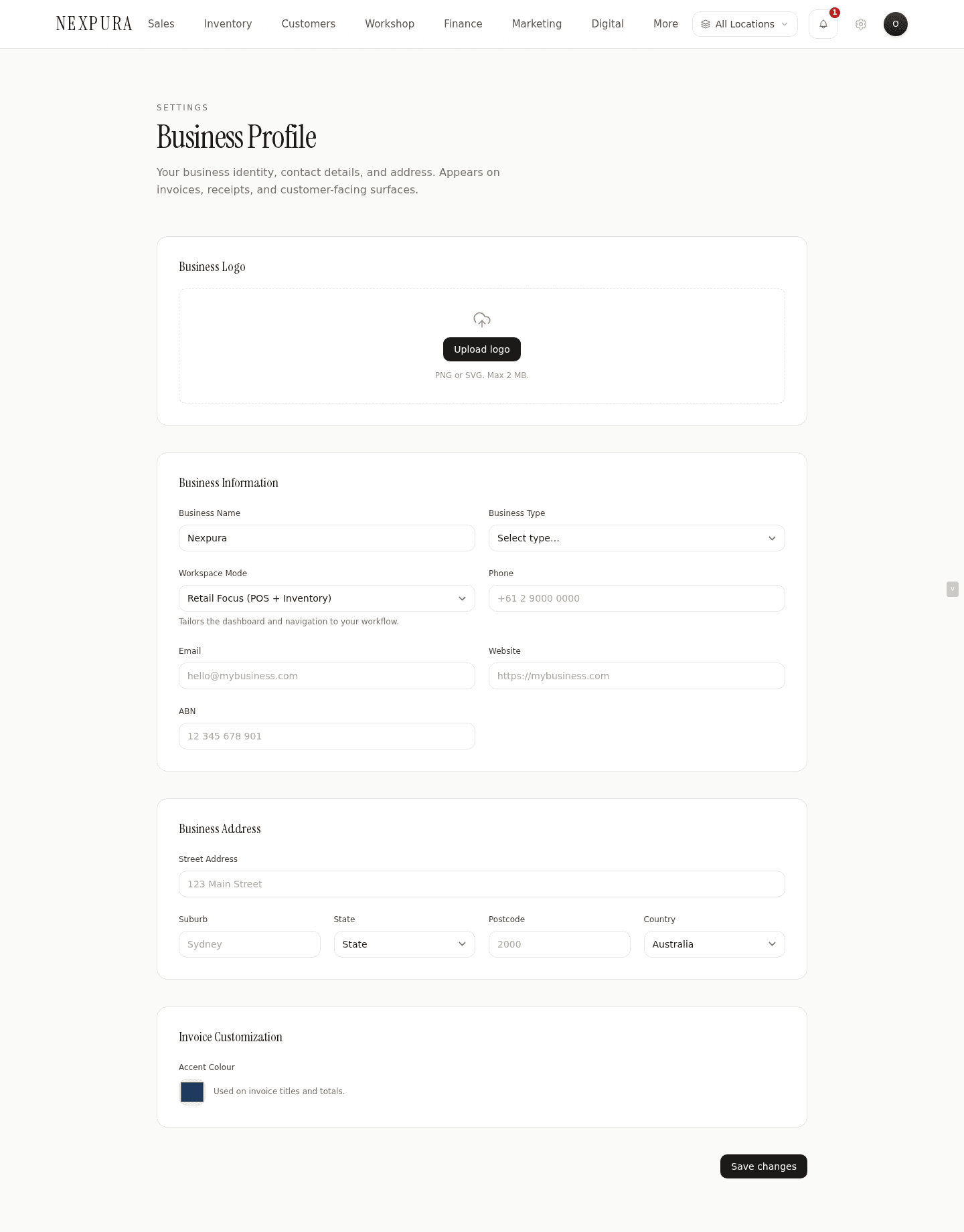
Go to /settings/business-profile (or land on /settings and the Business Profile tab opens by default). The page loads in four cards: Business Logo, Business Information, Business Address, and Invoice Customisation. Each card has the current saved values pre-filled.
2. Fill in business identity
Business name is what prints on every invoice, receipt, and email signature. Business type narrows some downstream defaults (jeweller, watchmaker, goldsmith, silversmith, designer / studio, retailer, wholesaler). Workspace mode is a navigation-and-dashboard tailoring flag — Full (all features), Retail Focus (POS + inventory), Workshop Focus (repairs + calendar), Bespoke Focus (custom jobs); it changes which tiles surface most prominently without locking anything down.
Phone, email, website, and ABN print on the invoice and quote PDFs in the header. Address fields (street, suburb, state, postcode, country) print in the same block. Australian states use the standard NSW / VIC / QLD / WA / SA / TAS / ACT / NT dropdown; country defaults to Australia with New Zealand, United Kingdom, United States, and Canada as the other supported options.
The invoice accent colour at the bottom of the page sets the colour used for invoice titles and totals in the PDF. A muted navy default works for most stores; click the swatch to pick a brand colour.
3. Configure tax and currency
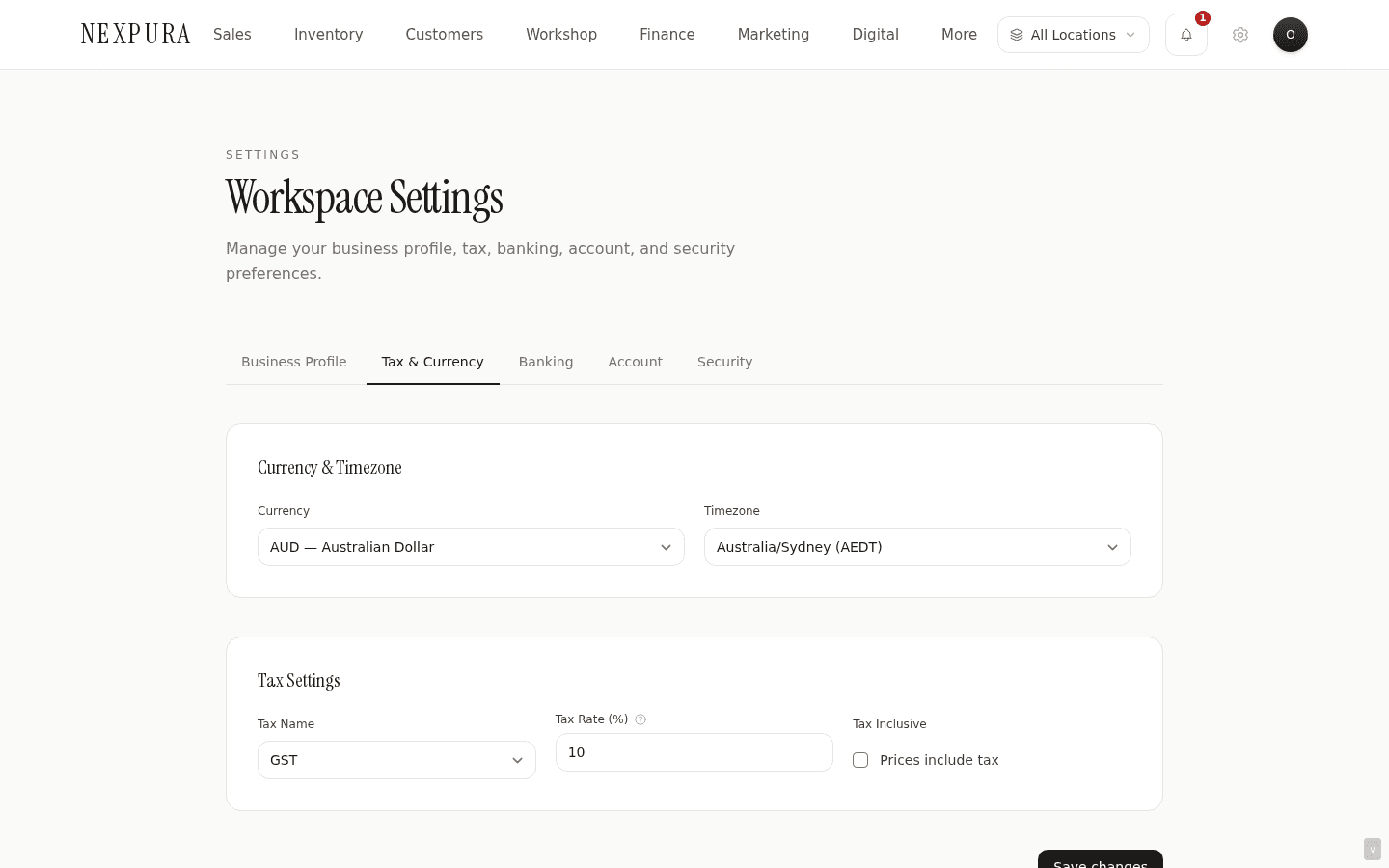
The Tax & Currency tab lives on the combined settings surface at /settings. Two cards: Currency & Timezone (your billing currency code — AUD / NZD / USD / GBP / EUR — and your IANA timezone) and Tax Settings (tax name — GST / VAT / Tax / None — tax rate as a percentage, and the tax-inclusive checkbox).
The currency you set here is the currency every sale, invoice, and receipt is rendered in for your tenant. If you're a single-currency Australian store, AUD is the right default. If you trade primarily in another currency or your tax jurisdiction calls the tax something other than GST, change them here.
Caveat — currency change after you've traded. The setting itself updates immediately, and every NEW sale or invoice issued from the moment of save uses the new code. But Nexpura doesn't stamp the currency-at-time-of-sale onto historical sale rows — totals are stored as raw decimal numbers, and the rendering layer reads your tenant's current currency to pick the code and locale for display. If you change AUD → USD with $50,000 of AUD sales in your history, every historical sale total retroactively renders as USD — same number, different (now-wrong) currency label. The numerical amount doesn't convert. Practical implication: change currency before you start trading, or treat the change as a one-way operation that requires a manual export of historical sales beforehand if your reporting depends on the old-currency labels. The Tax & Currency Save button does not warn about this today; assume the caveat applies whenever you change the field.
Tax rate is entered as a percentage (10 for 10%). The system stores it as a decimal (0.10) and applies it on every sale total. Tax-inclusive switches whether your item retail prices already include tax (common in AU retail) or whether tax is added at checkout (common in B2B). Changing the inclusive flag after you've traded carries the same caution as currency — historical totals weren't recomputed, the new flag only governs future sales.
Timezone (IANA name — Australia/Sydney, Australia/Melbourne, Pacific/Auckland, Europe/London, America/New_York, and others) pins the day boundary for your reports, daily reconciliation, trial-end / next-billing date display, and customer-facing appointment times. The default is Australia/Sydney. Changing the timezone is non-destructive — historical rows keep their stored UTC timestamps, only the display shifts.
4. Configure banking
The Banking tab on /settings carries the bank name, BSB, and account number that print on invoice PDFs for direct-deposit payments. The invoice footer below is a free-form text block that appears below those details — typical use is “Thank you for your business. Payment due within 7 days.”
Banking details are encrypted at rest. The BSB and account number columns hold AES-encrypted ciphertext; the decrypted values are only loaded server-side via the settings server action and rendered into the form. They're never exposed to the client browser as plain text outside this surface.
5. Configure document numbering
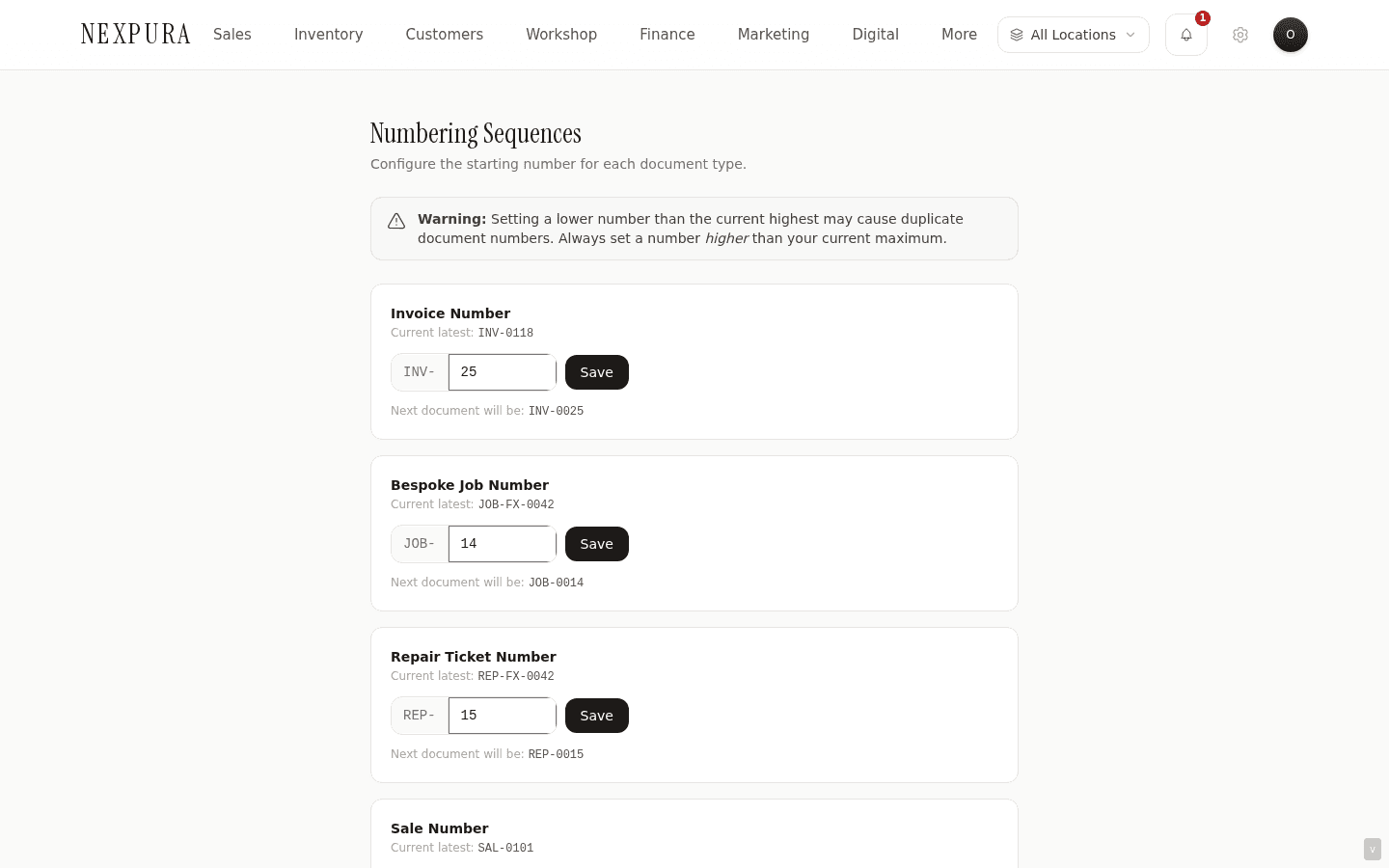
Open /settings/numbering. Five rows, one per document type — Invoice Number (INV-), Bespoke Job Number (JOB-), Repair Ticket Number (REP-), Sale Number (SALE-), Quote Number (QUO-). Each row shows the current latest number and an input to bump the sequence.
Most tenants leave these untouched. Common reasons to edit: you're migrating from another system and want your first Nexpura invoice to pick up where your old invoices stopped (set the sequence to your last old-system number; the next invoice will be one higher), or you've issued some test invoices on the trial that you want to skip past before going live (set the sequence to 100 to start production at INV-0101).
The numbers are advisory counters held on the tenants row — they aren't strict gap-free ledger numbers. The display under each input shows the next number that will be assigned: e.g. with invoice_sequence saved at 5, the next invoice will be INV-0006. Save is per-row (each row has its own button).
6. Verify on a fresh invoice or sale
After saving any of these surfaces, the cleanest way to confirm the changes have taken is to create a new sale at /sales/new or issue a new invoice from a customer detail page. The invoice PDF will pick up your latest business name, address, accent colour, banking footer, tax rate, and numbering — all in one go.
Common questions
What happens if I change my display currency after I've already made sales?
The setting flips immediately, and from the moment of save every NEW sale, invoice, refund, and receipt renders in the new currency code. But historical sale and invoice rows already in the database aren't stamped with the currency-at-time-of-sale — Nexpura stores totals as raw decimals and reads your tenant's current currency to pick the locale and code at render time.
Practical result: if you switch AUD → USD with existing AUD sales in your history, every historical total retroactively displays as USD with the same numerical value. $50,000 AUD becomes $50,000 USD on screen — not a real conversion, just a relabel. If your reporting downstream of Nexpura depends on old-currency labels (e.g. you've already booked the year-to-date totals in AUD into Xero), the relabel is silent. The system doesn't warn at save time today; the warning lives in the walkthrough step above.
Two safe approaches: change the currency before you start trading on Nexpura, OR treat a change as a one-way operation — export your historical sales to CSV first (so you have the old-currency reporting snapshot preserved outside the system) and then flip the field, knowing the on-screen display relabels from that point.
Why are there two business-profile-like surfaces — a dedicated /settings/business-profile page and a Business Profile tab on /settings?
Both write to the same tenants row — they're alternate UIs for the same data. The dedicated route is the canonical post-migration shape (page-layer owner / manager gate, async data-load pattern, focused on one section). The combined surface predates the extraction and still groups Business Profile, Tax & Currency, Banking, Account, and Security under one client SPA — useful when you're configuring several at once during onboarding.
No content drift between the two — saves from either UI are immediately reflected on the other on next load. The per-tab migration is continuing post-engagement; eventually Tax & Currency, Banking, and Account will each move to their own dedicated routes alongside the business profile one.
Why are tax / banking / business identity gated to owner and manager only, not staff?
These surfaces configure tenant-wide identity that prints on every invoice your store issues to a customer. Banking details specifically — the BSB and account number — are where customer payments land on direct deposit; a rogue staffer who could swap them for their own would be redirecting your revenue. Tax configuration sets the rate applied to every sale; changing it incorrectly leaves you under- or over-charging across hundreds of transactions before anyone notices. Business name changes propagate to every receipt, quote, and customer email going forward — a destabilising surface to delegate.
The permission matrix (configurable per role at /settings/team/permissions) doesn't include a “manage business identity” key for the same reason — owner + manager is the right boundary, and it lives at the role layer rather than as a delegate-able permission. The team-and-roles page covers this in more depth.
I'm migrating from another POS. How do I make my first Nexpura invoice continue my existing invoice numbering?
Open /settings/numbering, find the Invoice Number row, and set the sequence to your LAST old-system invoice number. The “Next document will be” preview will show one higher. Save. Your first Nexpura invoice then issues at that number, and continues incrementing.
Same approach works for SALE-, REP-, JOB-, and QUO- — each row has its own counter and Save button, configure them independently. Do this BEFORE you start issuing real Nexpura invoices; reordering afterward leaves gaps or duplicates that auditors will flag.
Can I configure different currency or tax rates per location?
No — currency, tax name, and tax rate are tenant-wide settings, not per-location. Every location operates in your single tenant currency and tax jurisdiction. If you operate across two countries with different tax rules, two separate Nexpura tenants is the current shape. Talk to us if multi-jurisdiction support inside one tenant is load-bearing for your store — it's on the roadmap conversation, not on the immediate ship list.
What does “tax inclusive” actually change?
Tax-inclusive ON means your stored retail prices already include tax — a $110 necklace with 10% GST tax-inclusive splits into $100 ex-tax + $10 GST on the invoice. The customer sees $110 on the price tag and pays $110; the GST line is calculated backward.
Tax-inclusive OFF means your stored retail prices are pre-tax — the same $100 ex-tax necklace adds $10 GST at checkout for a $110 total. The customer sees $100 on the tag and pays $110.
Australian retail almost always uses tax-inclusive (the price tag is the price they pay); B2B wholesaling almost always uses tax-exclusive (quotes and invoices show + GST). Pick the one that matches how you display prices to customers.
Troubleshooting
I changed the display currency and now my historical sales show the new currency code
Symptom: you switched AUD → USD (or any other pair) and the dashboard, sales list, and existing invoice PDFs now show $ values labelled with the new code even though they were recorded as the old one. Cause: expected — Nexpura reads the tenant's current currency setting to pick the code and locale at render time. Historical totals aren't stamped with the currency they were originally booked in, and the relabel applies retroactively. Documented in the walkthrough step above and the Common questions entry. Fix:if the switch was deliberate, no fix needed — the new currency label is what you wanted going forward. If the switch was a mistake, flip the field back to the original currency on the same Tax & Currency tab; historical totals revert to their correct label since the numerical amounts were never changed. If you need the old-currency reporting preserved alongside the new, export sales to CSV with the correct currency label BEFORE switching.
Save on the Business Profile form returns “Only owner or manager can edit business profile”
Symptom: the form submission returns the permission-denied error inline. Cause: you're signed in as a staff or technician role. Business profile mutations are gated to owner + manager at both the page layer (which usually redirects you to /dashboard before the form renders) and the server-action layer (defence-in-depth). Fix: ask an owner or manager to flip the field, or ask the owner to elevate your role at /settings/team. Team-and-roles documents the role boundaries in detail.
I set the invoice sequence to 100 but the next invoice still issued at the old number
Symptom: you opened /settings/numbering, changed an invoice sequence to 100, but the next invoice came out at the old number (e.g. INV-0023 instead of INV-0101). Cause:the Save button on the numbering rows is per-row — each row has its own Save button next to its input. The change doesn't persist until you click the row Save; the parent page has no global Save. Easy miss if you're used to the combined-form Save shape elsewhere in settings. Fix:open /settings/numbering again, set the value, click the Save button on that specific row, wait for the “✓ Saved” badge. Then verify the “Next document will be” preview shows the expected number. Issue a fresh invoice to confirm.
Invoice PDF shows the wrong tax rate even though I just updated it
Symptom: you changed the tax rate on /settings, saved, but opening an existing invoice still shows the old rate. Cause: expected — existing invoices are stored with their tax breakdown at the time they were issued. Re-opening an old invoice doesn't re-apply the current tax rate; the invoice is a record of what the customer was charged. Fix: no fix for existing invoices — they correctly reflect the tax rate at time of issue. The new rate applies to every invoice issued after the save. To verify, create a fresh invoice at /invoices/new and confirm the tax line uses the new rate.
The bank account number disappeared from the form after saving — did I lose it?
Symptom: you entered banking details, saved, but on next load the BSB and account fields look empty or partially filled. Cause: banking details are encrypted at rest. The decryption path runs in the server action when the page loads, so the value should re-appear after a full page refresh. If it doesn't, the decryption failed (rare — usually a key-rotation mismatch) and the value did persist encrypted, just isn't being unwrapped for display. Fix:hard refresh the page first (Cmd+Shift+R or Ctrl+Shift+R). If the value still doesn't surface, contact support with the affected tenant ID — the encryption key needs verifying server-side. In the meantime, re-saving the value with the correct BSB / account will overwrite the stored ciphertext with a fresh one bound to the current key, which usually recovers the display.
Related
- Locations and multi-store — sites within the tenant; address fields on each location supplement the business address
- Team members and roles — the owner / manager boundary that gates business profile edits
- Billing and subscription — your Nexpura plan and Stripe customer portal (separate from your customer-facing tax setup here)
- Account setup — the initial onboarding flow that populates these fields the first time
- Invoices — where business profile fields, tax rate, and document numbering all surface on the printed PDF
- Processing a sale — where the tax rate gets applied at checkout