Vouchers and gift cards
Issue a voucher with a code and value, email it to the customer, redeem in part or in full at the POS, handle expiry.
Quick reference
- Voucher list at /vouchers with status filters (All, Active, Redeemed, Expired, Voided). Each voucher detail page is at
/vouchers/<id>. - Issue from New voucher — set the amount, optionally a custom code (otherwise auto-generated as
GV-XXXXXXXX), recipient name and email, expiry date, notes. - Codes are uppercase alphanumeric with I / 1 / O / 0 excluded to avoid ambiguity over the phone. Eight random characters following the
GV-prefix. - Issuing a voucher requires the
create_invoicespermission, since you're creating a spendable money instrument. - Redemption: from the POS payment modal's Voucher tab (full redemption — voucher balance ≥ sale total) or Split tab's voucher+card / voucher+cash modes (partial redemption — voucher covers some, customer pays the difference).
- Voucher balance is tracked atomically. Partial redemption decrements the balance; the voucher stays active until balance hits zero, at which point it flips to redeemed as a terminal state.
- Expiry is checked at lookup — an expired voucher rejects with “Voucher has expired” even if its
statusis still active in the database (status auto-transition on expiry isn't shipped; the check happens at use time).
Walkthrough
1. Issue a voucher
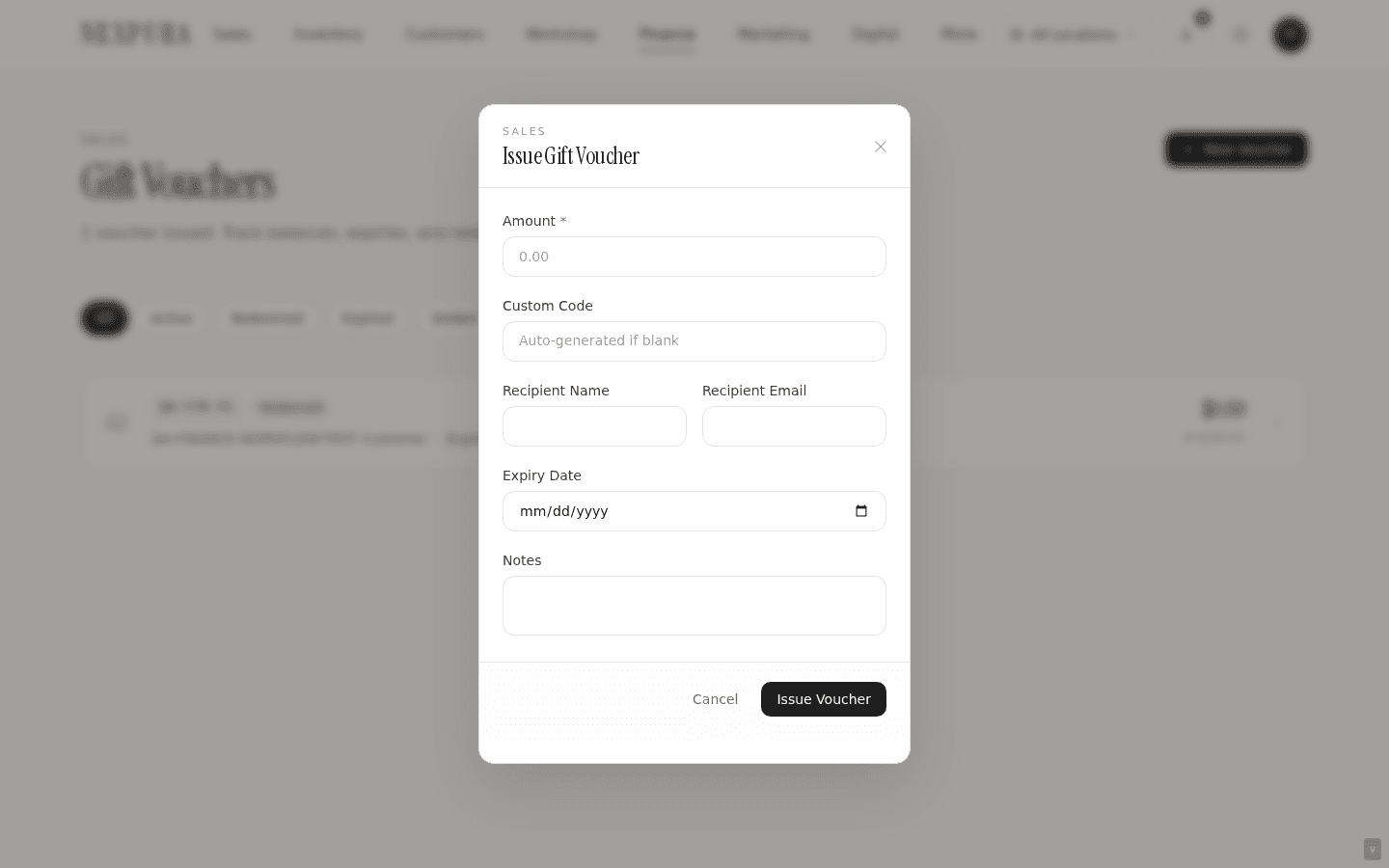
Open /vouchers and click New voucher top-right. The form has six fields: Amount (required), Custom code (optional — auto-generated if blank), Recipient name, Recipient email, Expiry date, Notes.
Amount must be greater than zero. The custom code, if provided, is converted to uppercase; if the code collides with an existing voucher at your tenant, the system silently falls back to an auto-generated code (no error — the form submits and the voucher gets a fresh code).
Recipient name and email are optional but worth filling — if the recipient email is on file, the voucher detail page surfaces an Email voucher button that sends a formatted email with the code and balance via Resend. Expiry date is also optional; without one the voucher never expires.
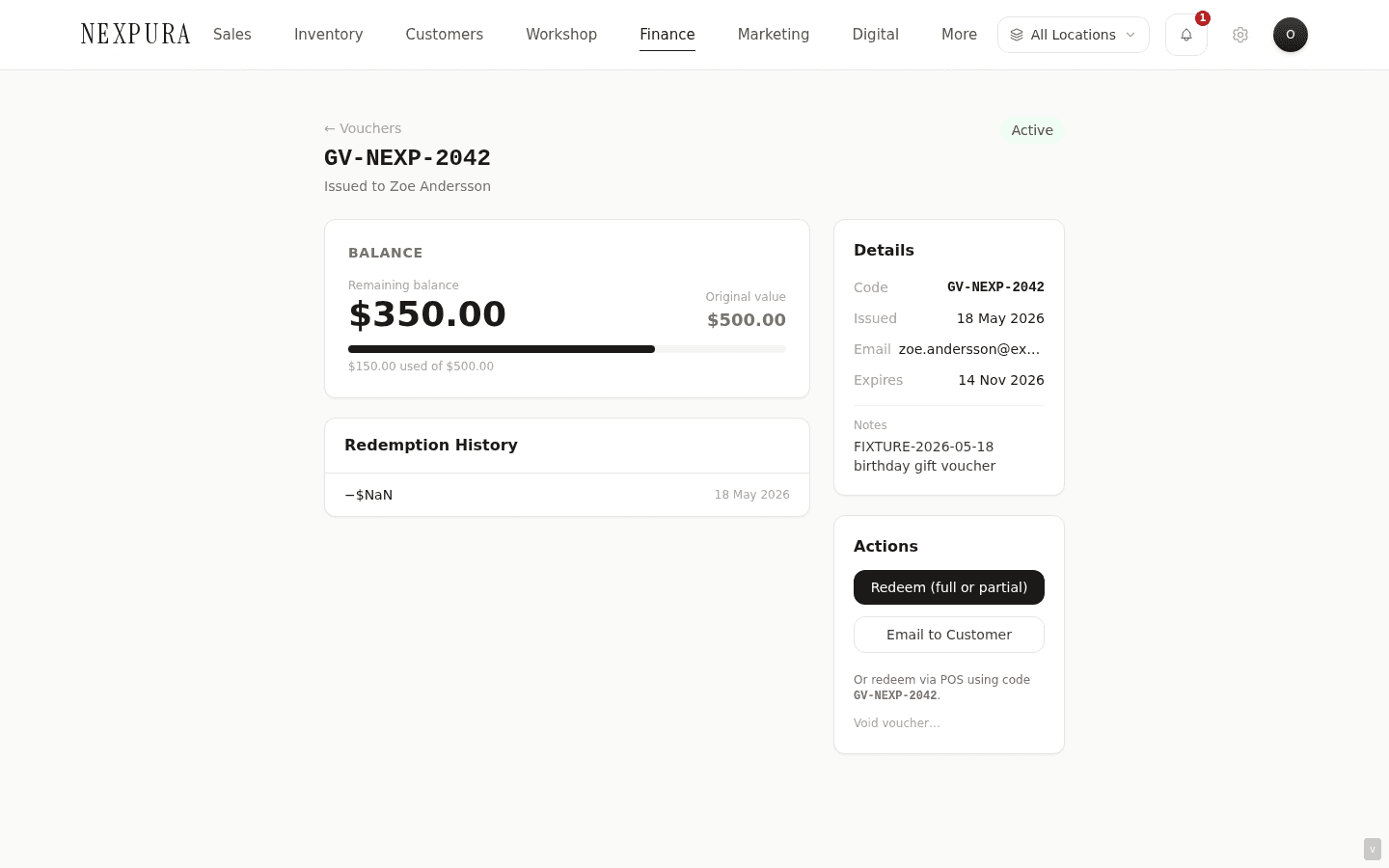
Click Issue voucher. The form posts; you land on the new voucher's detail page at /vouchers/<id> with the code displayed in monospace, the balance, the status (Active), and the expiry.
2. Email the voucher to the customer
From the voucher detail page, click Email voucher — the button only renders if a recipient email is on the voucher. The email is sent via Resend with your business name and a styled card containing the voucher code (monospace, large), the balance, and the expiry date. The action toasts “Voucher emailed to customer” on success.
For customers who walk out with a printed gift card or handwritten receipt, skip the email — the code is what matters. They present the code at redemption.
3. Redeem at the POS — full redemption
The customer arrives to spend the voucher. Build the cart at the POS as you would for any sale (see processing a sale), click Charge, switch to the Voucher tab in the payment modal.
Type or paste the voucher code (the input is auto-uppercased and styled monospace), click Look up. The modal calls the lookup API which checks: voucher exists at this tenant, status is active, expiry hasn't passed, balance > 0. Any failure surfaces as a clear error; “Voucher not found”, “Voucher is redeemed”, “Voucher has expired”, or “Voucher has no remaining balance”.
On success the modal shows the code and the remaining balance in a green card. If the balance is greater than or equal to the cart total, the Redeem voucher button activates. Click it; the server-side saga debits the voucher atomically, records a redemption row in gift_voucher_redemptions linked to the sale, and completes the sale through the same path as any other payment method. The success screen shows the sale number.
Screenshot pending
Payment modal on the Voucher tab — code GV-ABCD2345 entered, Look up button, green card below showing 'GV-ABCD2345 Balance: $250.00' and '✓ Sufficient balance to cover $180.00'. Redeem voucher button active.
4. Redeem at the POS — partial / split redemption
If the voucher balance is less than the cart total, the Voucher tab hints to use a split. Switch to the Split tab and pick Voucher + Card or Voucher + Cash from the mode toggle.
Type the voucher code, click Look up; on success the modal shows the balance and pre-fills the remaining amount field with (total − min(voucher balance, total)). The remaining can be paid by card or cash depending on the mode. Confirm the amounts; click Complete split payment.
The server clamps the voucher amount to min(balance, total) — a $500 voucher applied to a $300 sale only debits $300, and the customer keeps the remaining $200 on the voucher. The voucher stays active; subsequent redemptions can draw against the remaining balance.
5. Manual redemption (phone-in, outside the POS)
From the voucher detail page's action stack, click Redeem manually — useful for redemptions outside a POS sale (e.g. a customer phones to apply voucher value to an outstanding invoice, or you're running an in-store credit adjustment). The form takes an amount and notes; click confirm. The voucher balance debits atomically via the same redeem_voucher RPC the POS uses, a redemption row is logged with sale_id = NULL and your notes. The detail page updates with the new balance.
6. Voiding a voucher
Sometimes a voucher needs to be cancelled — issued in error, fraud detected, customer wants their money back as cash and we're cancelling the voucher to avoid double-issuing. From the voucher detail page, click Void voucher; confirm in the modal. The status flips to voided and any future lookup attempts reject with “Voucher is voided.”
Void is a terminal state — a voided voucher can't be un-voided. If you need to put the value back into customer-spendable form, issue a fresh voucher or add the equivalent to store credit. Void is gated by the same create_invoices permission as issuance.
Common questions
What happens if a sale that used a voucher is later refunded?
The voucher stays consumed — once redeemed, the balance debit is committed and isn't automatically restored by a refund of the originating sale. The refund is issued through whichever method you pick on the refund modal: most stores pick Store credit so the customer gets the value back in a usable form. If you specifically want to reactivate the voucher (e.g. as a goodwill gesture to a customer who was sent the voucher as a gift), cancel-and-reissue is the clean motion: refund as store credit, then issue a fresh voucher for the equivalent amount with a clear note linking back to the original voucher code. The audit trail reads honestly.
Does the system enforce expiry dates?
Yes — at lookup time. When someone presents an expired voucher at the POS, the lookup returns “Voucher has expired” and redemption is blocked. The voucher's status in the database stays active past the expiry date (an automatic status-transition job to flip expired vouchers to expired isn't shipped yet), but the runtime check on every lookup means an expired voucher can't be used regardless of status. The voucher list page filters Active vs Expired using the same date comparison so the counts match the lookup behaviour.
The customer has the voucher email but lost the code — how can I help?
Open /vouchers, filter to Active, and search by recipient name or email — both surface in the voucher row. Click into the matching voucher; the code is on the detail page. Confirm the customer's identity (the recipient email on file is a good cross-check) and read them the code, or click Email voucher to re-send. If you have many vouchers and the customer can't recall any identifying details, the customer detail page also lists vouchers issued to that customer in a timeline.
Can I issue a voucher as part of a sale (i.e. customer buys a gift voucher at the till)?
The current motion is: ring up the voucher purchase as a manual sale at /sales/new with a free-text line item for the voucher (e.g. “Gift voucher GV-XXXXXXXX”), then issue the voucher separately at /vouchers with the matching value. The customer pays cash or card for the voucher and walks out with the code. The one-click “sell-and-issue” combined flow is on the backlog; until then, the two-step motion gives clean records on both sides (sale + voucher) which is ultimately what the audit + accounting wants.
Why is the voucher code so long? Could it be a shorter number?
The format is GV- + eight random alphanumeric characters from a 32-symbol set, giving around a trillion combinations. Long enough that guessing a valid code is computationally infeasible — important because a guess that hits a valid code with balance could be drained by a malicious party. Short numeric codes (4–6 digits) would be much easier to guess. The format also excludes confusing characters (no I, no 1, no O, no 0) for over-the-phone clarity. A custom code is allowed at issuance for stores that want a human-readable code (e.g. “SARAH25TH”) — that's the right escape hatch for the specific case.
How does this differ from store credit?
Vouchers are anonymous money instruments — anyone holding the code can redeem. Store credit is balance on a specific customer record; you need the customer to be present (or at least on file) to redeem. Vouchers are good for gifts and promotions — give away or sell without tying to a specific recipient. Store credit is good for customer-owned value — refund balances and goodwill credits — where the value should follow the customer, not float free. Both redeem through the POS, but through different tabs and different audit paths.
Troubleshooting
“Voucher not found” on a code the customer insists is correct
Symptom: POS lookup returns voucher-not-found, but the customer has the email or the printed code. Cause: most commonly: a transcription mistake (the field auto-uppercases on input, so case is fine, but 0 / O or 1 / I is a frequent slip — though the system avoids these characters at issuance, a customer might transcribe an ambiguous-looking one wrong). Less commonly: the voucher was issued at a different tenant (a chain with separate Nexpura accounts) and isn't visible from yours. Fix: ask the customer for the original email and read the code directly. Or search /vouchers by recipient name or email — the voucher row shows the correct code. If you can't find any matching voucher at all, the code may be from a different business / different tenant.
“Voucher is not active” on a voucher the customer says they haven't used
Symptom: lookup returns “Voucher is redeemed” or “Voucher is voided” on a code the customer says they haven't spent. Cause: the voucher was previously redeemed (possibly in error, or by someone else who got hold of the code) or was voided. Open the voucher detail page and check the redemption history. Fix: the redemption history shows every debit with the sale link and the operator who processed it. If the redemption was made in error by your staff, issue a refund against the receiving sale (which restores value as store credit), then re-issue a fresh voucher to the customer. If the void was deliberate (e.g. fraud investigation), the original reason should be in the notes. If the redemption appears genuinely unauthorised, treat it as a fraud incident — the audit log shows when and by whom.
Voucher balance after redemption looks wrong
Symptom:the detail page balance doesn't match what you expected after a partial redemption. Cause: usually a cache — the page state might be from before the redemption. Fix: hard-reload the voucher page (Cmd/Ctrl-Shift-R). If the number is still wrong, scroll to the redemption history at the bottom and check the amounts of each row sum to original − current balance. The history is the source of truth; if the running balance is inconsistent with the history (e.g. history sums to a $50 redemption but the balance dropped by $100), that's a real data inconsistency — contact us with the voucher code and the redemption row IDs.
Email voucher button doesn't appear
Symptom: the voucher detail page action stack is missing the email option. Cause: no recipient email is on file for this voucher. Fix:currently the recipient email is set at issuance and isn't editable post-issue. For a voucher created without an email, the cleanest path is: void the original, issue a new voucher with the same amount and the recipient email, link the two in the new voucher's notes. Or, if voiding is too aggressive, give the customer the code over the phone or by manual email outside the system — the voucher works either way.
“Email service is not configured” when trying to send a voucher
Symptom: clicking Email voucher returns this error. Cause:the Resend integration that sends voucher emails (and receipt emails, and quote emails) isn't configured for your tenant. Fix:this is a platform-wide configuration — emails are sent from a shared Nexpura sender by default and shouldn't fail with this error in normal operation. If it does fail, contact us — the error indicates a backend mis-config we need to resolve. As a workaround, the voucher code is on the detail page; you can read it to the customer or copy into an email outside the system.