Team members and roles
Invite, view, edit, and remove team members, assign each one of the four supported roles (owner, manager, staff, technician), edit the per-role permission matrix that determines what each role can do, scope members to specific locations, configure the manager-PIN that gates refund overrides, and read the per-tenant activity log of consequential mutations across the system.
Quick reference
- Two parallel surfaces: /settings/team (member list, invite, remove, edit role, notification preferences, location scoping) and /settings/roles (per-member permissions matrix overlaid on role defaults, plus each member's in-app notification triggers for repair and bespoke alerts). Both read and write the same team_members row.
- Four supported roles, enforced by a DB CHECK constraint: owner (implicit super-role; cannot be assigned via the UI — there is exactly one per tenant, set at signup), manager (top non-owner; team management, can configure most settings), staff (POS + inventory tier), technician (workshop tier — repairs + limited inventory, no sales).
- Tenant-level permission matrix at /settings/team/permissions (owner-only). Eighteen permission keys grouped into View / Action / Admin tiers — canViewInventory, canCreateSales, canProcessRefunds, canManageTeam, canManageSettings, etc. Defaults come from the role's baseline; override per-role to tune the shape of your store.
- Per-member permission overrides on /settings/roles for one-off staffing patterns — e.g. one specific staff member who can process refunds without the whole staff role being able to. The per-member override layers over the role default; clearing it falls back to the role.
- Manager-PIN is per-member, optional, and gates the refund-override path documented on the refunds page — the 30-day window guard or no-original-sale guard calls for a PIN check before allowing the refund. Configured by each member from their own settings (self-set, not delegated). Owner can clear another member's PIN as a recovery affordance.
- Per-member location scoping (allowed_location_ids) is documented on the locations page. The team surface exposes the Locations action that opens the scoping modal — it lives in the team-member-management UX, even though the conceptual home is the location domain.
- Audit logging. Every consequential mutation is recorded: settings changes, role / permission edits, manager-PIN sets and resets, team member invite / removal, and several other sensitive-state writes across the system. The tenant-wide Activity Log screen has been retired, so there is no combined in-app view of these events at present; per-record history is still available on each record — see customer history. Recording is unaffected and nothing has been deleted.
Walkthrough
1. Invite a team member
Go to /settings/team. The page renders an Invite action (button or inline form) — fill in the new member's name, email, and the role you want to assign (manager, staff, or technician). Owner cannot be assigned via the UI; the owner is set at tenant signup and stays unique.
Submitting the invite sends an email with a signup link tied to your tenant. The recipient lands on a password-set page, enters a password, accepts the invite, and is dropped into the dashboard with the role you assigned. The invite link has an expiry; if it lapses before they accept, the team list shows the row with status “Expired” and a Resend action.
Three invite states surface on the team list: active (invite accepted, member is using the account), pending (invite sent, expiry hasn't passed yet), expired (invite sent but expiry passed without acceptance — Resend regenerates the link with a fresh window).
Screenshot pending
Team page member list — page header 'Team' top-left. Below: stacked member cards. Each card has a name, email below it, a role badge in the top-right (Owner / Manager / Staff / Technician), invite-status badge if not active (Pending / Expired), last-login timestamp ('5 hours ago' or 'Never'), notification toggle icons (new repairs / new bespoke), and an actions row (Locations / Edit role / Remove for non-owner rows). At the bottom: an Invite a member affordance.
2. Understand the four roles
The role determines the default shape of what each member can do; per-tenant and per-member permission overrides can tune it. The four baselines:
- Owner — exactly one per tenant, set at signup, can do everything. Cannot be assigned via the UI. Owner has every permission, every location, every settings surface. The owner is the ultimate recovery role; for sensitive operations like resetting another member's manager-PIN, only the owner can do it.
- Manager — top non-owner role. Defaults to every view + action + team-management permission; one default OFF is canManageSettings (business profile / tax / banking remain owner-only at the role level). Managers can invite and remove team members, edit roles, view reports and financials, process refunds, manage inventory, and do everything operational.
- Staff — POS + customer tier. Defaults: view dashboard, inventory, customers, sales; create sales and manage customer records. Defaults OFF: repairs, bespoke, financials, refunds, team management. Common shape for showroom staff who sell and add customer records but don't handle workshop work or accounting.
- Technician — workshop tier. Defaults: view dashboard, inventory, customers, and repairs; manage repairs. Defaults OFF: sales, refunds, financials, team management, bespoke. Common shape for a bench jeweller working through the repair queue without touching POS or finance.
Some older parts of the codebase reference specialty roles (salesperson, accountant, inventory_manager) — the DB CHECK constraint rejects them, so any UI surface that lists them is dead. The four supported roles above are the real surface; assigning anything else fails at the DB layer.
3. Tune the tenant permission matrix
Go to /settings/team/permissions (owner-only — managers see Access Denied here). The matrix renders as a grid: rows are the eighteen permission keys (canViewInventory, canCreateSales, canManageTeam, etc.), columns are the three non-owner roles (manager / staff / technician). Each cell is a checkbox showing the current effective permission.
Adjustments persist to the role_permissions table per-tenant — your changes apply only to your store, not globally. Common tweaks: enabling canProcessRefunds for staff if your store wants front-of-house refund handling, or disabling canManageCustomers for technicians who should stay focused on the bench.
Owner is always-on for every permission and is not editable from this matrix. The matrix is the tenant-wide baseline; per-member overrides on /settings/roles layer over the baseline for individual one-off shapes.
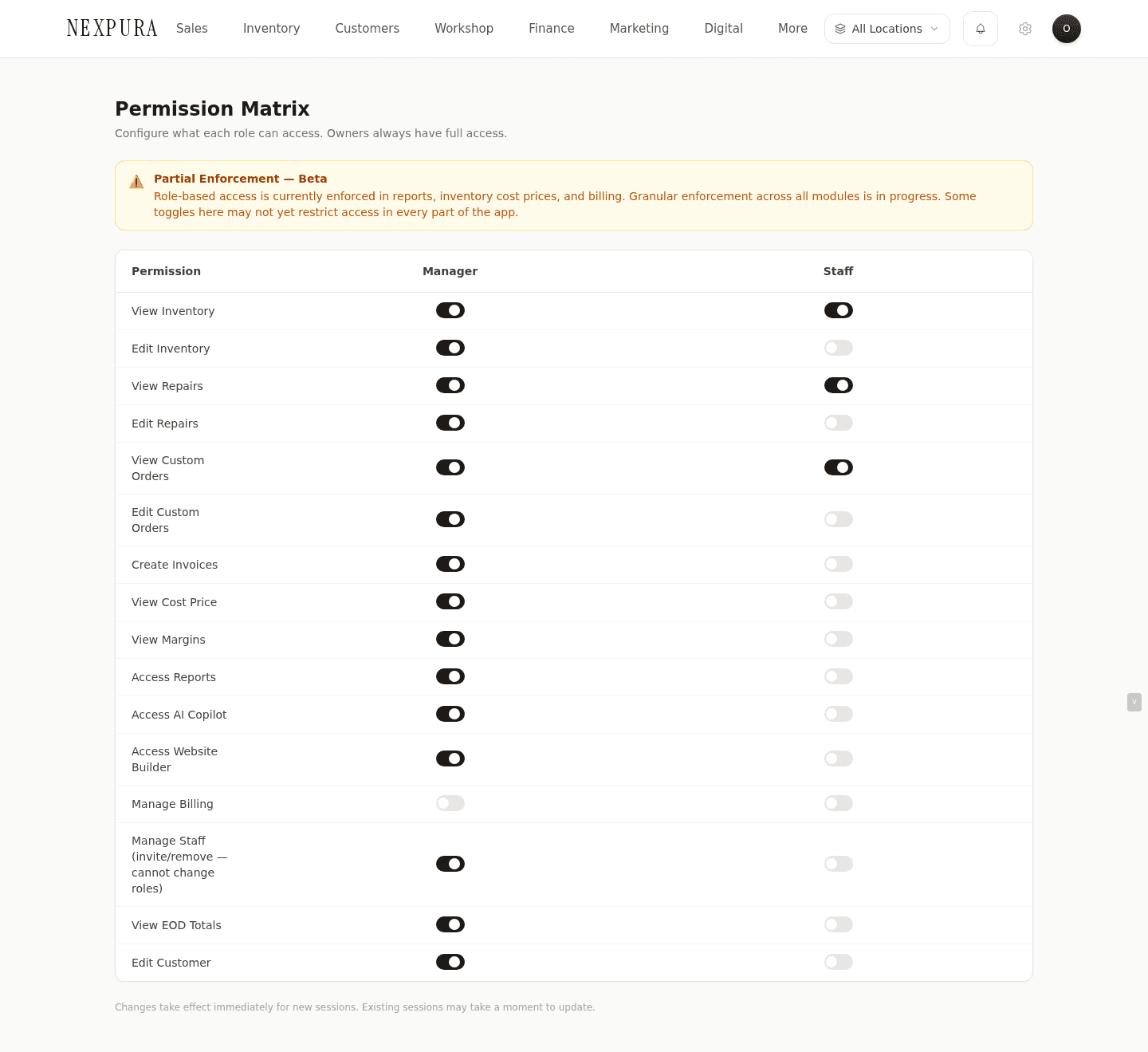
4. Apply per-member permission overrides
Open /settings/roles (owner / manager). The page shows each member with an expandable detail panel — click into one to surface their effective permissions, role, location access, phone number, and in-app notification triggers.
The permissions section lets you flip individual keys ON or OFF per-member, overriding the role default. The effective permission is per-member-override if set, otherwise the tenant-matrix value for that role, otherwise the system default. A typical use: one specific senior staffer gets canProcessRefunds true while the rest of staff remains false.
The notification triggers let you choose which events (new repair created, new bespoke job created, etc.) each member is notified about. Team notifications arrive in the Nexpura app — Nexpura doesn't send staff alerts by WhatsApp or text.
5. Configure manager-PIN
Manager-PIN is a per-member override mechanism for high-trust workflows — most commonly the refund override path documented on /docs/sales-and-pos/refunds. When a refund falls outside the 30-day window or has no originating sale, the system prompts for a manager-PIN before the refund proceeds.
Each member sets their OWN PIN — there's no delegated set; the owner can't set another member's PIN on their behalf. The set flow lives in the per-user account settings (the Security tab on /settings); the member picks a 4-6 digit numeric PIN, which is rejected if it's on the trivial-PIN blocklist (0000, 1234, 1111, 9876, and similar). The system stores a salted hash, never the PIN itself.
Reset path: only the owner can clear another member's PIN, via the team / roles surface. Clearing forces the member to self-set on their next PIN-needing operation. Reset is audit-logged. A per-user rate limit (~5 verify attempts per minute) protects against online brute-force on the 10,000-key 4-digit space.
6. Scope a member to specific locations
From the team or roles surface, find the member and click the Locations action. The modal lists every active location with a checkbox; tick the locations the member should have access to and Save. Leaving all unticked, or selecting “All locations”, stores null in allowed_location_ids — interpreted as all-access including any future locations.
The locations-and-multi-store page documents the full scoping shape — what scoping does for inventory visibility, sale-location stamping, and the location switcher in the top navigation. This page exposes the configuration UI; the operational consequences live on the locations page.
7. Review audit history
The tenant-wide Activity Log screen has been retired. Audit recording itself is unchanged: every consequential mutation still writes an event, scoped per-tenant, so your history is intact and continues to grow.
Events captured include: settings updates (business profile, tax, banking, currency, timezone, numbering), role assignments, permission changes, manager-PIN sets and resets, team-member invites and removals, refund processings, and several other sensitive-state writes across the system.
To read history today, open the record you care about and use its history view — customers and inventory items each render their own audit trail, with the same old-data vs new-data diff, and refunds show the diff inline. For a question that spans the whole tenant (“who changed the tax rate last week?”), contact support and we will pull the range for you.
Common questions
Why are there two surfaces — /settings/team and /settings/roles — that overlap so much?
Two different lenses on the same team_members rows. /settings/team leads with the membership perspective — “who's on the team, what role do they hold, are they accepted, when did they last sign in, who do I want to invite or remove?”. /settings/roles leads with the role-and-permission perspective — “what permissions does each member effectively have, what location access, what notification preferences?”.
A manager managing headcount lands on /settings/team naturally. A manager tuning who can do what lands on /settings/roles. Both write the same data; switching between them mid-edit is safe — flipping a role on /settings/team is reflected on /settings/roles immediately on next load.
I want to promote someone to a role between manager and staff — finance-only or repairs-only or sales-only. Why can't I?
The four supported roles (owner, manager, staff, technician) are the role surface today. Specialty roles — salesperson, accountant, repair_technician, inventory_manager, workshop_jeweller — were originally planned and still appear in some older UI code, but the DB CHECK constraint rejects them. Assigning any specialty role fails at the database layer.
The intended shape is to start from one of the four baselines and tune via the permission matrix and per-member overrides. A “finance-only manager” is a manager role with most non-financial action keys disabled at the per-member override layer. A “sales-only staff” is the default staff (already sales-leaning). The permission keys cover the major dimensions — canCreateSales, canManageRepairs, canManageBespoke, canProcessRefunds, canViewFinancials, canCloseEOD, canManageTeam, canManageSettings — so most plausible specialty shapes can be expressed as overrides on a baseline role.
Why is the activity log owner-only? Managers handle day-to-day operations.
The activity log is the audit trail of consequential tenant operations, including the manager's own actions. A manager who could amend or read selectively the log of their own approvals weakens the audit property. Owner-only access preserves the log as a trustworthy after-the-fact record — the one role with no accountability above them is also the one role that reads the log.
Managers can still see the consequences of their own actions through the operational surfaces — the refunds list shows refunds they processed, the team page shows roles they assigned. The activity log adds the cross-cutting view, which is the audit dimension that's owner-gated by design.
I forgot my manager-PIN. Can someone reset it for me?
The owner can clear your PIN from the team / roles surface. The reset clears the PIN and forces you to self-set on your next PIN-needing operation — the owner doesn't see your old PIN at any point and doesn't set the new one for you. The reset is audit-logged so the trail of who reset whose PIN when is preserved.
If you're the owner and YOU forget your own PIN, set a new one from your account settings — your PIN is self-controlled, and replacing it is just re-running the set flow with a new value. The previous PIN hash is overwritten.
How do I see when a team member last signed in?
Both /settings/team and /settings/roles surface the last-sign-in timestamp on each member card. The system reads the timestamp from Supabase's underlying auth.users.last_sign_in_at column, which auto-populates on every successful login. Pending invites that have never been accepted render as “Never” — no auth record yet exists for them.
Useful for spotting dormant accounts (former staff who should be removed) and for confirming an invitee has actually completed signup. If a member shows “Never” but says they've been using the system, their invite probably wasn't accepted in the usual flow — check the invite-status badge; if it's Expired, hit Resend.
Can a manager edit business profile, tax, or banking?
Yes — manager role passes the owner-or-manager gate on /settings/business-profile and the legacy /settings tabs. The settings role-tier boundary is owner-or-manager (which gates the page-layer access), not owner-only. The one exception is canManageSettings as a permission key — the default is OFF for manager, which is the permission-matrix surface, not the role gate. The role gate at the page layer takes precedence; the key's default OFF was a permission-matrix artefact from an earlier model that hasn't been reconciled.
Practical implication: managers in your tenant can edit business profile, tax, banking, and numbering by default. If you want to restrict that, the only path today is removing the manager role entirely from that person and using per-member permission overrides on a staff role instead. We're tracking the reconciliation for a future settings cleanup.
What sensitive operations get audit-logged versus not?
Logged: settings updates (business profile, tax, currency, banking, numbering), role assignments and permission changes, manager-PIN sets and resets, team-member invites and removals, refund processings, and several specific sensitive state-change paths in inventory and finance. The entity_type filter on the activity log enumerates the types currently captured.
Not logged: read-only operations (viewing a customer, opening a sale), high-volume operational writes (creating a routine sale, updating an inventory quantity in-flow), and signin / signout events themselves (last-sign-in is captured at the auth layer but isn't replayed into the audit log). The log captures the consequential mutations that matter for after-the-fact investigations without flooding the surface with routine activity.
Troubleshooting
Invite email never arrived
Symptom: you sent an invite, the team page shows the member as Pending, but they say no email arrived. Cause: most commonly the email landed in their spam folder, or their corporate mail filter blocked the sender. Less commonly, the email address was typed wrong. Fix:ask them to check spam and add support@nexpura.com to their safe-senders list. If the email address was wrong, remove the pending invite and re-invite with the correct address. If the right address still isn't delivering, use the Resend action on the pending row — that regenerates the link with a fresh window and re-sends.
Trying to assign a role that the UI shows but the system rejects with a 500 error
Symptom: you select a role from a dropdown that includes specialty options (salesperson, accountant, inventory_manager, workshop_jeweller, repair_technician), save, and the server returns a 500 or an opaque database error. Cause: the DB CHECK constraint on users.role and team_members.role only accepts owner, manager, staff, or technician. The dropdown including specialty options is leftover dead UI from an earlier role model. Fix: use one of the four supported roles. If you need a shape between manager and staff (e.g. a sales-leaning staff member who can also process refunds), assign the closest baseline role (staff) and use per-member permission overrides on /settings/roles to flip the keys you need. The Common questions section above covers the recommended shapes.
Permission matrix change persists, but the member still hits Access Denied
Symptom: you flipped a permission ON for a role at /settings/team/permissions, but the affected member still gets Access Denied on the surface they were trying to reach. Cause:two common reasons. First, the member is using a cached session and hasn't reloaded since the matrix change. Second, there's a per-member override on that key that's overriding the role default — the per-member value takes precedence. Fix:ask the member to hard-refresh (Cmd+Shift+R or Ctrl+Shift+R) — that pulls a fresh server-side permission read. If the issue persists, open the member's detail panel on /settings/roles and check the per-member override for the affected key — clear it to fall back to the role default, or flip the override explicitly to the value you want.
Manager-PIN keeps rejecting a PIN I'm sure is correct
Symptom:the refund-override modal returns “Invalid PIN” or “Too many attempts” even though you've entered the right code. Cause: three possibilities. First, the per-user rate limit (5 attempts per minute) tripped from earlier wrong entries — the next attempts get blocked regardless of correctness. Second, the PIN field rejects non-numeric input silently; if you typed letters or special characters in by accident, the system treats it as a malformed PIN with no error detail. Third, you genuinely forgot the PIN. Fix: wait a minute for the rate limit to lift, retry with the numeric PIN only (no spaces, no letters). If still failing, ask the owner to reset your PIN from /settings/roles → your detail panel; you'll self-set a new one on the next refund operation.
Member removed but their historical sales / repairs still show their name
Symptom: you removed a former staff member, but their name still appears on historical sales, repairs, and other records they created. Cause: expected — removal soft-clears theteam_members row (revokes their access) but leaves the historical attribution. Reports broken down by salesperson, repair technician, or clienteler still need the historical name to display correctly. Removing a member doesn't rewrite their history. Fix:no fix needed — this is the correct behaviour for audit and reporting integrity. The removed member can no longer sign in or take new actions; their old actions stay attributed to them. If you need a specific historical row reattributed (e.g. they shouldn't have been credited with that sale), edit the row directly — most surfaces support changing the assigned-to / salesperson field.
The Activity Log page can't be found
Symptom: an old bookmark or an older screenshot points at an Activity Log screen that no longer opens. Cause: expected — the tenant-wide Activity Log screen was retired; the URL now returns you to Settings. Fix: audit events are still being recorded and nothing has been deleted. Read per-record history from the record itself (customers and inventory items each have a history view), or contact support for a tenant-wide range.
Related
- Business profile — owner / manager-gated tenant identity that role boundaries here govern
- Locations and multi-store — where per-member location scoping operationally lands
- Account security and 2FA — per-user security posture that overlays the role / permission model
- Invite your team — the onboarding-time first-invite flow
- Refunds — where the manager-PIN gate is consumed