Shopify integration
Two-way sync between Nexpura and your Shopify store. OAuth connect through /website/connect, three import directions (products, customers, orders) and one export direction (push inventory), plus a daily reconciliation cron that catches anything the webhook path missed.
Quick reference
- Connection happens from /website/connect — Shopify is the e-commerce surface Nexpura's storefront sits in front of, so the connect path lives with the website builder rather than in the generic integrations panel.
- OAuth 2.0 flow. You enter your Shopify shop subdomain (the
my-storepart ofmy-store.myshopify.com), authorise on Shopify's consent screen, the callback writes an integrations row with the access token sealed in the encrypted config. - Scopes requested:
read_products,write_products,read_inventory,write_inventory,read_orders. Reads on customers, products, orders; writes on products and inventory. - From /integrations the Shopify Two-Way Sync panel exposes three import buttons (Products / Customers / Orders) and one export button (Push Inventory to Shopify). Each click runs immediately and surfaces a count of synced / skipped rows.
- A daily reconciliation cron at
/api/cron/shopify-reconciliationwalks new orders since the last successful reconcile and confirms each one has a matching Nexpura sale — the safety net under the webhook path for missed order-create events. - Connect / disconnect requires the integration manager permission. The disconnect path clears the encrypted config and revokes the access token on Shopify's side via the standard OAuth revocation endpoint.
Connecting Shopify
1. Open the website builder connect panel
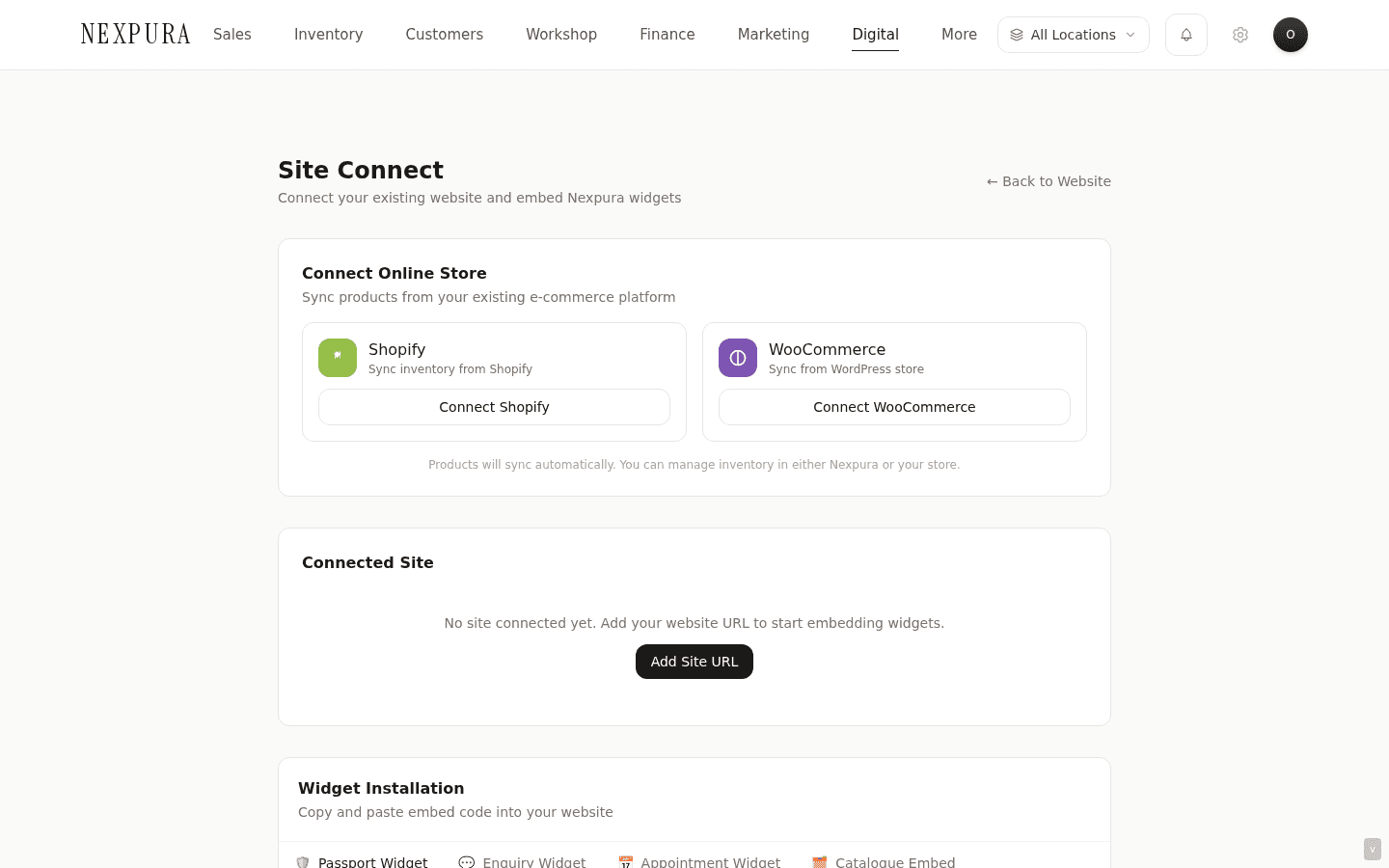
Go to /website/connect. The page is your one stop for hooking either e-commerce platform up — Shopify card on one side, WooCommerce on the other. Click Connect Shopify.
2. Enter your shop subdomain
A prompt asks for your Shopify shop subdomain — the part before .myshopify.com. If your storefront is acme-jewellers.myshopify.com, enter acme-jewellers (no domain suffix, no leading https://).
A typo here returns you to the connect page with ?error=shop_not_found — the OAuth flow can't start without a valid shop. Re-enter the subdomain and try again.
3. Authorise on Shopify
You're redirected to Shopify's OAuth consent screen, signed in to the shop you just named. The page lists the access scopes Nexpura is requesting (read / write products, read / write inventory, read orders). Click Install app.
Shopify redirects back to Nexpura's callback at /api/integrations/shopify/callback. The callback verifies the signed state parameter and its matching cookie nonce (the binding that keeps another tenant's OAuth state from being smuggled onto your session), exchanges the auth code for an access token, and writes the integrations row. You land back on /website/connect with ?shopify=connected in the URL and a green confirmation card.
4. Confirm the connection on /integrations
Open /integrations and confirm Shopify shows up in the Connected section with a green check and a fresh Last synced timestamp. The Two-Way Sync panel appears further down with the import / export affordances enabled.
Running a sync
1. Choose a direction
The Two-Way Sync panel on /integrations has three import buttons — Products, Customers, Orders — and one export button, Push Inventory to Shopify.
- Import Products pulls every product in your Shopify catalogue into Nexpura's inventory. Existing rows are matched by SKU and updated; new rows are created.
- Import Customers pulls every Shopify customer into the Nexpura customer record. Matched by email; new records are created with the marketing consent flag carried across from Shopify.
- Import Orders pulls Shopify orders that don't yet have a matching Nexpura sale. Each order becomes a sale row in /sales with the Shopify order number recorded for later reconciliation.
- Push Inventory to Shopify sends Nexpura's current quantities for every SKU-matched product back to Shopify, overwriting the Shopify-side quantities. Useful after a stocktake or a bulk receive in Nexpura.
2. Click and wait
Each button runs synchronously while you wait — the spinner replaces the icon, the other buttons disable. On completion, a banner above the buttons summarises the outcome — “✓ Synced 47 items, 3 skipped” on success, or the first error message on failure.
Skipped rows are the common case for repeat syncs — records that already exist with the matching key and haven't changed since the last sync. The count gives you a feel for how much of the catalogue actually moved each run.
Screenshot pending
A successful sync result banner under the panel header — green background, '✓ Synced 47 items, 3 skipped' message.
3. The daily reconciliation cron
Independently of the buttons, a daily cron job walks new Shopify orders since the last successful reconcile timestamp and confirms each one has a matching Nexpura sale row. Orders that don't match are imported into Nexpura the same way the manual Import Orders path does it.
The reconciliation cron is the safety net under the webhook path — Shopify fires an orders/create webhook to Nexpura on every order, and most orders land via that path within seconds. When the webhook fails (network hiccup, Nexpura was deploying, Shopify retried and gave up), the daily cron catches the order on its next run. Practically: at-most one business day's drift between Shopify orders and Nexpura sales, even in the unhappy path.
Common questions
What's the relationship between my Shopify store and my Nexpura subdomain storefront?
Two surfaces, one source of truth for product data. Your Shopify store is the checkout surface — where the customer enters a card and the transaction processes. Your Nexpura subdomain storefront is the catalog and lead-capture surface — the customer can browse the inventory, book an appointment, send a repair enquiry, track an existing repair. The product data on both surfaces flows from Nexpura's inventory; the Shopify sync keeps Shopify's catalog in step.
Checkout flows through Shopify because Shopify owns that side end-to-end — payment processing, cart, fulfillment. The Nexpura storefront points customers at Shopify when they're ready to buy and keeps the rest of the customer-facing surfaces (booking, enquiry, tracking) in one place.
Why is the connect path on /website/connect rather than on /integrations?
Shopify isn't a back-office integration the way Xero or Mailchimp are — it's the e-commerce surface your customer-facing flows depend on. The decision to put the connect path next to the website builder is “set this up while you're thinking about your online storefront,” not “set this up in a generic admin panel two clicks deep.”
The /integrations panel still shows Shopify in its Connected section once you've hooked it up — and the Sync panel lives there for ongoing operation — but thefirst connection lives in the website builder context where the decision to connect makes sense.
Why is products / customers / orders all one-way (Shopify → Nexpura) on import but inventory is the only push direction?
The integration treats Nexpura as the inventory system of record — once you're using Nexpura, your stocktakes, receivings, transfers, and POS sales happen there. Pushing inventory to Shopify keeps the Shopify catalog in agreement with the authoritative count.
The reverse — pushing products, customers, and orders out of Nexpura to Shopify — would imply Nexpura is the origin of those rows. Practically, products and customers usually originate in Shopify (an online sale captures a customer who later walks into the store) or in the physical shop (a walk-in becomes a Nexpura customer). Orders almost always originate in Shopify. Importing in the natural direction keeps the model simple and avoids the “which side is right?” conflict-resolution problem you get with bidirectional everything.
What happens when a Shopify product doesn't have a SKU?
The product import skips rows without a SKU and surfaces them in the “skipped” count. The SKU is what the matcher uses to decide update-or-create — without it, the import can't tell whether the Shopify product is the same piece as an existing Nexpura row, and creating a SKU-less row would forfeit the matching path on every future sync.
Fix: assign SKUs in Shopify to the products you want imported, then re-run Import Products. SKUs don't need to follow any Nexpura-specific convention — they need to exist and be unique within your Shopify catalog so the matcher has something to grip.
Troubleshooting
“Shop not found” on the connect step
Symptom: you entered a shop subdomain and the OAuth flow returned you to /website/connect with ?error=shop_not_found. Cause:the subdomain doesn't resolve to a Shopify store. Most often: a typo (extra hyphen, missing letter, the .myshopify.com suffix included by mistake), or the store has been renamed and the old subdomain doesn't exist anymore. Fix: open your Shopify admin in another tab and copy the subdomain from the URL (everything before .myshopify.com), then re-enter it on the connect page.
The OAuth consent screen shows a different shop than expected
Symptom: the Shopify consent screen lists the wrong store name or wrong owner. Cause: the browser session is signed into the wrong Shopify account. Fix:close the OAuth tab, sign out of Shopify in the same browser, sign back in to the correct account, then restart the connect flow from Nexpura. The session-binding on the OAuth state means you can't cross-wire two tabs — each connect attempt is bound to the browser session that started it.
Import Products skipped most of the catalog
Symptom: you ran Import Products and the success banner shows a high skipped count relative to imported. Cause:two common causes. (1) Repeat sync — the products were imported on an earlier run and haven't changed since, so the matcher correctly skipped them. (2) SKU collision — multiple Shopify products with the same SKU; the importer keeps the first and skips the rest to avoid corrupting the existing Nexpura row. Fix: the first case is expected and benign — your catalog is already in agreement. For the second, fix the SKU duplicates in Shopify and re-run the import. Contact us with the integration name if the skipped count seems off and neither cause fits.
A Shopify order didn't land in Nexpura
Symptom:a specific Shopify order isn't showing up in /sales. Cause: theorders/create webhook didn't fire or didn't reach Nexpura (network issue, transient outage, recently after a Shopify-side credentials change). Fix:click Import Orders on the Sync panel — the manual import walks new orders since the last reconcile and will pick up the missing one. If the order still doesn't appear after a manual import, check the order's financial status in Shopify (paid vs pending — only paid orders are pulled by the import) and contact us with the Shopify order number if it's paid but missing.
Push Inventory to Shopify changed quantities I didn't expect
Symptom: the export overwrote Shopify quantities with what feel like wrong numbers. Cause:the push is one-way Nexpura → Shopify. It takes Nexpura's current quantity for every SKU-matched product and writes that into Shopify. If Nexpura's count is wrong (stocktake variance, missed transfer, a refund that didn't process), that wrong count is what got pushed. Fix: correct the quantities in Nexpura (an Adjust Stock at /inventory with a clear note), then re-run Push Inventory. The push is idempotent — it overwrites with whatever Nexpura's number is now, so a corrected count after a wrong push is one extra button-click away from being right on both sides.
Related
- Your storefront on Nexpura — how the connected Shopify catalog flows through to the customer-facing storefront surface
- Integrations & data overview — the data model, the credentials encryption, and the broader integration lifecycle
- WooCommerce integration — the parallel path for WordPress / WooCommerce stores
- Inventory overview — the inventory model that the Shopify sync reads from and writes to