Billing and subscription
The Stripe-managed billing surface for your Nexpura subscription itself — the three plan tiers (Boutique, Studio, Atelier), the 14-day free trial, multi-currency price display, trial-end and next-billing dates pinned to your tenant timezone, upgrade via Stripe-hosted checkout, and the Stripe Customer Portal for card update, plan change, cancellation, reactivation, and invoice download. Distinct from Stripe Connect, which is the separate integration for your store to accept customer payments via Stripe Terminal.
Quick reference
- Billing lives at /billing. Gated by the manage_billing permission key — owners always pass; managers pass by default; staff and technician pass only if you've flipped the key on for their role or as a per-member override. The denial screen displays cleanly for unauthorised roles.
- Three plan tiers: Boutique (1 user, 1 location), Studio (5 users, 3 locations, advanced analytics + website builder), Atelier (unlimited users + locations, priority support, custom domain). Prices display in your tenant's billing currency — AUD / NZD / USD / GBP / EUR — driven by the currency you set in business profile.
- 14-day free trial on every new tenant. During trial, the status pill reads “Free Trial” with an amber dot, and the trial-end date displays in your tenant timezone. Auto-converts to paid on the trial end date if you've added a card; reverts to no-card-on-file state if not.
- Trial-end and next-billing dates display in your tenants.timezone IANA zone — the same timezone field you set on the Tax & Currency tab. Avoids the “why does Stripe say my trial ends Sept 1 but my dashboard says Aug 31” confusion when staff in different zones view the same tenant.
- Upgrade flow: click the plan card's upgrade button → redirected to Stripe-hosted checkout → complete payment → Stripe webhook back to Nexpura promotes the subscription. The Stripe checkout surface handles card entry, address, 3DS challenges, tax compliance, and receipts.
- Manage Subscription button on /billing opens the Stripe Customer Portal in a new redirect. From the portal: update card, switch plan up or down, cancel (cancellation takes effect at end of current billing period — no mid-cycle refund), reactivate a cancelled subscription, and view + download every past invoice as PDF.
- Distinct from Stripe Connect, which is the separate integration that lets your store accept CUSTOMER card payments via Stripe Terminal during a POS sale. Stripe Connect setup is documented on /docs/sales-and-pos/processing-sale; this page is about Nexpura billing YOU.
Walkthrough
1. Open the billing page
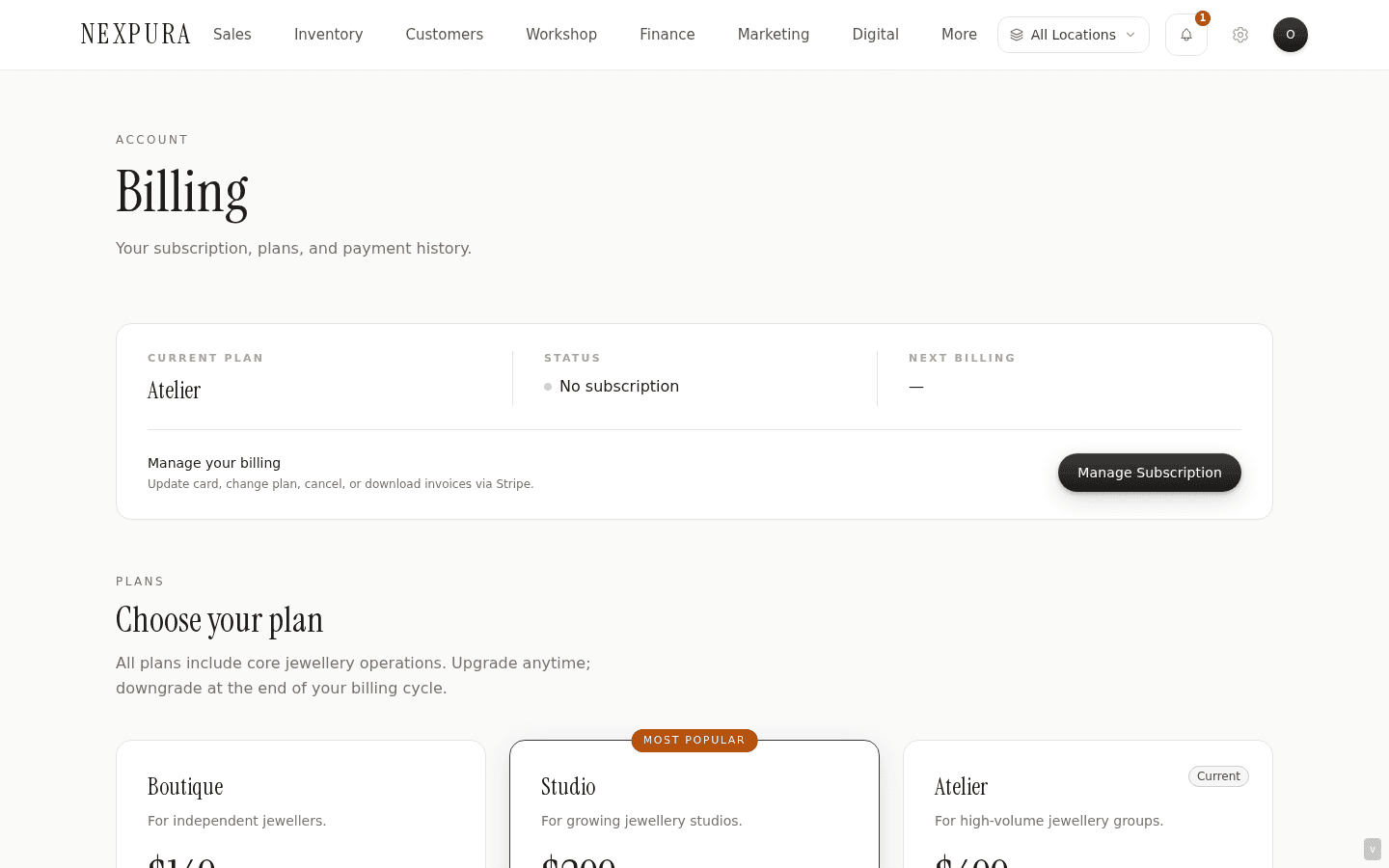
Go to /billing. The page renders three sections: a status card at the top (current plan, status, trial-ends or next-billing date, plus a Manage Subscription / Subscribe CTA), the plan cards (Boutique, Studio, Atelier with monthly prices in your tenant currency), and a feature comparison table.
The status pill renders one of three values: Free Trial with an amber dot (during the 14-day trial), Active with a green dot (paid subscription running), or No subscription with a grey dot (trial lapsed without a card, or subscription was cancelled and has ended). The trial / next-billing date underneath shifts based on which state you're in.
2. Read the plan cards and pick a tier
Three cards stacked horizontally on desktop, vertical on mobile. Each card carries the plan name (Boutique / Studio / Atelier), a one-line description (e.g. “For growing jewellery studios”), the monthly price prominently in your tenant currency, a feature checklist, and the per-card action button.
Studio shows as “Most Popular” with a gold accent — it's the canonical recommendation for an established multi-location jewellery business. Boutique fits single-owner-operator stores; Atelier fits large groups needing white-glove migration and unlimited headcount.
The current plan is marked with a Current badge in the card's top-right corner and its action button is replaced with “Current Plan” in a muted style. Upgrade-direction cards show “Upgrade to [plan]” with the featured-tier button style on Studio (the most-popular tier) and an outline-button style on Boutique and Atelier.
3. Upgrade via Stripe-hosted checkout
Click the Upgrade button on a non-current plan card. The button enters a loading state (“Processing…”) while Nexpura calls /api/billing/checkout, which resolves the Stripe price ID for the plan + currency combination and creates a Stripe Checkout Session. The browser redirects to the Stripe-hosted page.
On the Stripe page: enter card details, billing address, and (where required by your jurisdiction) any tax fields Stripe presents. Submit. Stripe handles 3D Secure challenges if your bank triggers them. On success Stripe redirects back to /billing with the subscription marked active; on failure / cancellation Stripe redirects back unchanged.
The Stripe webhook posts the subscription state back to Nexpura asynchronously; if the post-checkout /billing page still shows the old plan for a few seconds after redirect, hard-refresh once after a brief pause and the new plan resolves.
4. Use the Stripe Customer Portal for everything else
Once you have a Stripe customer record (either from a completed checkout or from a trial-with-card flow), the status card's “Manage your billing” line surfaces a Manage Subscription button. Click it → Nexpura calls /api/billing/portal which creates a one-time portal session → you're redirected to the Stripe Customer Portal.
The portal covers:
- Update card — replace the card on file. Stripe handles the new card's validation and 3DS check.
- Change plan — upgrade or downgrade. Upgrades typically take effect immediately with prorated billing for the remaining cycle. Downgrades typically take effect at the end of the current billing period. Stripe surfaces the exact terms in the portal.
- Cancel subscription — cancellation takes effect at the END of the current paid period; you keep access until that date and don't get charged again. No mid-cycle refund is issued for the remaining days.
- Reactivate — if a subscription was cancelled but the current period hasn't ended yet, reactivation is a click in the portal and restores the auto-renew behaviour.
- Invoices — the Invoices tab in the portal lists every past invoice with a download-PDF link. The PDF is generated by Stripe and includes their tax-compliant invoice formatting.
The portal is the canonical surface for these operations — Nexpura intentionally doesn't mirror them inside /billing. Stripe handles every regulatory edge case (tax compliance per jurisdiction, dispute handling, fraud-flag responses) better than we would building parallel UI.
Screenshot pending
Stripe Customer Portal — title 'Manage your subscription' (Stripe-branded), then sections for Current subscription (with plan + amount + cycle), Payment method (card last 4 + Update button), Cancel subscription action, and an Invoices tab on the left or top. Each invoice in the Invoices list shows the date, amount, status (Paid / Open / Refunded), and a Download invoice link.
5. Trial-state behaviour
Trial state during the 14-day window: every feature on the plan you signed up under is fully available, every surface in Nexpura works normally, the only difference is the status pill on /billing reads “Free Trial” and the date shown is the trial-end date (in your tenant timezone).
Trial-end conversion path: if you added a card during or before trial-end (via Subscribe to manage billing on the status card, or via the upgrade flow on a plan card), Stripe charges your card on the trial-end date and the status flips to Active automatically. If you DIDN'T add a card, the trial lapses cleanly — your tenant is set to a no-card-on-file state where the billing page surfaces a “Subscribe to manage billing” CTA but no charge attempt has been made.
The 14-day trial isn't extendable from the UI. If you need extra evaluation time, contact us — extension on a per-tenant basis is handled manually.
6. Understand the comparison table
Below the plan cards, the feature comparison table renders one row per feature dimension with Boutique / Studio / Atelier columns and a tick or number per cell. Useful when you're trying to map a specific need (e.g. “will Studio give me website builder?” — yes; “does Boutique include passports?” — yes; “does Studio cover advanced analytics?” — yes; “does Atelier come with white-glove migration?” — yes) to the right tier.
The full feature matrix lives on the public pricing page; the table here is the abbreviated in-product version showing the most-asked dimensions. If you can't see a specific capability you need, click through to the marketing pricing page for the complete breakdown.
Common questions
I cancelled. What happens to my data after the current period ends?
Your tenant data stays in our system at the cancellation date — we don't delete tenants automatically when a subscription ends. Signin attempts post-period redirect to /billing with a subscription-required signal where you can reactivate or resubscribe to recover full access. Data preservation isn't indefinite — talk to us about your specific data-retention timeline if you're cancelling — but there's no hard-cutoff at period-end where data disappears.
If you want a clean export before cancellation, run a CSV export of customers, sales, inventory, and any other surfaces relevant to your business through the data-import-export surface. That keeps the business-critical record outside Nexpura regardless of what we do with the tenant later.
Does the billing currency on /billing have to match the display currency on my sales?
They're the same field — tenants.currency — so they always match. The currency you set on /settings Tax & Currency drives both: every sale renders in that currency for customer-facing display, AND the Stripe plan price on /billing displays in that currency. Changing one changes both.
We support AUD, NZD, USD, GBP, EUR at the Stripe price-table level — those are the currencies the monthly plans are priced in directly. If you set your tenant currency to one outside that list (rare), the plan price renders in AUD as a fallback. Talk to us if your jurisdiction needs a currency we don't support on the price table.
Why is Stripe handling the payment and invoice flow instead of Nexpura doing it directly?
Two reasons. First, payment compliance is a specialty: PCI compliance, 3D Secure handling, jurisdiction-specific tax compliance (VAT, GST, sales tax), dispute-and-chargeback workflows, and fraud-detection at the network level. Stripe does this professionally; building parallel UI to re-implement any of those would be expensive and error-prone for marginal gain.
Second, the Stripe Customer Portal is a known, trusted surface for your customers (you, the jeweller in this context) — most operators have used it before via other SaaS subscriptions, and the update-card / view-invoice / cancel-subscription flows are immediately familiar. Reinventing the same UI inside Nexpura would just be a less-polished version of what Stripe already does.
How does this relate to Stripe Connect for accepting customer payments at the POS?
Different feature, separate Stripe integration. The page you're reading is about Nexpura BILLING YOU for your subscription — Stripe is our payment processor on the SaaS side. Stripe Connect is the integration that lets YOUR store accept your CUSTOMERS' card payments via Stripe Terminal when you ring a sale.
Stripe Connect setup, terminal pairing, and the card-payment flow at the POS are documented on /docs/sales-and-pos/processing-sale. The two integrations are independent — you can have an active Nexpura subscription with no Stripe Connect (accept cash / direct deposit only) or Stripe Connect set up but no Nexpura subscription (in a trial that hasn't converted, for example).
I downgraded from Studio to Boutique but I still have 3 locations active. What happens?
Existing locations beyond the Boutique limit stay accessible — Nexpura doesn't hard-archive them on downgrade. What changes: you can't add new locations beyond the new tier's limit (1 for Boutique). The locations page's “Need more locations?” card appears, and the Add location button stays disabled until you archive enough rows OR upgrade back.
Same shape for the user-count cap — existing users over the new limit stay signed in, but you can't invite new ones until headcount fits. Practical implication: downgrade is a one-way throttle on growth; reversibility means upgrading again, not the system tidying up your existing accounts.
Why does the trial-end date sometimes differ between what I see on /billing and what Stripe's emails say?
Edge case at the day boundary. /billing displays the date in your tenant timezone (the IANA zone set on Tax & Currency); Stripe's automated emails use the Stripe account's configured timezone, which may differ. At the boundary, you can see “trial ends 31 Aug” on /billing while Stripe's email says “ends 1 Sept” — both refer to the same moment, just rendered in different zones.
The /billing display is the one to trust for your local operational planning. The actual charge happens at the underlying timestamp; the displayed date is correctly converted into your local zone so the day you see is the day it happens in your shop's local time.
Troubleshooting
Access Denied on /billing
Symptom: a team member navigates to /billing and sees Access Denied. Cause: their role doesn't have the manage_billing permission key enabled. Owners always pass; managers pass by default. Staff and technician require an explicit role-level or per-member override to access /billing. Fix: if the member should have billing access, the owner can flip the key on at /settings/team/permissions (for the whole role) or at /settings/roles (per-member override). If they shouldn't, billing tasks should be done by the owner or a manager directly.
Manage Subscription button returns “Could not open billing portal”
Symptom: clicking Manage Subscription returns an error banner under the status card. Cause:the Stripe customer record couldn't be resolved on the server, or the Stripe API call failed. Most common case: your subscription is in a trial-state with no Stripe customer record yet — but in that case the page should show “Subscribe to manage billing” rather than the Manage Subscription button. If you do see Manage and it fails, there's a transient Stripe issue. Fix: wait a minute and retry. If still failing after a few minutes, hard-refresh the page to re-read the hasStripeCustomer state — sometimes a stale cached view of the page is showing the wrong CTA. If still failing, contact support with your tenant ID.
Upgrade clicked, returned from Stripe successfully, but /billing still shows the old plan
Symptom:you completed checkout, Stripe confirmed the payment, you're back on /billing — but the current plan still reads the old tier. Cause: the webhook from Stripe to Nexpura promoting the subscription is asynchronous. Stripe sends it within a few seconds of checkout completing, but the page you redirected back to was rendered before the webhook landed. Fix: wait 5-10 seconds, then refresh the page. The new plan should resolve. If it still shows the old plan after a minute, the webhook may have failed — contact support with your tenant ID and the Stripe checkout session ID (visible in the URL you were redirected from).
Trial expired but I added a card before the end — why am I in no-card-on-file state?
Symptom:the status card reads “No subscription” even though you remember adding a card during trial. Cause:the add-card flow ran through Stripe checkout but didn't actually create a subscription — only a payment method. The auto-charge at trial-end requires an active subscription with the card attached, not just a card on file. Fix:the cleanest recovery is clicking the upgrade button on the plan card you want — that creates a fresh subscription with the existing card. Stripe should recognise your saved card and pre-fill the checkout page. Once the subscription is active, you're back in the normal state.
Plan price shows in AUD but my tenant currency is set to USD
Symptom:the plan-card price labels read “$179 / month” in what looks like AUD even though your business profile says USD. Cause: two possibilities. First, your tenant currency might be set to a currency outside the supported price-table list (AUD, NZD, USD, GBP, EUR), in which case the page falls back to AUD display. Second, you set the currency to USD recently but the page is showing a stale value. Fix: verify the currency setting on /settings Tax & Currency tab. If it's set to a supported currency, hard-refresh /billing — the price should resolve to that currency's price. If it's set to an unsupported currency, talk to us about adding it to the price table; in the meantime the AUD-fallback display is intentional.
Related
- Business profile — the currency and timezone fields that drive how billing prices and dates display
- Locations and multi-store — plan tiers cap the active-location count documented here
- Team members and roles — plan tiers also cap the user-count documented here
- Account setup — the initial signup that established your tenant and started the 14-day trial
- Processing a sale — including Stripe Connect setup (the separate Stripe integration for customer payments)