Expenses
Record a business expense with description, category (stock, rent, utilities, marketing, staffing, equipment, repairs, other), amount, expense date, optional supplier invoice reference, notes, and an attached receipt (JPEG, PNG, WebP, HEIC, HEIF, or PDF). Expenses feed the /financials net-revenue calculation, the /reports/expenses category breakdown, and the month-end bookkeeping handoff via CSV export.
Quick reference
- Expense list lives at /expenses with a category breakdown across the top showing the current month's total per category. Add new from /expenses/new (also surfaced via the New Expense action on the list). Each expense detail page is at
/expenses/<id>. - Eight categories: stock (purchases for inventory), rent, utilities (power, internet, phone), marketing (advertising, design, customer-facing campaigns), staffing (wages, training, recruiting), equipment (tooling, fixtures, hardware), repairs (workshop consumables — different from the customer-side repairs entity), and other (everything else).
- Receipt upload supports JPEG, PNG, WebP, HEIC, HEIF (mobile-camera-friendly), and PDF. Max file size is 10 MB. Receipts are stored in a private Supabase Storage bucket — display URLs are signed and short-lived (one-hour TTL), regenerated on each load of the expense detail or edit page.
- Permissions: creating, editing, deleting, and viewing expenses ride on the standard tenant- isolation gates. Owners and managers have full access; accountant role typically has full access (configurable per tenant); salesperson and workshop roles see /expenses but are commonly restricted from /expenses/new.
- The expense_date column is independent from created_at — the form defaults expense_date to today but lets you back-date when recording an expense weeks after the supplier paid. The /reports/expenses date-range filter and the month-total panel on /expenses use expense_date, not created_at, so back-dating an expense correctly buckets it into the right month for BAS preparation.
- Audit trail: every create / update / delete on an expense writes to the audit_logs table with the actor, timestamp, old data, and new data. The expense detail page surfaces the audit entries in a sidebar — useful for “who recategorised this and when” questions during reconciliation.
Walkthrough
1. Open the expense list to see the month at a glance
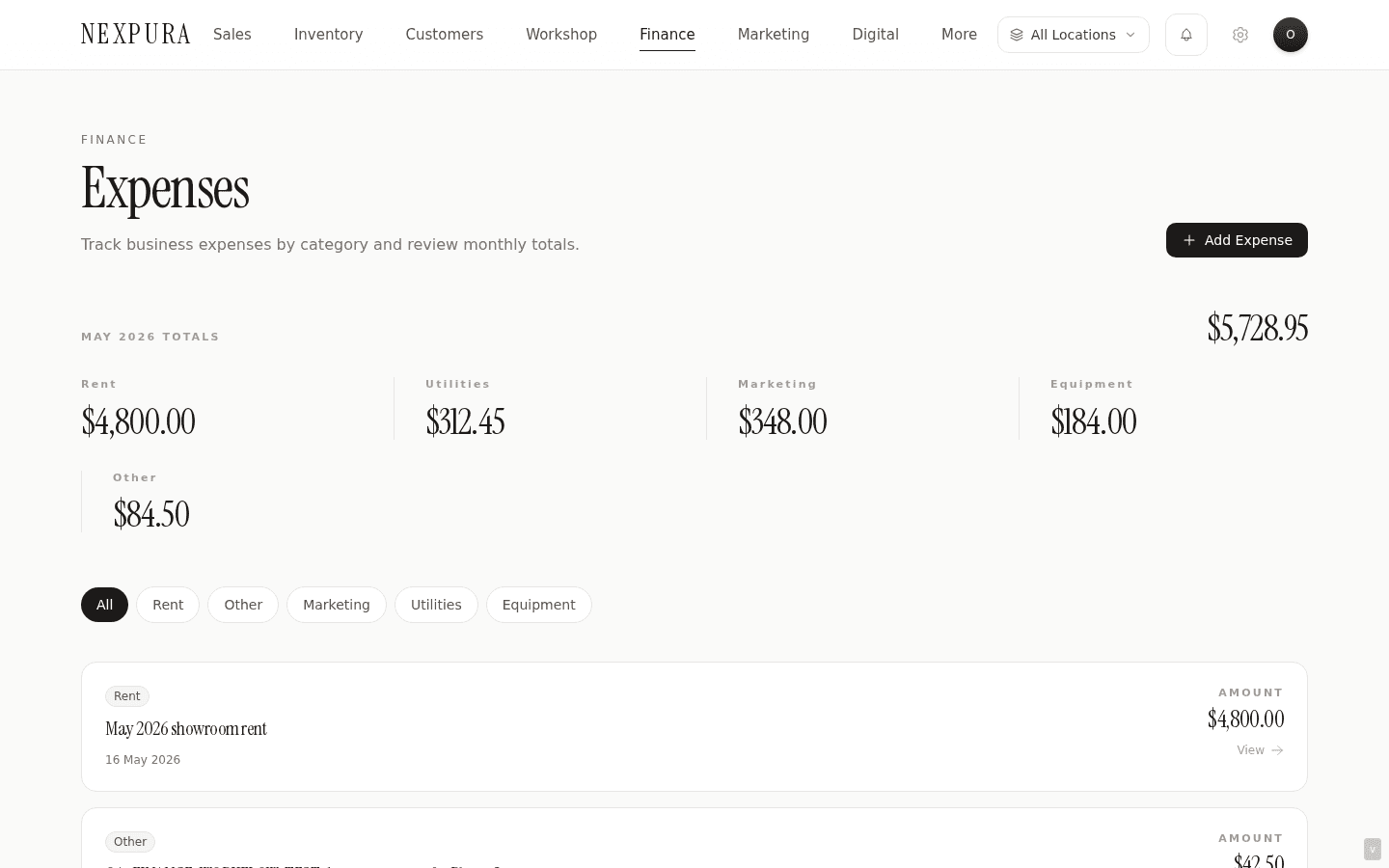
Go to /expenses. The header strip shows the current month's total and a per-category breakdown — Stock / Rent / Utilities / Marketing / Staffing / Equipment / Repairs / Other rows with the running total each has accumulated this month.
2. Click New Expense
From /expenses click New Expense, or jump directly to /expenses/new. The form is one column — Description, Category, Amount, Expense Date, Invoice Reference, Notes, and a Receipt upload widget.
3. Describe and categorise the expense
Description is free-text — what was purchased / paid for, in operator-readable terms (“June rent — shop frontage”, “Pandora restock invoice #4521”).Category is a single-select dropdown across the eight buckets. Pick the category your bookkeeper or accountant uses for this kind of expense — the breakdown on /reports/expenses and on the /financials hub aggregates per category, and getting the categorisation right at entry saves re-bucketing at month-end.
4. Enter amount and expense date
Amount is the dollar value as it appears on the supplier invoice or receipt — inclusive of GST. Nexpura doesn't split expense amounts into ex-GST + GST components at entry; the GST quarterly view on /financials shows GST collected from sales, not GST paid on expenses. Tenants needing GST-on-expenses tracking do that in their accounting tool via the Xero integration or the CSV export.
Expense Date defaults to today. Adjust when entering an expense from a supplier invoice that's dated last week or earlier — the reports bucket by expense_date, so backdating an April invoice entered in May correctly lands in April's totals.
5. Record the supplier invoice reference
Invoice Reference is the supplier invoice number, the receipt number, or any external reference your bookkeeping process uses. Recording it here means a follow-up question from the accountant (“what was Pandora invoice 4521 about?”) is searchable from the expense list — type the reference into the search bar to find the expense.
6. Attach the receipt
The receipt upload accepts JPEG, PNG, WebP, HEIC, HEIF (the iOS / Android default mobile camera format), and PDF. Up to 10 MB per file. Drag-drop works; the camera icon on mobile opens the camera for a quick snap.
Receipts are stored in a private Supabase Storage bucket. The display URL surfaced on the expense detail page is a signed URL with a one-hour TTL — a leaked URL becomes invalid quickly, which matters because the receipts often carry supplier bank details, ABNs, and other commercial-sensitive information.
7. Save the expense
Click Save Expense. The row persists to the expenses table, the audit log records the create, the receipt path is stored on the row. You land back on /expenses with the new expense at the top of the list and the category totals updated to include it.
8. Edit, recategorise, or attach a missing receipt
Click any expense in the list to open its detail page at /expenses/<id>. The detail view shows the saved fields, the receipt preview (with a download button), and the audit sidebar. Click Edit to change any field — recategorising, adjusting the amount, attaching a receipt that wasn't handy at the time of entry. Each edit writes a new audit_logs row recording old_data vs. new_data.
Screenshot pending
/expenses/<id> detail page — top section with Description, Category, Amount, Expense Date, Invoice Reference, Notes. Receipt preview card with download link below. Audit trail sidebar on the right showing create + each update with timestamp and actor.
9. Export to CSV for the bookkeeper
The /reports/expenses surface is the filtering + export tool — date range, category multi-select, search, sortable columns. Click CSV export at the end of the month to hand the bookkeeper a complete expense ledger for the period. The export includes the receipt URL column so the bookkeeper can click through to each supporting document.
Common questions
Why eight fixed categories and not free-form tagging?
Two non-obvious goals served at once. First, category aggregation on /financials and /reports/expenses is the operational shape tenants and bookkeepers actually use — “how much did we spend on marketing this month?”, “what's our utilities run rate?” These questions are answered cleanly when every expense belongs to exactly one of a small set of standard buckets. Free-form tagging produces a long tail of one-off labels (“Pandora”, “June Rent”, “Internet”) that don't aggregate, and a chart-of-accounts UX that operators don't want to maintain. Second, the eight categories map cleanly to the standard COA buckets that bookkeepers and accountants use for small- retail-business filings — Stock as Cost of Goods Sold, Rent and Utilities as Premises, Marketing as Advertising, Staffing as Wages and Salaries. Hand-off to accounting tools (Xero, MYOB) is one-to-one without a re-bucketing pass.
Tenants needing finer granularity can use the Description and Notes fields to record sub- category detail (“Marketing — Facebook ads May campaign”), and the /reports/expenses search + category filter combine to give the same drill-in functionality. If your business genuinely needs a sub-categorisation that the eight standard categories don't cover, talk to us — the right product answer might be a new category, not free-form tagging.
Why doesn't the expense form split out GST on the amount?
Because GST-on-expenses tracking is an accounting-tool job, not a POS job. The /financials GST quarterly view is on the sales side — GST collected from customers, which is the figure the operator needs day-to- day for the BAS. GST paid on expenses (the input-tax credit side of the BAS) is calculated by the accountant or bookkeeper from the expense ledger plus the supplier tax invoices — not from a per-expense ex-GST + GST split typed by the operator at entry, which is error-prone and duplicates the real-source-of-truth (the supplier invoice). The receipt upload preserves the supplier tax invoice for the accountant; the accounting tool does the breakdown.
If your store does its own BAS preparation without an accountant or tool, the Xero integration is the cleanest path — Xero automates the ex-GST / GST split from each supplier invoice once the tax-code mapping is set up. See Xero integration for the setup steps.
I uploaded a HEIC photo from my iPhone but it's not previewing
HEIC and HEIF are accepted upload formats but some desktop browsers don't render them natively in an image preview. The file is stored correctly and downloads fine; the preview is browser-dependent. Safari renders HEIC; Chrome on macOS does too; Chrome on Windows historically didn't. If preview matters for your workflow (the bookkeeper is reviewing receipts in-browser), the workaround is to convert to JPG before upload — iOS's Photos app does this on share-via-other-apps, and most macOS Preview / Windows Photos apps can save-as. We accept HEIC as an upload to avoid forcing the conversion step at capture time; the trade-off is occasional preview gaps downstream.
An expense was entered against the wrong category. Does recategorising mess up the historical reports?
No — recategorising rebuckets the expense immediately across every aggregation that reads from the category column. The /financials Expenses KPI, the /reports/expenses category breakdown, the /expenses month total panel — all reflect the new category on the next cache miss. The audit log preserves the old category as old_data so the “was this always Marketing or was it originally Stock” question is answerable from the expense detail page's audit sidebar.
The one place a recategorisation has lasting effect is in any CSV export you've already handed to the bookkeeper. If the recategorisation happens after a month's CSV was emailed, the bookkeeper's copy shows the old category and the live system shows the new — surface the change explicitly to keep their books aligned.
Can I bulk-import expenses from a CSV?
Bulk CSV import for expenses isn't shipped today. The current workflow is per-expense entry through the form, which keeps receipts attached as supporting evidence — bulk import would either skip the receipt step (weakening the audit trail) or require a follow-up upload pass that's as much work as per-expense entry. The bookkeeper hand-off side is via CSV export from /reports/expenses, which works well; the import side is the open gap.
For a one-time historical import (migrating from a prior tool), contact support — we run the import server-side from a CSV the tenant hands over, with each row landing as a receipted-or-unreceipted expense, audit-logged as imported. Talk to us if these are load-bearing for your store.
Troubleshooting
Receipt upload fails with “File too large”
Symptom: the receipt upload returns a size-rejection error. Cause: the file is over the 10 MB limit. Most receipt photos taken on a phone are well under 10 MB; large PDF attachments (multi- page supplier statements scanned at high resolution) can hit the cap. Fix: compress the PDF or save the relevant pages only. Most operating systems' PDF tools offer a “reduce file size” export. If the file is a photo over 10 MB, drop the resolution before re-upload — readability of the receipt text is what matters, not megapixel count.
Expense category total on /expenses doesn't match the sum I see on /reports/expenses
Symptom: the category strip across the top of /expenses shows a different category total than the same category on /reports/expenses filtered to this month. Cause: the /expenses strip uses the current calendar month from expense_date without a location filter (every expense regardless of location). /reports/expenses may have a date range or category filter applied that's narrower than the full month. Fix: align the filters — clear the date range on /reports/expenses to the full month and clear any in-page category filter; the totals should reconcile. If they still differ, check for expenses with future expense_dates (defensible entries for a recurring payment recorded in advance) which the /expenses strip counts and the bookkeeper's export shouldn't.
Receipt preview shows “Object not found” or 404
Symptom: clicking through to view a receipt on an older expense returns a not-found error. Cause: the signed URL has expired (one-hour TTL) and the page is showing a stale render with the dead URL. Receipts themselves aren't deleted; the URL just needs re-signing. Fix: hard-refresh the expense detail page (Cmd+Shift+R). The server-side fetcher re-signs the storage path on every page load, so a fresh render produces a fresh signed URL. If the receipt still shows 404 after a hard refresh, the underlying storage object may have been lost (rare — storage doesn't auto-prune); contact support with the expense ID to investigate.
Expense was entered but isn't in the /financials hub Expenses KPI
Symptom: the expense appears in /expenses but the Expenses cell on the Finance hub doesn't reflect it. Cause: one of two. The expense_date is outside the current calendar month (backdated to last month or forward-dated to next month — the hub counts only this month's expenses). Or the /financials page is rendering a cached payload from before the expense was entered. Fix: check the expense_date on the expense detail page; if it's in a different month that's the cause and the expense will count on that month's hub view. If the date is in-month, hard-refresh /financials — the cache invalidation on expense create propagates, but the hub aggregations are cached for an hour by default and a refresh forces re-aggregation.
Cannot delete an expense — the action button is missing or returns permission-denied
Symptom: no delete action visible on the expense detail page, or the action returns the permission error. Cause: your role doesn't have expense-delete permission. Owner and manager can delete by default; accountant typically can; sales and workshop roles can't. Fix: ask an owner or manager to either elevate your role permissions or to handle the deletion. Alternatively, if the expense was entered incorrectly but you can't delete, an edit to mark it (e.g. “DELETED — duplicate of expense #1234”) in the Notes field plus zero-ing the amount is an acceptable workaround until an owner can clean it up. The audit trail preserves the soft-deleted history either way.
Related
- Finance hub and reports — the Expenses KPI on /financials and the /reports/expenses category breakdown both source from the expenses table documented here
- Xero integration — expense ledger sync into Xero is the canonical accounting-tool hand-off; Xero handles the GST-on-expenses split that the Nexpura expense form intentionally doesn't
- Business profile — currency and timezone affect how expense amounts and dates display across the reports surfaces
- Team and roles — which roles can create, edit, and delete expenses is configurable per tenant via the role permission matrix