Comments and attachments
Discuss a task in-thread on its detail page, attach reference photos or PDFs up to 10 MB, watch the activity timeline build itself as the team works the task. Comments are append-only from the UI today — no edit, no delete affordance. Attachments accept JPEG / PNG / WEBP / HEIC / PDF, store in a private bucket, and re-sign to a fresh 7-day URL on every list read.
Quick reference
- Comments and attachments both live on the task detail page at
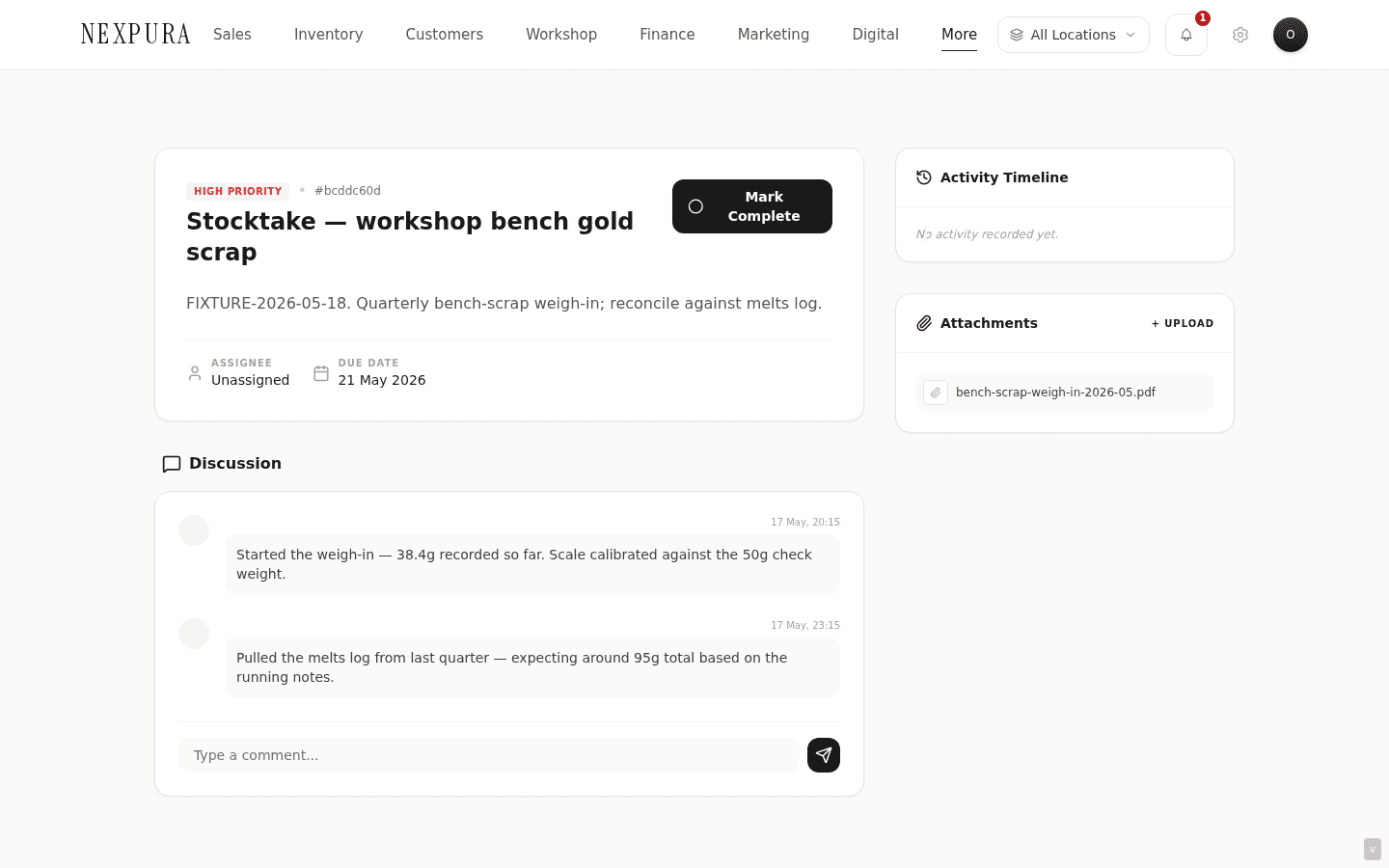
/tasks/<id>. Comments render in the Discussion section (main column); attachments render in the Attachments sidebar (right column on desktop, stacked below on mobile). - Comments are append-only from the UI. The textarea at the bottom of the Discussion thread posts a new comment; the comment shows immediately in the thread and writes an activity row to the timeline. There is no edit affordance on a posted comment and no delete affordance — typos and stale comments stay in the thread.
- Attachments accept image/jpeg, image/png, image/webp, image/heic, image/heif, and application/pdf. Per-file size cap is 10 MB. Files upload to the same private Supabase Storage bucket the rest of the product uses (the inventory-photos catch-all bucket); each list-read resolves the stored path to a 7-day signed URL.
- Attachment deletion is owner / manager only — hard role gate, same shape as task deletion. The delete trash-can icon shows for everyone on hover but the server action rejects below-manager attempts with a permission error. Comments have no delete affordance at any role.
- The Activity Timeline sidebar shows every state change on the task — created, status changes, assignments, each comment posted, each attachment added. New events show at the top; older events scroll. The timeline is read-only from the UI; it's written automatically by the task action server functions.
- Comment authorship: every comment row carries the user_id of the staff member who posted it; today the UI displays the first eight characters of that ID instead of the staff member's full name (a name-join gap on the comment-load query). The activity timeline does resolve names. See the in-context section below and the troubleshooting entry on attribution.
Walkthrough
1. Open the task detail page
From the /tasks list, click any task card title (not the per-card menu — the card body itself navigates). Or open directly at /tasks/<id>. The detail page splits into a main column (task header, description, Discussion thread) and a sidebar (Activity Timeline, Attachments).
2. Add a comment
Type into the textarea at the bottom of the Discussion section. Hit Send (the paper-plane icon to the right of the textarea). The comment appears immediately at the bottom of the thread; an activity timeline row for “comment_added” also appears. Comments are written to task_comments and the activity row to task_activities; both are tenant-scoped by the standard RLS policy on those tables.
The textarea doesn't accept formatting today — no @-mentions, no markdown, no inline images. The shape is plain-text staff-to-staff notes. If you need to attach a reference photo or PDF, use the Attachments sidebar instead.
3. Attach a file
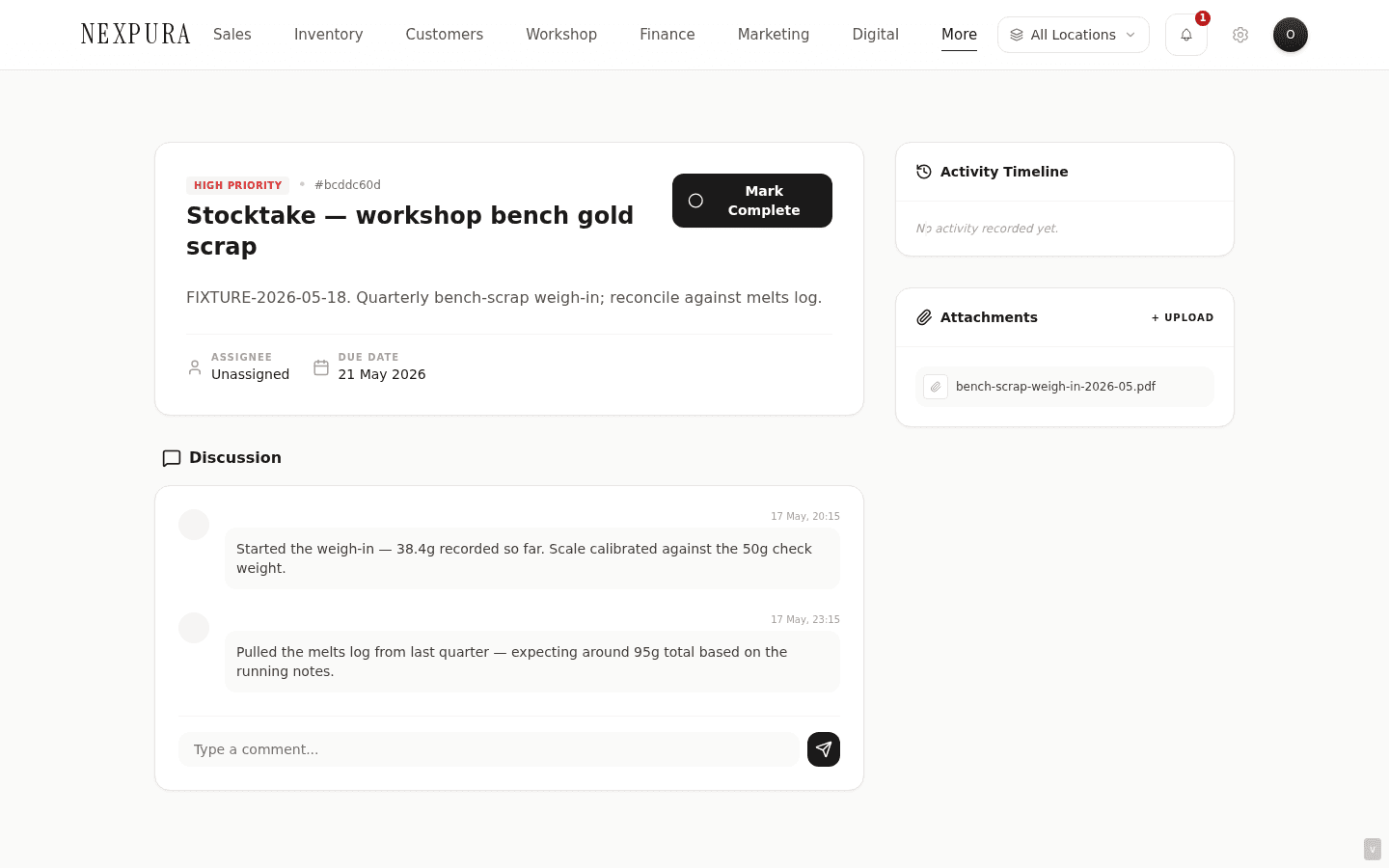
Click + Upload in the Attachments sidebar. The file picker filters to the accepted MIME types. Select a file up to 10 MB; it uploads straight to the private storage bucket, the attachment row writes to task_attachments, and the file appears at the top of the sidebar list. The activity timeline gets a matching “attachment_added” entry.
The accepted types — JPEG, PNG, WEBP, HEIC, HEIF, PDF — cover the everyday workshop need: photos of a piece in progress, scanned customer notes, a PDF of a quote or supplier spec. Other types (.docx, .xlsx, .zip) are rejected at the type-check before upload; you'll see a “Unsupported type” error in red below the +Upload control.
4. View an attachment
Click the file name in the sidebar. The link is a signed URL valid for 7 days from the most recent list read of this task — opening the link in a new tab streams the file from Supabase Storage with no extra auth check (the signed URL carries the authorisation token in the URL itself). For images the tab renders the image; for PDFs the browser's built-in PDF viewer fires; for HEIC the browser downloads the file (most browsers don't render HEIC natively).
The signed URL expires after 7 days. Subsequent loads of the task detail page re-sign on read, so a colleague opening the same task next week gets a fresh URL. If you bookmark the file link directly for any reason, expect it to stop working after a week — open the task detail page to refresh.
5. Delete an attachment
Owner / manager only. Hover the file row in the Attachments sidebar; a small trash-can icon appears on the right. Click it; confirm the dialog. The attachment row deletes from task_attachments; the file in storage stays (today there's no automatic storage-side cleanup — orphaned blobs accumulate in the bucket). An activity timeline entry isn't written for deletion, which means a deleted attachment leaves no visible trace on the task detail page.
If a staffer below owner / manager attempts to delete (e.g. via the same UI affordance after a recent role change cached old permissions), the server-side gate fires with the permission-denied message in red below the Attachments header.
6. Read the activity timeline
The sidebar Activity Timeline shows the full history of the task in newest-first order. Each row is a small dot on a vertical line plus the activity type (e.g. status change, comment added, assigned, attachment added) and the description (the old vs. new value for status changes, the file name for attachment adds, “Added a comment” for comments). The actor's name and avatar resolve from the user lookup; timestamps render as dd MMM, HH:mm in the browser's locale.
The timeline is the audit-trail surface for the task — what changed, when, by whom. Useful for understanding the back-and-forth on a long-running repair task or for a manager spot-checking workflow consistency.
Common questions
Why no edit or delete on comments — even for the comment author?
Two reasons that point the same direction. First, comments on a task are part of the audit trail of how the work got done. A salesperson commenting “customer agreed to the rush charge” on a repair task and the customer later disputing it is exactly the kind of record that shouldn't be quietly edited or wiped — the comment is evidence, same shape as the activity-timeline row. If edits were allowed, the audit trail becomes unreliable. Second, the task itself has cancelled status and the comment thread has notes-style append — if a comment is wrong, the right move is post a follow-up correcting it. The thread stays chronological and readable.
The cost is the genuine typo case — a comment with a real misspelling reads slightly worse than it should. We're accepting that cost today in exchange for the audit-trail integrity. A future shape (edit with a visible “edited” marker, like the activity timeline) would preserve audit while letting the author tidy a typo; that's on the polish list but not shipped.
Why does the comment author show as a short hex string instead of the staff member's name?
A real visibility gap. The comment-load query today reads the task_comments rows without joining the users table for the author's full name, and the UI renders the first eight characters of the user_id UUID as a stand-in. On a small team this is workable — the names are short enough to memorise the leading chars — but on bigger tenants it's clearly the wrong shape.
The activity timeline doesn't have this gap because it does join the user lookup — activity rows for “comment_added” show the author's real name and avatar. So the workaround today is: open the activity timeline in the sidebar and cross-reference the comment's timestamp against the matching timeline row to find out who posted it. The proper join on the comment-load query is a small fix; it's on the queue for a comments-UX pass alongside the comment-edit affordance.
Why 10 MB and why JPEG / PNG / WEBP / HEIC / PDF only?
Two reasons that point the same direction. First, 10 MB and image-or-PDF cover the everyday workshop reference need with margin — full-resolution iPhone photos of a piece (4-6 MB typical), scanned customer paperwork (1-3 MB for a PDF), supplier spec sheets (5-10 MB for a multi-page PDF). Going larger doesn't make a stronger reference; it just costs storage. Second, the cap protects against accidental uploads of the wrong file — a 50 MB video of an internal walkthrough or a 100 MB archive zip that doesn't belong on a customer-facing record. The rejection nudges toward the right shape (a screenshot or a PDF extract of the relevant page).
The accepted-type whitelist is the same one used by the inventory-photo upload surface and by expense receipts — same storage bucket, same constraints, consistent across the product. If you have a docx or xlsx that needs to be referenced on a task, export to PDF first (Word and Excel both have File → Export → PDF natively).
The attachment list looks fresh on every visit — why? Are the URLs being re-signed each load?
Yes. Storage paths are persisted; the URLs are short-lived signed URLs derived from those paths at read time. On each load of the task detail page, the server action that fetches attachments calls signStoragePath for each row and returns a freshly-signed URL with a 7-day expiry. The expiry only matters if you bookmark the file URL directly or share it out of band — within the app, the URLs are always fresh.
The reason the bucket is private (rather than public) is the same reason customer photos live in a private bucket: a task attachment might include a customer photo, a quote PDF with private pricing, or a piece photo not yet public on a passport. Private + signed-on-read keeps the data inside the tenant boundary by default.
Are deleted attachments recoverable?
The row in task_attachments is gone; the file itself stays in the storage bucket because there's no current storage-side cleanup hook on delete. So the data is recoverable manually with a support request — the file is still there, just no longer linked from the task. The deletion also doesn't write an activity-timeline entry today, which means the task detail page has no visible record that a file was ever attached.
Both of those are operational quirks worth knowing. The cleaner shape (timeline entry for attachment_removed + soft-delete with restore) is on the polish list. For now, deletion is best treated as deliberate and final from the UI's perspective; recovery is a manual step through support.
Troubleshooting
File upload fails with “File too large”
Symptom: clicking + Upload, picking a file, and seeing a red “File too large — max 10 MB” error below the upload control. Cause: the file is larger than the 10 MB per-file cap. Common offenders: a full-resolution iPhone video saved as .mp4 (15-50 MB), a multi-page brochure PDF with embedded high-res images, or a screen-capture .mov. Fix: shrink the file. For images: re-export at a reasonable resolution (1920×1080 is plenty for reference). For PDFs: re-export at a smaller compression setting (most PDF apps offer a “reduce file size” option) or extract the relevant pages with a PDF tool. For videos: the right move is to take a screenshot of the relevant frame and upload that instead — videos aren't a supported attachment type even when small.
File upload fails with “Unsupported type”
Symptom: the upload attempt errors with “Unsupported type ‘application/zip’. Use JPEG/PNG/WEBP/HEIC/PDF.” Cause: the file MIME type isn't in the accepted whitelist. Common offenders: .docx (Word), .xlsx (Excel), .zip (archive), .heif (newer iOS photo format on some devices — actually accepted as image/heif, but the client check is by MIME so a .heif that the browser reports as something unexpected gets rejected). Fix: convert to PDF. Word: File → Export → PDF. Excel: same. Archive: extract the relevant file (or the screenshot of the relevant content) and upload that instead. For HEIC / HEIF specifically: re-save as JPEG via Preview (Mac) or Photos (iOS).
I posted a comment with a typo and can't edit it
Symptom: you posted a comment, immediately noticed a typo or factual error, and there's no edit affordance on the comment row. Cause: expected today. Comments are append-only from the UI — see the common-questions section above for the why. Fix: post a follow-up comment correcting it (“*correction: meant Thursday not Tuesday” is the everyday shape). The thread stays chronological so anyone reading later sees both the original and the correction together. For a high-stakes typo (customer-facing implication, accounting detail) the right escalation is to flag it to support so the comment row can be edited direct in the DB with an audit-record left behind.
Comments show short hex strings instead of staff names
Symptom: every comment in the Discussion thread shows an 8-character hex string (e.g. “a3f4b2c1”) where the staff member's name should be. Cause: expected today, documented in the common questions section. The comment-load query doesn't join the users table for the author's full name; the UI renders the first eight characters of the user_id UUID as a stand-in. Fix: cross-reference the Activity Timeline in the sidebar — activity rows for “comment_added” do show the author's real name and the timestamp matches. On a small team you can also build a mental lookup table (e.g. “a3f4b2c1” = Sarah) from comparing the first user_id slice against the team page's avatar list. The proper join is on the queue for a comments-UX pass.
Attachment link opens to a 404 / expired URL
Symptom: clicking an attachment file name takes you to a Supabase URL that returns 404 or a signed-URL expired error. Cause: two candidates. (1) The page render is stale — the URL was signed during an earlier load and has now expired (signed URLs are good for 7 days; if you left the tab open for a week, the signed URL has aged out). (2) The file was deleted from storage out of band (rare; the UI delete only removes the row, not the file). Fix: for (1), reload the task detail page — the re-render re-signs every attachment URL with a fresh 7-day window. For (2), check with the tenant's admin; if the file genuinely isn't in storage anymore, the original upload may need to be re-attached or pulled from the uploader's local backup.
Activity Timeline isn't showing a recent change
Symptom: you changed a status / added a comment / posted an attachment and the Activity Timeline in the sidebar doesn't reflect the change. Cause: the page is rendering from cached data. The activity timeline is fetched once on initial page load; subsequent saves update the comment thread and the attachments list optimistically, but the activity timeline doesn't re-fetch until a hard nav. There's also a known swallow-on-failure shape on the activity-insert side — the timeline row write happens as a fire-and-forget side effect on every change, so a transient failure during a save could leave the main row updated but the timeline entry missing. Fix: reload the page — the timeline re-fetches and the missing entry surfaces. If the entry still isn't there after a reload, the side- effect insert failed; the underlying change (status, comment, attachment) is still applied. Contact support if a persistent timeline gap is making audit-review harder.
Related
- Tasks overview — the broader /tasks surface that the comment thread and attachments sidebar are part of
- Task templates — the per-tenant template library; templates don't carry pre-attached files or seed comments
- Repair pipeline — the upstream that creates most tasks with attachments (assessment photos, customer paperwork)
- Data export — task comments and attachment rows are included in the per-tenant export under the task_comments and task_attachments tables
- Team and roles — the matrix that controls the attachment-delete gate (owner / manager only)