Account security and 2FA
The per-user security posture — password change with current-password reauthentication, time-based one-time-password (TOTP) two-factor enrolment via authenticator app, one-time backup codes for device-loss recovery, backup-code regeneration, and the disable path. Distinct from manager-PIN (which is a refund-override mechanism documented on the team-and-roles page).
Quick reference
- Two surfaces: /settings/security/change-password for the signed-in password-change flow, and /settings/two-factor for TOTP enrolment / management. Both are per-user surfaces — every team member configures their own posture; nothing here is tenant-wide.
- Change password requires reauthentication with your current password before the new one is accepted. The page calls Supabase's sign-in flow with the current password to verify, then issues the update. A new password must be at least 12 characters and different from the current one.
- 2FA method supported: TOTP via authenticator app (Google Authenticator, Authy, 1Password, 1Password equivalents, Microsoft Authenticator). SMS-based 2FA is not offered; security posture favours TOTP for device-bound resistance to SIM-swap attacks.
- Enrolment flow: tap Setup → scan QR code (or copy the manual secret) → enter the first 6-digit code your app shows → 2FA is enabled and 8 backup codes are issued. Save the backup codes immediately — they are shown ONCE in plaintext; afterward the system stores them as hashes you can't recover.
- Backup codes are one-time-use. Each code consumed during a recovery sign-in is invalidated; the page tracks how many remain (e.g. “6 of 8 backup codes remaining”). Regenerate from the page when low; regeneration invalidates the previous batch and issues 8 fresh codes.
- Disable 2FA returns the account to single-factor signin (password only). The disable flow requires a confirm dialog and is audit-logged at the account level. Re-enrolling later runs the same setup flow with a fresh secret and a fresh backup-code batch.
- Distinct from manager-PIN. 2FA gates account signin; manager-PIN gates a specific elevated operation (refund override). They're separate mechanisms, both per-member, both self-set, and either / both can be enabled independently. Manager-PIN is documented on team-and-roles.
Walkthrough
1. Change your password
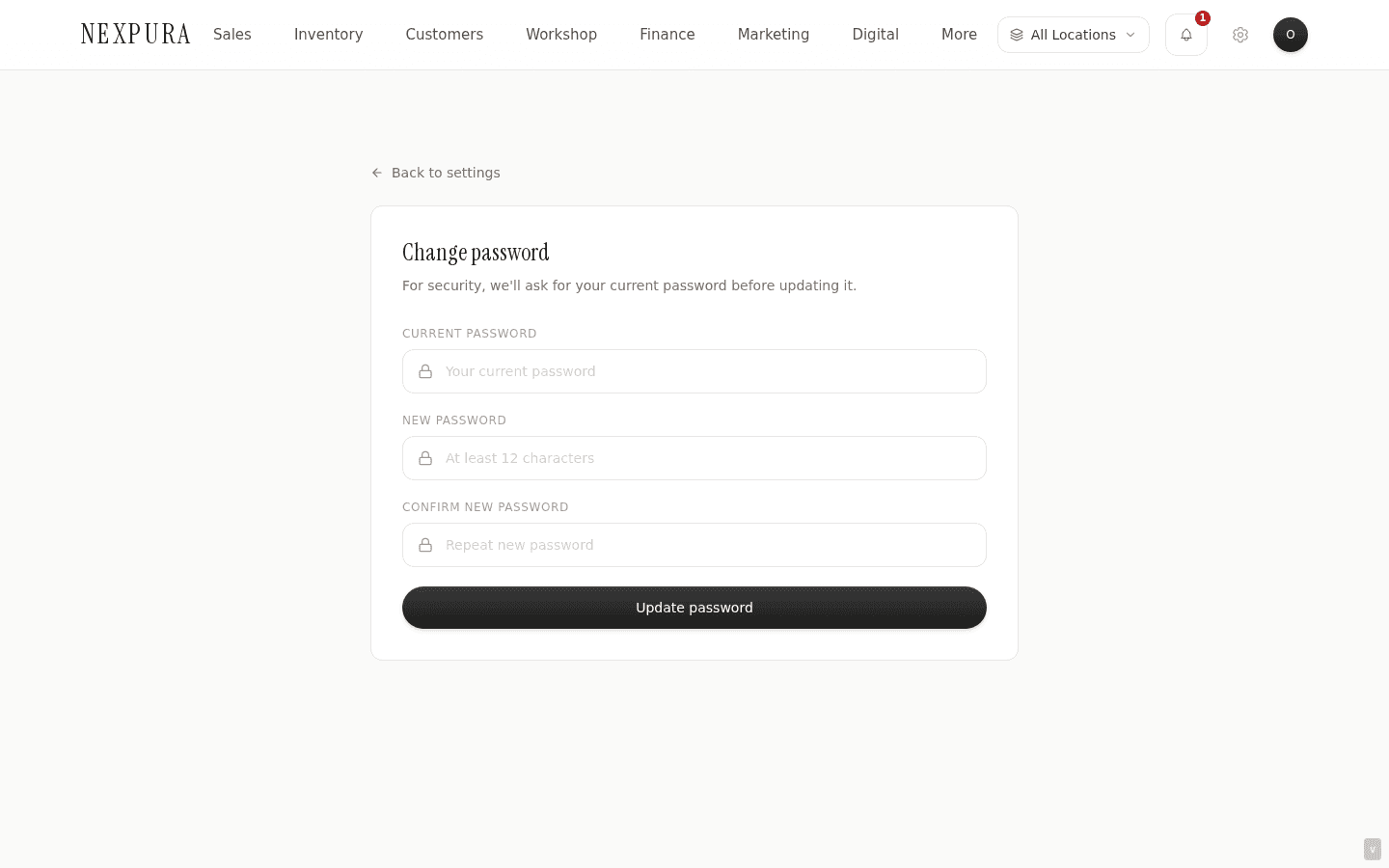
Go to /settings/security/change-password. The page renders three password inputs (current, new, confirm new) with the back-to-settings affordance top-left.
Enter your current password (the one you use to sign in today), the new password (at least 12 characters, must differ from the current one), and the confirmation (must match the new). Update password runs the flow: first reauthenticating you with the current password against Supabase Auth, then issuing the update if the reauth succeeds.
Distinct from the lost-password flow at /reset-password, which uses a recovery-link token sent via email — that path doesn't require the current password (you wouldn't have it). This page is for the signed-in want-to-change-it path.
2. Enrol in 2FA
Go to /settings/two-factor. When 2FA is disabled, the page shows a recommended banner (“Two-factor authentication significantly reduces the risk of unauthorized access”) and a single CTA card for Authenticator App enrolment.
Click the Authenticator App card. The page makes an API call to /api/auth/2fa/setup which generates a fresh TOTP secret bound to your account and returns a QR code + a copy-able plaintext secret string. The page renders the QR for scanning plus a manual-entry section for the secret string.
Open your authenticator app (Google Authenticator, Authy, 1Password, Microsoft Authenticator), tap Add account, scan the QR, and the app starts generating rolling 6-digit codes. Enter the current code into the Verify Code field on the Nexpura page and click Verify & Enable. The system confirms the code matches the secret, persists the secret server-side, and flips your account to 2FA-enabled.
Screenshot pending
2FA setup view — top of page header with shield icon and 'Two-Factor Authentication'. Card titled '1. Scan QR Code' with a centred QR code image, below it a 'Or enter this code manually' section with the base32 secret in monospace and a copy button. Below: '2. Verify Code' section with a centred 6-digit input box. Cancel and Verify & Enable buttons at the bottom.
3. Save your backup codes
Immediately after verification succeeds, the page displays 8 backup codes. These codes are your device-loss recovery path — if you lose access to your authenticator app, you can sign in by entering one of these codes instead of a TOTP. Each code works once and is then consumed.
The codes are shown in plaintext on this screen ONCE. After this screen, the system stores hashes — you cannot recover the original code text. The page provides a Copy All Codes button; copy them, paste into a password manager or print, then click “I've Saved My Codes” to dismiss.
Treat the codes as you would your password — store them in a place you'll have access to if your phone is lost or wiped. Print + locked drawer works; password manager works; sticky note on your monitor does not.
Screenshot pending
Backup codes view — success header with green tick 'Two-Factor Authentication Enabled' and subtitle 'Save your backup codes in a secure location'. Amber warning card 'Save these backup codes' below it. A 2-column grid of 8 monospace codes in boxes. Below: Copy All Codes button (with a tick after copy), then a black 'I've Saved My Codes' button at the bottom.
4. Use 2FA at signin
With 2FA enabled, every sign-in to /login now runs a two-step flow. Step 1: enter email and password as usual. Step 2: enter the current 6-digit TOTP code from your authenticator app.
If you don't have access to your authenticator app on this device — phone lost, app reset, travel without phone — click “Use a backup code instead” on the second step. Enter one of your 8 backup codes; signin succeeds and that code is permanently consumed.
The TOTP window is small (typically 30 seconds with a one-step grace window on each side). A code from 2 minutes ago will be rejected. If your phone clock is significantly out of sync with real time, the authenticator's codes will all be rejected — fix the phone's time-sync setting first.
5. Manage backup codes after enrolment
On /settings/two-factor with 2FA enabled, the page shows the current backup-code count (“6 of 8 backup codes remaining”). When the count is low — common after a device-loss event where you consumed several codes recovering — use the Generate New Backup Codes button to invalidate the existing batch and issue 8 fresh codes.
The regeneration shows the new codes once with the same Save + Copy flow as initial enrolment. Save them to the same secure place; the old codes are now invalid.
6. Disable 2FA
From /settings/two-factor with 2FA enabled, scroll to the Disable section. The page renders a confirm dialog (“Are you sure you want to disable two-factor authentication? This will make your account less secure”); confirm to proceed.
The disable flow runs through /api/auth/2fa/disable which clears the stored TOTP secret and backup-code hashes from your account. Future signins are password-only. If you re-enrol later, the setup flow generates a fresh secret and a fresh batch of backup codes — the old secret cannot be reused.
Disable doesn't affect any other team member's posture — 2FA is per-user. Disabling yours leaves every other member's 2FA in place.
Common questions
Can we require every team member to enable 2FA at the tenant level?
Not today as a tenant-wide enforcement toggle. 2FA is per-user opt-in — each member decides whether to enrol and the system doesn't reject sign-ins from a member who hasn't enrolled.
Practical recommendation: have the owner and everyone with manager or any financial / refund permission enrol explicitly. The 2FA settings page calls out the recommendation in the in-product banner. Tenant-enforced require-2FA is a roadmap-conversation feature — talk to us if a policy enforcement is load-bearing for your store.
Why TOTP and not SMS-based 2FA?
SMS-based 2FA is widely supported but meaningfully weaker than TOTP for the threats it's meant to defend against. SIM-swap attacks (where an attacker convinces a mobile carrier to port your number to their device) bypass SMS 2FA entirely; high-value targets have lost accounts this way repeatedly over the past decade. TOTP secrets are bound to your physical authenticator app — they can't be redirected by a carrier social-engineering attack.
The cost is the UX learning curve — first-time TOTP users have to install an authenticator app, scan a QR, and remember to grab a code at signin. That cost is real and is why the in-product banner explicitly recommends it without forcing the user through the setup. Once enrolled, the daily flow is one extra tap.
I lost my phone with the authenticator app and haven't saved my backup codes. Help.
Contact support with your account email. Account recovery from this state involves an identity verification step (we need to confirm the account actually belongs to you before disabling 2FA); expect that to take longer than a typical support ticket because the verification is intentionally not fast — the same path would otherwise be the attacker's recovery path.
The lesson the next time around: save backup codes the moment you see them. Treat them like a second password; print them, store them in a password manager, do not skip the “Save these codes” step. The system shows them in plaintext exactly once for a reason — every other recovery path has friction.
My authenticator app is on the same phone I use to sign in to Nexpura. Is that fine?
It's acceptable but it weakens the security posture slightly. The two-factor model is strongest when the “something you have” (the authenticator) is on a different device from where you sign in — if the same phone is compromised, both factors are compromised together.
In practice for a small jewellery business, the same-phone setup defends against the most common real-world threat (a stolen / leaked password) and that's the threat the recommendation is built around. A more elaborate posture (authenticator on a separate device, hardware key) is available to anyone who wants it, but isn't required.
How does this interact with manager-PIN? Do I need both?
They're separate mechanisms with different jobs. 2FA gates account sign-in — “is the person signing in really you?”. Manager-PIN gates a specific elevated operation (refund overrides outside the 30-day window or without an originating sale) — “is the person at this terminal authorised to do this specific thing?”. Both can be enabled independently.
Typical posture: enable 2FA for everyone who has access to anything financial. Set a manager-PIN for every member who might be authorising refunds — the owner, every manager, and any staff who has canProcessRefunds enabled. Manager-PIN details on team-and-roles.
What are the password requirements?
Passwords must be at least 8 characters and include all four character classes: an uppercase letter, a lowercase letter, a number, and a special character (e.g. !@#$%). The strength meter on the signup form shows in real time which requirements are still outstanding. Longer is stronger — the meter rewards 12+ characters as a bonus.
In addition, every password is screened against the Have-I-Been-Pwned breach corpus — if your chosen password has appeared in a known leak it's rejected regardless of length. Practical tip: a memorable phrase plus a digit and a symbol (e.g. “Sunset!42”) clears the requirements comfortably and is far easier to remember than a random string.
Troubleshooting
Password update fails with “Current password is incorrect” even though I'm sure it's right
Symptom: you enter your current password and the new password, click Update, get the incorrect-current-password error. Cause: usually a recently-changed password that the browser's password manager hasn't updated yet — autofill drops in the old saved value. Sometimes a stuck capslock; rarely a real account issue. Fix: click into the current-password field and TYPE the password manually rather than letting autofill populate it. Verify capslock is off. If still failing, sign out, sign back in to confirm the password works for signin (it should), then retry the change.
Authenticator app codes are all being rejected at signin
Symptom: every TOTP code your authenticator generates returns “Invalid code” at the 2FA step of signin. Cause: the most common cause is clock drift on the device running the authenticator — TOTP relies on the device clock matching the server clock to within about 30 seconds. A few minutes of phone clock drift breaks every code. Fix:on the phone, open Settings → Date & Time and enable “Set automatically”. After the clock corrects, the authenticator's codes will start matching again — try the next code from the app. If clock is correct and codes still fail, use a backup code to sign in, then disable + re-enrol 2FA to get a fresh secret.
QR code on the 2FA setup page won't scan
Symptom:the QR renders but your authenticator app can't capture it cleanly. Cause: usually screen brightness too low or the camera angle is off; sometimes a screen filter / privacy film distorts the contrast. Fix:brighten the screen, move the camera until the focus locks, try again. If still failing, use the manual entry path — copy the plaintext secret string shown underneath the QR, open your authenticator app, tap “Enter a setup key” or similar, paste the secret. The TOTP secret itself is the same; the QR is just a visual encoding.
Used a backup code at signin but it says “Invalid”
Symptom: you entered one of your saved backup codes at the 2FA signin step and got Invalid code. Cause:the code was already consumed on a previous recovery signin (backup codes are one-time-use). Or you copied the code with extra whitespace / a stray character. Or you regenerated backup codes after saving the batch you're trying to use, which invalidated the older batch. Fix:try the next unused backup code from your saved list (do this carefully — each failed attempt isn't consumed, but each successful one is). If every code rejects, the batch is no longer valid (e.g. from a regenerate-after-save), and you'll need to recover via the lost-phone support path described in Common questions.
I disabled 2FA, but signin still asks for a code
Symptom: after clicking Disable 2FA, the next signin still prompts for a TOTP code. Cause:the disable likely didn't complete server-side — either the confirm dialog was cancelled or the API call failed silently. The 2FA page's “2FA is Enabled” banner on next load confirms the current state. Fix: sign in with a backup code (or TOTP if you still have the authenticator), return to /settings/two-factor, confirm 2FA shows as Enabled, click Disable 2FA again, confirm the dialog. The next signin should be password-only. If the disable still fails, contact support — there's a backend cleanup path that support can run.
Related
- Team members and roles — including the manager-PIN configuration that complements 2FA for refund overrides
- Business profile — owner / manager-gated identity surfaces that benefit from 2FA on the owner account
- Account setup — the initial signup that establishes your password
- Login and access troubleshooting — broader signin issues including lost-password recovery