Passport management
Browse the full passport population, search and filter by status / visibility / owner, record lifecycle events on a passport (repairs, lost, stolen, recovered, authenticated), edit details, control public visibility, and read the event timeline as the audit trail.
Quick reference
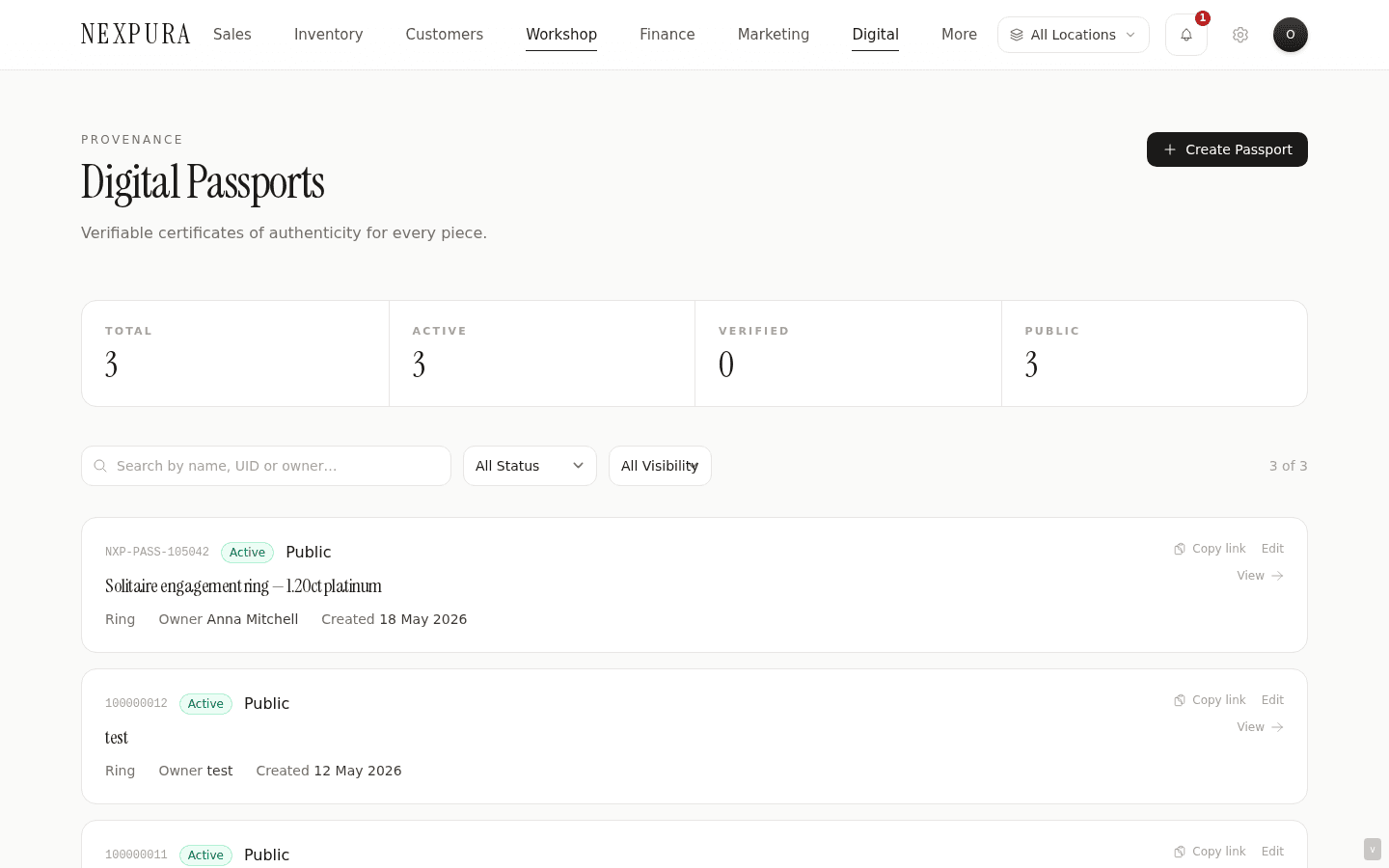
- The full passport list lives at /passports — every passport in your tenant, with a stat strip across the top (Total / Active / Verified / Public), a search box (matches against title, passport UID, current owner name), and filters for status and visibility.
- Open a passport at /passports/[id] for the detail view — specifications, valuation / insurance card (if any of those fields are set), event timeline, QR code + download, public-visibility toggle, and the Actions card (Download Certificate / Add Event / Transfer Ownership / Send Passport Email).
- Edit any detail other than the passport UID itself at /passports/[id]/edit. The UID is permanent — once minted, it follows the piece for life. Everything else (title, specifications, provenance, ownership block, visibility) is editable.
- Lifecycle events — repaired, serviced, resized, stone replaced, authenticated, insured, reported lost, reported stolen, recovered — are added through the Add Event action and appear in the event timeline. The timeline is the audit trail; it's also what surfaces on the public passport card as the customer-readable history.
- The Public Visibility toggle on the detail page is the quickest way to take a passport off the public surface without deleting it — flipping it to private returns the branded not-found card on /verify/[uid] for that UID. Flip back to public to restore the lookup.
Walkthrough
1. Browse the list
At /passports the page leads with a four-column stat strip — Total, Active, Verified, Public — that gives you the at-a-glance shape of your passport population. Below the strip, the full list renders as cards, newest first by creation date. Each card surfaces the passport UID, a status pill (Active / Archived / Reported Stolen), a Public/Private chip, a Verified pill if the passport carries a verified-at timestamp, the title, jewellery type, current owner, and the creation date.
2. Search and filter
The search box matches case-insensitively against three fields: passport title, passport UID, and current owner name. This is the lookup-by-other-criteria path when a customer has the piece but not the UID — type the customer's name (or a remembered fragment of the title) and the relevant passport surfaces.
The Status select narrows to active, archived, or reported_stolen. The Visibility select narrows to public or private. The filter row also shows the count of matching rows on the right (“14 of 218”) so you have a sanity check on how aggressive the filter is. Clear filters resets all three back to all.
3. Copy a verify link
On any public passport, the card surfaces a Copy link action — one tap copies the /verify/[uid] URL for that passport (resolved against the current origin, so a copy from your production tenant produces a production URL). Useful for pasting into an email reply when a customer asks for the link to their piece. Private passports don't show the Copy link action — the URL would return not-found anyway, so we hide the affordance.
4. Open the detail page
Tapping the title or the View link on a card opens the detail page at /passports/[id]. The layout is a two-column split: the left column carries the title card, the Specifications card grouped by Metal / Stone / Ring / Provenance / Ownership, the Valuation & Insurance card (only if any of those fields are set), and the Event Timeline at the bottom. The right column carries the QR Code card, the Public Visibility toggle, and the Actions card. The Photos card sits beneath the two-column block.
5. Edit passport details
The Edit Passport button at the top of the detail page opens /passports/[id]/edit — the same form as creation, pre-filled with current values. Editable: title, jewellery type, description, metal / stone / ring specifications, provenance, ownership-block fields, visibility. Not editable: the passport UID itself (rendered as a chip next to the page title) — the UID is permanent and follows the piece for life, including across ownership transfers.
Save logs an updated event on the timeline so the change is part of the audit trail. The edit form doesn't hard-distinguish “cosmetic fix” from “substantive change” — every save logs the same way. If you're reading an old passport and need context for what changed, the timeline shows the date of the edit but not a field-by-field diff; for high-value pieces where the edit history matters, write a sentence into the description capturing the substance of the change.
6. Record lifecycle events
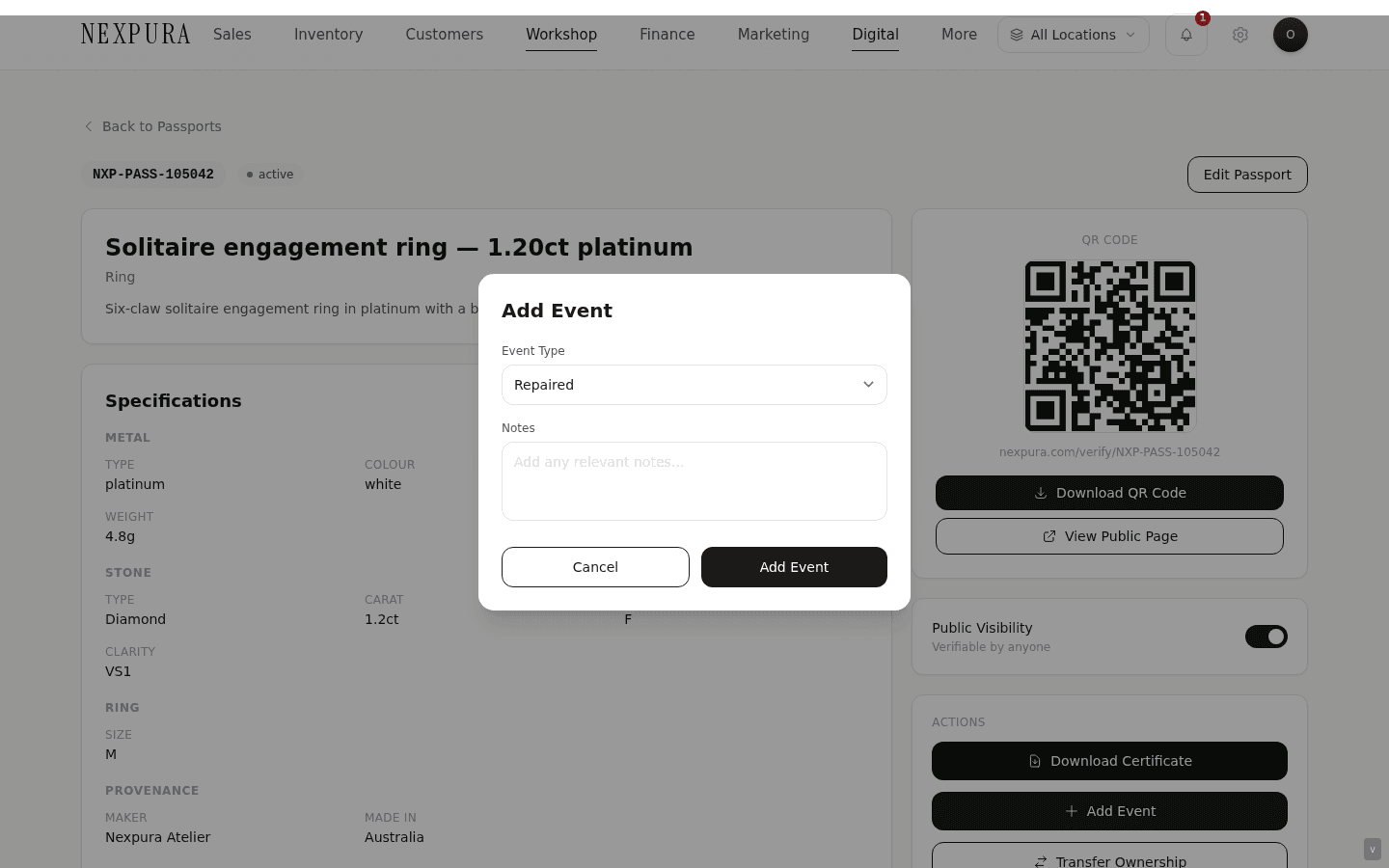
Tap Add Event in the Actions card to log an event against the passport. The dropdown offers nine event types:
- Repaired / Serviced / Resized / Stone Replaced. Workshop events — the piece came back through, work was done, the passport gets the record. Pair with the corresponding repair record in the repair pipeline so the workshop side and the passport side are both current.
- Authenticated. You've verified the piece in-store and confirmed its identity matches the passport. Useful when a customer brings the piece in for inspection and you want to record that the authentication happened — appears as a trust event on the customer-facing timeline.
- Insured. You've handled the piece for valuation toward an insurance binder; the insurance fields on the passport (insured value, replacement value, insurer, policy number) can be updated separately on the detail page, and an insured event timestamps the action.
- Reported Lost / Reported Stolen. The customer has reported the piece lost or stolen. The event records the report; future buyers who verify the piece on /verify/[uid] see the lost/stolen entry on the timeline. (See the Common questions below for the relationship between event logging and the row-level statusfield — they're separate today.)
- Recovered. A previously lost or stolen piece has come back. The recovery event timestamps the resolution.
The Notes field on the event modal is free text — write enough that future you (or a future buyer) reading the timeline gets the context. The event posts append-only; it's not editable after save.
7. Read the event timeline as audit trail
The Event Timeline card on the detail page is the audit trail — chronological list of every event recorded against the passport, oldest first. Issuance is the first row (the “Created” event), then any updates, ownership transfers, workshop events, lost / stolen / recovered reports. Each row carries a coloured indicator dot (green for trust events, red for lost/stolen, stone for transfers and updates), the event label, the date rendered in your tenant timezone, and any notes you attached at the time.
The customer-facing card at /verify/[uid] renders the same timeline as the History section — the jeweller view and the customer view are reading the same rows, just styled differently. That's deliberate: the audit trail and the customer-readable history are one surface, not two, which keeps you from accidentally maintaining a private internal log that diverges from what the customer is seeing.
8. Control public visibility
The Public Visibility toggle on the right rail flips the passport between public (the public /verify/[uid] route resolves and renders the card) and private (the public route returns a branded not-found card for the UID). The flip is immediate — no cache hold — and the subtitle on the card spells out the current state (“Verifiable by anyone” or “Private — not publicly accessible”).
Use private during a dispute (the piece is contested, parking the public surface keeps the chain off-line until resolved), during an investigation (lost or stolen piece where you want the trail off the public surface until the situation clarifies), or for internal-only passports (records you keep for stock that hasn't shipped, or internal valuation/insurance documentation that doesn't belong on a public card).
9. Resend the passport email
If the passport carries a current_owner_email, the Send Passport Email action sends the passport email to that address. Customer lost the original email, changed inbox, asked for it again on a phone call — one-tap re-send. The action returns a toast confirming the email went, or surfaces the underlying error if it failed. (Channel: email — passport emails go via the email channel specifically.)
Common questions
Why doesn't Reported Stolen on the event modal flip the passport status pill on the list?
Two separate fields are in play: passport.status (the row-level enum that drives the status pill on the list card and the Active/Archived/Reported Stolen filter) and the event-timeline entries (the audit-trail rows in passport_events). Adding a reported_stolen event through the Add Event modal logs an event row — it appears on the timeline immediately — but it doesn't mutate the row-level status field today. So a piece that's been logged as stolen on the timeline still shows Active on the list pill until the status itself is changed. A future product update will tie the two together; today the practical workaround is to log the event and, if you want the status pill to reflect the lost/stolen state too, contact support to flip the row-level status (or wait for the tying- together update).
Where's the archive button?
Archive isn't a user-facing action today. The status enum carries an archived value, and the list filter offers archived as a filter option, but there's no affordance to flip a passport into archived from the detail page. In practice you can take a passport off-surface by flipping Public Visibility to private — the public verify route returns not-found, and the passport stays in your tenant for reference. If you need the row genuinely archived (off the active list, not just hidden from public lookup), contact support and we'll update the underlying record. Full user-facing archive is on the backlog.
Why is the customer-side route public — anyone with the UID can read the passport, even strangers?
That's the design. The verify page's reason to exist is to be the resale trust surface — a piece changes hands, a future buyer wants to confirm authenticity before paying for it, and they need to be able to verify without having an account with the originating jeweller. A login-gated verify route would make the passport useful only to the original buyer; the value proposition collapses. The UID itself is the access token: unguessable (UUID v4), rate-limited at the IP level on the public lookup endpoint, and the visibility toggle exists for the cases where you want to take an individual passport off the public surface temporarily. Private fields on the jeweller side (full customer profile, internal notes, valuation history beyond the public-facing fields) never leak through to the public surface — the card renders only the public fields you chose to record.
The operational implication: you can't lock a public passport down to specific viewers. Visibility is binary — public (anyone with the UID can read) or private (nobody outside your tenant can). If a specific passport needs viewer-specific access control, the right move is to keep it private and send the customer a screenshot or a PDF certificate through a channel you control.
The customer has lost the UID — how do I find their passport without it?
The list at /passports searches against title, passport UID, and current owner name simultaneously. Type the customer's name and the relevant passport surfaces. If the customer's name isn't how the passport was recorded (the piece was a gift, or the original owner was someone else), search by a fragment of the title (“sapphire”, “solitaire”) and filter by date or status. The combination of fragmentary title + creation date + current owner typically narrows fast enough to find the right row.
When you find it, copy the verify link from the list card (the public passport URL pastes straight into an email to the customer) or send the passport email again from the detail page. If the lost item is the physical certificate / QR sticker, you can also re-print from Download Certificate — the certificate regenerates fresh with the current passport state.
A piece I sold years ago is coming back for repair through a different jeweller — can they see the passport history?
The customer-facing card at /verify/[uid] is cross-tenant — anyone with the UID can read the public card, including a different jeweller looking up the piece. So the other jeweller sees the full public timeline (issuance, ownership transfers, repair events, lost/stolen reports), the specifications, and the “Issued by” attribution pointing back to you.
What the other jeweller can't do is mutate the passport — the jeweller-side detail page, the edit form, and the Add Event / Transfer Ownership / visibility-toggle actions are tenant-scoped to you. The other jeweller can log their repair on their own passport-or-repair record; if the customer wants the repair to appear on the original passport timeline, the cleanest path is for them to send you the details and you log it. Cross-tenant editing of a passport is not supported by design — owning the chain of custody means controlling who can amend the record.
Can I delete a passport entirely?
Not from the UI. The data model has a soft-delete column (deleted_at) that hides a passport from the list and from the public lookup, but there's no in-app affordance that triggers it. The provenance design is biased toward keeping records — chain of custody is the whole point — so hard delete isn't a one-click affordance. If you genuinely need a passport removed (data entered against the wrong piece, a duplicate row, a request under privacy regulation), contact support with the passport ID and we'll soft-delete the row behind the scenes. In most cases flipping the passport to private (which hides it from the public surface while keeping the record) is the right answer.
Troubleshooting
Stat strip count doesn't match what I'm seeing in the list
Symptom:the Total stat reads e.g. 218 but you're looking at fewer rows in the list. Cause:a filter is active — search text in the search box, or the Status / Visibility selects set to something other than “all”. The right-hand counter under the filter row (e.g. “14 of 218”) is the disambiguator — filtered count on the left of of, total on the right. Fix: use theClear filters link that appears next to the filter row when any filter is active to reset all three back to default.
Public Visibility toggle flips but the public page still 404s
Symptom: you flipped the toggle from private to public, but the public /verify/[uid] URL still returns the branded not-found card. Cause: most commonly a cached render of the public page from while it was private — browsers and intermediaries cache the not-found response briefly. Less commonly: the passport row has a non-null deleted_at (soft-deleted), which the visibility toggle doesn't override. Fix: hard- refresh the public page (Cmd+Shift+R) and retry. If the not-found persists for more than a minute, the underlying row may be soft-deleted — contact support to confirm.
Send Passport Email returns “No owner email address set on this passport”
Symptom: the email action toasts an error rather than sending. Cause:the passport's current_owner_email field is empty — the passport may have been issued without an owner email, or the email was cleared during a transfer. Fix: open Edit Passport, set the Owner Email under the Ownership block, save, and re-tap Send Passport Email from the detail page.
Add Event modal saves but the timeline doesn't update
Symptom:the modal closes cleanly but the Event Timeline card on the detail page doesn't show the new row. Cause: almost always a stale render of the detail page — the timeline is server-rendered, and the page needs a refresh to pick up the new event row. Fix:refresh the page (Cmd+R). The new event appears at the bottom of the timeline. If a refresh doesn't surface the event after a few seconds, the event insert may have failed silently — contact support with the passport ID and approximate time of the event so we can confirm against the database.
Copy link copies a localhost or preview URL instead of the production verify link
Symptom: the Copy link action copies a URL with the wrong host — e.g. localhost during dev, or a preview-deployment URL. Cause:the Copy link action resolves against the current browser origin so that copies work correctly in any environment. If you're browsing the list from a non-production environment, the copied link points to that environment. Fix: open /passports from your production tenant (the canonical host) and copy the link from there. The passport row itself is the same record across environments; only the URL host differs.
Related
- Verify Passport — what your customer sees at /verify/[uid] (and how the timeline you maintain renders for them)
- Issuing a passport — the form that creates the records this page manages
- Transferring passport ownership — the dedicated transfer flow when a piece resells
- Repair pipeline — pair repair records with passport repair events