Layby — partial payment plans
Take a deposit, record top-ups against the balance, complete on the final payment, mark collected when the customer walks out with the piece.
Quick reference
- Layby list at /laybys with status filters (All, Active, Completed, Cancelled). Each layby detail page is at
/laybys/<id>. - A layby is created from the POS payment modal — pick the Layby tab, attach a customer, type a deposit amount less than the cart total, click Create layby. The layby record opens in active status with the deposit recorded.
- State machine: Active (deposit and instalments accumulating) → Completed (fully paid; inventory deducted) → optionally Collected (customer has physically taken the piece). Or: Active → Cancelled (customer walks away; paid amount becomes store credit).
- Inventory is not deducted on layby creation — the piece stays in the on-hand quantity until the layby is completed. The piece is “held” in the sense that the layby record claims it and staff know not to sell it twice; the system doesn't mechanically lock the stock row.
- On final payment that brings the balance to zero, the layby auto-completes: the inventory is decremented in the same transaction as the final payment record, then staff can mark the piece collected when the customer walks out with it.
- Cancelling an active layby returns the entire paid-in amount (deposit + every instalment) to the customer as store credit. Inventory was never deducted, so no restock is needed — the piece is still on the floor.
Walkthrough
1. Create the layby from the POS
Build the cart as you would for a normal sale (see processing a sale). Attach the customer — layby requires one; the layby record is owned by the customer. Click the green Charge button to open the payment modal, then select the Layby tab.
The Layby tab shows the customer name, a deposit-amount input, and (once you type a deposit) a remaining-balance line. Deposit must be greater than zero and strictly less than the cart total — if it equals the total, the form blocks submit with a hint to ring this up as a regular sale instead.
Type the deposit (most stores ask for around 20–30% of the total, but the system doesn't enforce a minimum percentage; that's a store-policy choice). Click Create layby. The success screen shows the layby number, deposit taken, and balance remaining.
Screenshot pending
Payment modal on the Layby tab — customer panel at the top, $400 deposit entered against a $2,000 cart total, remaining balance $1,600 shown in a stone-bg card, Create layby button active.
2. The layby record opens in active state
The layby is now visible at /laybys with an Active badge and a progress bar showing how much of the total has been paid. Click into the layby to open the detail page at /laybys/<id>.
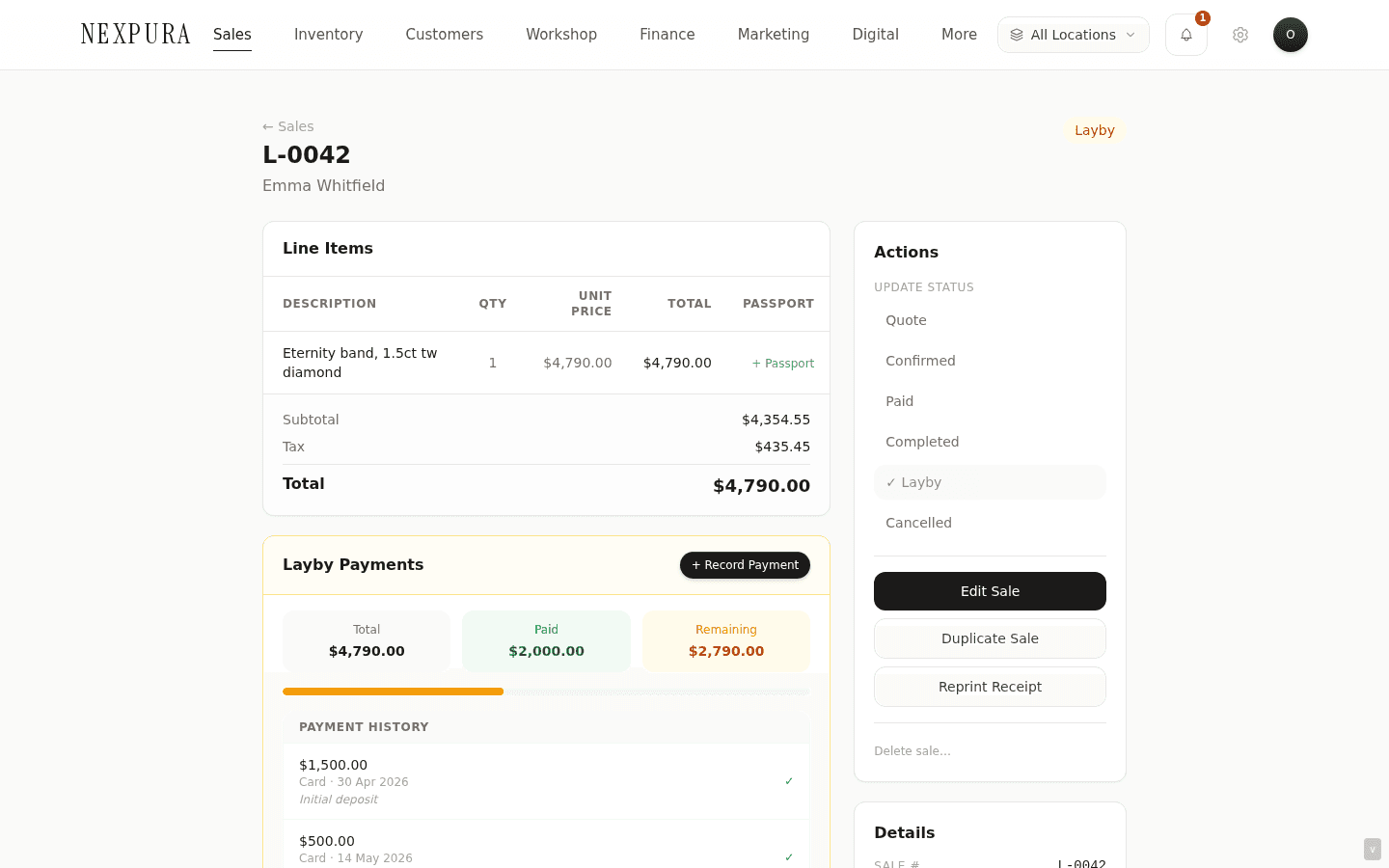
The detail page has the line items on the left, payment history below (just the deposit at this point), and a summary card on the right with Total, Deposit, Amount paid, Remaining. Actions appear in a sidebar: Record payment, Cancel layby.
3. Record instalments as the customer pays
When the customer comes in for a top-up payment, open the layby and click Record payment. The form takes amount, payment method (cash, card, bank transfer, eftpos, other), and optional notes. Amount is capped at the remaining balance, so a slip can't overshoot.
On save, a row is written to layby_payments — immutable; the running sales.amount_paid is recomputed from the sum of all payments (race-safe — if two tills record a payment for the same layby in the same second, both rows land and the recomputed paid amount is correct). The progress bar advances; the payment history shows the new row.
Layby payments are also protected by an idempotency check (amount + method + day fingerprint) so a stuck submit can't double-charge a single instalment.
4. Final payment auto-completes the layby
When the running total reaches the layby total (within a cent), the same Record payment call triggers an auto-complete in the same transaction. The layby status flips from active to completed.
Inventory was already set aside when the layby was created — the pieces are reserved for the customer from day one, so they can't be oversold while the customer pays it off. Completion doesn't move stock again. The customer sees the success message — “Layby completed! The customer can now collect their items.” (If a layby is cancelled instead, the reserved stock automatically returns to the shelf.)
5. Mark collected when the customer takes the piece
A completed layby can sit at the front counter for a few days before the customer collects. The collection moment is tracked separately — on a completed layby, the right rail shows a Mark collected button. Click it; the layby stamps a collection status and the timestamp.
The mark-collected step is optional from a money/stock standpoint (the sale and stock deduction already ran on completion), but useful for stores that want a record of when the piece physically left.
6. Cancelling a layby (customer walks away)
From the layby detail page on an active layby, click Cancel layby…. A confirmation panel appears with the paid-in amount displayed (deposit + all instalments) and a note field for the reason. Click Confirm cancel.
The cancel runs: the layby flips to cancelled, and the customer's store-credit balance is incremented by the paid-in amount. The piece is unaffected — it was never deducted from inventory, so it's still on the floor and immediately available for sale again. The customer leaves with store credit they can use on a future purchase.
The cancellation reason is stamped into the sale notes for audit; the toast confirms “Layby cancelled. $X.XX issued as store credit.”
Screenshot pending
Cancel layby confirmation panel — warning text 'The customer's deposit + instalments ($600.00) will be issued as store credit', notes input, Confirm cancel and Back buttons.
Common questions
Why isn't inventory deducted when the layby is created? Wouldn't that prevent double-selling the piece?
The design choice is to deduct at completion, not at creation, because the accounting question “has this piece been sold?” only answers yes when the customer has paid in full and is collecting. If we deducted on layby creation, an abandoned layby (customer walks away mid-instalment) would force us to do a compensating stock-return to put the piece back — creating noise in the stock-movements ledger and a window where the inventory shows higher than it actually is during the rollback. By keeping the piece in on-hand inventory until completion, the cancel flow is clean (no stock motion at all). Double-selling is prevented operationally: the piece sits at the counter tagged with the layby paperwork, and staff know not to ring it up again. For high-value one-of-a-kinds, most stores physically pull the piece off the display and into a held-stock shelf during the layby period.
What if the customer wants to swap the layby item partway through?
Cancel the current layby (paid-in becomes store credit), then create a new layby for the replacement piece, using the store credit as the deposit (via the Split or Store credit payment tab, depending on the new piece's price vs. the credit balance). The customer doesn't lose money; the audit trail shows the cancelled layby, the credit issued, and the new layby with the credit applied — three clean records rather than an in-place edit.
How do I see how much a customer has on layby across multiple records?
The customer detail page at /customers/<id> shows all their sales and laybys in a timeline. Each active layby has the remaining balance and the next-due date (if a schedule was set). For a portfolio view, the /laybys list can be filtered by customer name and shows the progress bar on each — useful for the “Sarah has three laybys, what's the total still owed” question.
Is there a way to send payment reminders to layby customers?
The detail page tracks a next-due date if set on creation, but the automated reminder flow isn't shipped yet — manual outreach is the current motion (use the customer's phone/email from their detail page). The reminder automation is on the marketing-and-automations backlog and will surface in that section when it ships; for now, weekly review of the /laybys filtered to Active list catches anyone overdue.
What happens to a layby if the piece on hold is accidentally sold to someone else?
On the customer's final payment, the auto-complete tries to deduct inventory; if the on-hand quantity is zero, the deduction fails and the layby is left in active status with the final payment still recorded. The cashier sees the “Insufficient stock — receive stock first then re-complete” message. From there: either re-source an equivalent piece into inventory (then click Complete layby from the detail page's actions to re-attempt the deduction), offer the customer an equivalent piece (cancel + recreate the layby with the new piece, applying the paid-in amount as store credit), or cancel and refund. Procedurally: tag layby pieces in your held-stock area to avoid this happening.
Can a layby span multiple items?
Yes. The layby is built from a cart, just like a regular sale — multiple line items, varying quantities. The auto-complete on final payment deducts each line's quantity from the matching inventory row; if any one line fails (insufficient stock), the whole completion rolls back. Customers who want to layby a multi-item set (e.g. matching ring and earrings as a wedding pair) work naturally; just add both to the cart before opening the Layby tab.
Troubleshooting
“Please select a customer above to create a layby”
Symptom: the Layby tab shows an amber prompt instead of the deposit form. Cause: no customer is attached to the cart. Layby always requires one — the record is owned by the customer. Fix: close the payment modal, attach a customer in the cart panel (search the customer field, click the match in the dropdown), then re-open the modal and switch back to the Layby tab. The form should now show the deposit input.
“Deposit must be less than the total”
Symptom: the Create layby button errors with this message. Cause:the deposit equals or exceeds the cart total. A layby exists specifically because the customer isn't paying in full at once. Fix: if the customer is genuinely paying in full, switch to the Card / Cash / Split tab and ring it up as a regular sale. If the customer is paying most-but-not-all, reduce the deposit so the remaining balance is at least a cent.
Layby auto-completed but inventory still shows the piece on hand
Symptom: the layby is marked completed, but checking the inventory detail page for the same piece still shows the pre-completion quantity. Cause:most commonly cache — the inventory page caches per tenant and may not have invalidated yet. Less commonly: the completion ran but the stock_movement insert failed and the rollback didn't fully unwind (very rare). Fix:hard-reload the inventory page (Cmd/Ctrl-Shift-R). If the quantity is still wrong, open the inventory item's stock-movement history — there should be a sale movement tagged with the layby's sale number. If the movement is missing, the completion didn't actually deduct; reopen the layby and re-attempt completion from the detail page's actions (the guard prevents double-deduction).
“Insufficient stock for one or more layby items. Layby left as-is”
Symptom: recording the final payment errors out instead of completing. Cause: at least one item in the layby has gone to zero on-hand since the layby was created — most likely sold to another customer or transferred out. Fix:the final payment WAS recorded (the payment row is in the database; the customer's money is accounted for), the layby just stayed in active status because the stock deduction couldn't run. Three options: (1) re-source the piece (receive new stock at the source location), then click Complete layby from the detail page; (2) substitute an equivalent piece — cancel the layby (returns paid-in as store credit), create a new layby for the replacement, apply the credit; (3) cancel + refund the customer.
Cancelling a layby errored with “failed to credit customer”
Symptom: clicking Confirm cancel returns a failure message about customer credit. Cause: the customer record was modified concurrently (rare) — the system surfaces this rather than silently flipping the layby status without crediting. Fix:retry the cancel — it's an idempotent-shaped flow (the layby hasn't flipped to cancelled yet because the credit update failed, so the retry will attempt fresh). If it fails again, open the customer record in another tab, check their store-credit balance, then contact us with the layby ID and customer ID — we can manually reconcile.
Related
- POS overview — the Layby payment tab is where every layby starts
- Processing a sale at the POS — building the cart works the same way
- Processing a refund — refund of a completed layby works through this flow
- Vouchers and gift cards — cancelled-layby credit is a kind of voucher equivalent
- Customers & Clienteling overview — the customer record owns the layby