Message templates
The template library — system templates (birthday, anniversary, thank-you, re-engagement, seasonal) ship pre-built, and the per-tenant custom template editor lets you author subject + body with merge variables, preview the rendered output, duplicate, edit, and delete. Templates are the reusable message scaffolds that campaigns and automations dispatch.
Quick reference
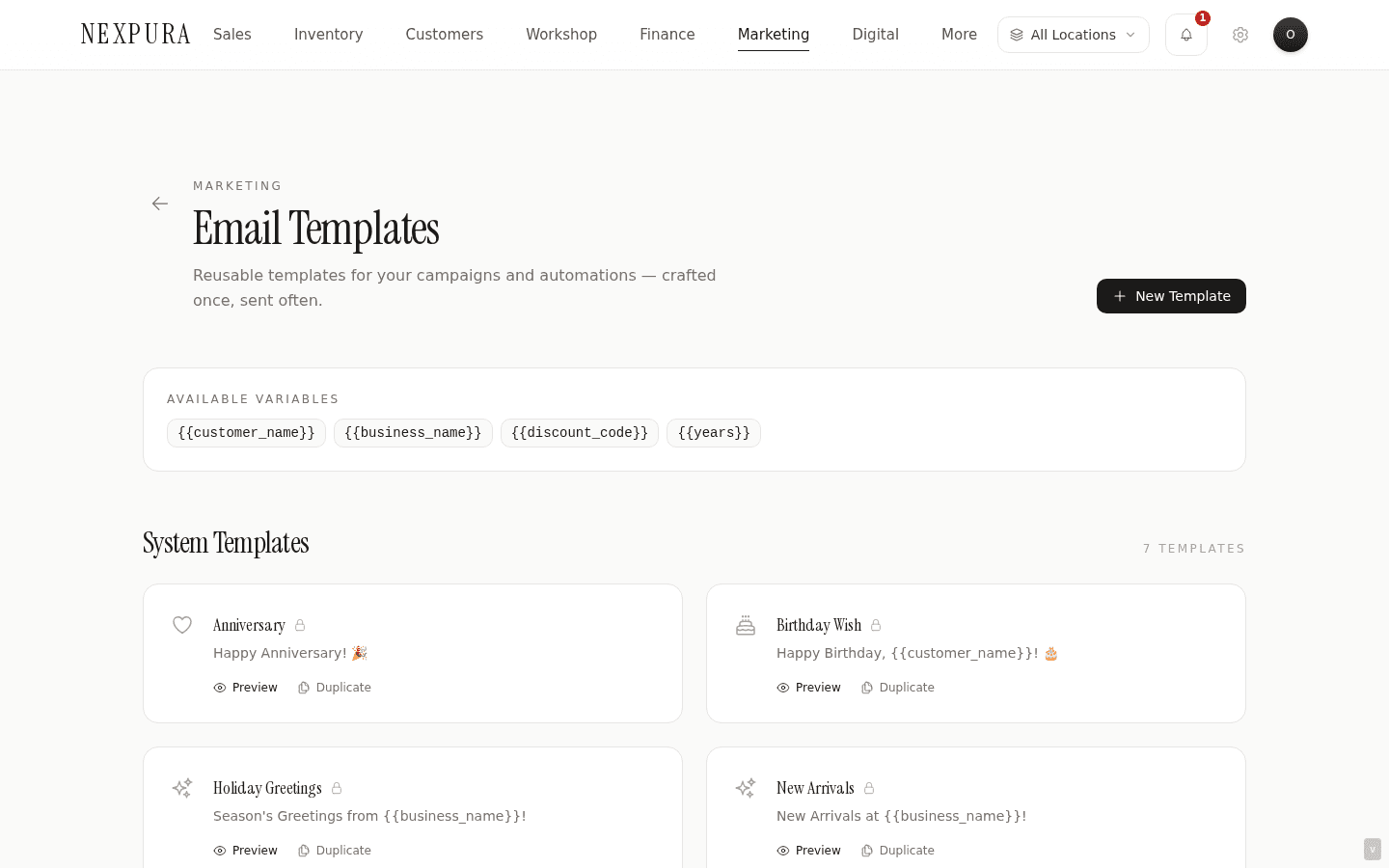
- Templates live at /marketing (also reachable from the More dropdown on the /marketing hub). The header carries a New Template primary CTA; below it, an Available Variables panel lists the merge keys, and beneath that, two panels: System Templates and Custom Templates.
- A template carries a name, a template_type (e.g. birthday, anniversary, thankyou, etc., or freeform for custom), a subject line, a body, and an automatically-extracted variables array — the merge keys present in the body, scanned on save.
- Merge variables use
{{ key }}syntax (double-brace + optional spaces). Common keys include{{customer_name}},{{business_name}},{{discount_code}},{{years}},{{item_description}}. The preview pane substitutes example values so you can see how the body reads. - System templates render as read-only cards — you can preview them, but the lock icon indicates the content is canonical. Duplicate a system template to create an editable custom version with the same starting content.
- Custom templates carry Edit, Duplicate, and Delete affordances. Permissions: create / edit / duplicate / delete are owner / manager only (templates drive customer-facing messages).
Walkthrough
1. Open the templates library
Go to /marketing. The page opens with the header (title + subtitle, New Template CTA in the top right), then a compact Available Variables panel showing the merge keys you can use in any template body. Below that, two panels: System Templates (the pre-built canonical scaffolds) and Custom Templates (yours).
2. Preview a system template
Click any system template card to open the preview pane. The pane renders the template with example values substituted into the merge variables — “Hi John Smith, ...” with customer_name substituted, your business name pulled from your tenant settings substituted into business_name, sentinel values for discount_code / years / item_description — so you can see how the finished email reads before committing to it for a campaign.
System templates are locked. The lock icon on each card signals you can preview but not edit. The reason is canonical-ness — the Birthday Wishes system template needs to be the same text Nexpura references everywhere when it says “the default birthday template;” allowing edits would let one tenant's edit accidentally drift away from the referent.
3. Duplicate to make a system template editable
From any system template, click Duplicate. The duplicate is a custom template with the same name (suffixed “(Copy)”), the same subject and body, the same template_type, and the same merge-variable extraction. From there, click Edit on the duplicate to customise the content while keeping the system original intact.
The duplicate path is the right way to start from a system scaffold without losing the canonical reference. Two stores using Nexpura might both duplicate the Birthday Wishes template and edit them differently; the system Birthday Wishes template stays the canonical reference everywhere.
4. Create a custom template from scratch
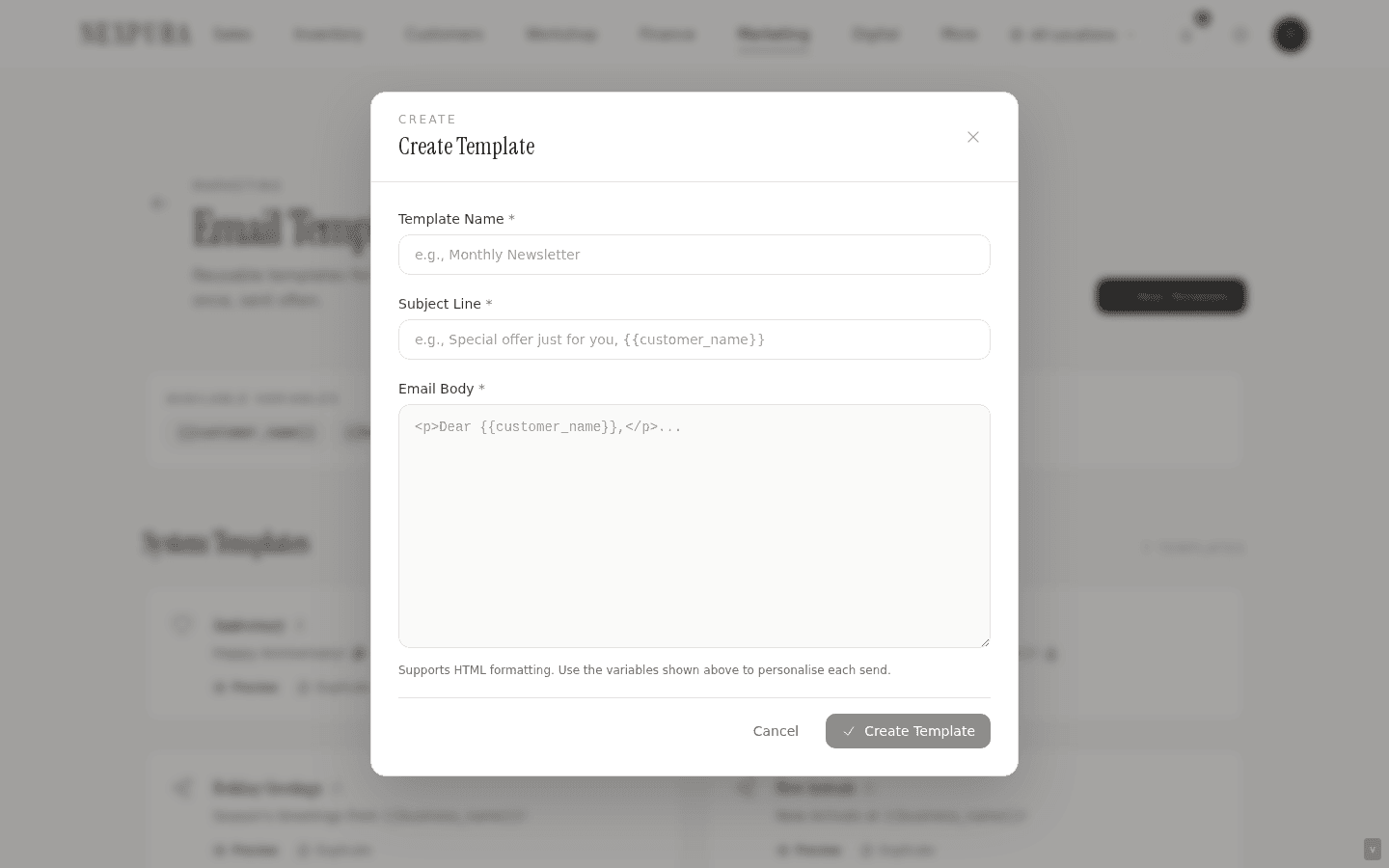
Click New Template. The modal asks for: a name (visible to your team on the templates page and the campaign builder dropdown), an optional template_type (one of the recognised types — drives the icon and discoverability for automations of that type — or freeform if no type fits), a subject line, and a body. Body accepts plain text with line breaks preserved, and merge-variable references in {{ key }} syntax.
Save scans the body for {{ ... }} patterns and persists the set of unique keys into the template's variables array. That array drives the “this template uses these variables” chip strip on the card and the send-time substitution.
5. Preview the rendered output
As you type the body, the preview pane updates with example values substituted into the merge variables. What you see in the preview is what a customer receiving the rendered email will see, modulo the actual customer-specific substitutions at send time (e.g. the customer's real name instead of “John Smith”).
The preview pipeline sanitises HTML on render so any unsafe markup in a body doesn't execute in the preview pane. Practically that's only relevant if you're pasting in HTML email content; plain- text bodies pass through unchanged.
6. Use a template in a campaign or an automation
From the campaign builder at /marketing/campaigns, the Template picker dropdown lists every template (system + custom) for this tenant. Selecting one pre-fills the campaign's subject and body. From there, you can edit them (the campaign keeps its own copy) or leave them as the template provides.
From the automations surface at /customers/automation, each automation's configuration panel carries a Template picker — pick the template the automation will dispatch when fired. The template binding is by ID, so editing the template later changes what the automation sends; this is intentional, since automations are recurring intent and the operator should be able to refine the message without re-toggling.
Common questions
Why are system templates locked instead of editable with a confirm-before-save?
Two reasons that point the same direction. First, the canonical reference. When the automations surface or the docs reference “the Birthday Wishes template,” a tenant edit shouldn't silently change what that name points to. Second, the upgrade path. As Nexpura refines the canonical scaffolds — better copy, additional merge variables, more careful subject lines — your store gets the improved versions automatically because the system templates are tenant-shared, not tenant-owned. If we let stores edit them in place, every refinement would either overwrite a tenant's customisation or skip them; either direction is wrong.
Duplicate keeps the upgrade path clean. Tenants who want to customise create their own copy, edit freely, and select that copy in their campaign / automation bindings. The system originals continue receiving refinements without disturbing the customisations.
Why are variables extracted on save instead of entered manually?
Authoring honesty. If the operator types {{customer_name}} in the body, the template uses customer_name — forcing them to also enter that key in a separate variables-list field is duplicate work and a frequent source of drift (rename the body reference, forget to update the list). Extracting on save reads the body as the source of truth and writes the list to match.
The extracted list drives the chip strip on the card (so a glance at the card tells you what variables this template needs) and the send-time substitution (the dispatcher knows which keys to fill from the customer / tenant data). Both reads stay correct as long as the body stays correct.
What happens if a customer doesn't have the data a template variable references?
Substitution falls back to a sentinel. If a template uses {{customer_name}} and a recipient's full_name is null, the dispatcher substitutes “Valued Customer” (or a type-appropriate fallback for other keys). The email goes out with a graceful default rather than a literal “Hi {{customer_name}},” which would surface the system internals to the customer.
The right path is to capture customer data completely at intake — names, dates, contact — so the fallback is rare. The customer add / edit page documentation walks through the intake form fields. For automations with strong personalisation expectations (Birthday Wishes), the recipient matcher already requires the relevant date column to be present, so the cohort is “customers with a birthday on file,” not “all customers.”
Can I write templates in HTML for richer email rendering?
Yes, with caution. The body field accepts HTML, and the preview pane renders it sanitised. At send time, the dispatcher wraps the body in the outbound message envelope and the receiving client renders the result. Common shapes work — paragraph tags, inline emphasis, simple links. Email-client compatibility is the constraint: modern email clients vary wildly in HTML support, and complex CSS or layout HTML often renders inconsistently across them.
For most jewellery-store campaigns, plain-text with a few merge variables reads more personal than a heavily-designed HTML email anyway. If you're reaching for richer rendering (image, styled callout, multi-column), consider whether the Mailchimp integration is the better channel for that shape of campaign — Mailchimp's authoring tools and rendering compatibility are built for the design-heavy case.
Why does duplicating a template create a copy instead of just letting me “use as starting point” on Edit?
The duplicate path is a small bit of extra-explicit-ness that avoids accidental edits. The lock icon on system templates is unambiguous — they can't be edited. The Duplicate affordance produces a clearly-named copy (the “(Copy)” suffix is the visible marker) that the operator then chooses to edit deliberately. Compare with “Use as starting point” — which would open the edit form pre-filled and might leave the operator uncertain whether they're editing the original or a copy.
The same shape applies to custom templates — Duplicate is a fast path to creating a variant without losing the original. Common pattern: a tenant duplicates their Birthday Wishes (Copy) template, renames the copy “Birthday Wishes — VIP”, edits in a special touch, and binds that copy to a VIP-specific campaign while the original Birthday Wishes (Copy) drives the all-customers automation.
Troubleshooting
Save returns “Operation failed” on a template I've been editing
Symptom:the edit modal returns a generic error on Save; changes don't persist. Cause: several candidates. (1) Your role lost the owner / manager permission between page load and save attempt (rare but possible if an admin demoted you mid-session). (2) The template ID was deleted by a parallel session. (3) A network / database transient. Fix: refresh the page and confirm the template still exists. If your role badge in the user menu shows less than owner / manager, the permission gate fires correctly — ask an admin to restore the role. If the template is gone, recreate from a duplicate of the system version (the changes are lost in this case, since the row no longer exists). For repeating transients, contact support with the template name and approximate save time.
Preview pane renders blank for the first second after opening a template
Symptom: the preview pane shows nothing momentarily before rendering the substituted body. Cause: expected. The preview pipeline uses an HTML sanitiser that loads on first use; the first paint renders nothing while the sanitiser imports, then the body fills in. This avoids a server-rendering issue with the sanitiser library. Fix: wait the microsecond — the preview renders consistently once the sanitiser is loaded. On repeat visits in the same session, the sanitiser is already loaded and the preview renders instantly.
Delete a template returns “Cannot delete a template in use”
Symptom: the Delete affordance on a custom template returns a guard. Cause: the template is referenced by at least one campaign or automation. Deleting it would orphan the binding. Fix: find the dependent campaign or automation and either swap its template binding to a different template or remove the binding first. The campaign builder and the automation configuration both let you change the template without recreating the campaign / re-toggling the automation.
Variable chip strip shows a key I don't remember adding
Symptom:a template card's variables chip strip lists a key (e.g. discount_code) you don't see in the visible body text. Cause: extraction reads the entire body, including whitespace and parts of the body that may have scrolled off the visible portion of the editor. Common: the key is in the email signature line at the bottom of the body. Fix:open Edit and scroll the body editor to confirm. If the key is genuinely in the body and you didn't intend it, remove the reference and save — the chip strip updates. If the chip strip persists across page reloads with the body clean, contact support — the extraction may have miscached on a prior save.
Template appears in /marketing but the campaign builder's Template picker doesn't show it
Symptom:a custom template you've just saved is visible on the templates page but absent from the campaign builder's dropdown. Cause:the builder's template list is loaded at page render; a template saved after you opened the builder isn't in the cached list. Fix: refresh the campaign builder page (or close and reopen the campaign tab). The template appears in the dropdown on the next render.
Related
- Marketing & automations overview — how templates compose with segments, campaigns, and automations
- Customer segments — defining the recipient cohorts that the template-based campaigns target
- Campaigns and bulk send — picking a template for a one-time send to a segment
- Marketing automations — binding a template to a per-event recurring intent