Integrations & data overview
How Nexpura stores integration connections, where in the product each one is configured, the cron-runner role for scheduled syncs, and the data model that holds every connection's credentials and last-sync stamp in one tenant-scoped table.
Quick reference
- One
integrationstable per tenant holds every connection — Shopify, WooCommerce, Mailchimp, Xero, Google Calendar, plus payment providers (Stripe, Square). One row per integration type per tenant. - Every row carries a
status(connected / disconnected / error), alast_sync_attimestamp, and an encrypted config blob holding the OAuth tokens or API credentials specific to that integration. - Credentials live in
config_encrypted(AES-GCM, server-side). Non-secret fields (store URLs, organisation names, calendar IDs) live in the plaintextconfigcolumn for visibility in the admin panel. - The /integrations surface is the read-only at-a-glance — what's connected, what's available, when each connection last synced. The actual connection happens where you use the integration: Shopify and WooCommerce from /website/connect, Xero from /settings/integrations, Google Calendar from /integrations/google-calendar, Mailchimp from the inline panel on /integrations.
- Scheduled sync jobs (the daily Shopify reconciliation for example) live under
/api/cron/*and are invoked by Vercel Cron on a schedule. On-demand syncs (the “Sync Now” buttons on each integration panel) hit the integration's own/api/integrations/<name>/syncroute directly. - Connect / disconnect actions require the integration manager permission (owner or manager by default). Sync actions inherit the same gate.
How a connection is established
1. The connection lives where you use it
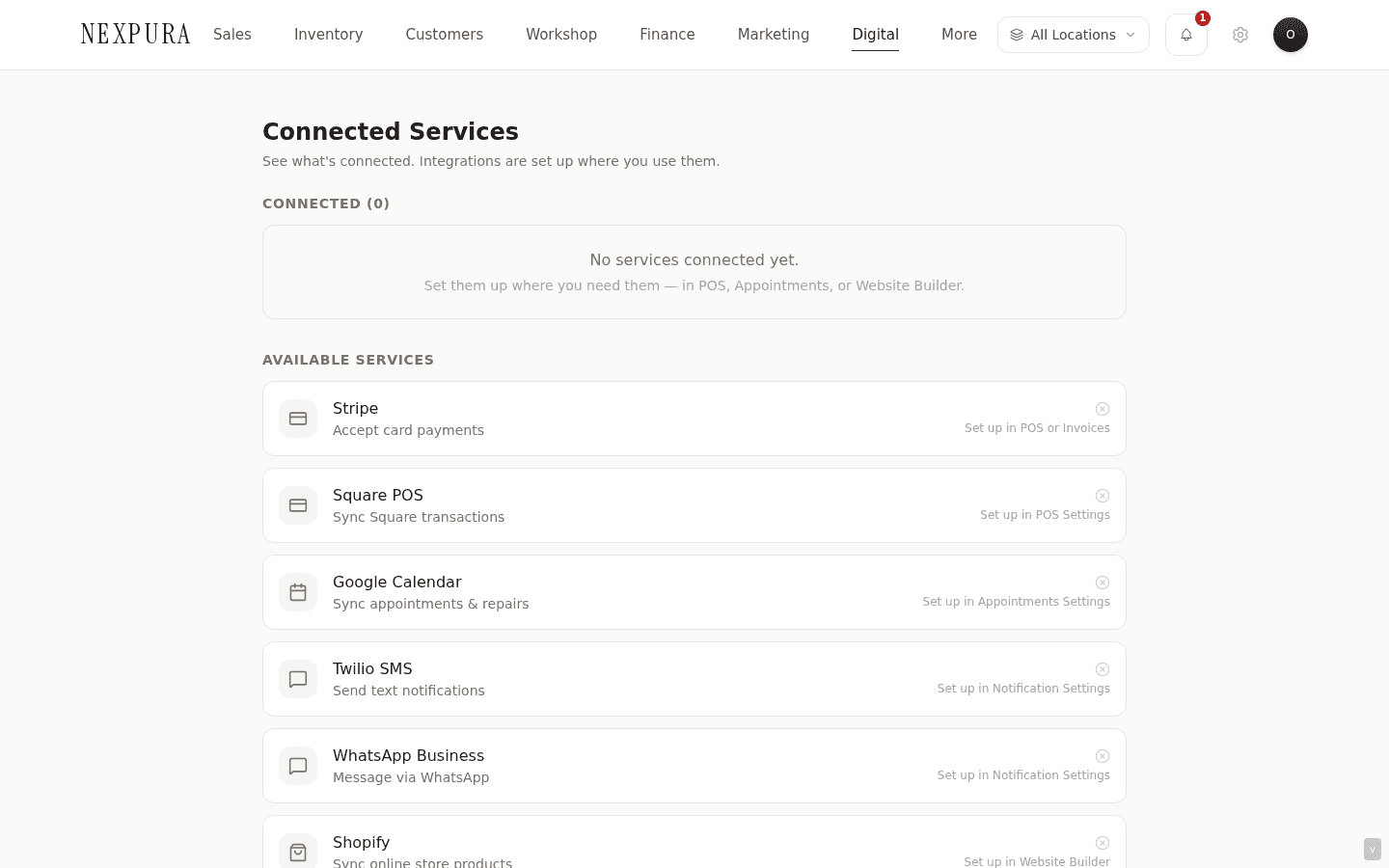
Nexpura doesn't have a single “set up all your integrations” wizard. Each integration is configured where it makes sense in the flow — Shopify and WooCommerce live next to the website builder because the e-commerce store is the surface they're tied to; Google Calendar lives next to the appointments settings; Xero lives in /settings/integrations because invoice export is what it's for.
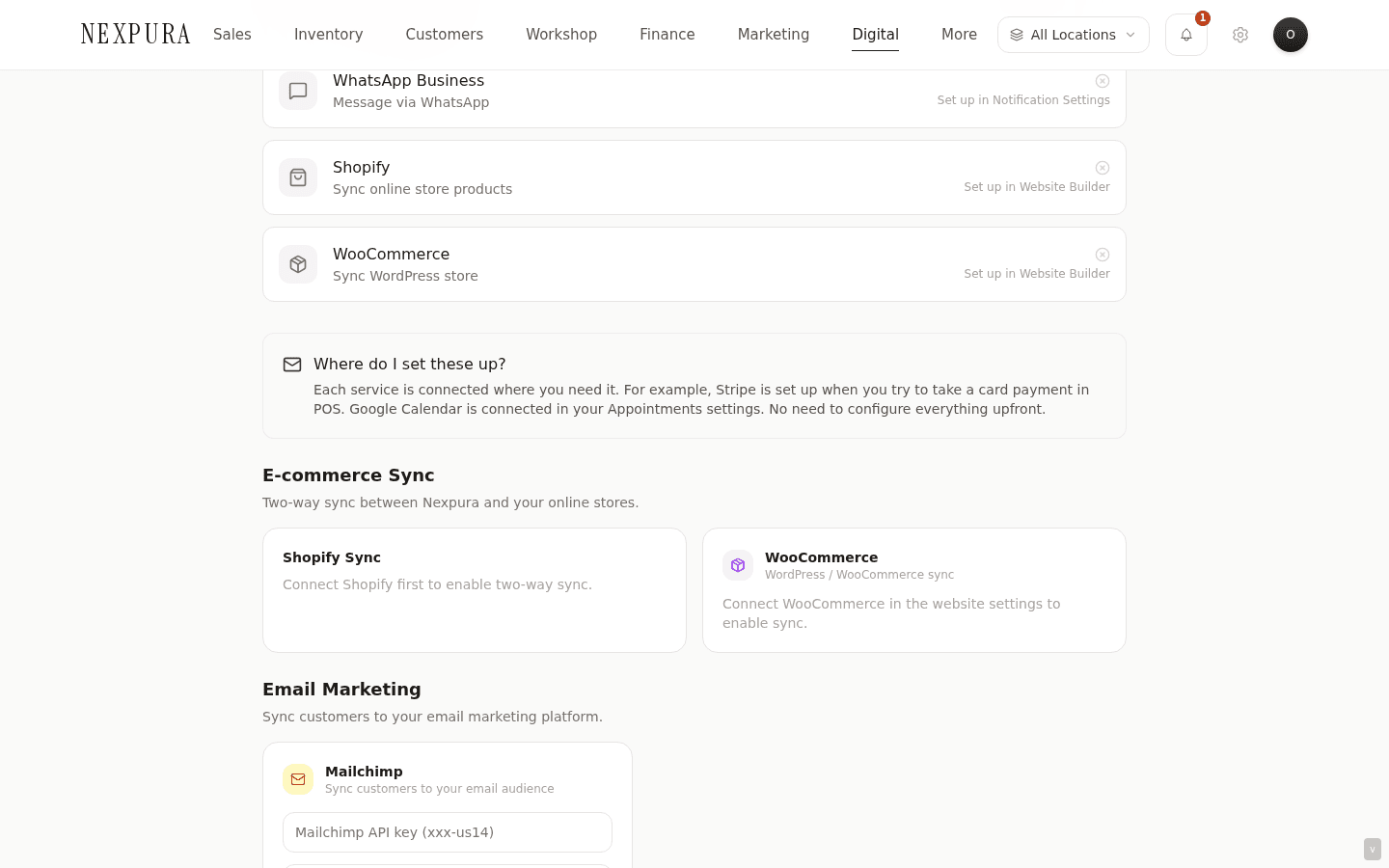
The /integrations surface (Connected Services) is the consolidated view — a list of what's connected today and what's available, each row carrying a “Manage” link that takes you to the configuration surface for that integration. The help text at the bottom says it explicitly: “Each service is connected where you need it.”
2. OAuth or API credentials, depending on the service
Three of the integrations — Shopify, Xero, Google Calendar — use OAuth 2.0. Clicking “Connect” takes you to the service's consent screen, you approve Nexpura's access, and the callback route exchanges the auth code for an access token (plus a refresh token where applicable). The tokens land in the row's encrypted config; the access-token refresh on Xero runs automatically when the cached token is within five minutes of expiry.
Two — WooCommerce and Mailchimp — use long-lived API credentials you paste into a form. WooCommerce takes a Consumer Key and Consumer Secret generated in your WordPress admin; Mailchimp takes an API key plus an Audience / List ID. Both are verified against the service's API on the connect step — a wrong key returns “Invalid credentials” before the row is written.
Customer SMS is sent from Nexpura's own number through a Twilio account Nexpura maintains — there's nothing to connect and no per-tenant setup. Nexpura doesn't send WhatsApp messages. See the SMS notifications page for how customer texts and STOP opt-outs work.
3. Sync — on demand and on a schedule
Every integration that exchanges data exposes a “Sync Now” button on its configuration panel. The button posts to /api/integrations/<name>/sync which runs the appropriate import / export path and updates the row's last_sync_at stamp on success.
A subset of syncs also run on a schedule via Vercel Cron. The most visible one is the daily Shopify reconciliation — a background job that walks new Shopify orders since the last reconcile, makes sure every one has a matching Nexpura sale row, and flags the ones that don't for manual review. Mailchimp can opt in to a sync schedule when you connect (theauto_sync flag); the others are on-demand by default and rely on you clicking the button or the flow that owns the data (e.g. an invoice push to Xero) firing the sync inline.
4. Disconnecting
Every connected integration has a disconnect path (typically on its configuration surface, sometimes inline on /integrations). Disconnecting flips the row's status to disconnected and clears the credentials from the encrypted config — the row itself stays for the audit trail (so you can see when the integration was previously connected) but the tokens / API keys are gone.
Re-connecting after a disconnect goes through the same OAuth flow or credentials form as the first time. There's no “remember last time” shortcut — by design, since the disconnect cleared the credentials and the access has been revoked on the service side.
Common questions
Why are credentials encrypted at the row level rather than just at the database level?
Two reasons in the same design decision. The first is defence in depth — a database-level encryption- at-rest layer protects against disk theft, but doesn't do anything about a leaked database dump or a SQL-injection read. Row-level AES-GCM on the credential blob means even a successful exfil of the integrations table leaves the attacker holding sealed bytes; they need the per-tenant symmetric key (held in the application's secrets store, not the DB) to decrypt.
The second is operational separation — non-secret fields (the store URL on a Shopify connection, the organisation name on a Xero connection, the calendar email on a Google Calendar connection) live in the plaintext config column so admin tooling and the Connected Services UI can show them without needing the decryption key. Secrets are sealed; metadata is queryable. The split keeps both halves honest.
What's the difference between “Sync Now” and the scheduled sync?
“Sync Now” runs the full import / export cycle immediately, blocking on the response. Use it after a bulk change on the other side (you added 30 products to Shopify and want them in Nexpura now) or to diagnose a sync issue (running it surfaces the per-row errors in the panel without waiting for the next scheduled run).
The scheduled sync (where available) runs daily in the background, picking up incremental changes. It uses the same code path as the manual sync but doesn't need anyone watching — useful for the integrations that need to stay in agreement continuously (Shopify orders especially, where a missed sync means an order didn't land in Nexpura and the inventory count drifts). The reconciliation cron job is the safety net under the webhook path — webhooks fire on order create, the cron sweeps anything the webhook missed.
Why isn't there a “connect everything in one wizard” flow?
Two reasons. One: the integrations have different authentication shapes (OAuth vs API key) and different in-product affordances — Shopify needs your shop subdomain to start the OAuth flow, Xero needs nothing, Mailchimp needs the API key and the audience ID. A single wizard would have to be the union of all those steps and would be longer than the per-integration flows are individually.
Two: most tenants don't connect all of them. You might only need Shopify and Xero, or just WooCommerce, or just Google Calendar. Configuring the integration when you actually need it (connecting Stripe when you try to take a card payment, connecting Google Calendar when you open the appointments settings) keeps the setup work proportional to the value being captured. The /integrations surface is the index — it doesn't replace the in-context entry points, it lists them.
A connection shows as “error” on /integrations — what does that mean?
The integration row carries an error status when the last sync attempt failed in a way the code recognised as recoverable-via-reconnect. Most commonly: the OAuth refresh token expired or was revoked on the service side (you revoked Nexpura's access in Xero, your Shopify private app key got rotated, etc.). The integration stays in the row so the audit trail survives, but no further syncs are attempted until you reconnect.
Fix: open the integration's configuration surface, disconnect, then connect again. The OAuth dance re-issues a fresh token; the API-key integrations get a new credential pair on the re-verify step.
Does Nexpura need anything special configured per tenant for SMS / Twilio?
No. Customer SMS is sent from Nexpura's own number through a Twilio account Nexpura maintains, so individual tenants don't need their own Twilio credentials. Nexpura doesn't send WhatsApp messages — see the SMS notifications page for the detail.
Troubleshooting
The Connect button on an integration is greyed out
Symptom:the Connect button on an integration's configuration panel is disabled. Cause:your role doesn't have the integration-manager permission. Owners and managers have it by default; staff roles don't. Fix: ask an owner or manager to connect the integration, or have them grant the integration-manager permission to your role from /settings/team. The same permission gate covers disconnect and the manual sync buttons.
An integration shows as connected but last_sync_at is from days ago
Symptom: the status is green, but the last-sync timestamp is older than the daily-sync cadence you expected. Cause:two candidates. (1) The integration doesn't have a scheduled sync by default (Mailchimp, for example, only auto-syncs when you flipped the auto_sync flag at connection time). (2) The scheduled sync ran but found nothing to do, and the implementation only updates the timestamp on a non-empty sync. Fix: click Sync Now on the integration panel. If the manual sync succeeds and the timestamp moves, the connection is fine. If the manual sync errors out, treat it as the next entry below.
Manual sync returns an error
Symptom: the Sync Now button returns a red error banner with a service-specific message. Cause:the underlying service is unreachable, the credentials are stale, or the data shape on the other side has changed in a way the sync logic doesn't handle. Fix:first, read the error message — most are explicit (“ Invalid API credentials”, “Shop not found”, “Token expired”). If it's a credentials error, disconnect and reconnect. If the error is opaque, check the integration-specific docs page for known causes, or contact us with the integration name and the error text — we can read the server-side log row for the same sync attempt.
I disconnected an integration but want to undo it
Symptom: you clicked Disconnect on an integration and now want the connection back. Cause:disconnect clears the credentials from the encrypted config and revokes the access on the service side where the OAuth flow allows. There's no in-product undo button. Fix:go through the connect flow again. For OAuth integrations (Shopify, Xero, Google Calendar) you re-authorise on the service's consent screen. For API-key integrations (WooCommerce, Mailchimp) you re-paste the keys. The new connection picks up the same integrations row and updates it; sync history before the disconnect is preserved.
Related
- Shopify integration — the OAuth connect path and two-way sync that's the most-used integration in the section
- WooCommerce integration — REST API credentials, webhook setup, and the reconciliation flow
- Xero integration — the OAuth flow with automatic token refresh, and the invoice-export path
- Google Calendar integration — the OAuth flow and what syncs to your calendar
- Data import / export and public API — CSV portability across every tenant table plus the API surface