Adding and editing customers
The add and edit form end-to-end — five sectioned cards (personal details, address, jewellery preferences, important dates, tags), duplicate-email detection on save, the audit log that captures every change, and the archive flow when a customer should leave the active list.
Quick reference
- New customer: /customers/new — or the New customer button on the customer hub header, or the + New affordance inside repair / bespoke / sale forms when the customer doesn't exist yet (and the new-customer form returns you back to the in-flight job with the customer pre-selected on save).
- Edit existing: /customers/[id]/edit — or the Edit Profile button on the customer detail page (visible to operators with the edit_customer permission; hidden for staff without it, where the server action also blocks the update).
- The same form serves both modes — five cards: Personal details, Address, Jewellery preferences, Important dates, Tags. Every field is optional except the implicit name requirement (the row needs SOMETHING to render as).
- Email is unique per tenant. Saving a new customer with an email that already exists rejects the save and surfaces the existing row with a Use existing customer link.
- A mobile number that already belongs to a customer asks too — Use existing customer or Add as new customer, because family members can share a number. Customers are never merged on a number alone.
- Every save logs an entry in the audit log. The audit history for a single customer lives at /customers/[id]/history — every field-by-field change with the user who made it and the timestamp.
- Notes have moved off the customer form into the polymorphic notes timeline on the detail page's Notes tab. The form no longer has a notes textarea; the legacy plaintext column was migrated to the new timeline.
Walkthrough
1. Open the form
For a brand-new customer, click New customer on the /customers hub header, or navigate directly to /customers/new. To edit, open the customer's detail page and click Edit Profile at the top right — the same form renders, pre-filled with current values.
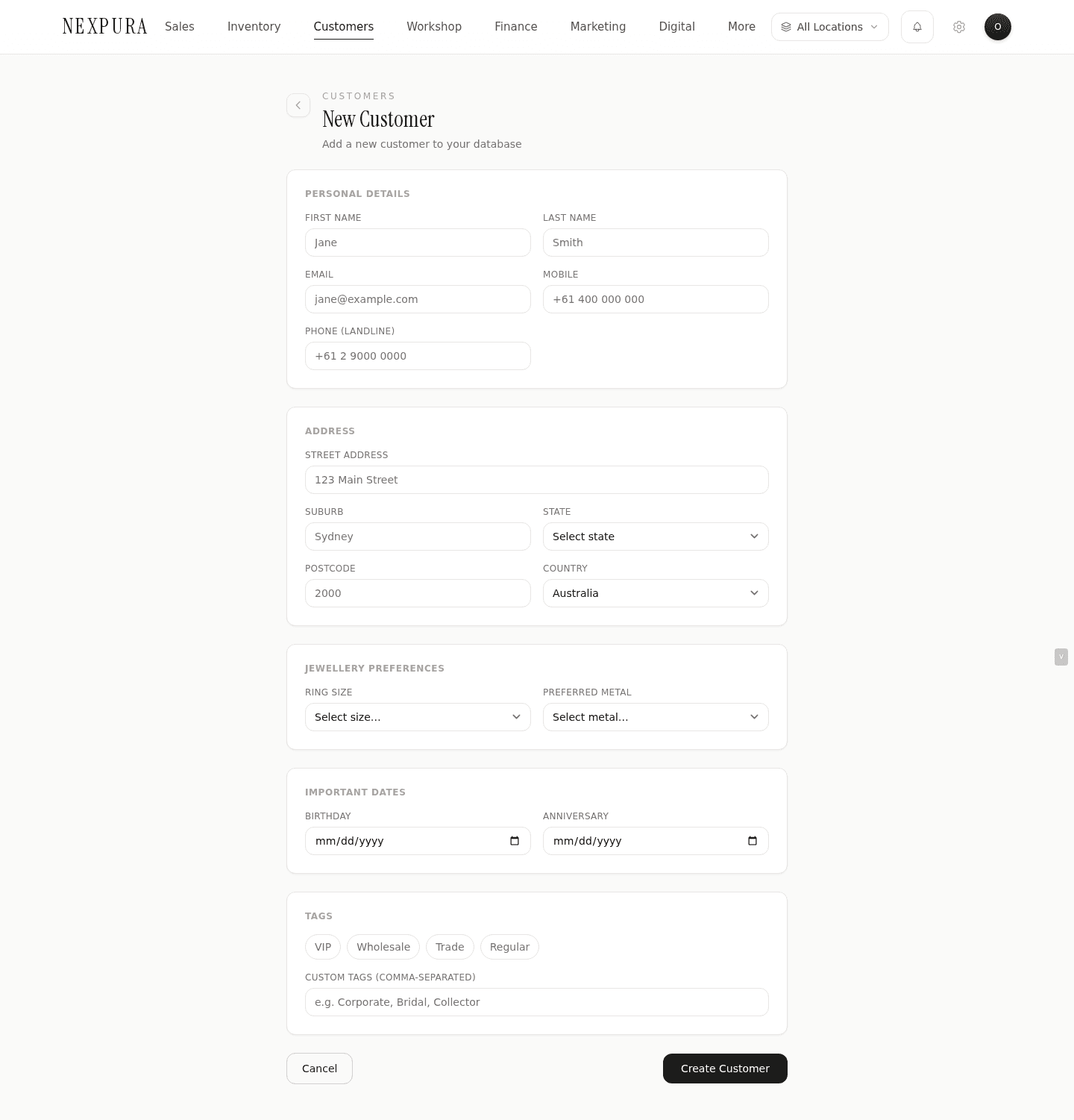
2. Fill personal details
First name, last name, email, mobile, landline phone. Email and phone are the workflow handles — repair-ready notifications, marketing campaigns, 1:1 emails and service reminders all key off these. Mobile is the preferred number for any messaging surface (channel is configurable per tenant — automatic reminders dispatch via whichever notification channel your tenant has wired up); landline is the fallback for in-store calls.
Email is the only field that triggers a uniqueness check on save. Mobile and phone can be shared (couples who buy jointly, business accounts sharing a switchboard) — the system doesn't treat shared numbers as duplicates.
3. Fill address
Street, suburb, state, postcode, country. State is a dropdown limited to Australian states (NSW / VIC / QLD / WA / SA / TAS / ACT / NT) — for international customers, leave state blank and put the international subdivision (county, prefecture, region) in the street line if needed. Country defaults to Australia; the dropdown covers Australia / New Zealand / United Kingdom / United States / Canada — for anywhere else, the field isn't restrictive (overridable via the underlying schema if your tenant needs an extended list).
Address fields write encrypted into the pii_enc bundle on save; the plaintext columns are nulled. The detail page and the CSV export decrypt on read — staff see the values normally, the underlying row carries the encrypted bundle. (See the overview page for the threat-model rationale.)
4. Fill jewellery preferences
Ring size is a dropdown across the standard A–Z+ half-size ladder used in Australia / UK; preferred metal is a five-way dropdown (Yellow Gold / White Gold / Rose Gold / Platinum / Silver). Both surface on the detail page's hero card as pill chips, so staff helping the customer in-store see the preferences immediately without opening the edit form.
Wrist size, gold preference (e.g. “18ct” or “22ct” — separate from the colour-of-gold metal field), and allergies are also stored on the customer record and surface on the detail page hero card. The allergies field renders with a red warning chip on the detail page when populated — visible to every staff member who opens the customer, so a life-relevant constraint (e.g. nickel allergy) is impossible to miss when discussing a new piece.
5. Fill important dates
Birthday and anniversary are date pickers. Both are optional, both feed /reminders for the upcoming-this-month surface, and both are eligible triggers for the corresponding marketing automations. (Automation execution is partial today — see Anniversary, birthday, and reminders for the full picture of what fires automatically and what surfaces manually.)
Spouse name and spouse birthday — captured for the significant-other context that drives gift-purchase conversations. These also feed the upcoming-events surface on /reminders. The form keeps these together with the customer's own dates because the workflow that uses them (the “your wife's birthday is in two weeks, here are three pieces in her preferred metal” conversation) treats them as one unit.
6. Apply tags
Four canonical tags — VIP, Wholesale, Trade, Regular — live as chip buttons. Click a chip to toggle the tag. Beneath the chips is a custom-tags input that accepts a comma-separated list of free-form tags — Corporate, Bridal, Collector, an event name, a sales-rep name, whatever your tenant needs to segment by.
The VIP chip is special: selecting it ALSO writes is_vip = true to the customer row alongside adding the string to the tags array. This keeps the KPI strip, the list filter, and the segments page able to count VIP customers without scanning JSONB. The other three canonical tags and any custom tag live only in the tags array.
7. Save and resolve duplicates
Click Create Customer (new) or Save Changes (edit) at the bottom of the form. The form runs server-side validation (Zod schema) and submits via a server action.
On a new-customer save, if the email matches an existing customer in the same tenant, the save fails with an inline error message and a Use existing customer → link that opens the existing record. The form preserves all the values the operator typed — nothing is lost on the rejection — so you can pivot the workflow into the existing record without re-typing. (The form lifts every field to React state for exactly this reason — older versions used uncontrolled defaults and dropped the typed data when the server returned a validation error.)
On a successful new-customer save, the form redirects to the detail page at /customers/[id] — unless the form was opened from inside another form (e.g. clicking + New from a repair intake), in which case it redirects back to that form with the new customer pre-selected. On edit, the form redirects back to the detail page.
8. Read the audit log
Every save — new or edit — writes a row to audit_logs with the action, the user who made it, the timestamp, and the full before/after diff. The per-customer audit history page lives at /customers/[id]/history — every recorded change on this customer, most recent first, with each field rendered as a structured diff. Useful for “who changed this customer's phone number?” and similarly for any disputed edit. (This is the audit-log surface; the customer's transactional history — purchases, repairs, bespoke — lives on the detail-page tabs walked through in Customer history.)
9. Archive
The Archive button on the customer detail page (top right, beside Edit Profile) soft-deletes the row. The customer drops off the active list, the KPI counts update, the search no longer surfaces them in the regular flow. The underlying record stays in the database — invoices, repairs, sales, and every other linked record keep their customer reference intact, so historical reports still resolve the customer name. Archive is owner / manager-only; the affordance is hidden for staff.
Opening an archived customer's detail URL renders a read-only archived interstitial with the archived-on date and a back-to-list link, instead of the full detail page. There's no in-app restore today — if you need an archived row restored, ask support and we'll un-archive it server-side.
Common questions
Why is the only uniqueness check on email, not phone?
Different real-world cardinality. Two customers can honestly share a phone number — a couple buying jointly, two siblings on a family plan, a business account that puts the company switchboard on every employee record. Treating shared phones as duplicates would block legitimate adds and force operators into workarounds (entering a fake number, skipping the field entirely). Email is structurally different: most adult customers have a personal email that's genuinely theirs alone, and the one place we hit hard pain when emails collide is the marketing surface — sending the same campaign to the same address twice because the same person ended up on the customer list twice.
The trade-off: a customer with no email and a shared phone gets added clean every time. A customer with no email and no phone is plausibly a duplicate of an existing no-email no-phone row, and the system can't catch that — fuzzy name matching is a known follow-up. For now, if you suspect a duplicate on name alone, use the search before saving.
Why did notes move off the form and onto the detail page?
The legacy plaintext notes column was a single textarea — one field, one author, no timestamp, no audit. Every save overwrote the previous content; if two staff members made notes the same week, one of them lost the other's work. The pattern broke down for any tenant past a handful of staff.
The replacement is a polymorphic notes timeline on the detail page's Notes tab — every note is a row in a dedicated table with author, timestamp, edit history, and delete-with-audit. Notes from different staff stack chronologically; nothing overwrites anything. The legacy column was migrated into the new timeline as a single “migrated from legacy notes” entry per customer, so no prior content was lost. The form removes the textarea entirely because every flow that wanted to add a note is better served by the timeline.
Why does the form pre-fill country = Australia instead of leaving it blank?
Operator-time-saved tradeoff. The current customer base is overwhelmingly Australian — Australian tenants entering Australian customers were typing “Australia” into a blank field 95% of the time, which is friction. Pre-filling the dominant case keeps the dominant case zero-effort and adds one extra click (open the dropdown, select something else) for the rare case. The dropdown isn't restrictive — picking a different country works. If you're a tenant with a non-Australian-dominant base, ask us and we'll wire the default to your country.
I made a typo in a customer's name months ago — can I see what it used to be?
Yes — the audit log captures every save. Open the customer's detail page, then visit /customers/[id]/history — the page lists every recorded edit chronologically, with each changed field rendered as a structured before / after diff. The user who made the edit, the timestamp, and the action (created, updated, archived) are all there. The same events feed a single tenant-wide audit trail; the per-customer page is that trail filtered to one row. The tenant-wide Activity Log screen has been retired, so the per-record history view is the way to read it in-app today — recording is unaffected.
The customer told me to remove their record entirely — can I delete instead of archive?
Archive (soft-delete) is the only one-click option; hard-delete isn't in the UI. Soft-delete drops the customer off active surfaces and is enough for most practical purposes — the linked records (invoices, repairs, bespoke jobs) still resolve the customer name in reports, which is what most stores actually need.
For genuine erasure under a privacy regulation request (GDPR right to erasure, similar), contact support with the customer ID. We'll walk you through the right scope — most regulations expect the customer's identifying PII to be removed while preserving the financial / audit trail of transactions that happened (de-identified). The CSV export at the customer level can be the evidence-of-data-held part of the response.
Troubleshooting
Save returns “A customer with this email already exists”
Symptom: the new-customer save fails with the duplicate-email error message and a Use existing customer → link. Cause: another customer in your tenant is already saved with the same email address. Most often: a previous staff member added them, or a web enquiry created the record automatically, or a Shopify / WooCommerce sync brought them in. Fix: click the Use existing customer link to open the existing row. If it's the same person, update that record instead. If it's genuinely a different person who happens to share an email (rare — shared family account), clear the email field on this new customer and save with phone-only; the email can't be the unique handle for both.
Edit Profile button is missing on the detail page
Symptom:the top-right action bar on a customer's detail page shows Archive but not Edit Profile. Cause:your role doesn't carry the edit_customer permission. The button is hidden when the permission is denied (the server action also blocks the update, so the button being missing is the UI mirror of an enforced gate). Fix: ask your tenant owner or manager to grant edit_customer via the role matrix at /settings/permissions — or have a manager / owner make the edit on your behalf. The permission is granular: roles can be configured to view customers without being able to edit them.
The form lost what I typed when the save failed
Symptom: the save returned a validation error and the form reset back to empty / pre-edit values. Cause: this was a real bug pre-2026-05 and should be fixed today — every visible field is now lifted to React state, so state survives even if the page re-renders through the loading skeleton. Fix:if you're still hitting this, you may be on a very stale browser cache or a stuck service worker. Hard-refresh the page (Cmd+Shift+R), re-open the form, and the latest behaviour preserves typed values across server errors. If the regression persists after a hard refresh, contact support with the steps that reproduce it.
Birthday or anniversary date is rendering as a year I didn't enter
Symptom:the detail page hero card shows e.g. “28 March 1970” for a customer where you only knew the day and month. Cause: the birthday and anniversary columns are date type, meaning year-month-day is the only shape they accept. A date picker forces some year value; without an explicit year, browsers default to the current year or a sentinel that gets stored as-is. The hero card formats with the year by default for any populated date. Fix:if the year is wrong, just edit the customer and update the date with the correct year. There's no day-month-only mode today — workaround: enter a consistent sentinel year (1900 is common) for customers where the year isn't known.
Archive doesn't hide the customer from the search results
Symptom:you archived a customer but their name still surfaces under the “Matches across all customers” server-search section. Cause: two likely candidates. (1) The local UI has a cached copy of the customer list — the server-side query correctly excludes archived rows. (2) The fuzzy- search RPC has a subtle exclusion gap; we audit this path periodically. Fix: hard-refresh the list page (Cmd+Shift+R) to drop the cached set. If the archived customer still surfaces after a hard refresh, capture the customer ID and contact support — we'll confirm the soft-delete column is set and verify the search RPC.
Related
- The customer record — every field this form writes, the wider list-page surface, and the encrypted-PII contract
- Customer history — the detail-page tab structure showing every linked record after the customer is saved
- Anniversary, birthday, and reminders — what the date fields you enter on this form actually drive
- Web enquiries — how an inbound enquiry creates a customer record without anyone opening this form
- Data import — bulk-loading customers from another system instead of typing them in one at a time