Appraisals
Appraisal types — insurance, estate, retail, wholesale, damage, other — and the draft → in-progress → completed → issued workflow that ends with a PDF certificate sent to the customer.
Quick reference
- Appraisals live at /appraisals. Create at /appraisals/new, detail at /appraisals/[id].
- Six appraisal types: Insurance, Estate, Retail, Wholesale, Damage, Other. The type captures the valuation purpose — the resulting PDF reads differently depending on which audience it's being prepared for.
- Four workflow states: Draft → In progress → Completed → Issued. Plus Expired for issued appraisals past their valid_until date.
- Issued appraisals generate a PDF certificate, attached to the customer record. The page exposes Email appraisal and Send insurance valuation actions for getting the certificate to the customer.
- Appraisals roll up into the workshop hub's Appraisals pending KPI (counts draft + in_progress) and feed into the unified workshop queue at /workshop/jobs alongside repairs and bespoke.
The four-state walkthrough
1. Create draft
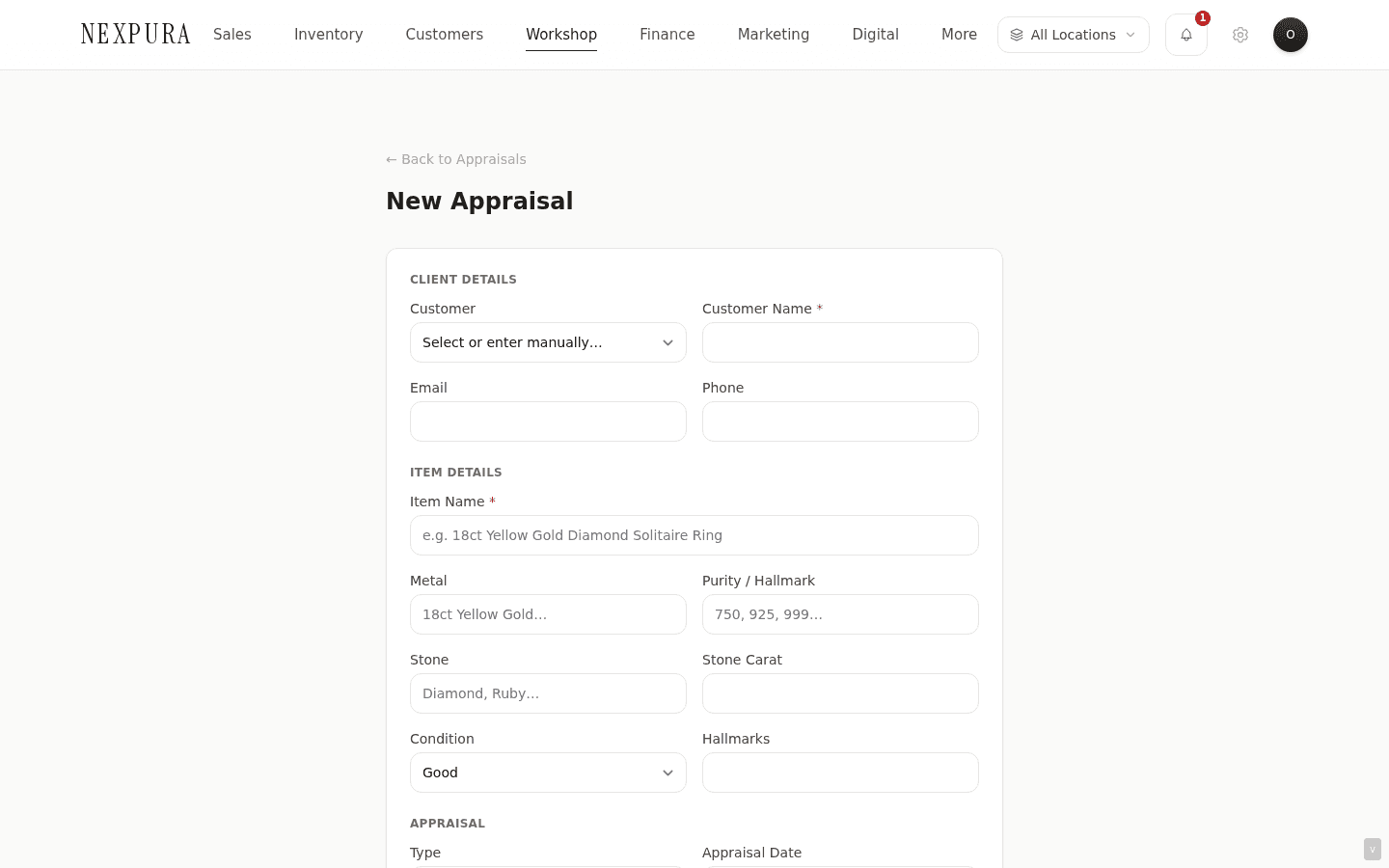
Open /appraisals/new. Pick the customer, type the item name (“1.5ct princess-cut diamond engagement ring”), select the appraisal type from the six options. Set a fee if you charge for the appraisal itself; set the appraisal date and the valid_until date if the valuation is being issued for a fixed-term purpose (insurance is usually a fixed term).
Save without filling everything in — the form will write the row with status = draft and surface it on the appraisals list. You come back to it later when you have the bench's assessment in hand.
2. Fill in valuation details
On the draft's detail page, add the structured fields the certificate needs: metal type and weight, stone(s) and their grades, dimensions, hallmark and maker information, condition notes, the appraised value, and any identifying photographs.
The draft state is the working state — anything can change, there's no audit trail penalty for editing the value before you issue it. Save as you go; the page tracks unsaved-changes so you don't lose work to a navigation.
3. Mark in progress (status: in_progress)
Bench-side work is underway — examining the piece, confirming weights, reading the certificate or grading report, taking the photographs. Flip the status to in_progress so the team can see “this is being worked on right now” on the appraisals list and on the workshop hub.
For pieces that come in with an existing GIA / IGI / other grading certificate, attach a scan or photo of that document at this stage — the appraisal record holds the source documents the valuation rests on, which is what makes the issued certificate defensible.
4. Complete (status: completed)
All fields filled, value set, photos attached. Move to completed to mark the appraisal's working phase done. The piece is ready to be returned to the customer; the certificate hasn't been formally issued yet.
Use the gap between completed and issued for an internal sanity check — a second pair of eyes on the value, a colleague reading the descriptive language for accuracy, the owner signing off on the appraised value before it goes out under your store's letterhead. Once you issue, it's a formal document; the completion gate is the last clean moment to fix anything.
5. Issue (status: issued)
Click Issue appraisal on the detail page. The dialog confirms the action; on confirmation, the status flips to issued and the PDF certificate is generated and attached to the customer record. The certificate carries your store's letterhead, the structured valuation fields, the photographs, and your name as the issuing valuer.
From the issued-state detail page, two actions get the certificate to the customer: Email appraisal certificate sends the PDF to the customer's email; Send insurance valuation sends the insurance-specific version (formatted for the customer to forward to their insurer). Both use the customer's email on file — verify it's correct before issuing.
Screenshot pending
Issued appraisal detail page — green 'Issued' status badge, the appraised-value figure prominent, an 'Email appraisal' button and 'Send insurance valuation' button side-by-side, the customer's email shown next to each.
6. Expiry (status: expired)
Issued appraisals with a valid_until date in the past show as expired on the list. The certificate doesn't lose force as a historical record — it's still the document the appraisal was on the date issued — but the customer will likely need a refresh for ongoing insurance cover. The expired flag is the surface you'd use to send a “your valuation is due for renewal” outreach.
Common questions
What's the difference between an Insurance appraisal and a Retail appraisal?
An Insurance appraisal records the replacement value — what it would cost the insurer to put the customer back in possession of an equivalent piece at full retail today. A Retail appraisal records the current retail-counter value of the specific piece, often used for the customer's own records or for selling-on. The structured fields are the same; the appraised-value number is different because it's answering a different question, and the issued PDF's narrative language reflects the audience.
Can I edit an appraisal after it's been issued?
No — once issued, the appraisal is a formal document and the detail page's editable fields lock down. If something needs to change (a typo, a wrong weight, a re-grade after a follow-up examination), issue a corrected appraisal as a new record with a note in the description referencing the superseded one. The superseded record stays on file with its issued status for the audit trail — which is the right behaviour for a formal valuation, even when the consequence is more admin work for a simple correction.
Why does the certificate sit on the customer record rather than just being emailed?
Two reasons. First, the customer often misplaces the email — when they need the certificate years later for an insurance claim or to resell the piece, you having the canonical copy is the difference between “yes here it is” and “let me reconstruct this”. Second, when the piece changes hands (a probate transfer, a resale) the new owner walks into your store with the customer's name and you can pull the original valuation from the historical record — the certificate's value as a provenance document compounds across the piece's lifetime, not just at the moment of issue.
How does an appraisal relate to a Nexpura passport?
They sit alongside each other. An appraisal is a formal valuation — a fee paid, a certificate issued, a number on the value the customer or their insurer cares about. A passport (see Verify Passport overview) is a provenance record — the piece, the maker, the chain of ownership, accessible via a QR code that survives the piece's life. Many pieces will end up with both: the appraisal answers “what's it worth?” and the passport answers “what is it and where has it been?”
Do appraisals fire the customer-ready notification?
No — the auto-notification on stage change is for repair and bespoke ready transitions, where the piece is on a shelf waiting for the customer to collect. Appraisals don't involve a pickup queue (the piece typically goes back to the customer when they pick it up from a counter visit, separately from when the certificate is issued). The certificate delivery is explicit: you click Email appraisal certificate or Send insurance valuation when you're ready to send.
Can I charge an appraisal fee through the POS?
The appraisal record carries a fee field that reads as a line in your finance reports, but it's not a POS sale row. If you want a paper receipt for the fee at the counter, ring the appraisal fee through the POS as a manual sale (see Processing a sale) referencing the appraisal number in the line description. That gives the customer a tax receipt for the appraisal fee and your books a clean POS-side record.
Troubleshooting
Can't issue an appraisal — the button is greyed out
Symptom: theIssue appraisal button on the detail page is disabled even though the appraisal looks complete. Cause: the status is still draft or in_progress — issue is only available from completed so the workflow can't skip the colleague-review checkpoint. Fix: advance the status to completed first, then issue. If the appraisal genuinely is ready to issue with no intermediate completion check, the two clicks are still in the right order — completion is the formal moment the working phase closes.
Customer says the certificate email never arrived
Symptom:clicked Email appraisal certificate, no error shown, customer is on the phone saying nothing landed. Cause:a few possibilities — wrong email on the customer record, the message got filtered into spam, or the customer's mailbox is rejecting attachments above a size limit (appraisal PDFs with photographs can run 5MB+). Fix: confirm the email on /customers/[id] is correct; ask the customer to check spam/junk; if the attachment size is the issue, download the PDF from the detail page and share via a file link instead.
Appraised-value figure isn't adding to the totals I expected
Symptom:the appraisals list's total-value chip is lower than what you'd expect from your issued appraisals. Cause: the total counts only status = issued rows with a non-null appraised_value — draft, in-progress, and completed rows don't roll up because they aren't formal yet. Fix:filter the list to issued-only to see the rows feeding the total; if a row should be issued but isn't, the status is the place to fix it (not the total).
Expired appraisals still showing on the workshop hub KPI
Symptom: theAppraisals pending tile shows a count that's higher than the number of actively-working appraisals. Cause: the KPI counts draft + in_progress — an old draft that was never completed is still technically “pending” from the system's point of view. Fix: open the appraisals list filtered to draft and either progress the live ones or set the stale ones tocancelled so they drop off the pending count. A periodic cleanup pass keeps the KPI honest.
Related
- Workshop overview — where the appraisals queue sits in the hub
- Verify Passport overview — the provenance record alongside the appraisal
- Photo attachments — adding identifying photographs to an appraisal
- Processing a sale — ringing an appraisal fee through the POS
- Customer history — where the issued certificate lives long-term