Business profile
Configure your store name, address, currency, GST, timezone, and logo — the foundation every other surface reads from.
Quick reference
- Business identity (name, type, ABN, address, logo) lives on
/settings/business-profile. - Currency, timezone, and tax settings live on the main
/settingspage under the Tax & Currency tab. - These values appear on invoices, receipts, customer-facing surfaces, and the overdue / day-close calculations.
- Timezone drives every “overdue” badge and the daily reconciliation cut-off, so set it correctly before you start taking real work.
Walkthrough
1. Open the business profile page
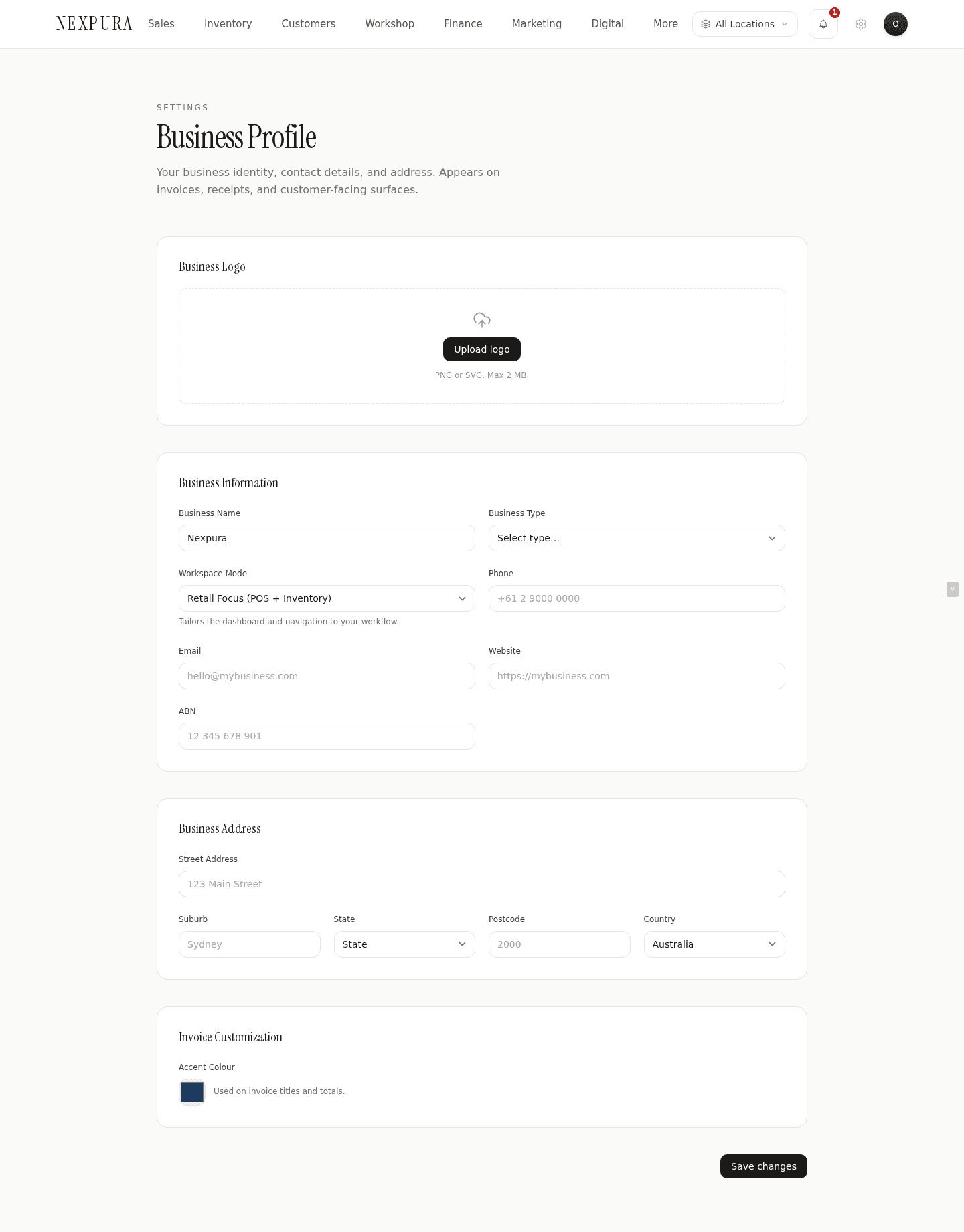
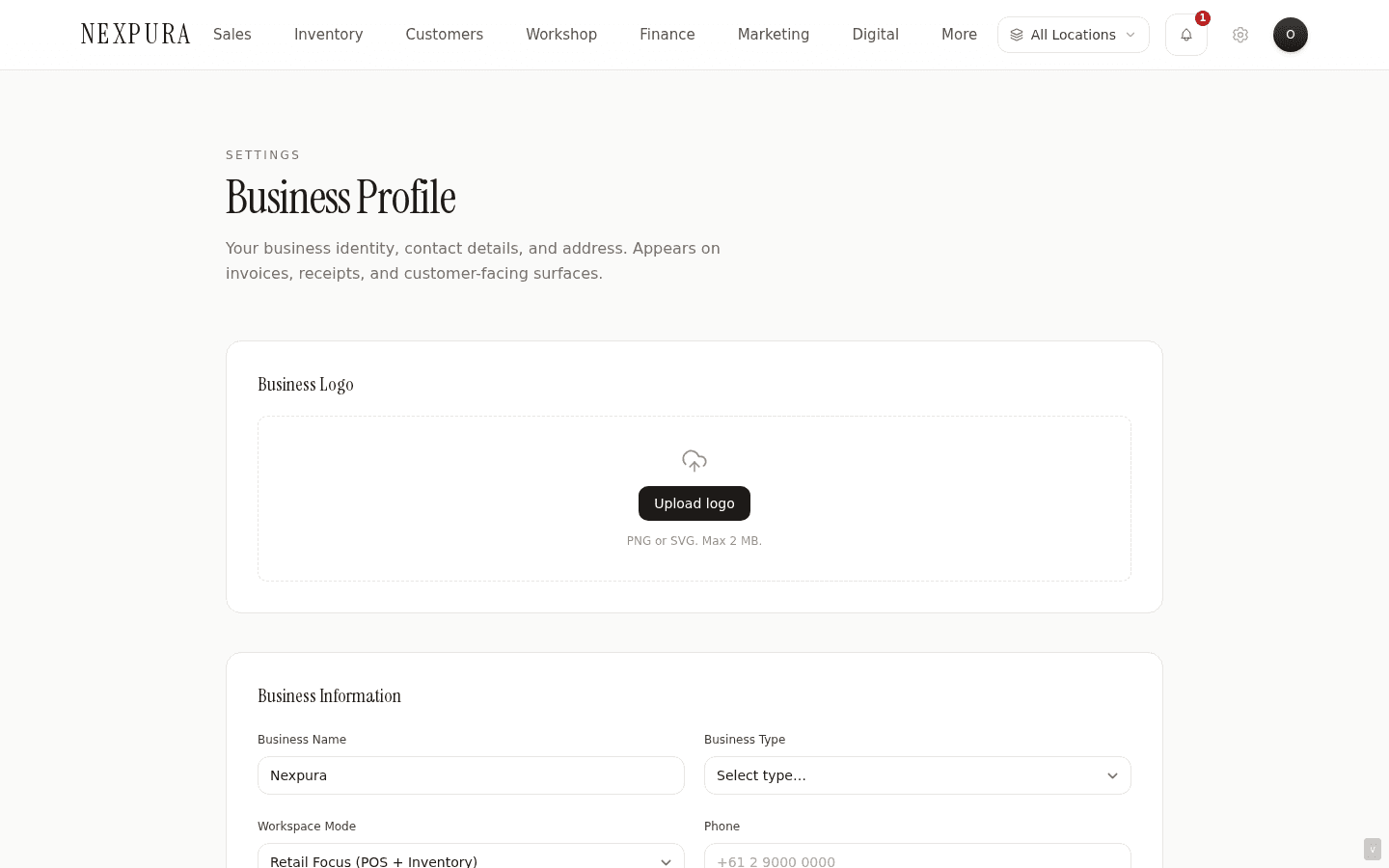
From the workspace, go to /settings/business-profile. The page has four sections: Business Logo, Business Information, Business Address, and Invoice Customization. Edits are not live until you click Save changes at the bottom.
2. Set your business identity
Under Business Information, fill in:
- Business name — what shows on invoices and receipts.
- Business type — Jeweller, Watchmaker, Goldsmith, Silversmith, Designer / Studio, Retailer, or Wholesaler.
- Workspace mode — Full, Retail Focus, Workshop Focus, or Bespoke Focus. This tailors the dashboard and navigation to your workflow. Most users start on Full.
- Phone, email, website, ABN— appear on invoices and quotes. ABN is the Australian Business Number; if you're outside AU, use the equivalent tax ID field.
3. Upload your logo
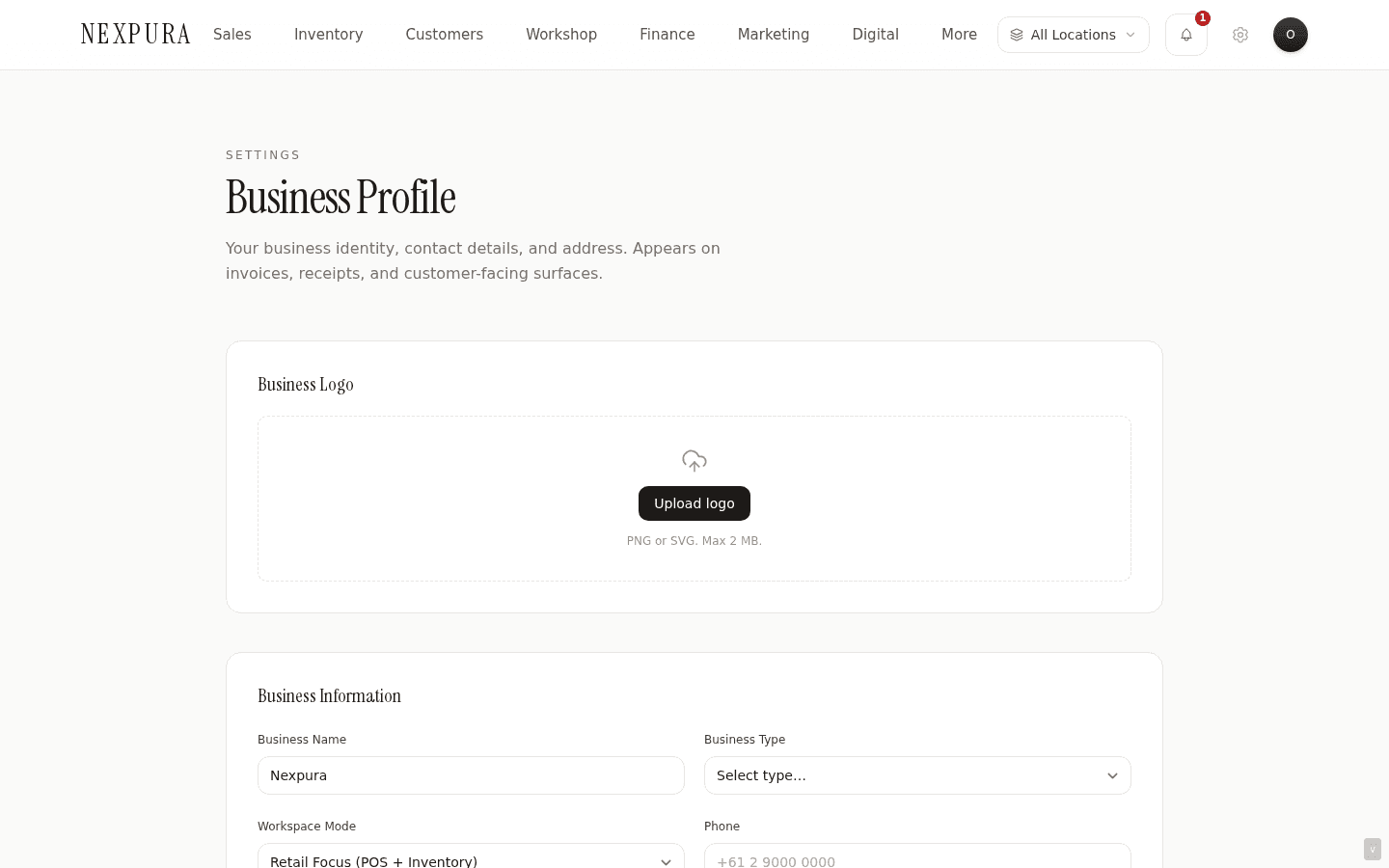
The Business Logo section accepts a single image upload. PNG or JPG; transparent backgrounds work best because the logo appears on white invoice headers. Once uploaded, the preview shows inline; the logo writes to your tenant record and flows to invoice and receipt templates automatically.
4. Enter your business address
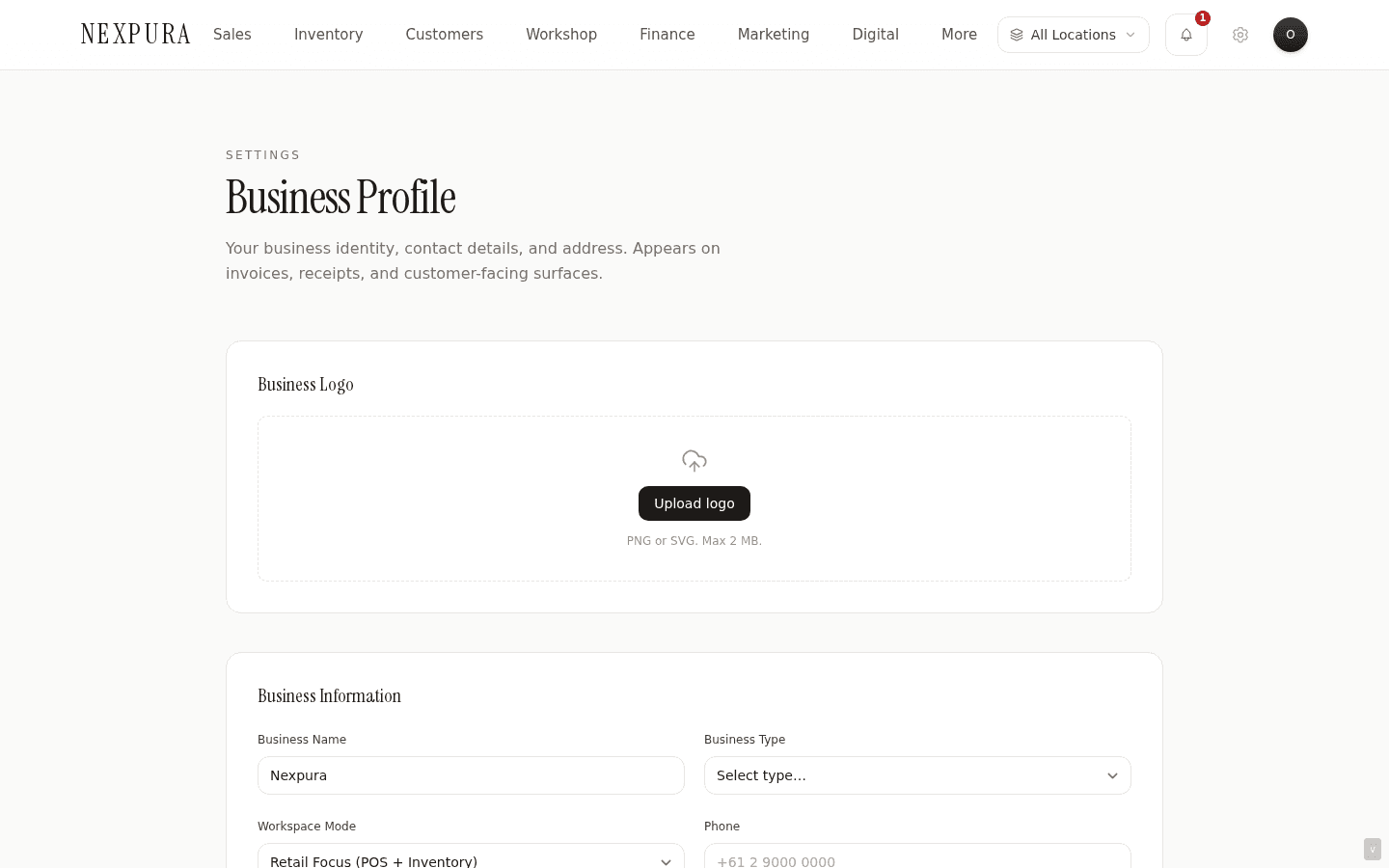
Under Business Address: street address, suburb, state, postcode, country. State is a dropdown for Australian states (NSW, VIC, QLD, WA, SA, TAS, ACT, NT); for other countries you can type the value freely. The address appears on invoices, quotes, and your storefront subdomain's contact page.
5. Set currency, timezone, and tax
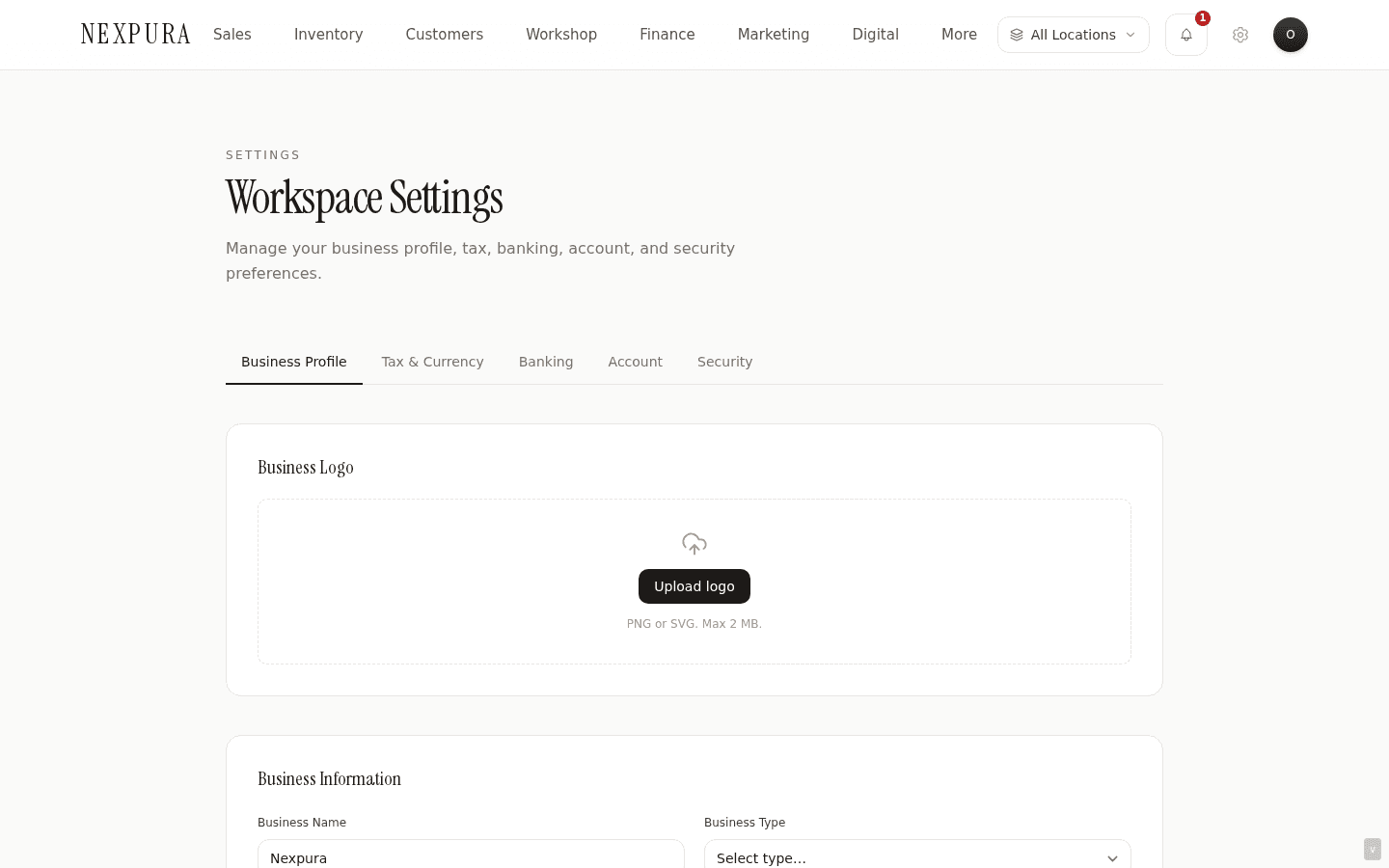
Open /settings (the main settings page) and click the Tax & Currency tab. This is a different page from /settings/business-profile — Nexpura keeps the financial settings together with banking and account, separate from the identity fields.
- Currency — AUD, NZD, USD, GBP, or EUR. This sets the symbol on invoices and the formatting in reports.
- Timezone — the dropdown lists the Australian timezones first, then Pacific/Auckland, Europe/London, and America/New_York. Pick yours. Every overdue calculation and day-close cut-off uses this value.
- Tax name — GST, VAT, Tax, or None.
- Tax rate — entered as a percentage (10 for Australian GST, 20 for UK VAT, etc.).
- Tax inclusive — checkbox. When ticked, your retail prices already include tax. When unticked, tax is added on top at the register.
6. Customize your invoice accent
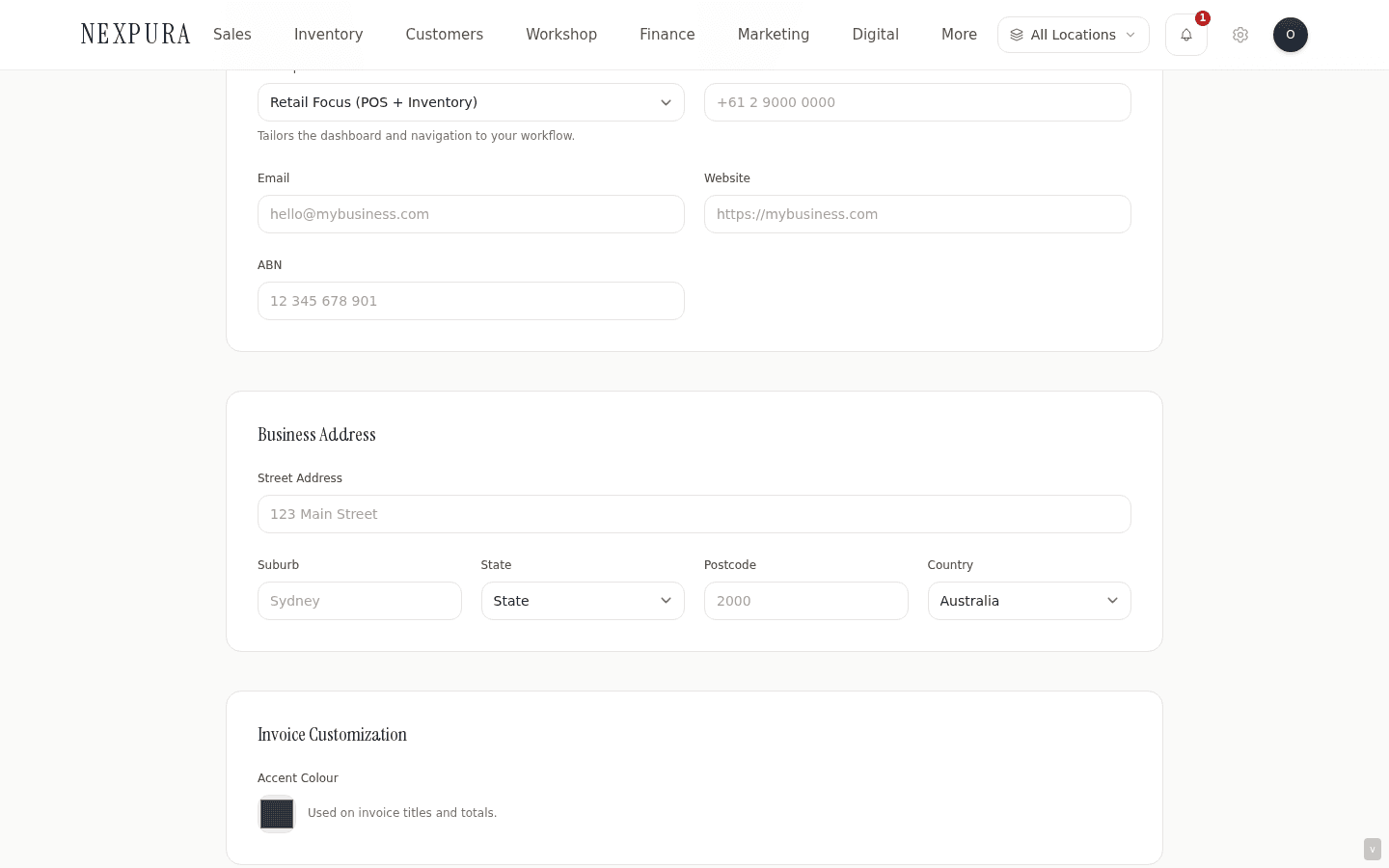
Back on /settings/business-profile, the Invoice Customization section has a single colour picker for the accent colour. It applies to invoice titles and totals — the small splash of your brand colour on an otherwise neutral document. Default is a dark navy.
7. Save and verify
Click Save changes at the bottom of each tab. A toast appears on success. Open the dashboard and create a test quote — the business name, address, currency, tax line, and accent colour should all be present.
Screenshot pending
Success toast confirming the profile saved, with the dashboard reflecting the new business name in the header.
Common questions
Why does timezone matter so much?
Timezone is the reference for every time-bound surface in the product. A repair marked “due Friday” is due at midnight Friday in your timezone— not UTC. Day-close reconciliation closes the cash drawer at your local midnight. Aging-pickup filters count days from the same local clock. Set this wrong and overdue badges drift by a day, which is the kind of thing nobody notices until they're explaining it to a customer.
Can I change currency later?
The currency field on /settings is editable at any time, but changing it doesn't re-denominate existing records. Past sales, invoices, and reports keep the currency they were written in; only new records pick up the new value. If you're mid-trading and need to switch (e.g. opening a second store in a different country), contact us first — there's no built-in conversion and you'll want to think about which records carry forward.
How is GST / VAT applied at the register?
The combination of tax rate and tax inclusive controls the math. With tax inclusive on and a 10% rate, a $110 sale records as $100 net + $10 GST. With it off, a $100 sale records as $100 net + $10 GST = $110 total. Australian jewellers typically run tax-inclusive; UK / EU stores vary by country and retailer preference. The tax line shows on every invoice and receipt.
Where does my logo actually appear?
Invoice PDFs, quote PDFs, the receipt template, and the storefront subdomain header. The dashboard header inside the workspace uses the business name only — there's no logo slot in the chrome.
Do I need an ABN to use Nexpura?
No — the field is optional. If you don't enter one, it simply doesn't appear on invoices. The field is labelled ABN because Nexpura is Australian-built; non-Australian users can enter whatever tax ID their jurisdiction uses (UK VAT number, US EIN, etc.) and the value flows through unchanged.
Troubleshooting
Logo upload fails
Symptom: upload spinner completes but the preview never shows, or an error toast appears. Cause: usually file size (anything over a few MB) or an unsupported format. Fix:resize the logo to under 1MB and export as PNG or JPG. SVGs are not supported in the logo slot. If the issue persists, check the browser console — a 413 response means the file is too large; a 415 means the format isn't accepted.
Wrong currency symbol on receipts
Symptom: receipts show AUD or $ when you expected something else. Cause:the currency field on /settings > Tax & Currency is still at the default value. Fix: change it there, save, and reprint. Existing receipts keep the symbol they were issued with; only new ones pick up the change.
Overdue dates are off by a day
Symptom: a repair you marked due Friday is showing as overdue early Friday morning, or not overdue until Saturday afternoon. Cause: timezone is set to a different region than your store actually sits in. Most commonly Australia/Sydney when the store is in Perth, or any Australian tz when the store is in London. Fix:/settings > Tax & Currency > Timezone, pick the right zone, save. The overdue badges refresh on the next page load.
ABN appears as plain text instead of formatted
Symptom: on an invoice, your ABN runs together as eleven digits instead of the standard spaced format. Cause: the field stores whatever you enter; there's no automatic ABN reformatter. Fix: enter the ABN with the standard spaces (XX XXX XXX XXX) directly in the /settings/business-profile field. The value renders verbatim on invoices.